
Bundle BuilderUsing the app
Volume bundles with free gifts
This offer type allows you to offer tiered pricing, where the discount increases as customers purchase more items. For example, you can set different discount rates for buying 5, 10, or 20 units of the same product, incentivizing customers to purchase in bulk and save more.
This feature is a great way to encourage higher order volumes and reward your customers for larger purchases.
To create a volume bundle click the Create offer button and choose Volume bundle.
Offer name
Section titled “Offer name”Internal name of your offer.
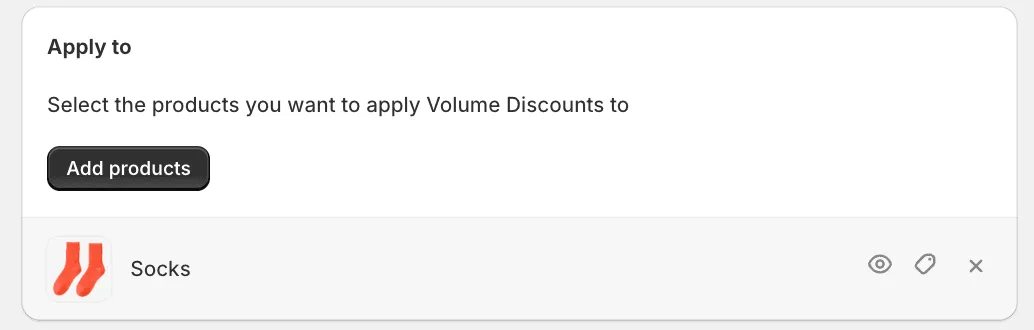
Apply to
Section titled “Apply to”Here, you can select a product that you want to offer volume discounts for.
Here, you can create discount offers themselves - Deals. You can create an unlimited number of deals.
For each deal you can specify:
- Label - these labels help capture customer attention and provide quick information about the nature of the promotion. For example, “Standard”, “Most popular”, “Best saving”, etc.\
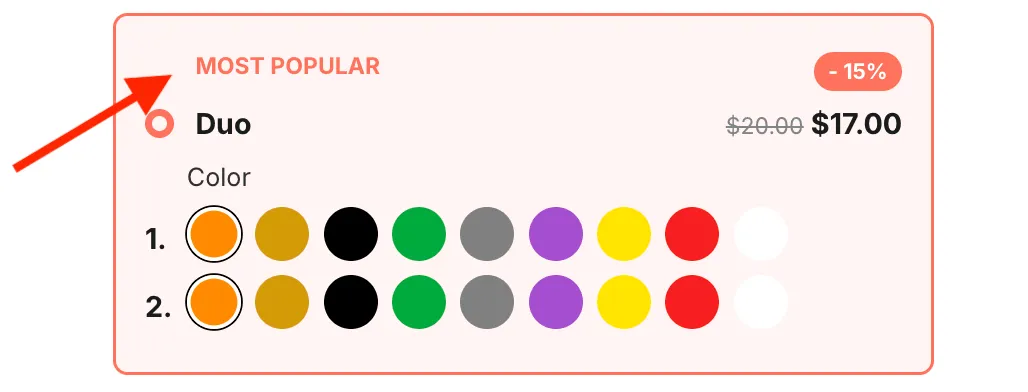
- Quantity - this is the main deal’s characteristic, which defines the quantity of the main product that this deal adds to the cart.
- Title - normally, it reflects the QTY of units the deal works for. For example, “Single”, “Duo”, “Trio”, etc.\
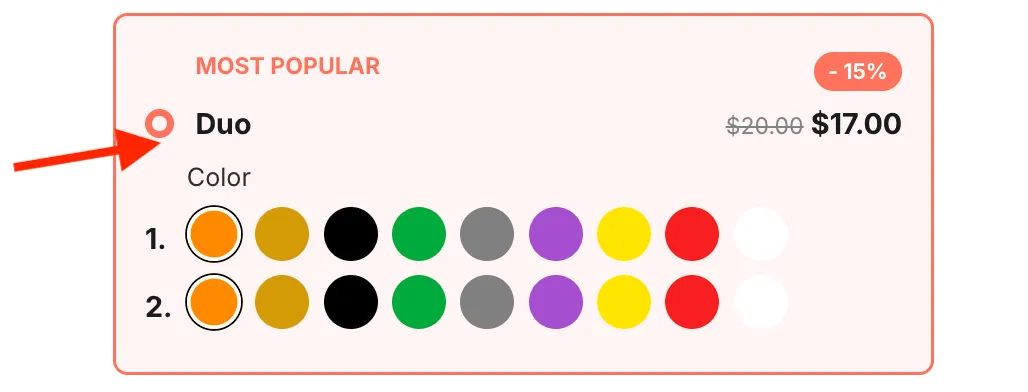
- Subtitle - it might be useful if you need to add more details for a deal.
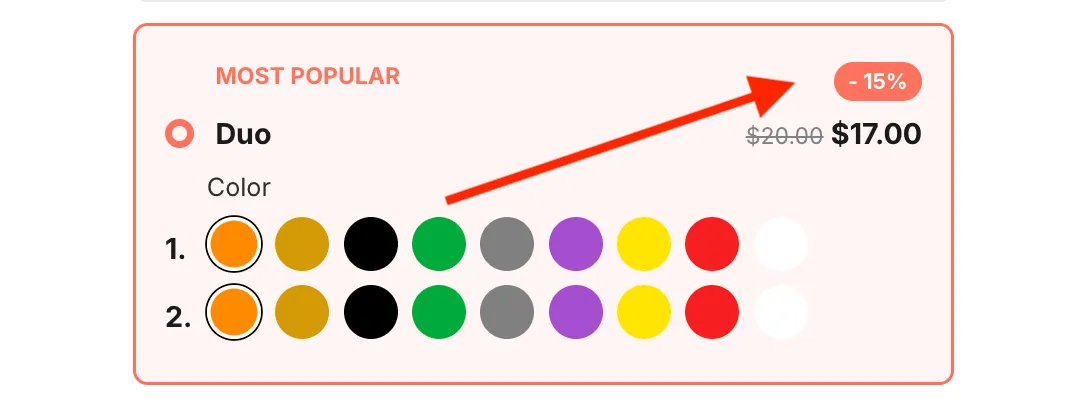
- Discount badge - a discount label to make it easy for customers to identify the value of a deal. For example, 15% OFF, 20% OFF, etc.\
- Discount type - it can be either “Percentage” or “Fixed per item”.
- Discount value an actual discount value. For example, 20% or $5 off.
- Free gifts - you can add the free gifts for each deal. See the “Free gifts” section for more details.
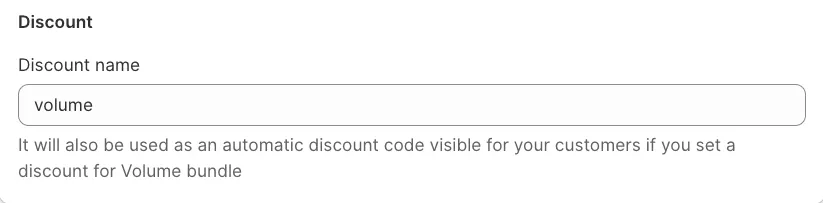
Discount name
Section titled “Discount name”Come up with a discount code that will be visible to customers at the Checkout.
Customize offer
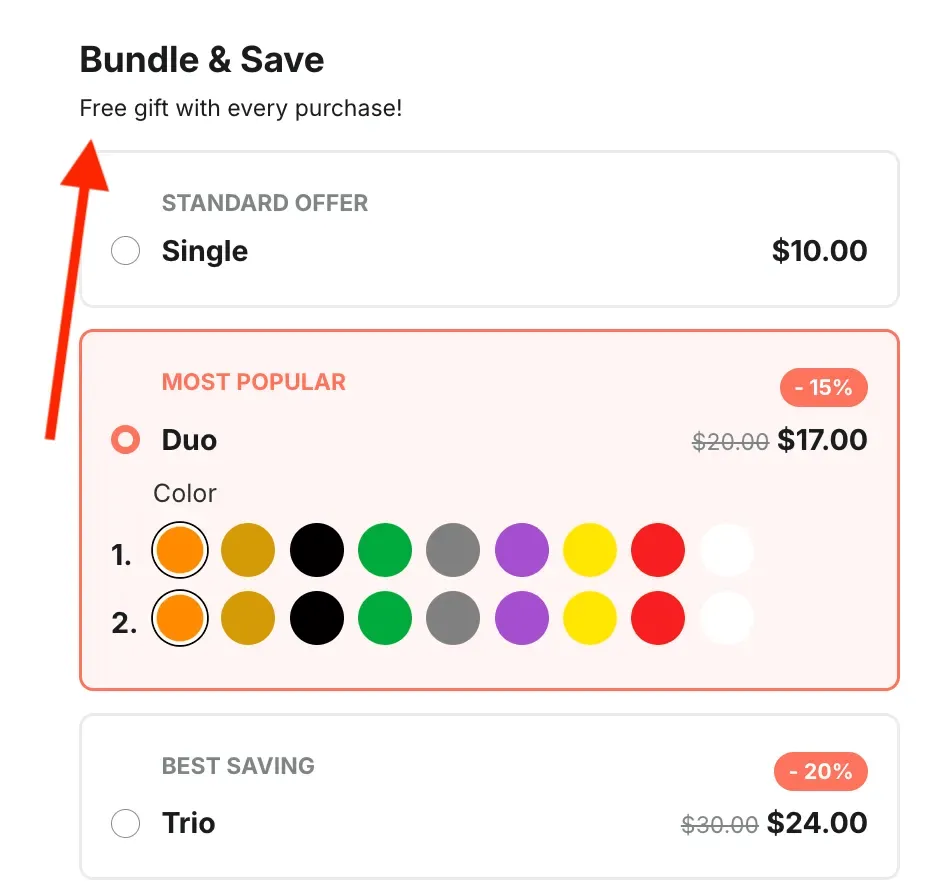
Section titled “Customize offer”Add a title and description to the entire offer.
To change the title and the description of the offer block on the storefront, switch to Translations tab within the offer. See more details in the Translations section.
Free gifts
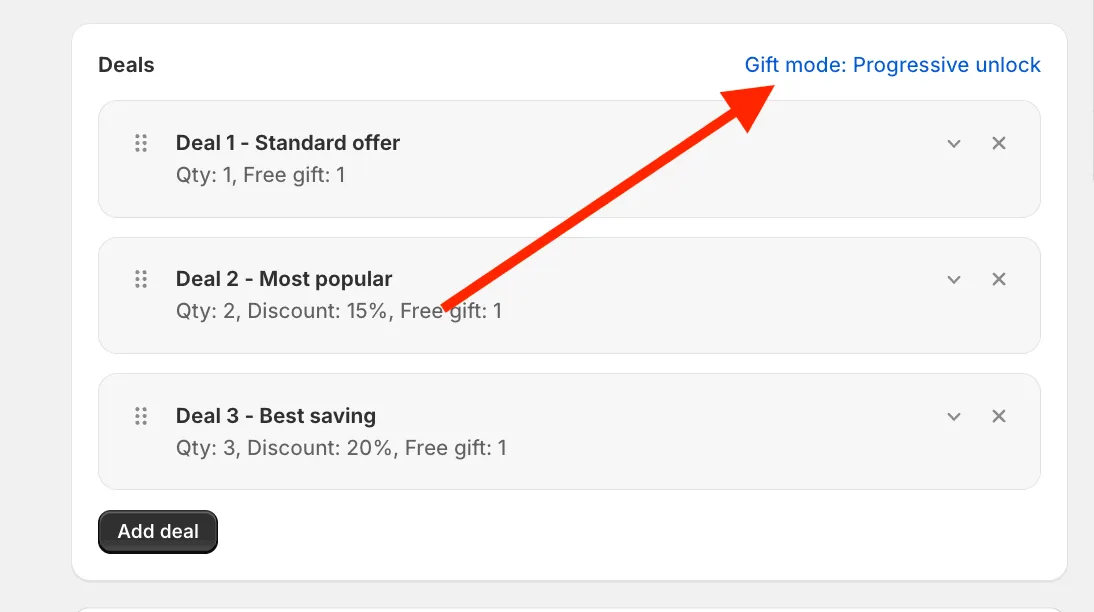
Section titled “Free gifts”Our app allows you to add the free gifts to every deal. There are two free gifts modes to match your strategy:
- Progressive unlock
- Specific per deal
To choose a mode click on the Gifts mode above the deals and choose a mode in the appeared pop-up.
Progressive unlock
This mode shows all gifts upfront but they unlocked gradually with hight deal selection, showing the shoppers a targeted quantity to unlock the certain gifts:
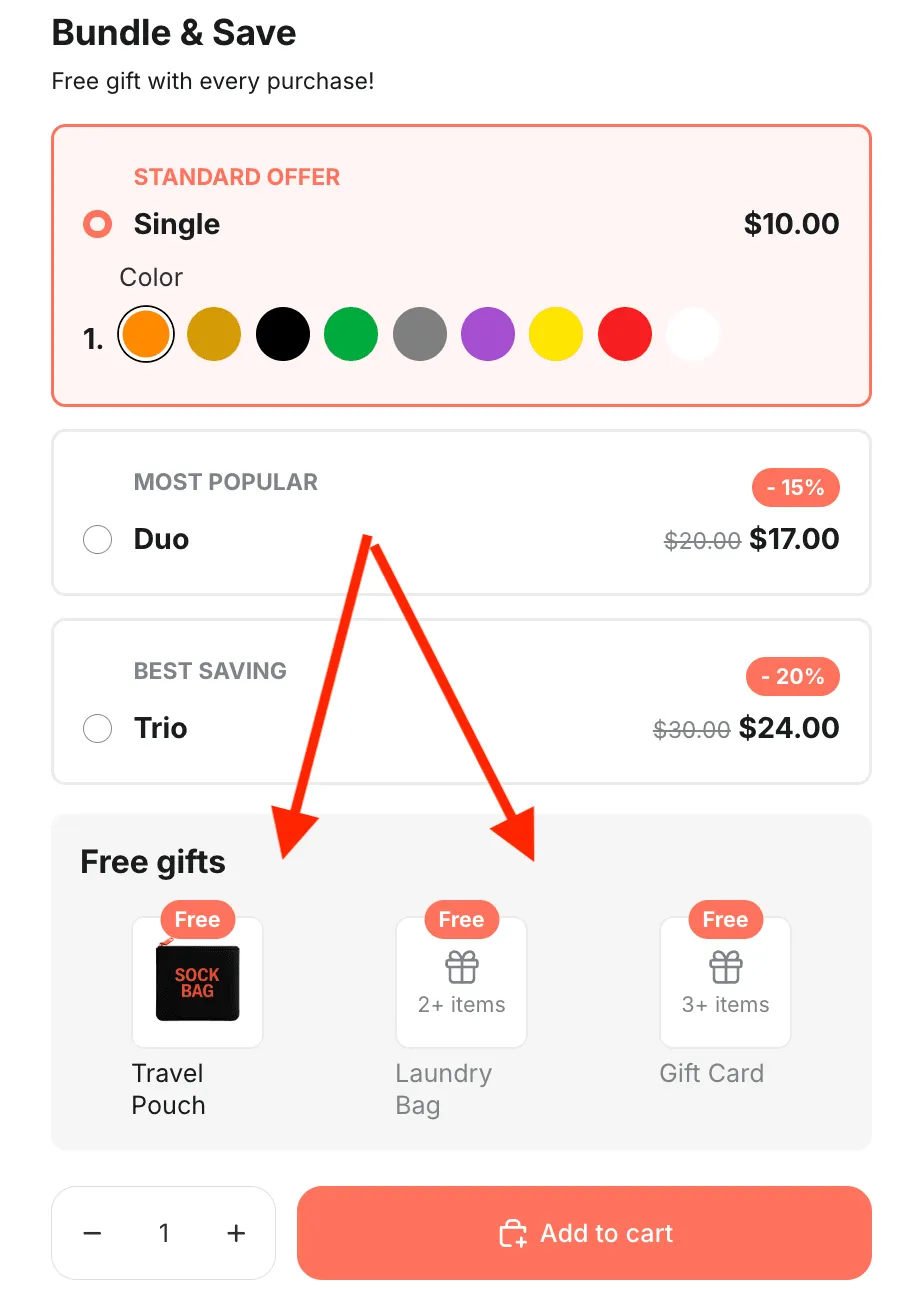
Note: in this mode the higher deal inherits the gifts added to the lower deals. Example: in the case from the screenshot below the “Most popular” deal unlock 2 gifts.
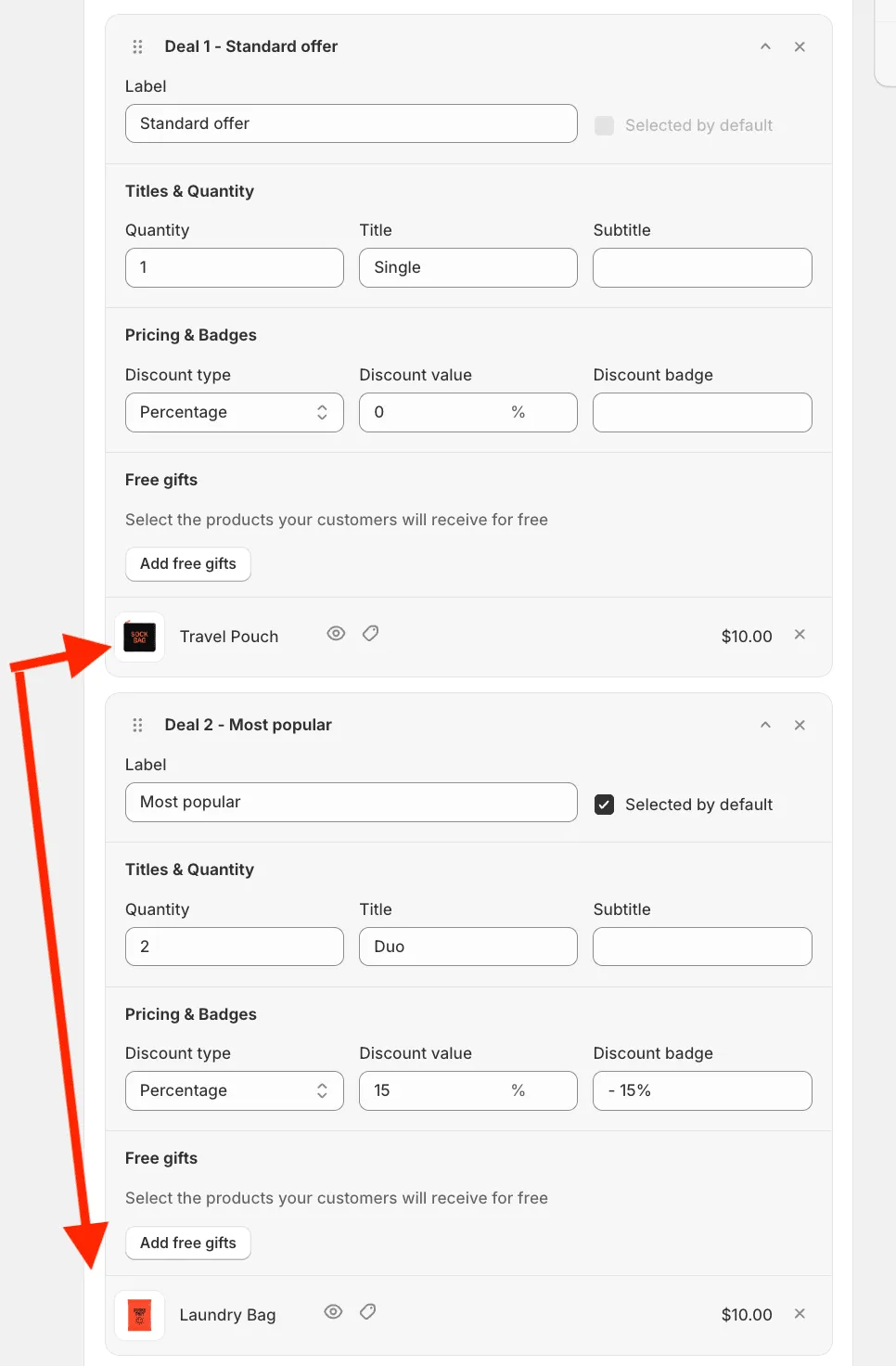
Specific per deal
This mode shows the gifts, which are assigned to certain deal only:
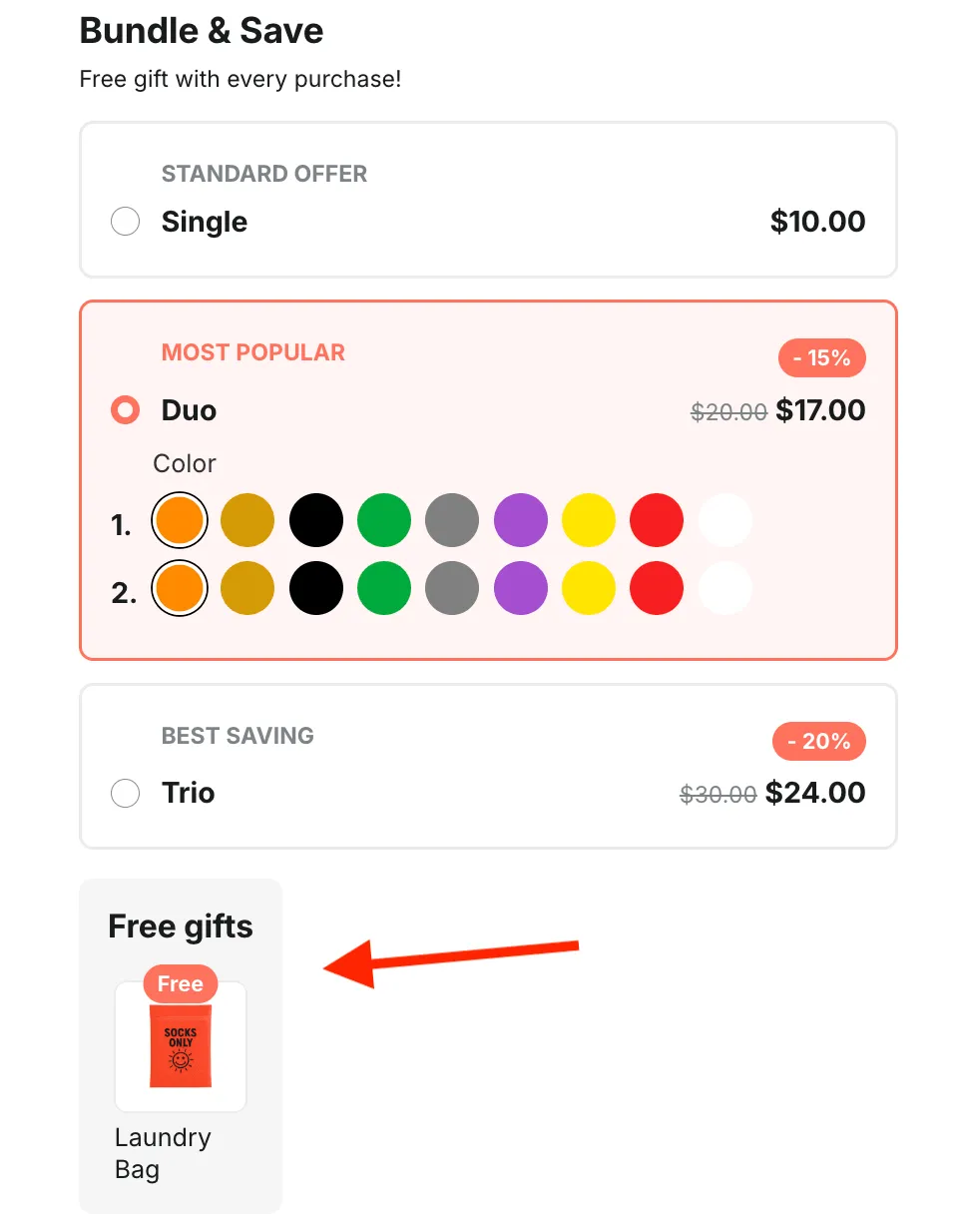
Active dates
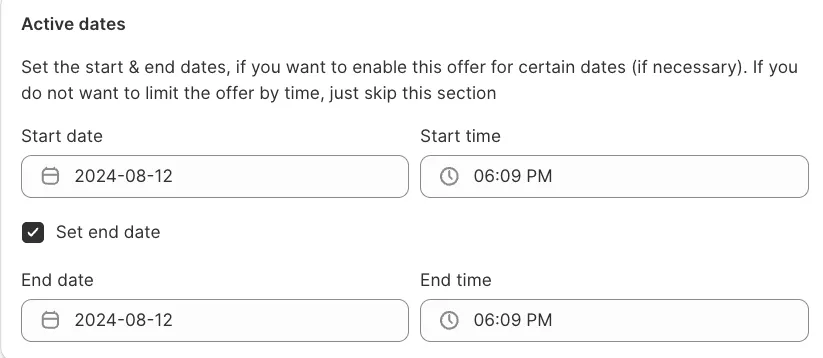
Section titled “Active dates”Here you can set the necessary start/end dates. By default the start date is set to the current date. These settings might be useful if you need to create a time-limited offer or to schedule the offer for future dates.
Advanced settings
Section titled “Advanced settings”The Priority fields helps to determine what offer will be used if there are multiple offers available for the same trigger product. “1” is the highest priority.