
How to create a fixed Mix & Match bundle or make products required
Use Locked products when some or all products in a Mix & Match bundle must always be included. A locked product is preselected when the bundle opens, and customers can’t remove it or change its quantity.
This covers two common setups:
- Fixed bundle — every product in the bundle is locked. Customers see exactly what’s inside and add it to cart as is. You keep the Mix & Match design, the bundle stays grouped in the cart and at checkout, and inventory is tracked for each product.
- Required products + free choice — some base products are always included, and customers choose the rest. For example, every box includes 2 Classic macarons, and customers pick 4 more flavors.
How to lock products
Section titled “How to lock products”- Open the Mix & Match offer and go to the Products section.
- Click Selection rules.
- For each product that must be included, check Selected by default and set the Default quantity.
- Check Locked for that product.
- Click Apply and save the offer.
The Locked checkbox becomes available only after the product is selected by default.
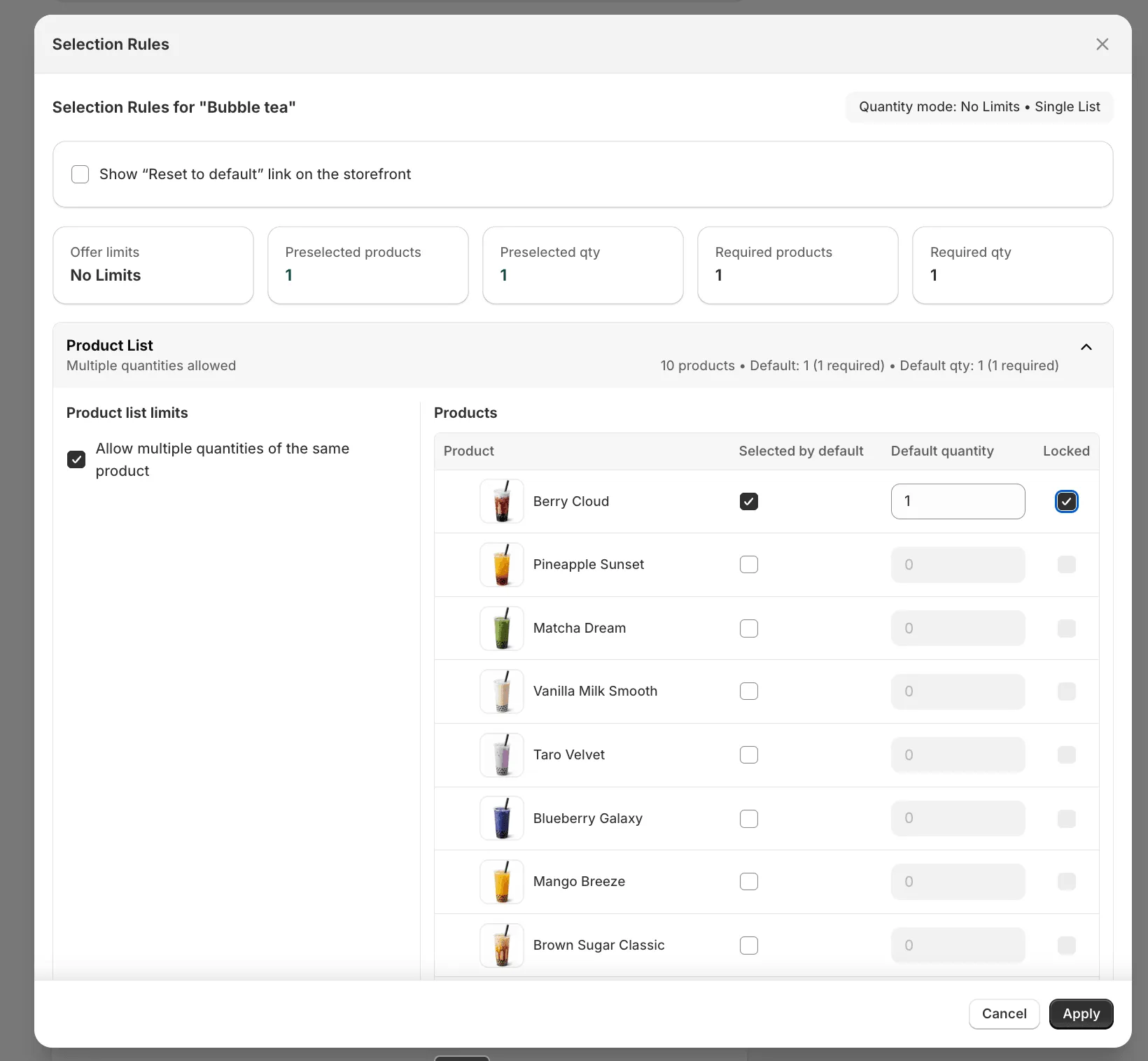
Products with variants
Section titled “Products with variants”How you lock a product with variants depends on the Display each variant as a separate item setting.
Variants are not shown as separate items
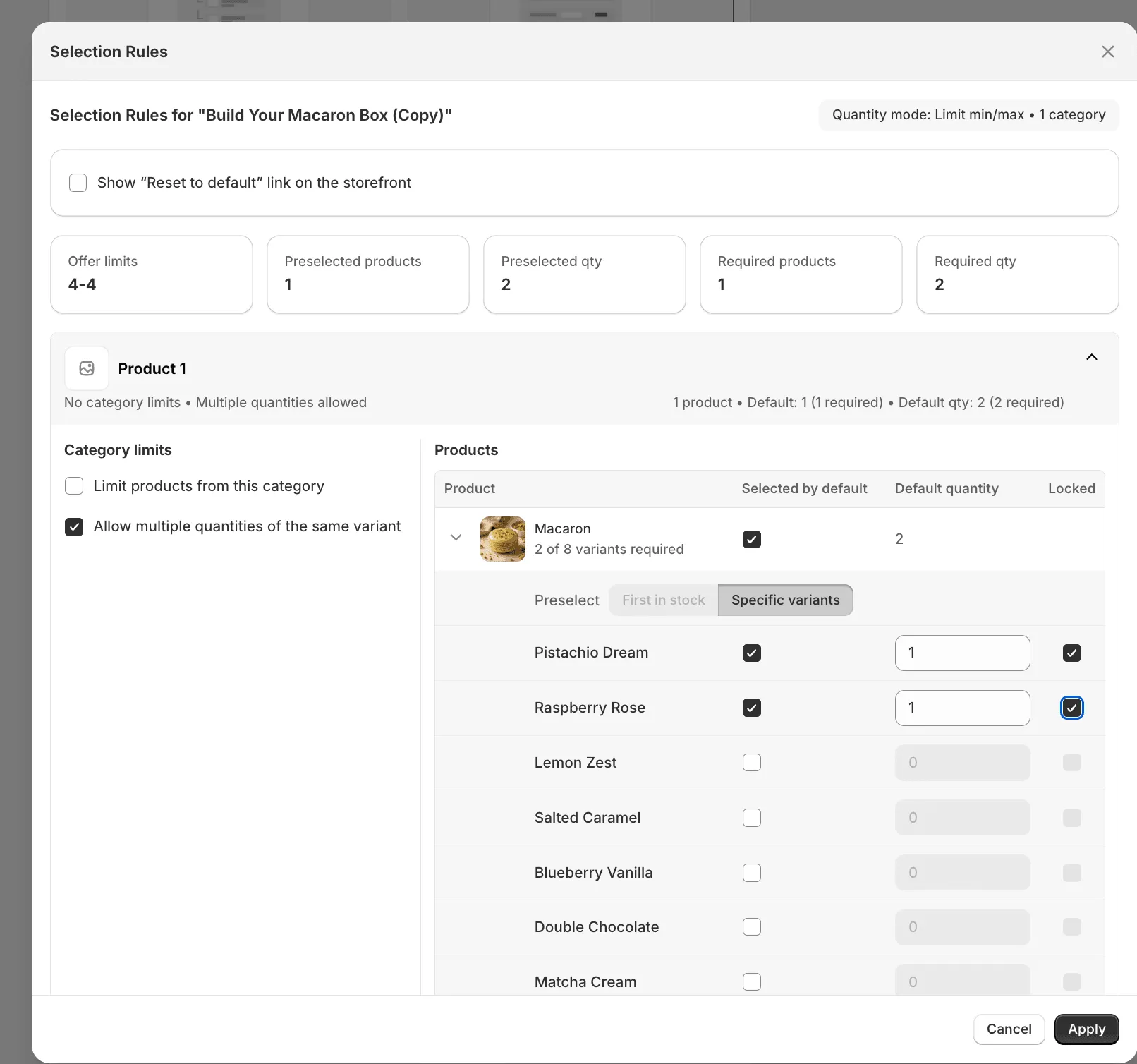
Section titled “Variants are not shown as separate items”The Locked checkbox is in the product row. To use it, expand the product and set Preselect to Specific variant. Locking isn’t available with First in stock.
When the product is locked, customers must keep the selected variant and its quantity.
Variants are shown as separate items
Section titled “Variants are shown as separate items”Each variant has its own Locked checkbox. Expand the product, set Preselect to Specific variants, select the variants and their quantities, then lock the ones that must stay in the bundle. The product row shows how many variants are required, for example 2 of 8 variants required.
You can lock some variants and leave others preselected but removable.
What customers see
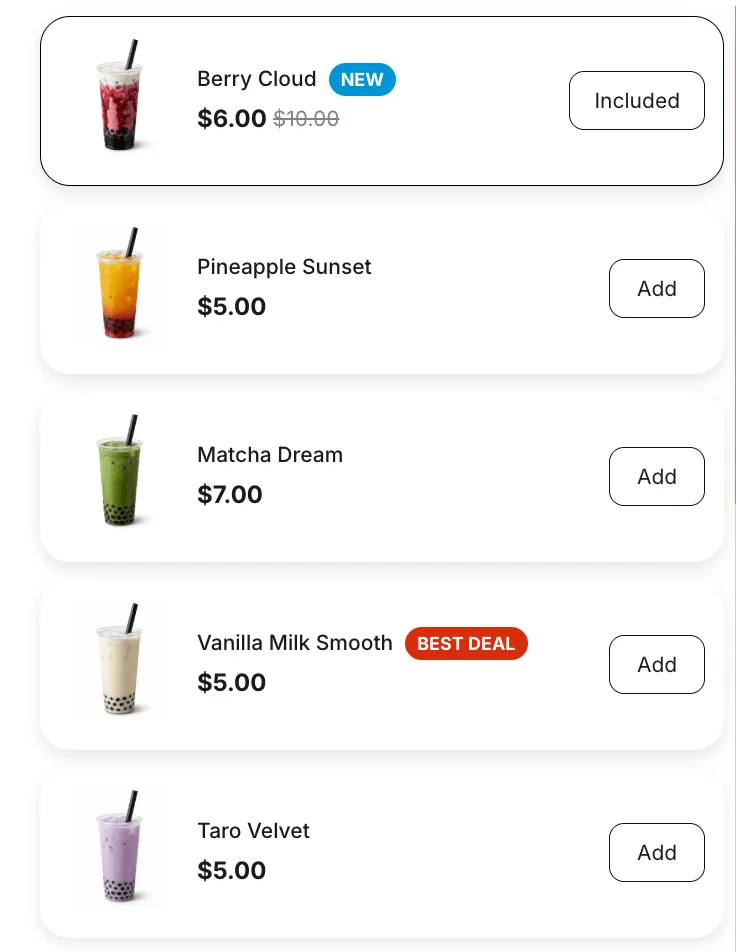
Section titled “What customers see”Locked products are shown as selected. Instead of the Add button or quantity selector, they show an Included label with the quantity, for example Included ×2. When the quantity is 1, the label shows only Included.
In the Expanded layout, locked products in the My bundle panel show Included under the product name and have no quantity selector.
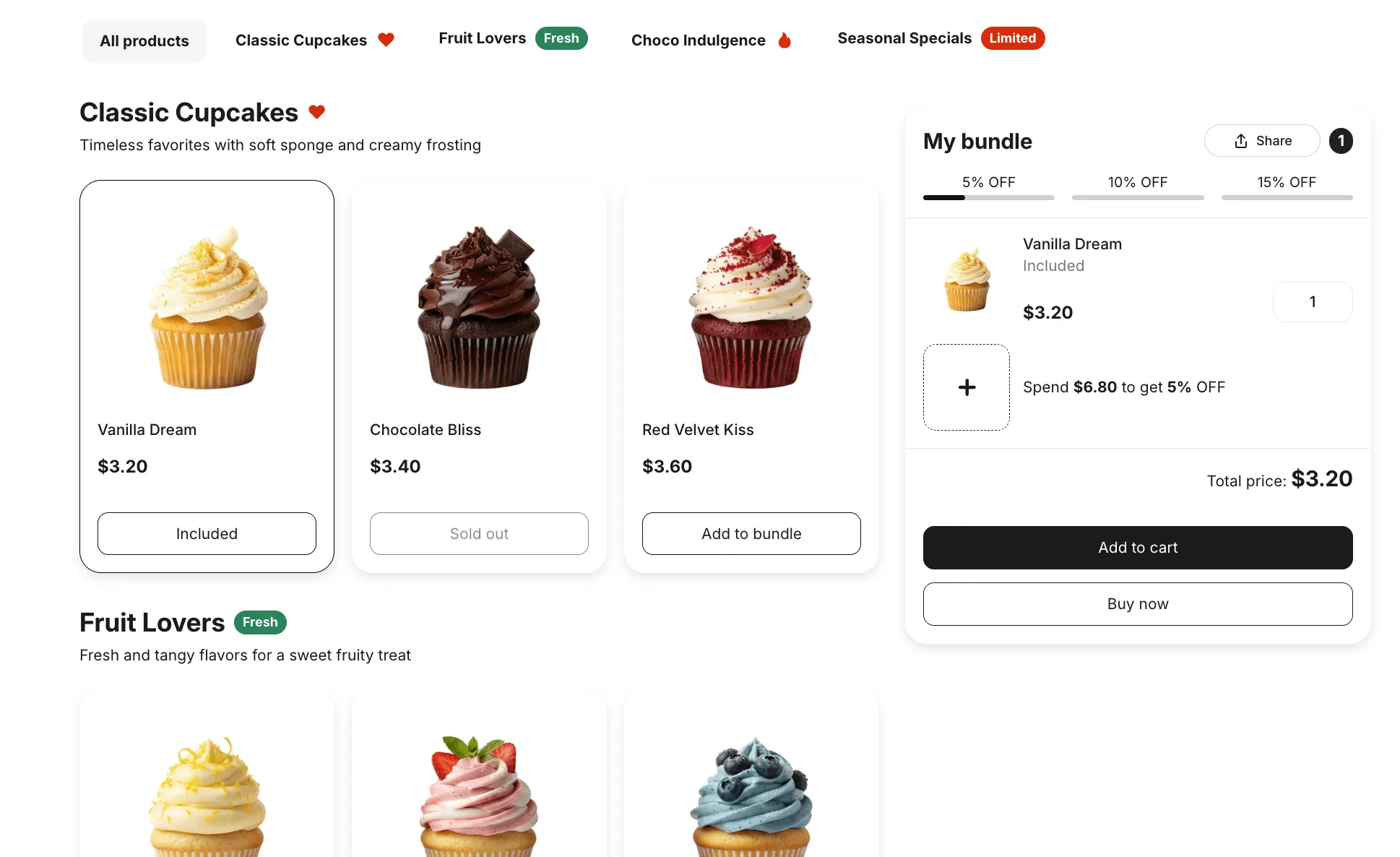
If a locked product or variant is sold out, the bundle can’t be added to cart.
Setting up a fixed bundle
Section titled “Setting up a fixed bundle”To sell a bundle with fixed contents:
- Set Quantity to Limit min/max and use the same value for min and max, for example 6–6.
- In Selection rules, select the bundle products by default and set quantities that add up to that value, for example 2 + 2 + 2.
- Lock all of them.
Customers see the bundle contents with Included labels and can add it to cart right away.
Changing the Included label
Section titled “Changing the Included label”Go to Settings → Translations and edit Included label for required products. The same text is used in all layouts.