
Bundle BuilderGetting started
How to add Mix & Match bundle
You can use the app to let customers build their own bundles by mixing and matching products. To display a Mix & Match bundle on your storefront, you’ll need to create the bundle in the app and then assign it to a custom product template in your Shopify theme.
Step 1: Create the Mix & Match bundle
Section titled “Step 1: Create the Mix & Match bundle”- Open the app.
- Click Create offer.
- Select Mix & Match (Product page) or Mix & Match (Full-page).
- Configure your bundle settings.
- Click Save.
Step 2: Create a custom product template
Section titled “Step 2: Create a custom product template”To create a new product template:\
- From your Shopify admin, go to Online Store → Themes.
- Click Edit theme next to the theme where you want to add the bundle.
- In the top dropdown menu, select Products.
- Click Create template.
- Name your new template, for example Build your bundle, and select the base product template you want to copy from.
For bundles using Compact layout\
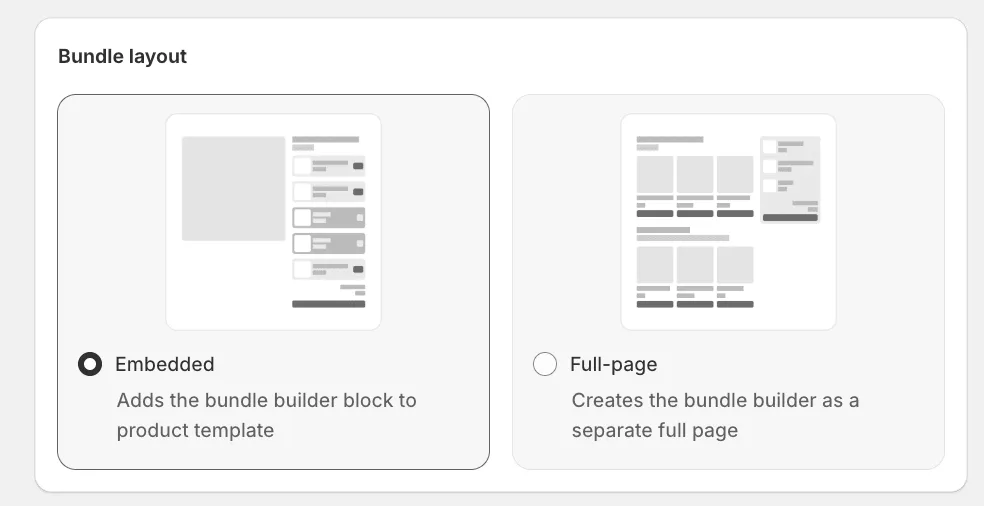
- Hide the theme’s Buy buttons, since the widget includes its own “Add to cart” and “Buy now” buttons.
- Add the MW Mix & Match (Compact) widget
- Click Save.
For bundles using Expanded layout\
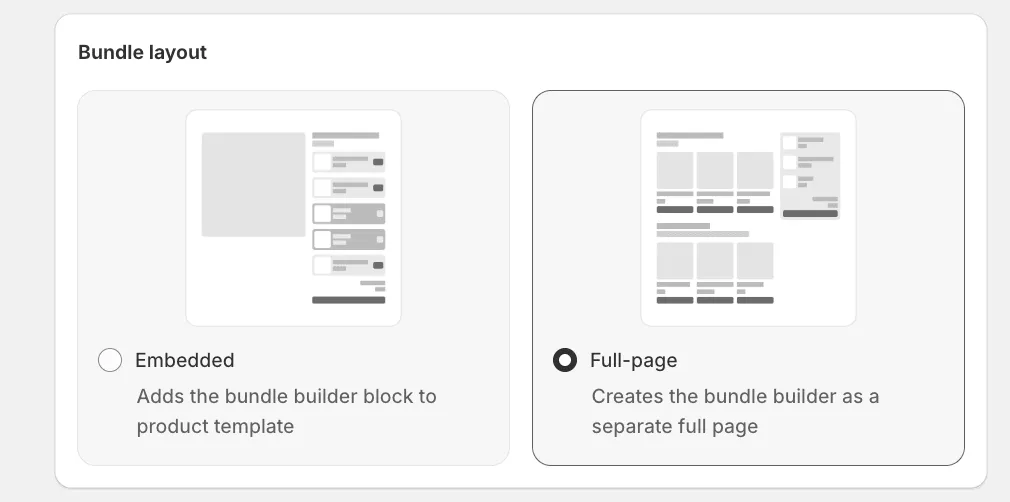
- Hide the “Product information” section so only the bundle builder is shown.
- Add the MW Mix & Match (Expanded) widget block to the template
- Click Save.
Step 3: Assign the template to your bundle product
Section titled “Step 3: Assign the template to your bundle product”Once your template is ready, assign it to the product that will display your Mix & Match bundle.
- In the app, open your Mix & Match offer.
- Click ”Edit in Shopify”. This will bring you to the bundle product page
- In the Theme template section on the right, select the new template you created.
- Click Save.
Step 4: Complete your bundle product page (Embedded layout)
Section titled “Step 4: Complete your bundle product page (Embedded layout)”Your bundle is displayed on a Shopify product page.
To make it look polished and ready for customers, add images and a description directly in Shopify.
To quickly open the bundle product in Shopify admin, go to your offer and click ”Edit in Shopify” in the Offer product section.
Once you’re on the product page in Shopify, we recommend:
- Uploading product images
- Adding a clear product description
- Updating the product title (if needed)
Step 5: Preview your bundle
Section titled “Step 5: Preview your bundle”After saving, preview the product on your storefront to make sure the bundle appears correctly.
You can adjust the layout or widget placement in the theme editor at any time.
Need help?
Section titled “Need help?”If you need assistance setting up your Mix & Match bundle, drop us a line. We’ll be happy to help you get everything running smoothly.