
Bundle BuilderUsing the app
Tiered Pricing
Tiered Pricing is a flexible pricing strategy that offers customers reduced prices when they buy products in larger quantities. The tiers are shown in a clear table on the product page, so customers can easily see how much they save by ordering more, and the discount is applied automatically in cart and checkout. You can count the quantity for each product separately, or across any mix of products — for example, “buy any 3 candles, get 15% off”.
To create a tiered pricing offer click the Create offer button and choose Tiered Pricing.
Offer name
Section titled “Offer name”Internal name of your offer.
Apply to
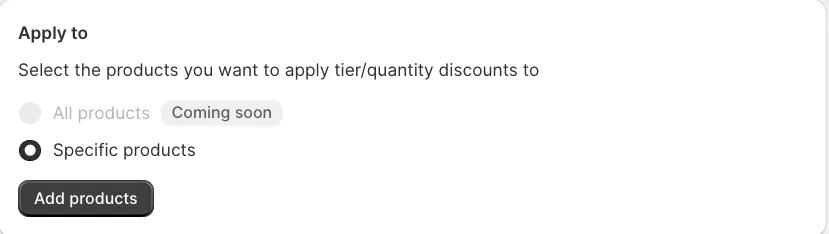
Section titled “Apply to”Click Add products and choose the products the tiers apply to:
- Add products one by one — select specific products.
- Add products by collection — select a collection. Products added to the collection later are included automatically.
Count quantity
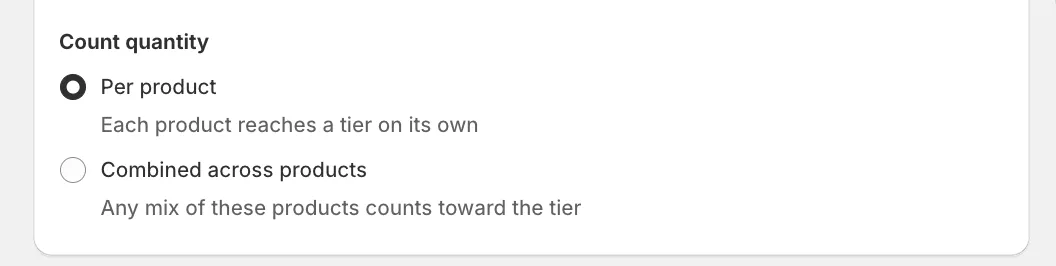
Section titled “Count quantity”At the bottom of the Apply to section, choose how the quantity is counted:
- Per product (default) — each product reaches a tier on its own. 5 units of Product A reach a tier of 5; 2 units of A and 3 units of B don’t.
- Combined across products — any mix of the selected products counts toward the tier. 2 units of A + 3 units of B = 5 items, so the tier of 5 is reached and the discount applies to all 5 items.
With either option, the highest tier reached applies to every eligible item, including items above the threshold. Products outside the offer don’t count and don’t get the discount.
Tier prices
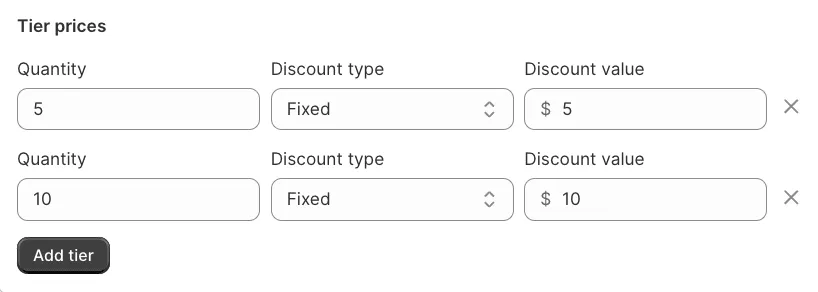
Section titled “Tier prices”Here, you can create tier discount offers themselves - Tier prices. You can create an unlimited number of offers for multiple QTY ranges.
To start, click the “Add tier” button.
Next, you need to specify the quantity (QTY) for each tier. Start by setting the “starting at” quantity for the tier. The “end” of the range will be determined by the starting quantity of the next tier.
For example, if the first tier starts at QTY 2 and the next tier starts at QTY 5, the first tier will apply to quantities in the 2–4 range.
If there are no further tiers, the tier will not have an “end” quantity and will apply to any quantity greater than or equal to the “starting at” value.
Decide on the Discount type - it can be either “Fixed” (amount off each item) or “Percentage”.
Add the actual discount value. For example, 20% or $5 off each item.
Discount name
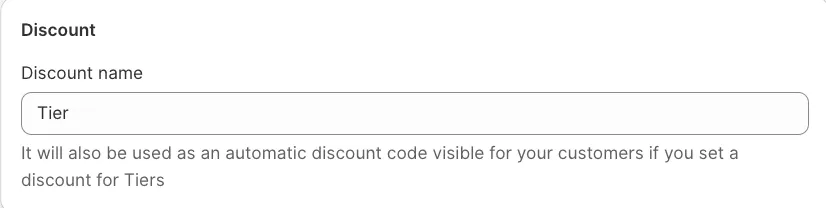
Section titled “Discount name”Come up with a discount code that will be visible to customers at the Checkout.
Customize offer
Section titled “Customize offer”Add a title and description to the entire offer. If you use Combined across products, use the description to tell customers which products they can mix, for example “Mix any candles and save”.
The offer is shown on the product page by the Tiered pricing table block. Add it once to your product page template in the theme editor — it appears automatically on every product in the offer. With Combined across products, the table also shows a short line explaining that all eligible items count together; you can change this text in the app’s Translations section.
To change the title and the description of the offer block on the storefront, switch to Translations tab within the offer. See more details in the Translations section.
Active dates
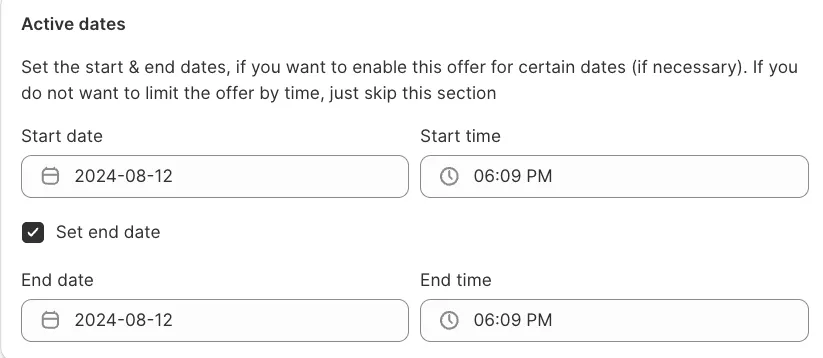
Section titled “Active dates”Here you can set the necessary start/end dates. By default the start date is set to the current date. These settings might be useful if you need to create a time-limited offer or to schedule the offer for future dates.
Advanced settings
Section titled “Advanced settings”The Priority fields helps to determine what offer will be used if there are multiple offers available for the same trigger product. “1” is the highest priority.