Bundle BuilderUsing the app
Grouped products
Grouped products
Section titled “Grouped products”In e-commerce, a “grouped product” is a collection of related items displayed on a single page, allowing customers to select and purchase multiple products at once. Each item chosen is added individually to the cart to facilitate accurate order and shipping management.
To create a grouped product click the Create offer button and choose Grouped product.
There are two types of bundle product you can create.
This bundle includes a fixed quantity of each product and the customers cannot change the quantity of the products in the grouped product on the storefront.
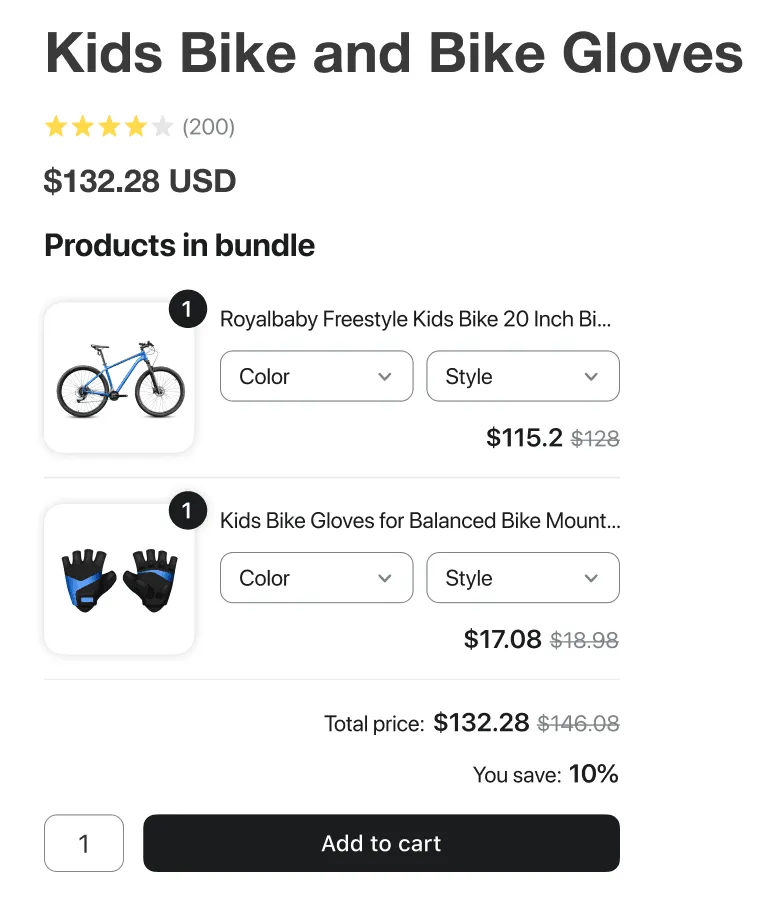
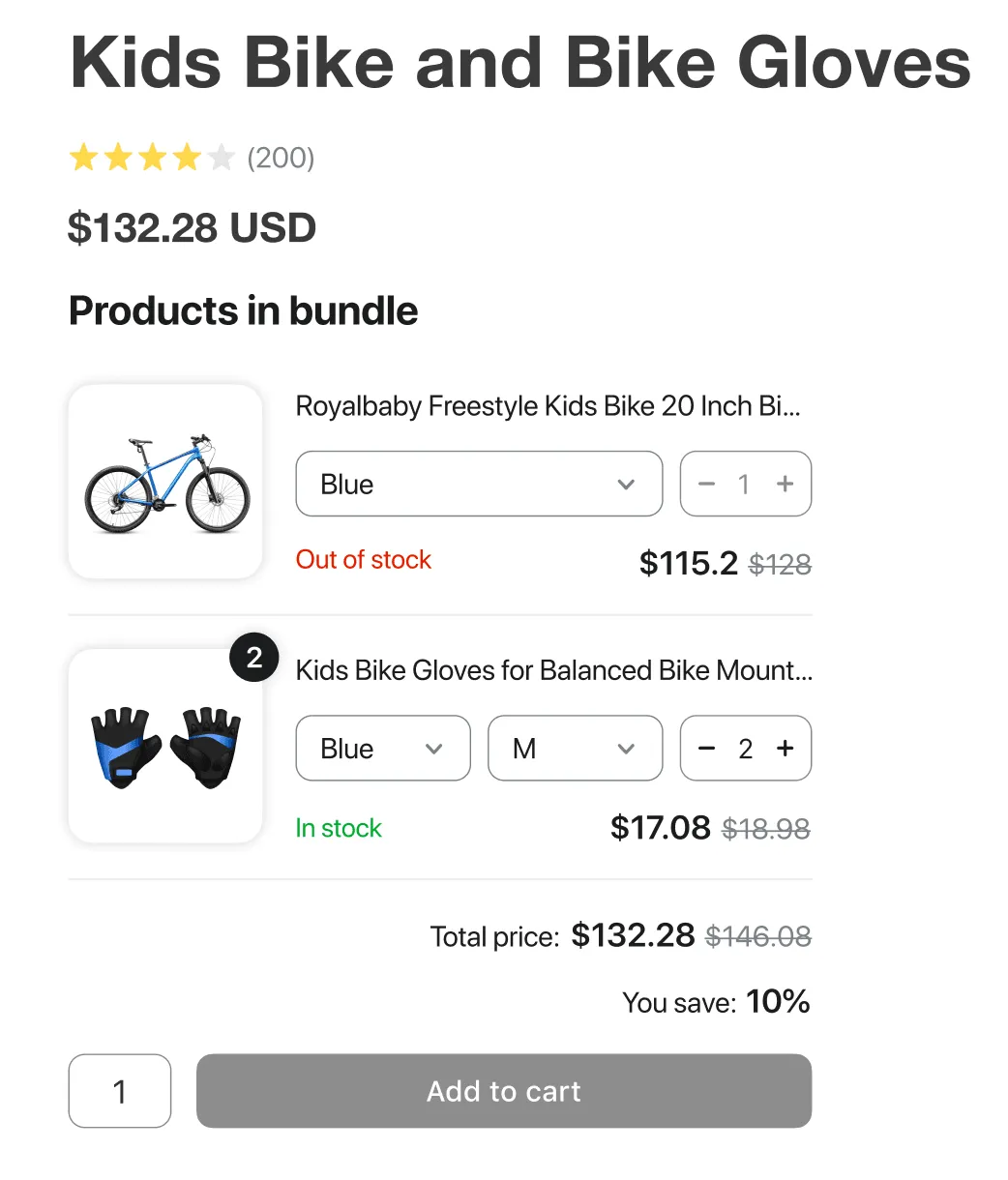
Customizable
Section titled “Customizable”You can specify the allowed min and max quantity for each product in the bundle and the customers can change the quantity of the products in the grouped product on the storefront. If a product has min quantity as 0, the customers will be able to exclude such product in the bundle if necessary.
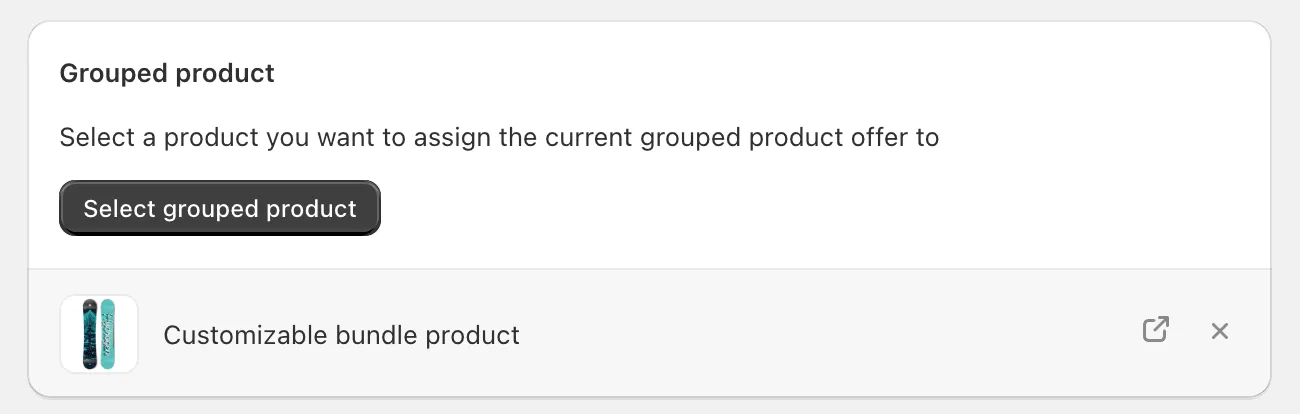
Grouped product selection
Section titled “Grouped product selection”Here you can choose one of your products to make it a grouped product.
Products in bundle
Section titled “Products in bundle”Here you can choose the products you want to add to your grouped product. You can add the product either with specific variants or all variants.
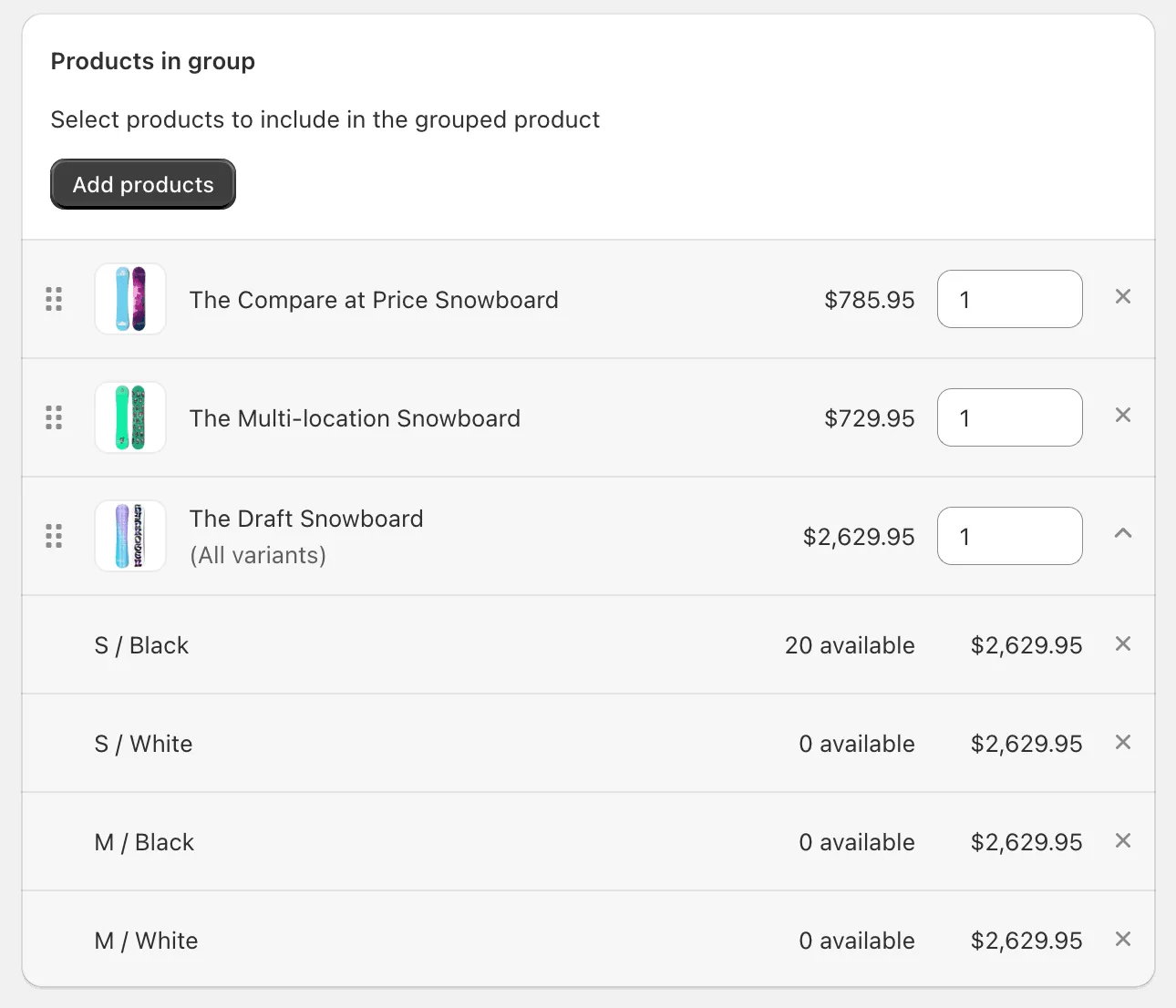
For Fixed type you can specify a quantity of each product in the bundle.
For Customizable type you can specify a min and max allowed quantity for the products in the bundle.
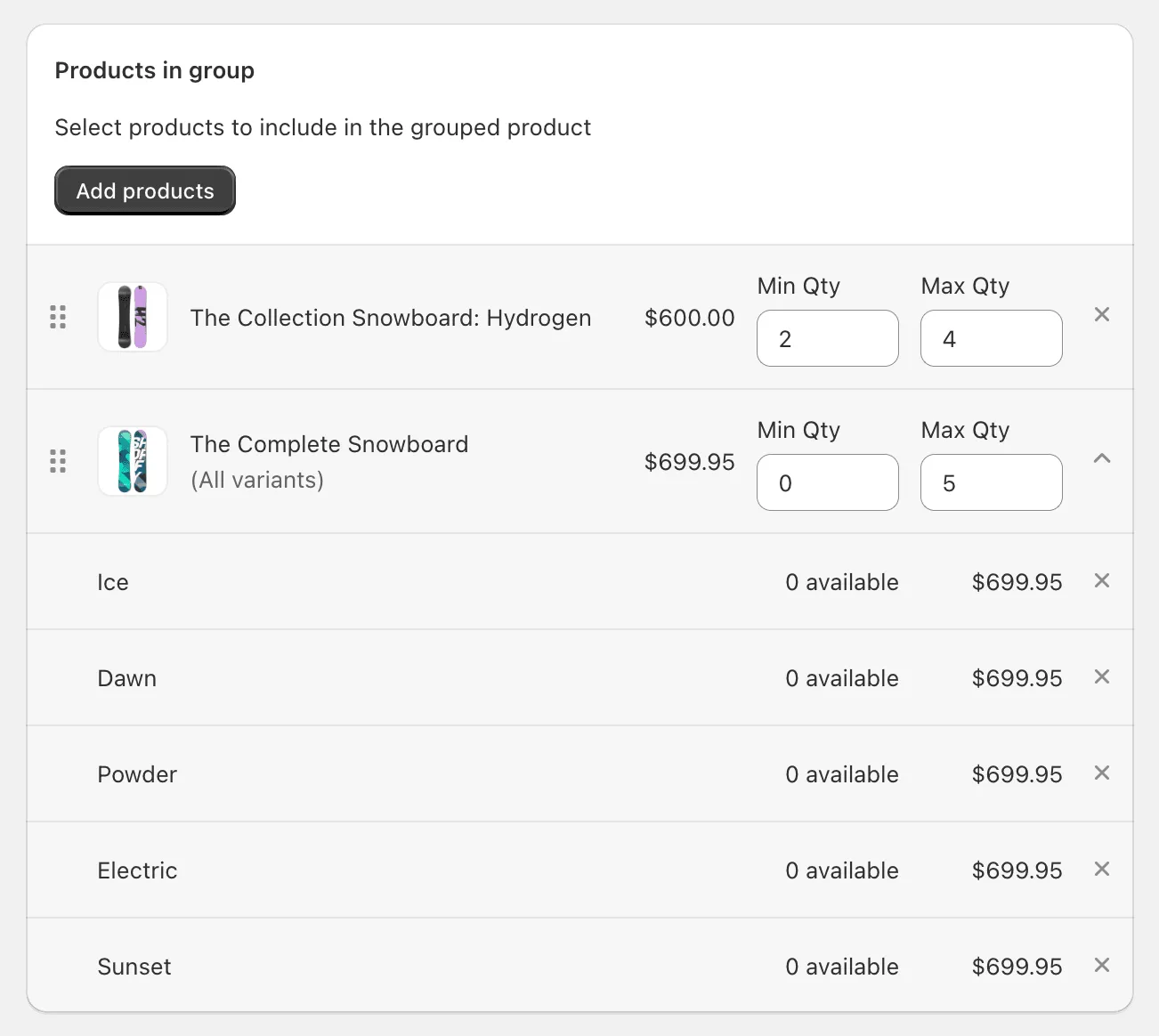
To change a position of a product in the grouped product, just use the drag&drop icon and move the product to the necessary position.
To remove a product, click the X symbol.
Display on
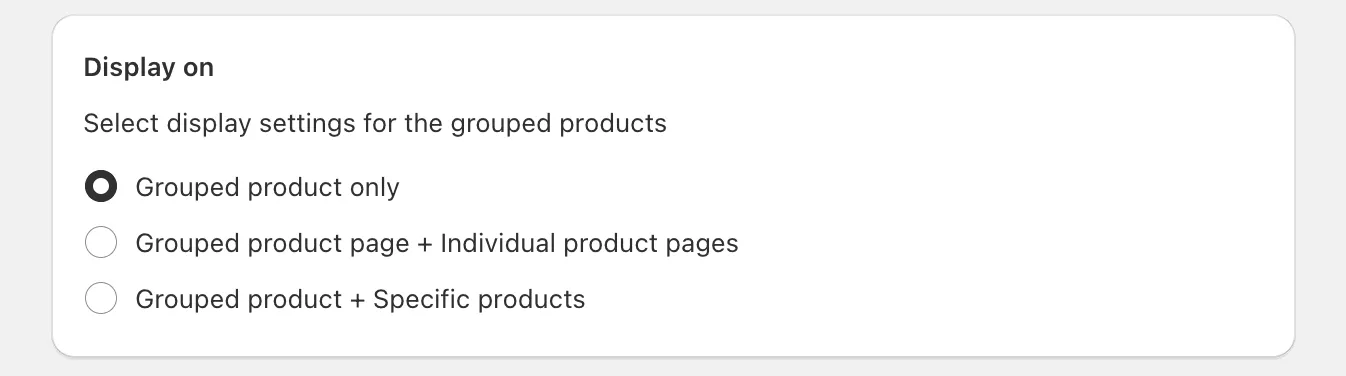
Section titled “Display on”Here you can choose the products you want to show the grouped product promotion on. You can choose:
- Grouped product only - this option will show the products in bundle at the grouped product page only.
- Grouped product + Individual product pages - this option will display the products in bundle on the grouped product page AND ‘Grouped product promo’ widget on the pages of the products, which are added to the bundle. Thus, your customers will be able to see that a product is a part of a grouped product.
- Grouped product + Specific products - this option will display the products in bundle at the grouped product page AND ‘Grouped product promo’ widget on the products, manually selected here.
Discount
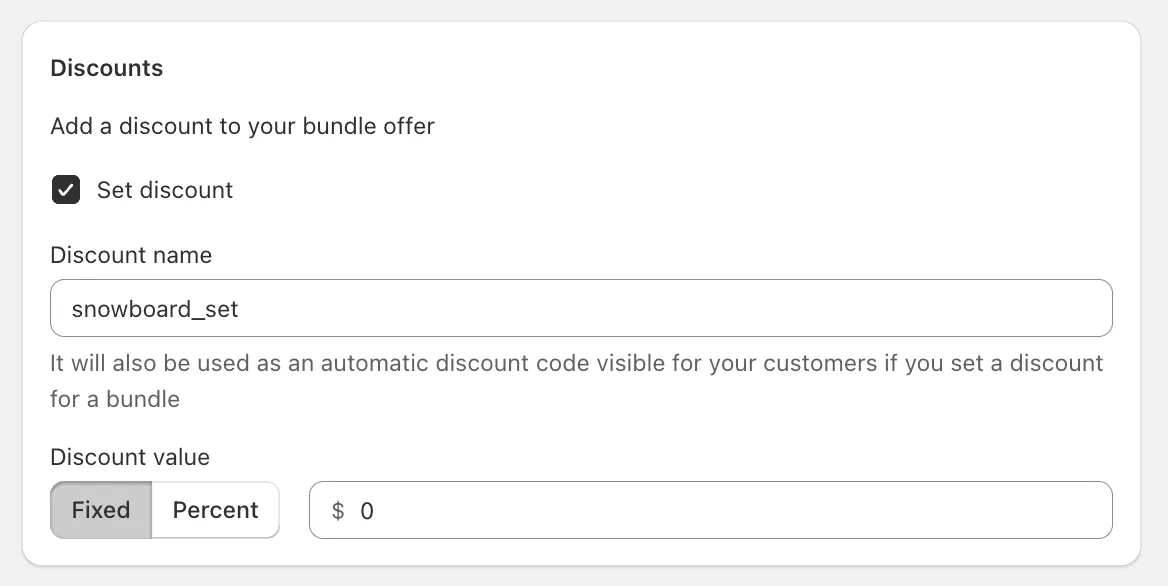
Section titled “Discount”This section allows you to create a discount for purchasing the grouped product. You can add a fixed or percentage discount. You also need to specify a discount code, which will be used in the automatic discount for the grouped product.

Customize offer
Section titled “Customize offer”To change the title and the description of the bundle offer block on the storefront, switch to Translations tab within the offer. See more details in the Translations section.
Advanced settings
Section titled “Advanced settings”- The Priority fields helps to determine what bundle offer will be used if there are multiple offers available for the same trigger product. “1” is the highest priority.
- Sync grouped product price - enable this feature to keep the total price of your grouped products in the Shopify catalog up-to-date. This setting ensures that the price displayed for a grouped product accurately represents the minimum total cost of all items in the group, based on their individual prices and minimum required quantities. When activated, this feature will automatically adjust the grouped product’s price & compare-to price to reflect any changes in the prices or minimum quantities of the included items. Please note that enabling this feature will result in the removal of any variants for the grouped product. This is ideal for merchants looking to streamline their catalog management and provide clear, accurate pricing to their customers.
Summary
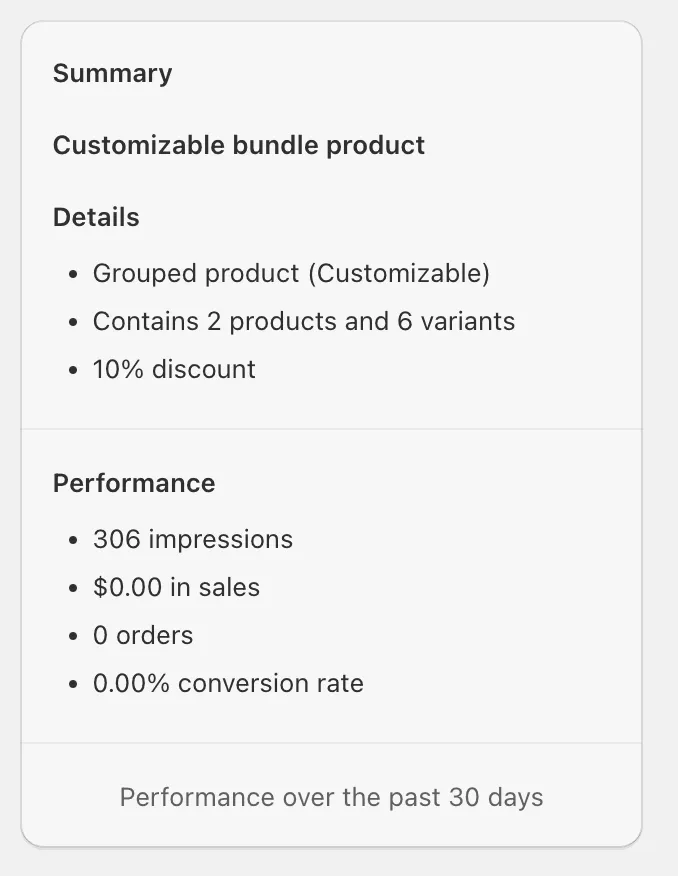
Section titled “Summary”You can see here all details of the current bundle product along with its performance over the past 30 days: