Bundle BuilderUsing the app
Translations
Our app supports all languages that you’ve added in your Shopify admin under Settings → Languages. As soon as a language is added there, it automatically becomes available for translations inside the app.
How translations work in the app
Section titled “How translations work in the app”To make things flexible, translations in the app are split into two areas. It’s actually quite simple once you see the logic:
1) Offer translations (your custom content)
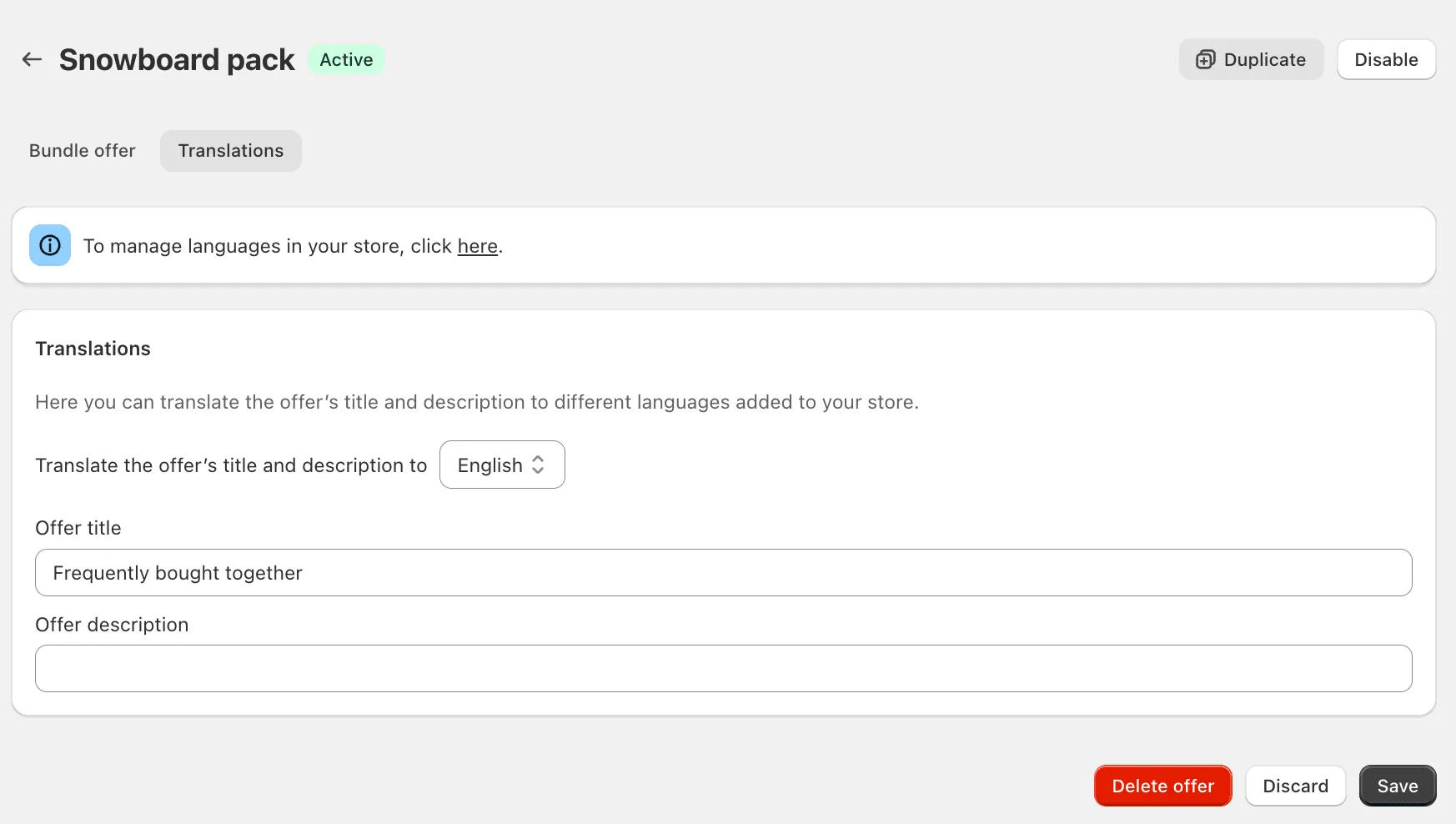
Section titled “1) Offer translations (your custom content)”Anything that you personally create inside an offer should be translated inside that same offer.
This includes:
- Offer title
- Description
- Categories or a section title
To add translations:
- Open your offer
- Go to the Translations tab
- Choose the language
- Add your translations
💡 Think of this as “texts that belong only to this specific bundle”.
2) Global translations (app-wide texts)
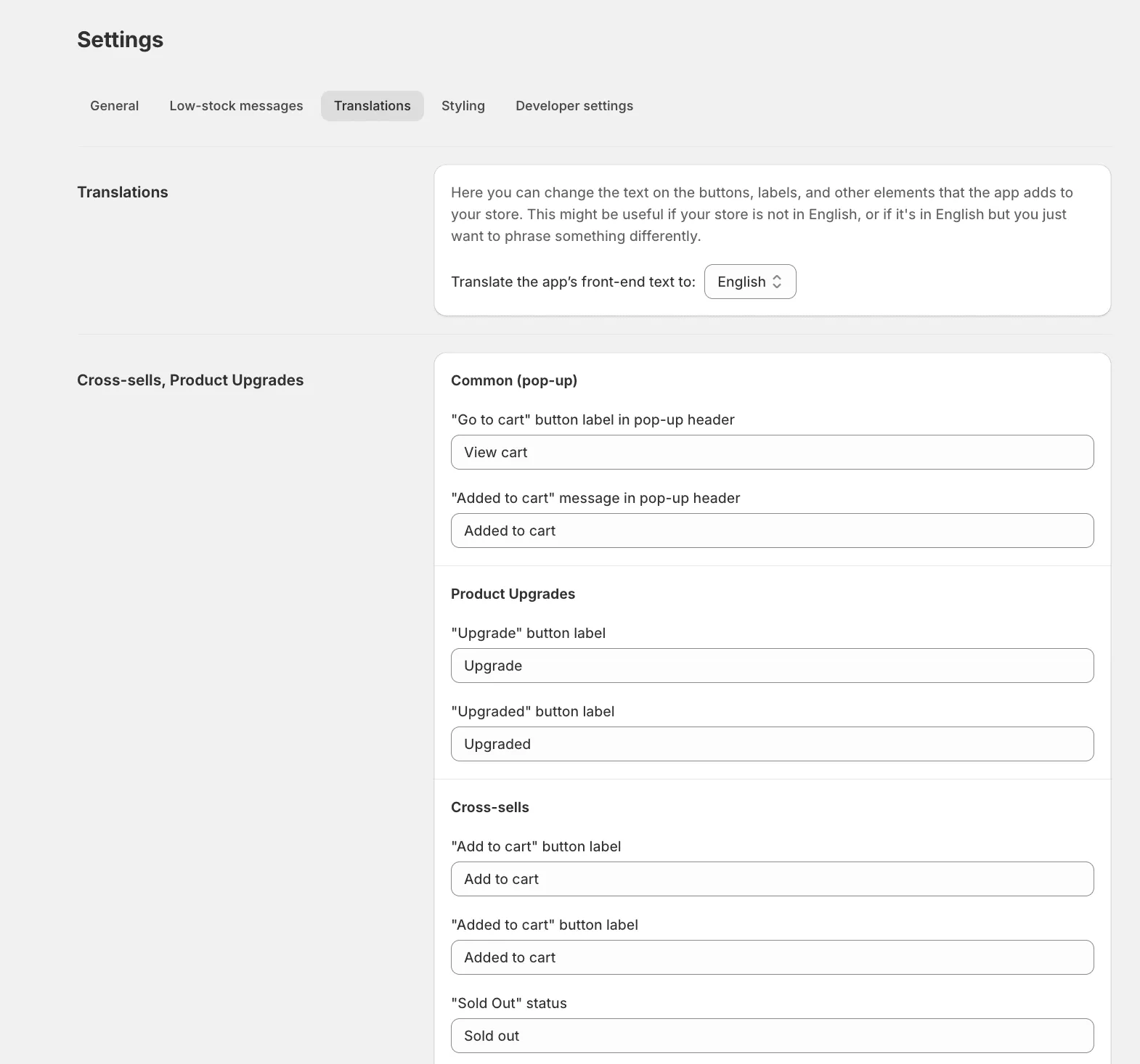
Section titled “2) Global translations (app-wide texts)”All the other texts (the ones that are part of the app itself) are managed in one central place.
This includes:
- Buttons (like “Add to cart”)
- Labels
- Default widget texts
- System messages
To translate them:
- Go to Settings in the app
- Open the Translations tab
- Select the language
- Add your translations
💡 Think of this as “texts used across the whole app”.