
Bundle BuilderUsing the app
General
Themes & Widgets
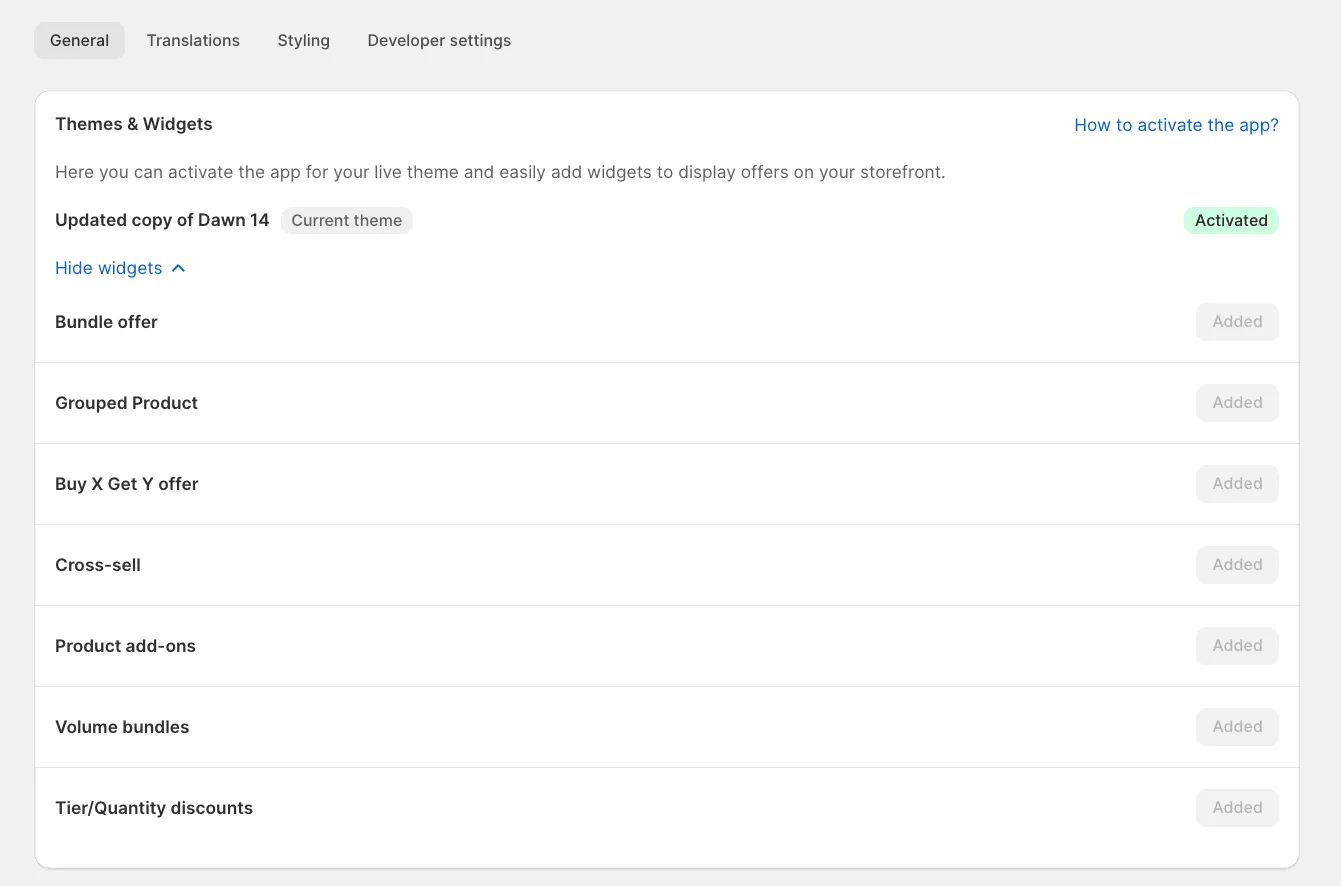
Section titled “Themes & Widgets”Here you can enable the app for your live theme and seamlessly add widgets to showcase offers on your storefront.
Add-ons
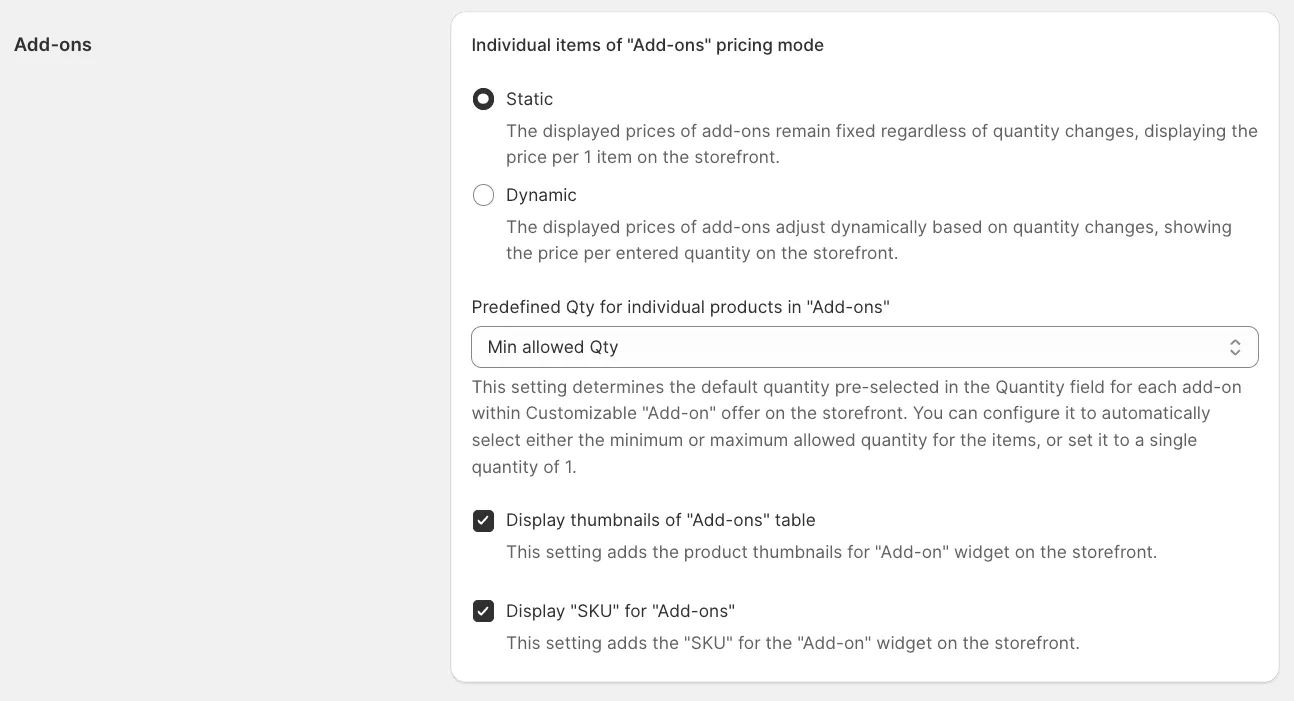
Section titled “Add-ons”Here, you can configure the following settings for your “Product Add-on” offers:
- Choose how add-on product pricing is displayed: either as a price per item or adjusted based on the selected quantity.
- Set a default quantity to display as a placeholder for add-ons.
- Decide whether to show thumbnails for add-ons in the widget.
- Enable or disable the display of the SKU property for add-ons on the storefront.
Grouped products
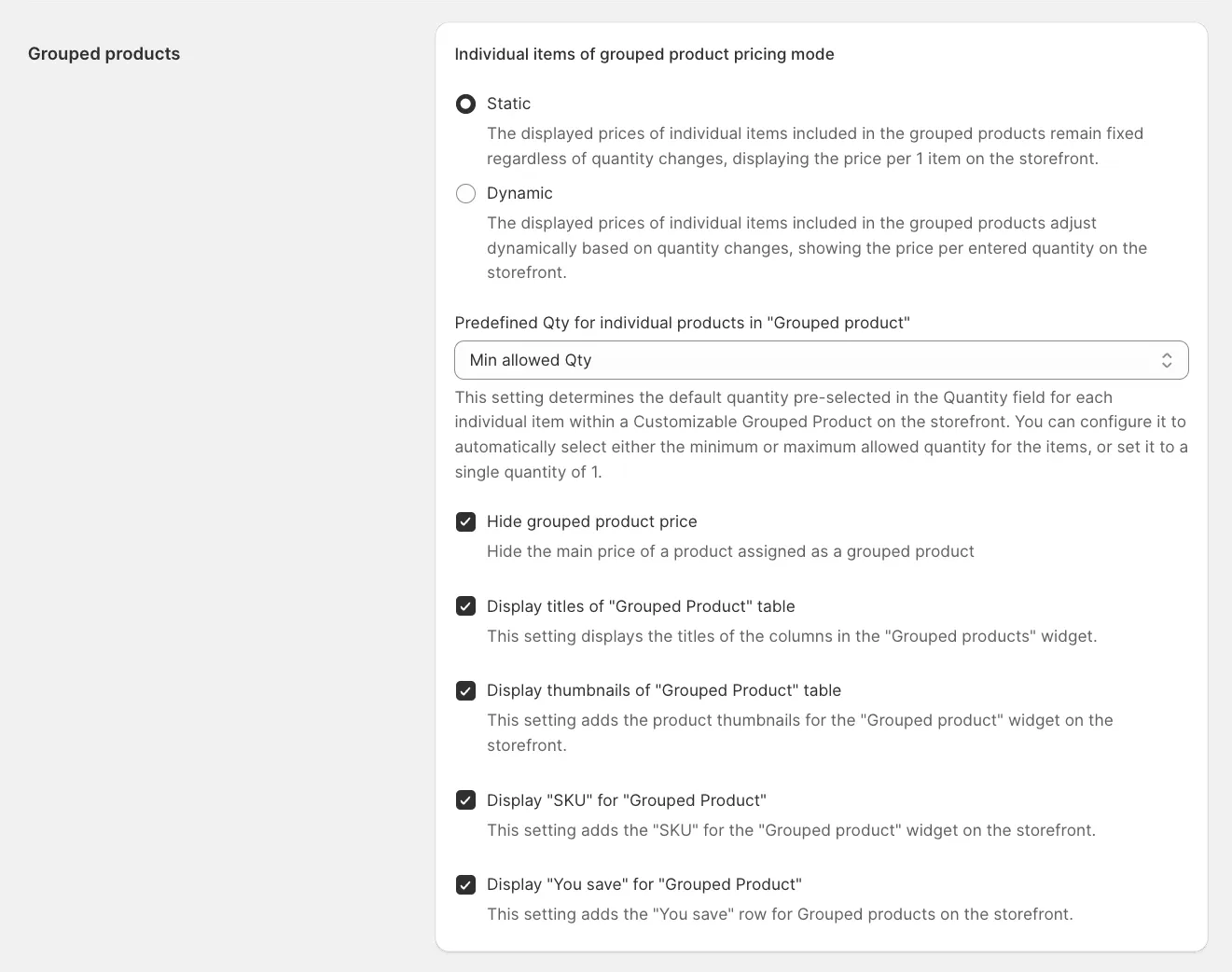
Section titled “Grouped products”Here, you can configure the following settings for your “Grouped product” offers:
- Set how pricing for associated products in an offer is displayed: as a price per item or recalculated based on the selected quantity.
- Define the default quantity to display as a placeholder for the associated products in the offer.
- Hide the price attribute of the main product (cover product) used as the offer’s representation.
- Choose whether to display column titles in the bundle grid.
- Decide if product thumbnails should be shown in the widget.
- Enable or disable the display of the SKU property for products in the offer on the storefront.
- Choose whether to display the “You save” label, showing the total discounted amount (if applicable) for the grouped product.
Cross-sells, Upsells settings
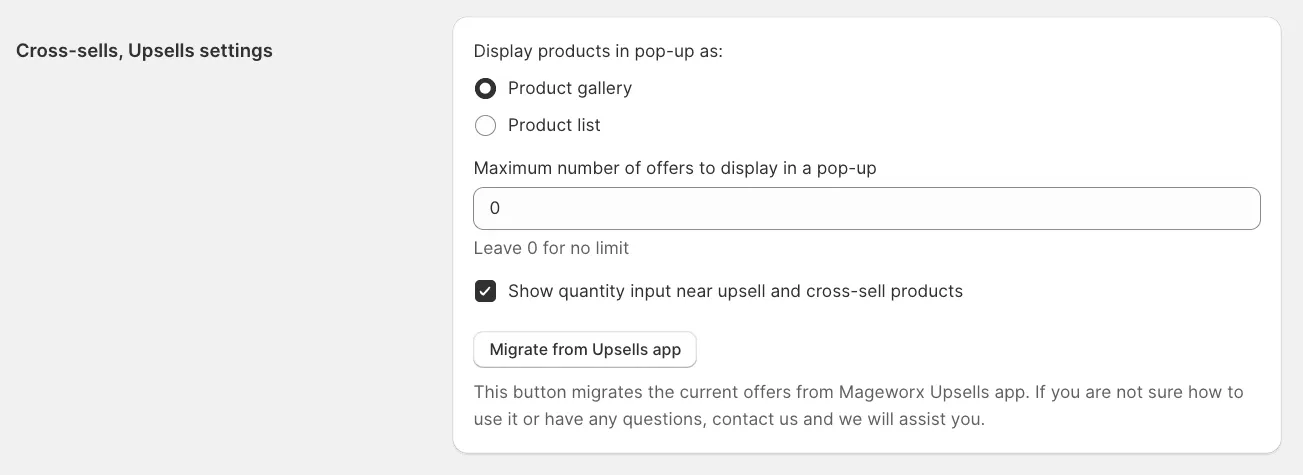
Section titled “Cross-sells, Upsells settings”Within this section, you can control the way Cross-sells and Upsells offers work on the front end:
- Choose whether upsell/cross-sell products in the popup are displayed as a product gallery or a list.
- Set a limit on the number of offers shown within a single popup.
- Decide if quantity input fields should be available for the promoted products.
- Existing users of the Mageworx Upsells app can easily migrate to the new Bundles & Upsells app. More info can be found here.
Volume bundles
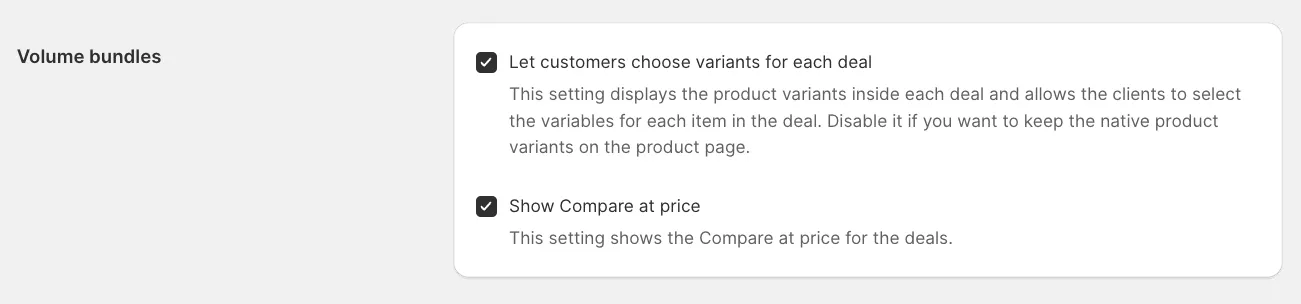
Section titled “Volume bundles”Here, you can configure the following settings for your “Volume bundles” offers:
- Decide if you want to show the product variants within each deal, enabling customers to choose options for each item. Turn it off to retain the default product variants displayed on the product page.
- Enable the display of the “Compare price” if applicable.
Tier prices
Section titled “Tier prices”Here, you can configure the following settings for your “Tier prices” offers:
- Enable the display of the “Compare price” if applicable.
- Choose whether to include a “Discount” column in the tiered pricing grid to display the discount details.

Discounts
Section titled “Discounts”Combinations
This setting defines whether the bundle discounts can be combined with other discount type or not.
Discounts strategy
The strategy that’s applied to the list of discounts if there are multiple bundle discounts eligible for the cart:
- First - it will apply a discount with the highest priority.
- Maximum - it will apply the discount that offers the maximum reduction.
- All - it will try to apply all available discounts.
Product rating
Section titled “Product rating”The Product bundles app allows you to enable the product ratings in bundles, cross-sells & upsells. More info can be found here.