
Bundle BuilderUsing the app
Mix & Match Bundle Builder
Mix & Match, also known as Build Your Own Bundle (BYOB), lets customers build a personalized bundle on a dedicated bundle page by freely selecting products across categories. As customers add items to their bundle, they unlock discounts or free gifts once the required quantity is reached.
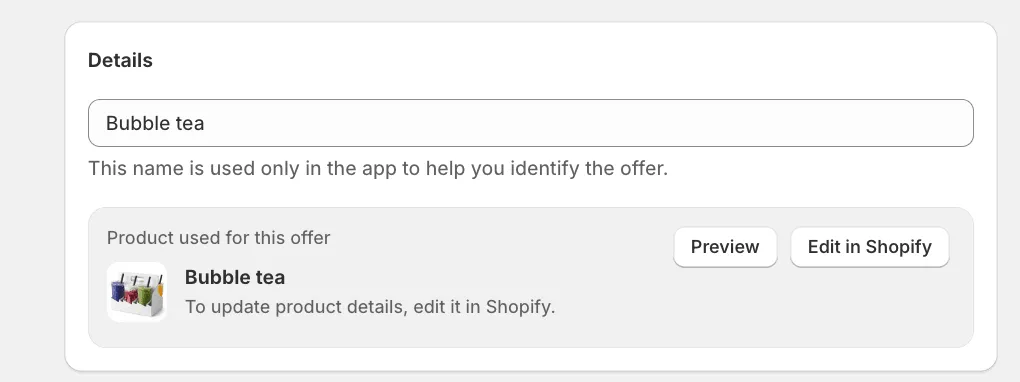
Offer name
Section titled “Offer name”This name is used only in the app to help you identify the offer.
This name will be used to create a bundle product in Shopify, you can change a bundle product any time later.
We recommend using a clear and descriptive name, especially if you manage multiple offers (for example, BYOB – Cookies, Build a Box – 6 items, or Mix & Match Summer Promo).
After creating an offer, you will see a card of a product, which is created for the offer. You can easily preview it on the storefront and navigate to edit it in Shopify.
Bundle layout
Section titled “Bundle layout”Choose how the bundle builder will appear on the product page:
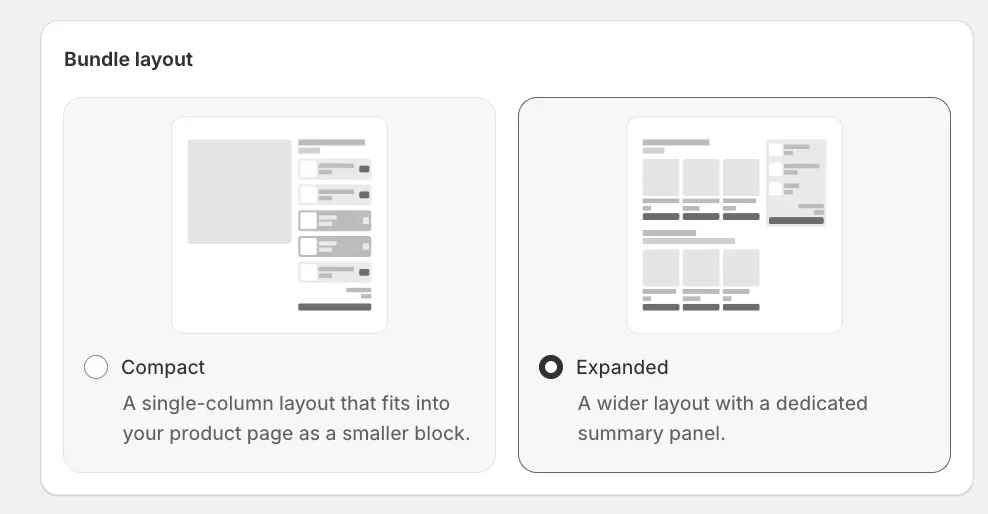
- Compact
A compact version of the bundle builder that fits directly into your product page layout.
It blends in with your theme and works well in narrower sections.
Best if you want a clean, native look inside the product page. - Expanded
A wider, more prominent layout with a dedicated summary panel.
Gives customers a clearer overview of what they’ve selected.
Best if you want a more interactive, guided bundle-building experience.
Quantity
Section titled “Quantity”This setting controls how many products customers can add to a bundle. Choose the option that best matches your bundle logic.
- No global limits
Customers can add any number of products to the bundle without restrictions.
Best for flexible Mix & Match offers where customers build bundles freely. - Limit min / max
Set a minimum and/or maximum number of products required in the bundle.
Use this when you want to enforce rules like “Choose at least 3 items” or “Up to 5 items per bundle.” - Quantity as option (Boxes)
Create predefined box sizes with a fixed number of products (for example, Box of 2, Box of 4).
Customers must fill each box with exactly the selected number of items.
Ideal for Build a Box offers with fixed box sizes and pricing.
Pricing
Section titled “Pricing”By default, the bundle price is calculated as the sum of prices of all products added to the bundle.
If you want to apply discounts or custom pricing rules, enable Set discount & custom price to unlock additional pricing options.
Pricing types
Section titled “Pricing types”- Bundle discount (percentage)
Applies a single percentage discount to the entire bundle, regardless of how many products are added or the total value of the bundle.
Best for simple offers like 10% OFF any bundle.
———————————— - Quantity discount
Applies a percentage discount based on the number of products in the bundle.
You can create multiple tiers, each with its own minimum quantity and discount value.
The discount increases as customers add more items to their bundle.
Example:
3+ items → 10% OFF
5+ items → 15% OFF
———————————— - Order value discount
Applies a percentage discount based on the total bundle price.
You can create multiple tiers with different minimum order values.
Higher bundle totals unlock higher discounts.
Example:
$100+ → 10% OFF
$200+ → 20% OFF
———————————— - Bundle price (fixed)
This pricing option becomes available only when Quantity is set to Limit min / max.
Instead of calculating the bundle price from individual product prices, you can set a fixed total price for the entire bundle.
Once the customer adds a number of products that meets the defined min/max conditions, the bundle price is automatically set to the specified value.
Use this option when you want to sell a bundle for a single, fixed price, regardless of which products are selected.
Example:
Set a minimum of 3 and a maximum of 5 products, then define a bundle price of $99. As soon as the customer adds 3–5 items to the bundle, the total price becomes $99.
————————————
Pricing for Boxes (Quantity as option)
Section titled “Pricing for Boxes (Quantity as option)”When Quantity is set to Quantity as option (Boxes), pricing can be configured individually for each box option (for example, Box of 2, Box of 3).
By default, the box price is calculated as the sum of prices of all products added to the box.
Enable Set discount & custom price to override the default pricing behavior.
-
Bundle discount (percentage)
Apply a percentage discount to each box option. The prices of the products inside the box are summed first, and then the discount is applied to the total.
Example:
Box of 2 → 10% OFF
Box of 3 → 20% OFF\ -
Bundle discount (fixed amount)
Apply a fixed discount amount to each box option. The discount is subtracted from the summed price of products in the box.
Example:
Box of 2 → $5 OFF
Box of 3 → $10 OFF\ -
Bundle price
Set a fixed total price for each box option. When this option is used, the final box price does not depend on individual product prices.
Example:
Box of 2 → $29
Box of 3 → $39
Progress bar
Section titled “Progress bar”When enabled, a progress bar is displayed to customers as they build their bundle. For No limits and Limit min / max quantity modes, the progress bar visually shows:
- Current bundle progress
- Available tiers
- Which discounts or free gifts are already unlocked
- What’s needed to reach the next goal
This helps motivate customers to add more products by clearly showing how close they are to the next reward.
Advanced checkout processing
Section titled “Advanced checkout processing”Advanced checkout processing controls how your Mix & Match offer is added to the cart and how the bundle discount is applied in cart and checkout.
Most stores can keep the default behavior. You may need to change these settings if you want the selected products to stay as separate cart lines, use subscription bundles, or apply the bundle discount to matching products even when they were added outside the bundle builder.
Cart & checkout behavior
Section titled “Cart & checkout behavior”Choose how this offer appears in cart and checkout.
- Grouped bundle in cart
Selected products are grouped together as a bundle in cart and checkout.
This is the recommended default option for standard one-time Mix & Match offers. It gives customers a clear bundle experience and keeps the selected products visually connected as one bundle.
Use this option when customers should build the bundle directly through the bundle builder, and the cart should show the selection as a grouped bundle.
This mode uses Shopify Cart Transform API.
- Separate items + automatic discount
Selected products are added to the cart as separate line items, and the bundle discount is applied automatically.
Use this option when you need the products to remain separate in cart and checkout. This behavior is also required for subscription bundles.
With this option, customers will see each selected product as its own cart line. The discount will appear as an automatic bundle discount in cart and checkout.
This mode uses Shopify discount function.
Bundle discount title
Section titled “Bundle discount title”The Bundle discount title is the discount name shown to shoppers in cart and checkout when the automatic discount is applied.
Customers do not need to enter this as a discount code manually. It is only used as the visible discount name.
Automatic discount scope
Section titled “Automatic discount scope”This setting is available when Cart & checkout behavior is set to “Separate items + automatic discount”.
It controls when the automatic discount can be applied.
- Only bundles built with this offer
The discount is applied only to items added through this specific bundle builder.
This is the recommended option for most Mix & Match offers. It keeps the discount connected to the bundle-building flow and prevents the same discount from being applied to products that customers added from other product pages, collections, search, or other parts of the store.
Use this option when the offer should only work after the customer builds the bundle using your bundle page or widget.
- Any matching cart items
The discount can apply whenever the cart contains products that match this offer’s conditions, even if those products were added from other pages in your store.
Use this option if you want the offer to behave more like an automatic cart discount for eligible products.
Priority
Section titled “Priority”Priority appears when Automatic discount scope is set to Any matching cart items.
Priority controls which Build Offer should be applied first when more than one offer can match the same cart items.
A lower number means higher priority. For example, priority 1 is applied before priority 10.
Use this setting when you have multiple Mix & Match offers that may include the same products.
Limitations
Section titled “Limitations”The “Any matching cart items” scope is not available when Free gifts are enabled.
To use Any matching cart items, turn off free gifts for this offer.
Products & Categories
Section titled “Products & Categories”To keep bundle selection clear and easy for customers, products can be organized into categories.
Categories help structure the bundle page and guide customers through available choices.
Categories
Section titled “Categories”Each category represents a group of products and is fully customizable.
For every category, you can set:
- Title
- Image
- Description
- Badge (for example: Fresh, Limited, Popular)
All category details are displayed on the storefront.
Managing categories
- Products can be added to a category manually, or
- Assigned automatically by linking a product collection
Categories can be reordered using drag & drop, allowing you to control the layout and flow of the bundle page.
Category settings
Each category has its own settings that control how customers can interact with products inside that category.
- Description
Add a short description to explain what this category includes. The description is displayed on the storefront and helps customers understand the selection. - Selection limits
Selection limits control how customers can choose products in your Mix & Match bundle.
Use Selection limits to manage:
- global bundle limits
- category limits
- whether customers can add multiple quantities of the same product
- products selected by default
- required default products
- box-specific default selections
Category limits and default selections are managed in Selection limits, so all selection rules stay in one place.
Read more: Selection limits for Mix & Match bundles
Products
Section titled “Products”Products added to categories are shown inside the bundle builder.
For individual products, you can:
- Add product badges (for example: Best seller, New)
- Control ordering within the category
Product search
Section titled “Product search”In the Expanded layout, you can add a search field above the categories so customers can find products by title, description or SKU.
Read more: Product search in Mix & Match bundles
Free gifts
Section titled “Free gifts”The Free gifts feature lets you reward customers with free products when they reach a specific purchase goal while building a bundle.
You can enable free gifts by turning on Add free gifts and configuring one or more gift tiers.
Gift modes
Section titled “Gift modes”Free gifts can work in two different modes:
- Manual
Customers can choose which eligible free gifts to add to their bundle after reaching the purchase goal. - Automatic
Eligible free gifts are added to the bundle automatically as soon as the customer meets the purchase goal.
Free gift tiers
Section titled “Free gift tiers”When Quantity is set to No limits or Limit min / max, you can create multiple gift tiers based on:
- Minimum quantity of items, or
- Minimum total bundle price
Each tier has its own purchase goal and assigned free gifts.
Tier behavior
- Gift tiers are cumulative
- Free gifts assigned to lower tiers are also included in higher tiers
Example:
- Buy 2 items → Gift A
- Buy 4 items → Gift A + Gift B
Free gifts for Boxes
Section titled “Free gifts for Boxes”When Quantity is set to Quantity as option (Boxes), free gifts are configured per box option.
You can assign different free gifts to each box size (for example, Box of 2, Box of 3, Box of 4), giving you full control over rewards for each box.
Translations
Section titled “Translations”Use the Translations tab to translate your bundle content into other languages added to your store.
Select a language and provide translations for the offer title, categories, and descriptions you’ve created for the bundle.
This allows your bundle to display correctly for customers shopping in different languages.