How to create a Mix & Match discount for Shopify POS
Overview
Section titled “Overview”You can create a Mix & Match offer that works in Shopify POS by using the automatic discount setup.
This is useful for in-store promotions where staff add eligible products to the cart in Shopify POS, and the discount is applied automatically once the cart matches the offer conditions.
For example:
- Buy any 3 candles and get 10% off
- Mix & Match 4 drinks and save 15%
- Choose any 2 items from a selected group and get a fixed discount
The customer does not need to use the online bundle builder. Store staff simply add the eligible products to the POS cart as regular products.
When to use this setup
Section titled “When to use this setup”Use this setup if you want the same Mix & Match promotion to work in your physical store through Shopify POS.
This is especially useful when customers choose products in person and store staff add them directly to the POS cart.
How to set it up
Section titled “How to set it up”-
Create the Mix & Match offer in the app.
-
Configure the quantity or limit rules.
-
Go to Pricing & discount section.
-
Enable Set discount & custom price.
-
Choose the discount type you want to use.
-
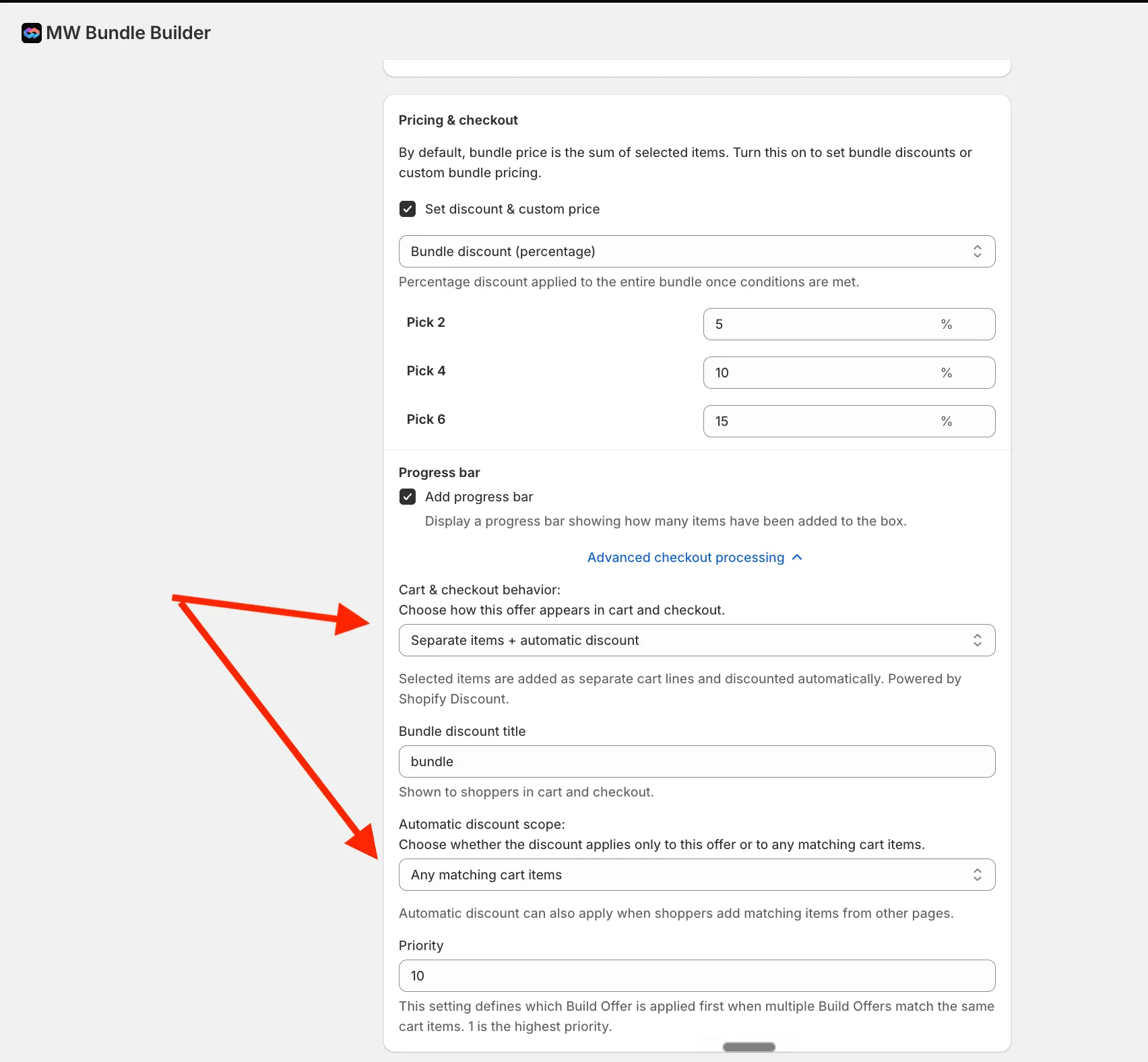
Open Advanced checkout processing.
-
Set Cart & checkout behavior to:
Separate items + automatic discount
This keeps products as separate line items and allows the discount to be applied automatically. It uses Shopify discount function.
-
Set Automatic discount scope to:
Any matching cart items
This allows the discount to apply when eligible products are added directly in Shopify POS.
-
Enter a clear Bundle discount title.
-
If several offers may apply to the same products, set the Priority.
-
Add the products that should be eligible for the POS Mix & Match promotion.
How it works in Shopify POS
Section titled “How it works in Shopify POS”In Shopify POS, staff add eligible products to the cart as regular products.
Once the POS cart contains products that match the offer conditions, the Mix & Match discount is applied automatically.
The products remain separate line items in the POS cart and order.
Important notes
Section titled “Important notes”The online bundle builder is not used inside Shopify POS
Section titled “The online bundle builder is not used inside Shopify POS”This setup does not display the bundle builder interface inside POS. Instead, staff add products to the POS cart normally.
Products remain separate line items
Section titled “Products remain separate line items”The POS order will contain the individual products, not one grouped bundle line.
Free gifts are not supported with this scope
Section titled “Free gifts are not supported with this scope”The Any matching cart items scope is not available when free gifts are enabled.
If your offer includes free gifts, use the bundle builder flow instead.
Priority matters if products are used in multiple offers
Section titled “Priority matters if products are used in multiple offers”If several Mix & Match offers include the same products, priority defines which offer is applied first.
A lower number means higher priority.
Recommended settings for Shopify POS
Section titled “Recommended settings for Shopify POS”| Setting | Recommended value |
|---|---|
| Cart & checkout behavior | Separate items + automatic discount |
| Automatic discount scope | Any matching cart items |
| Bundle discount title | POS Mix & Match discount |
| Free gifts | Disabled |
| Priority |