
How to hide “All products” in Mix & Match categories
By default, Mix & Match bundles include an “All products” tab at the beginning of the category list. This tab shows products from all categories at once and is selected automatically when the widget loads.
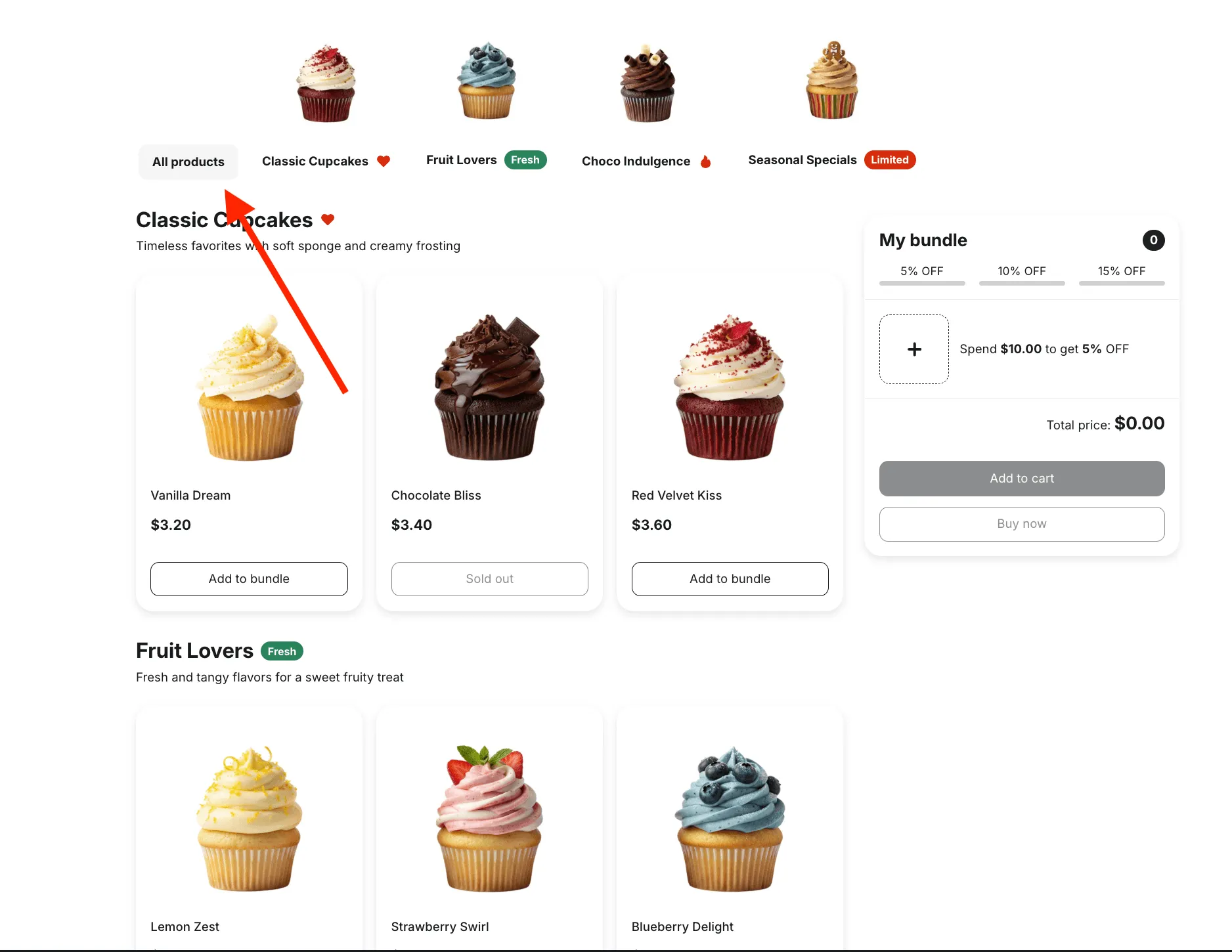
If you prefer a cleaner navigation or want customers to start from a specific category, you can easily hide this option.
How to remove “All products”
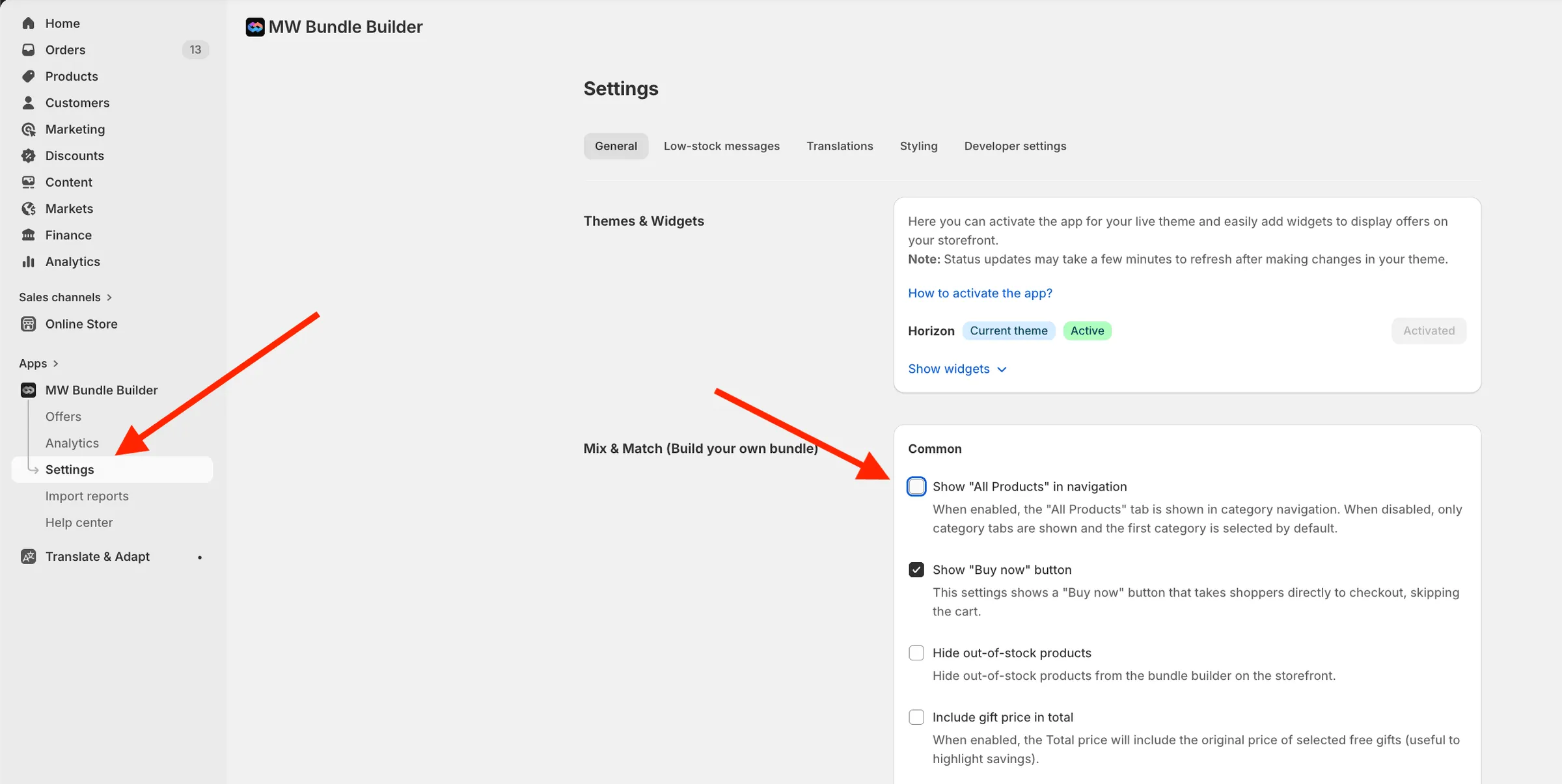
Section titled “How to remove “All products””- Go to Settings in your app
- Open General → Mix & Match
- Find the option “Show ‘All Products’ in navigation”
- Uncheck this setting
That’s it — no additional setup required.
What happens after disabling it?
Section titled “What happens after disabling it?”- The “All products” tab will no longer appear on the storefront
- The first category in your list will be selected by default
- Customers will browse products category by category, instead of seeing everything at once