
Bundle BuilderUsing the app
Buy X Get Y (different products)
Buy X Get Y (BOGO) offers
Section titled “Buy X Get Y (BOGO) offers”Buy X Get Y offers are promotions where purchasing one or several items (X) allows customers to get another item (Y) for free or at a discounted rate. It’s a strategy often used to increase sales, clear inventory, or introduce new products, enhancing value for customers. Examples include “Buy One, Get One Free” or “Buy a Coffee, Get a Pastry Half Off”
To create a bundle offer click the Create offer button and choose BuyX Get Y.
Offer name
Section titled “Offer name”Internal name of your offer.
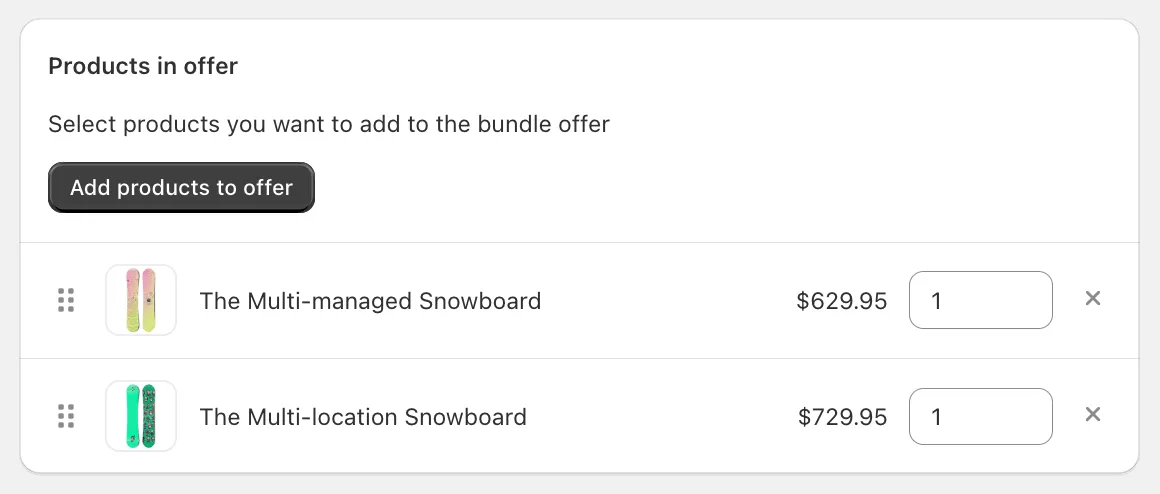
Products in offer
Section titled “Products in offer”Here you can choose the products your customers should purchase to get a discounted or free item. You can add the product either with specific variants or all variants. For every product you can specify a quantity of the product in the bundle.
To change a position of a product in the bundle, just use the drag&drop icon and move the product to the necessary position.
To remove a product, click the X symbol.
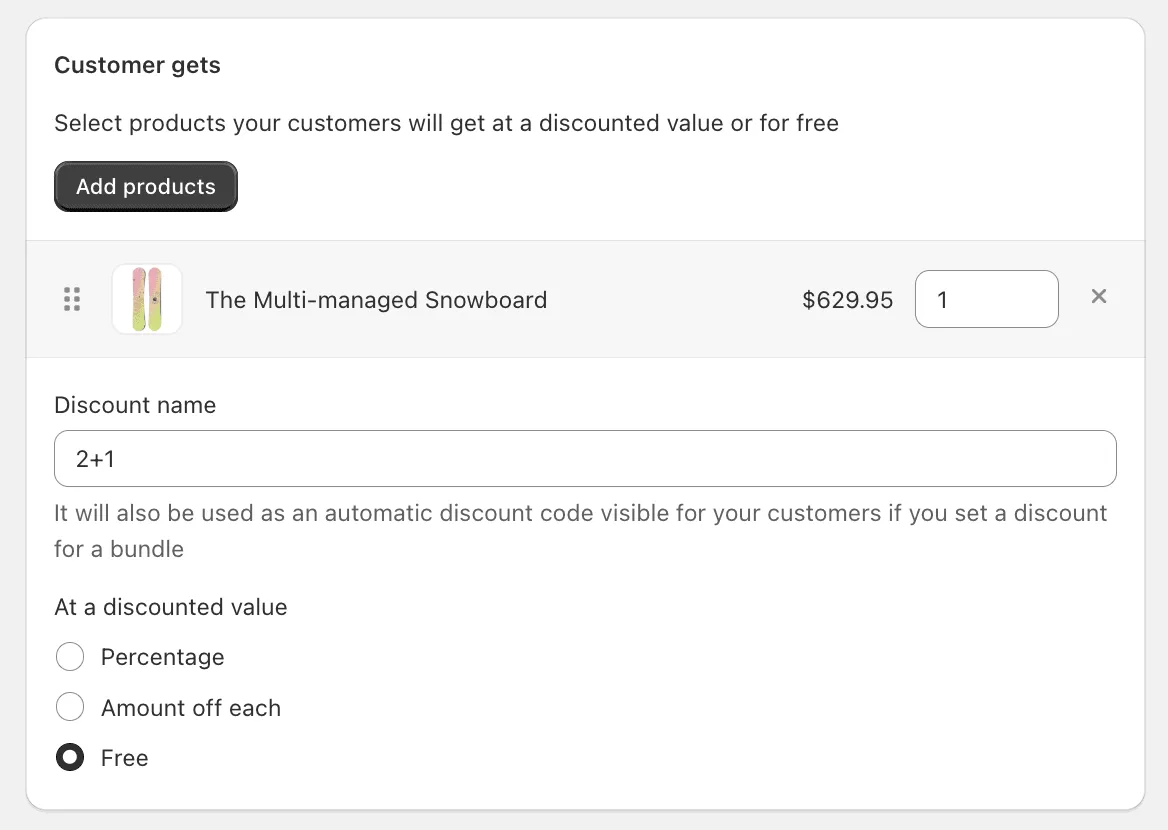
Customer gets
Section titled “Customer gets”Here you can select a product your customers will get at a discounted value or for free. You also need to specify a discount code, which will be used in the automatic discount for BOGO offer.
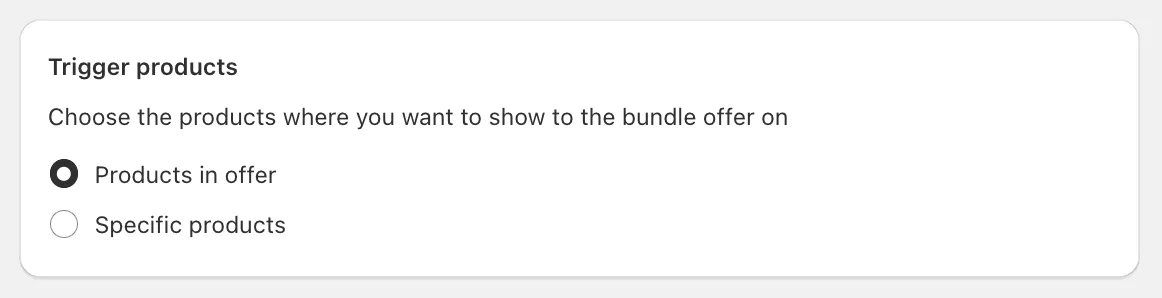
Display on
Section titled “Display on”Here you can choose the products you want to show to the BOGO offer on. You can choose “Specific products” and manually select the products. If you keep “Products in offer” option, it will display the BOGO offer block on the products chosen in “Products in offer” section. That’s the recommended option to show your customers the available offers of the products they view.
Customize offer
Section titled “Customize offer”To change the title and the description of the bundle offer block on the storefront, switch to Translations tab within the offer. See more details in the Translations section.
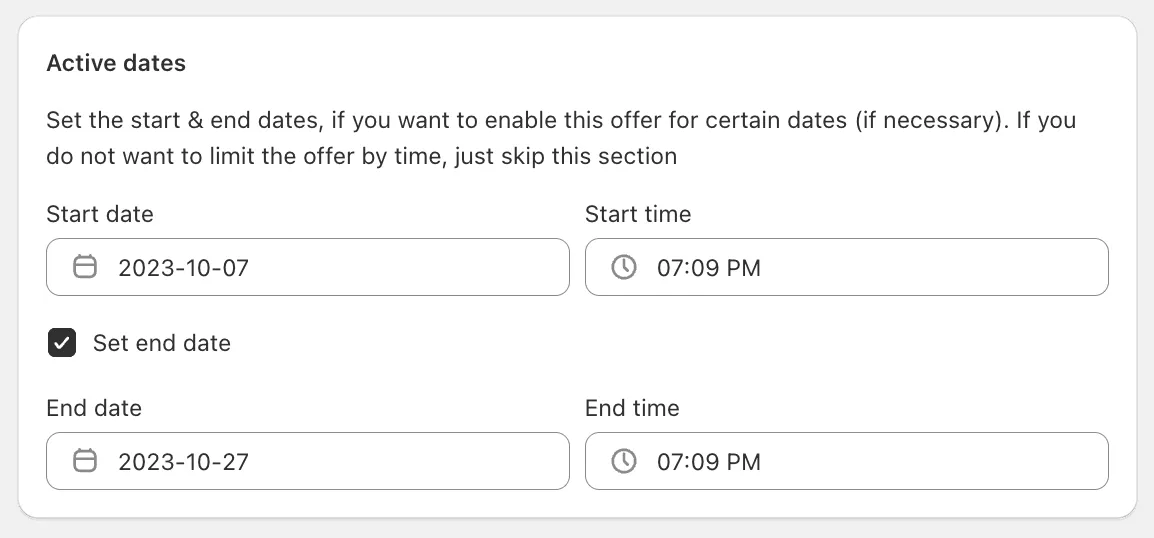
Active dates
Section titled “Active dates”Here you can set the necessary start/end dates. By default the start date is set to the current date. These settings might be useful if you need to create time-limited offer or to schedule the offer for future dates.
Advanced settings
Section titled “Advanced settings”The Priority fields helps to determine what bundle offer will be used if there are multiple offers available for the same trigger product. “1” is the highest priority.