How to configure Buy Again button for Mix & Match bundles in the customer accounts
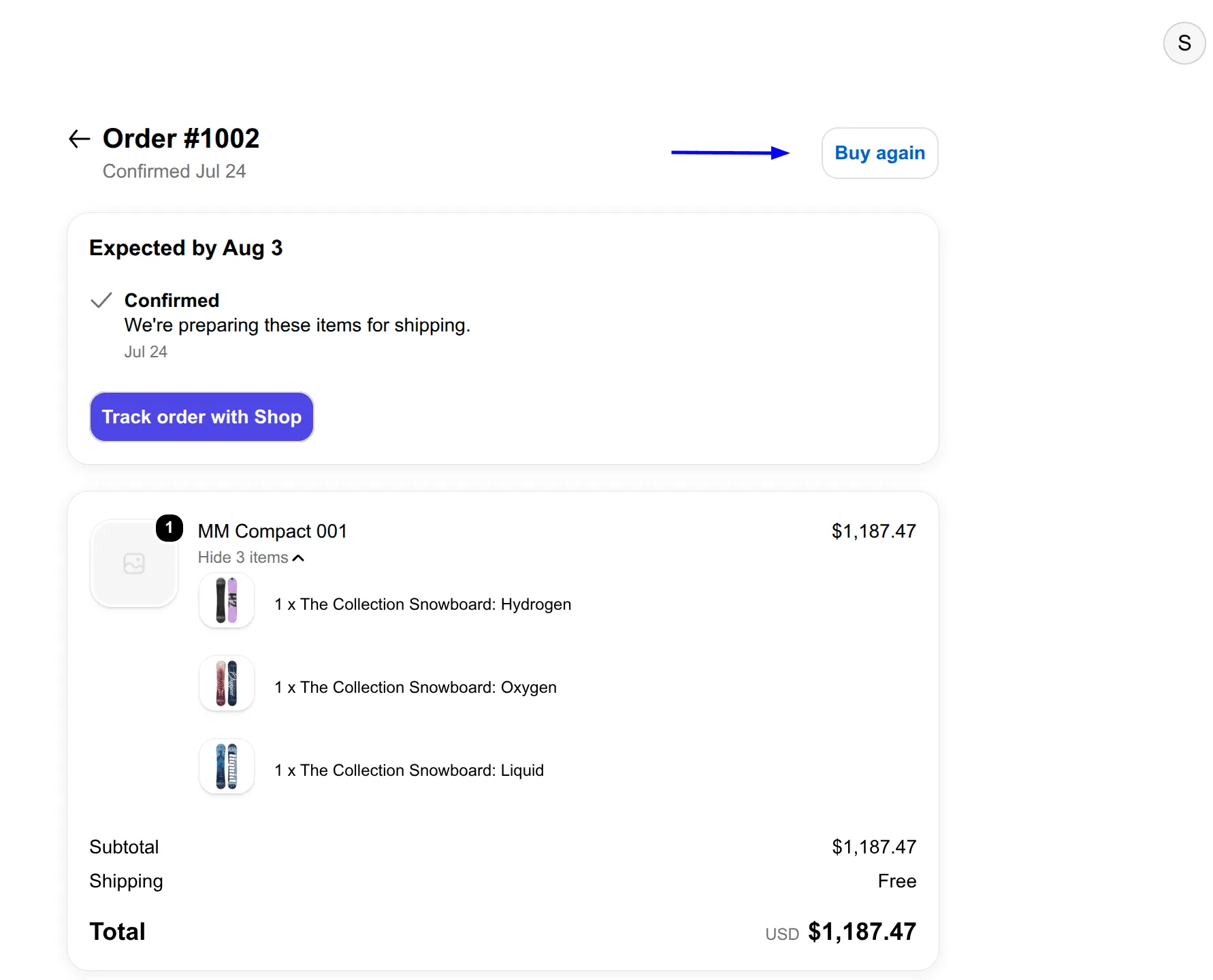
Shopify’s default Buy again button in the Customer Accounts may not work correctly with Mix & Match bundles.
A Mix & Match bundle usually uses a wrapper product whose selected items are added through Shopify Cart Transform API. When a customer clicks Shopify’s default Buy again button, Shopify may add only the empty wrapper product to the cart, without any of the products that were previously selected as part of the bundle.
To prevent this, MW Bundle Builder provides the Build offer reorder block for customer accounts.
For regular products, the block keeps the standard reorder behavior. For Mix & Match bundle products, it redirects the customer to the product page instead of adding an empty wrapper product to the cart. The customer can then select the required products and build the bundle again.
Replace Shopify’s “Buy again” button
Section titled “Replace Shopify’s “Buy again” button”To enable the Build offer reorder block:
- In Shopify admin, go to Settings → Checkout.
- Open the checkout and customer accounts editor.
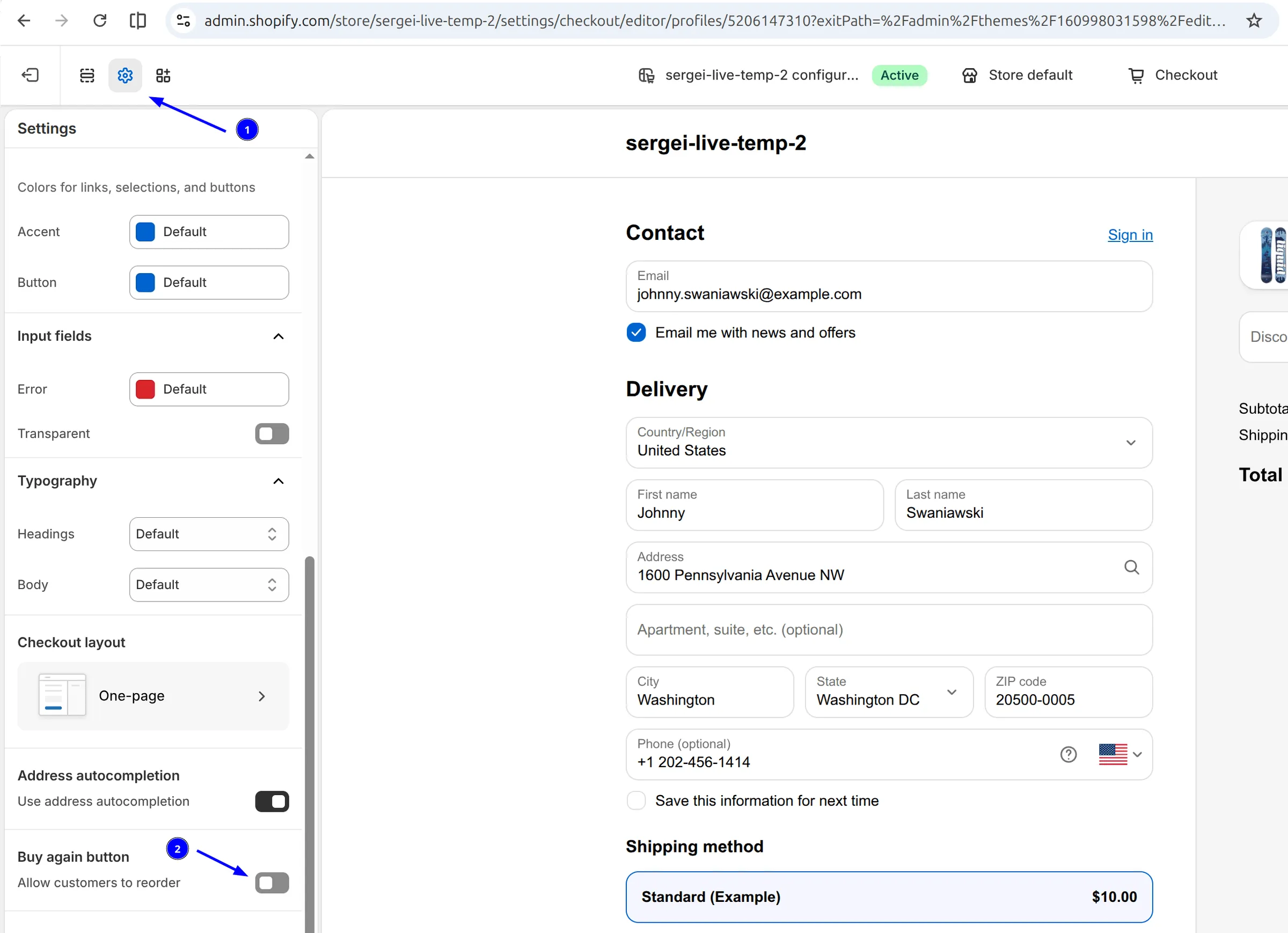
- Open the customer account order page.
- Disable Shopify’s default Buy again button.
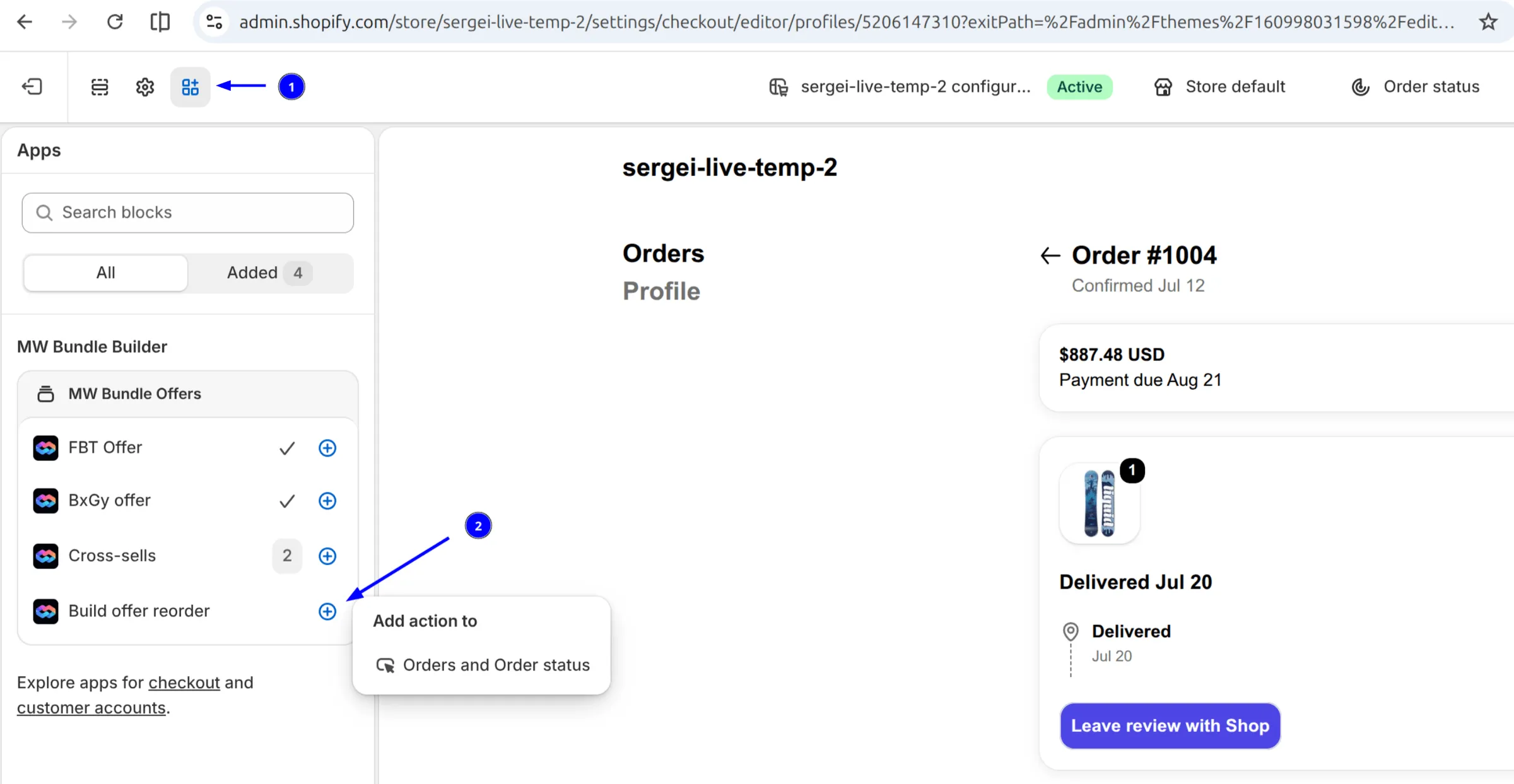
- Click Add app block and add the Build offer reorder block from MW Bundle Builder.
- Save your changes.
After the block is enabled, customers who click Buy again for a Mix & Match bundle will be redirected to its product page, where they can configure and add a new bundle to the cart.