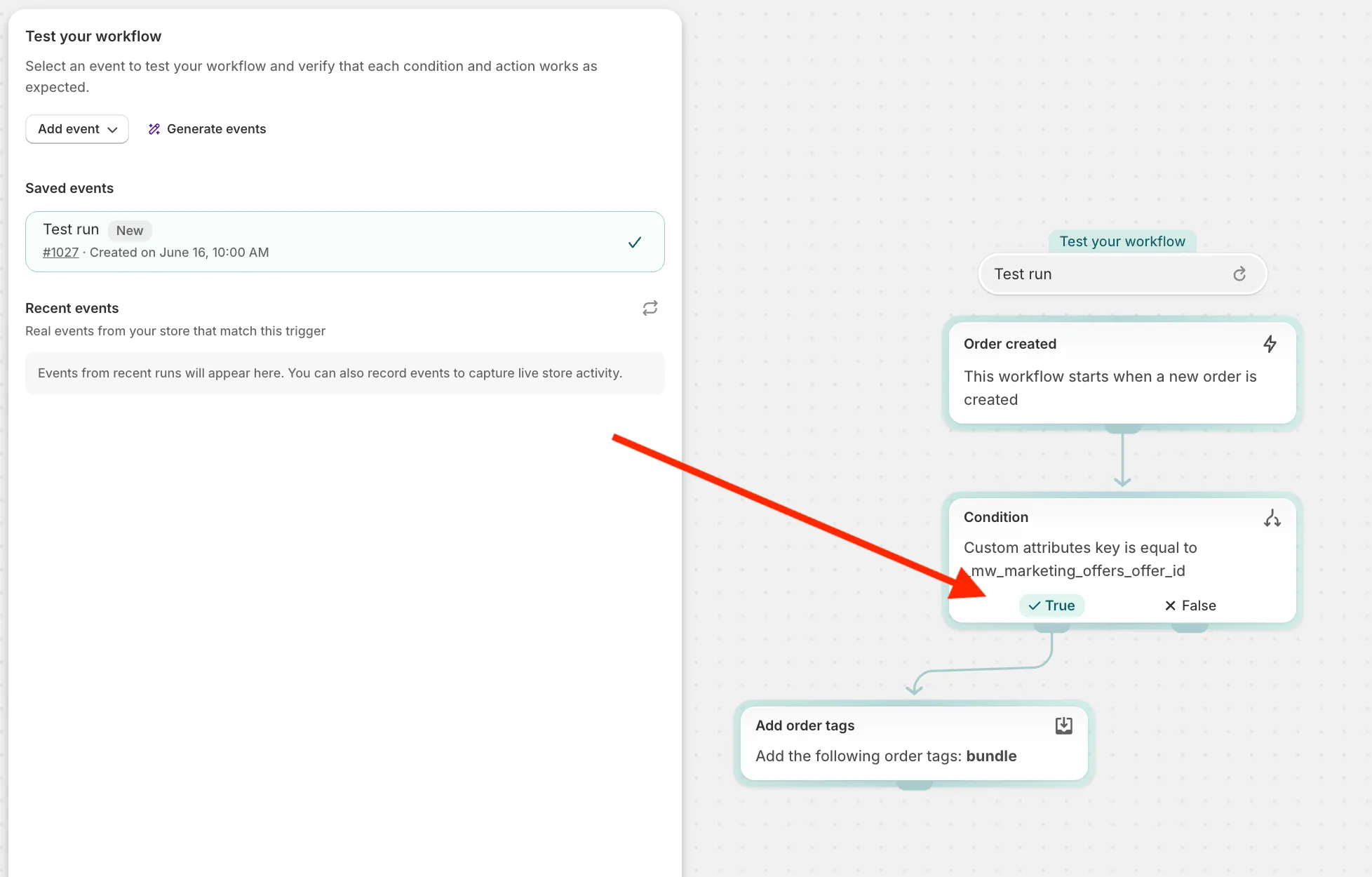
Tagging orders with Bundles using Shopify Flow
To automatically tag orders containing bundle offers, you can set up a workflow in Shopify Flow. This workflow will check for the custom attribute _mw_marketing_offers_offer_id in your orders and add a specific tag to those that include bundle offers. Here’s a detailed guide, with a visual reference from your provided screenshot:
-
Open Shopify Flow: Access the Shopify Flow app from your Shopify admin dashboard.
-
Create a new workflow: Click on “Create workflow” to start a new automation.
-
Set Trigger:
- Trigger Event: Select “Order Created” as the trigger event. This ensures that the workflow starts whenever a new order is created.
-
Add Condition:
- Condition Type: Choose the condition to check for the custom attribute**:\
- click on Add variables\
- choose ‘order’\
- find ‘lineitems’\
- choose ‘customAttributes’\
- choose ‘key’\
- Condition:** Set to ‘Equal to’\
- set ‘Key’ as
_mw_marketing_offers_offer_id
- Condition Type: Choose the condition to check for the custom attribute**:\
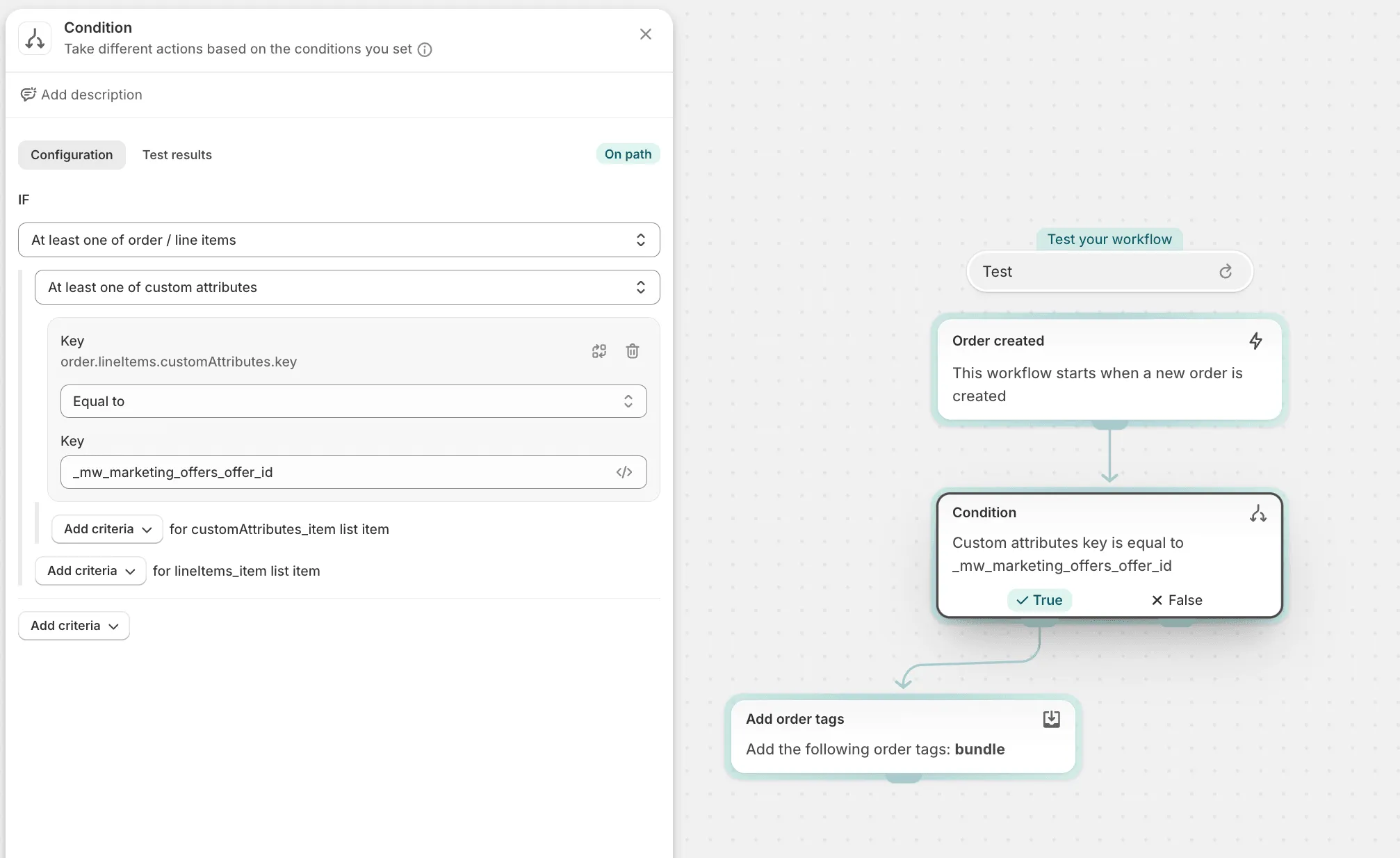
-
Apply Action:
- Action Type: Select “Add order tags.”
- Tag Value: Enter
mw_bundle_offeras the tag to be added to the orders that meet the condition.
-
Save and Activate: Save your workflow and activate it to start automatically tagging orders with the specified attribute.
How to test your flow
Section titled “How to test your flow”You can test your flow on a certain order, which includes bundles. To do that follow these steps:
Create a test event
Section titled “Create a test event”- click on ‘Select test event’ on the top of your flow
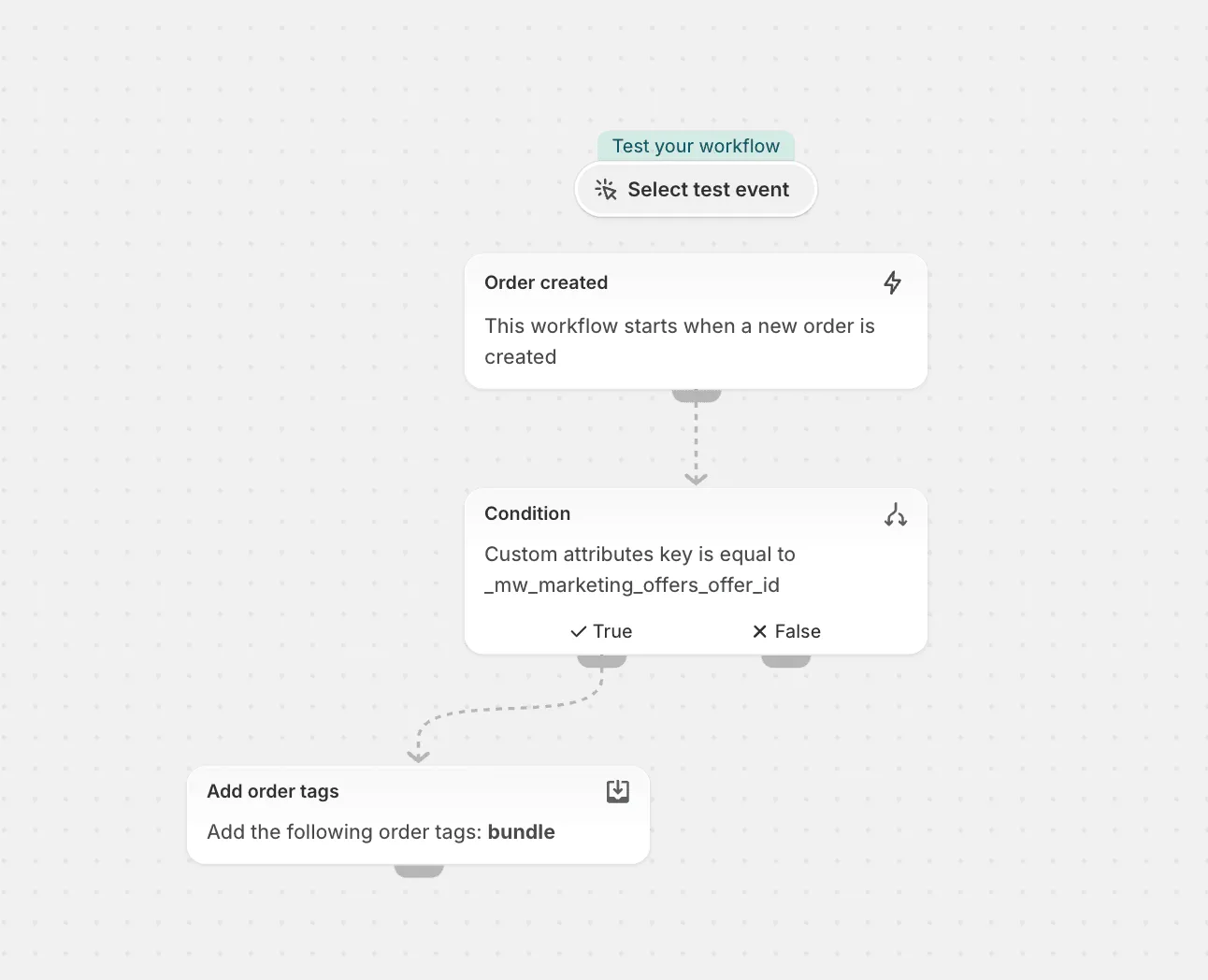
- click ‘Add event’ - ‘Create event’
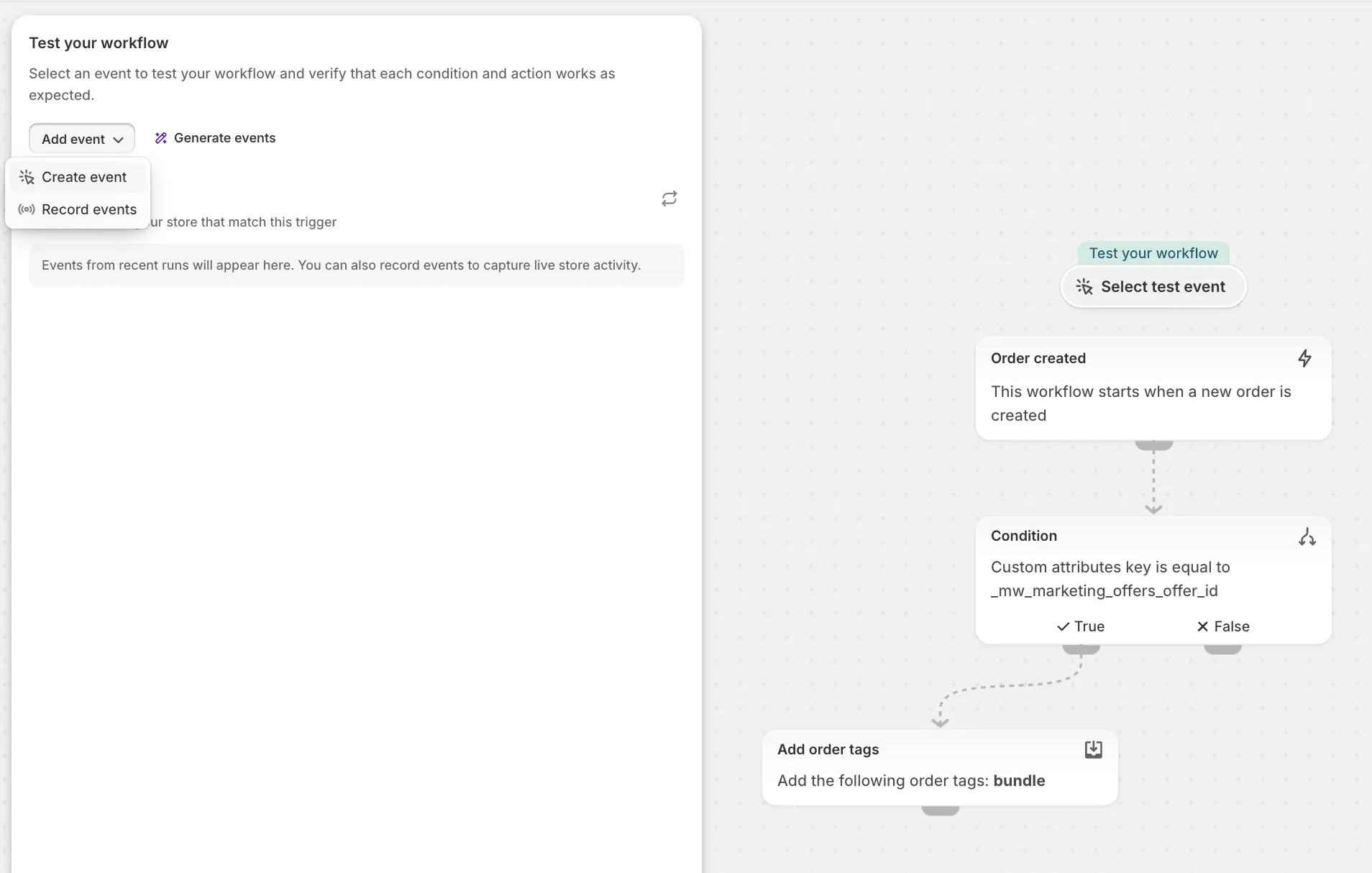
- Name event and select an order for test
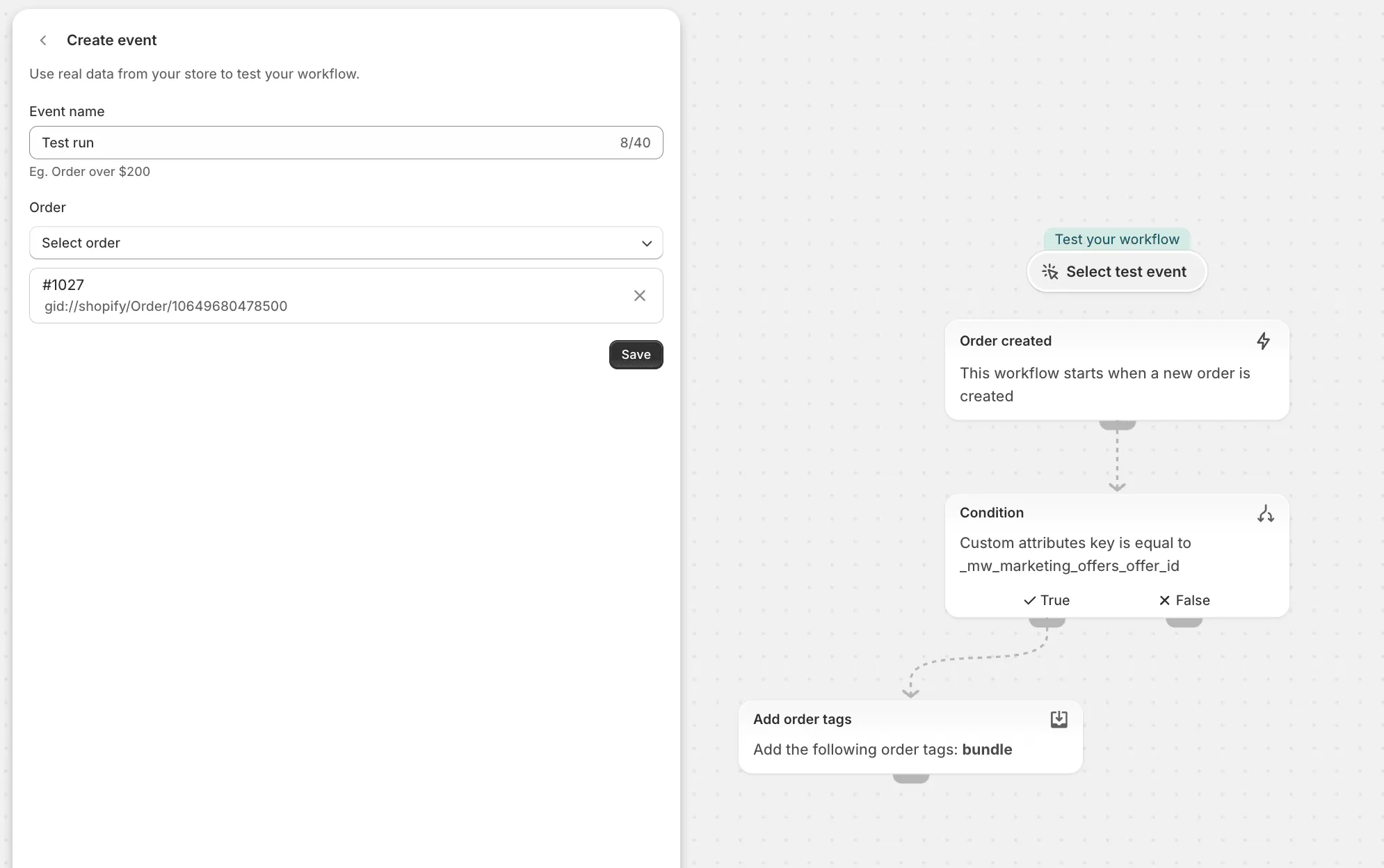
- run the test and see the result