
How to set selection limits and default products for Mix & Match bundles
Selection limits let you control how customers choose products inside a Mix & Match / Build Your Own Bundle offer. They can be configured globally for the entire offer or at the category level. Default products and variants can also be preselected, and default products can be locked so customers can’t remove them or change their quantity.
Use this article when you want to:
- set global bundle limits;
- limit how many products customers can choose from each category;
- allow or prevent multiple quantities of the same product;
- preselect products by default;
- choose which variant of a product is preselected;
- configure different defaults for different box sizes;
- lock default products so they are always included in the bundle.
Contents
Section titled “Contents”1. Global offer limits
Section titled “1. Global offer limits”Start with the Quantity section in the offer settings. This defines the main quantity rule for the whole bundle before category or product-specific rules are applied.
There are three global modes:
- No global limits - customers can add any number of products to the bundle.
- Limit min/max - customers must select at least and/or no more than the specified number of products.
- Quantity as option (Boxes) - customers choose a predefined box size, for example Box of 2 or Box of 5, and must fill that box exactly.
1.1 Limit min/max
Section titled “1.1 Limit min/max”Use Limit min/max when the bundle has one fixed selection range. For example, customers must choose at least 3 products and can choose up to 6 products.
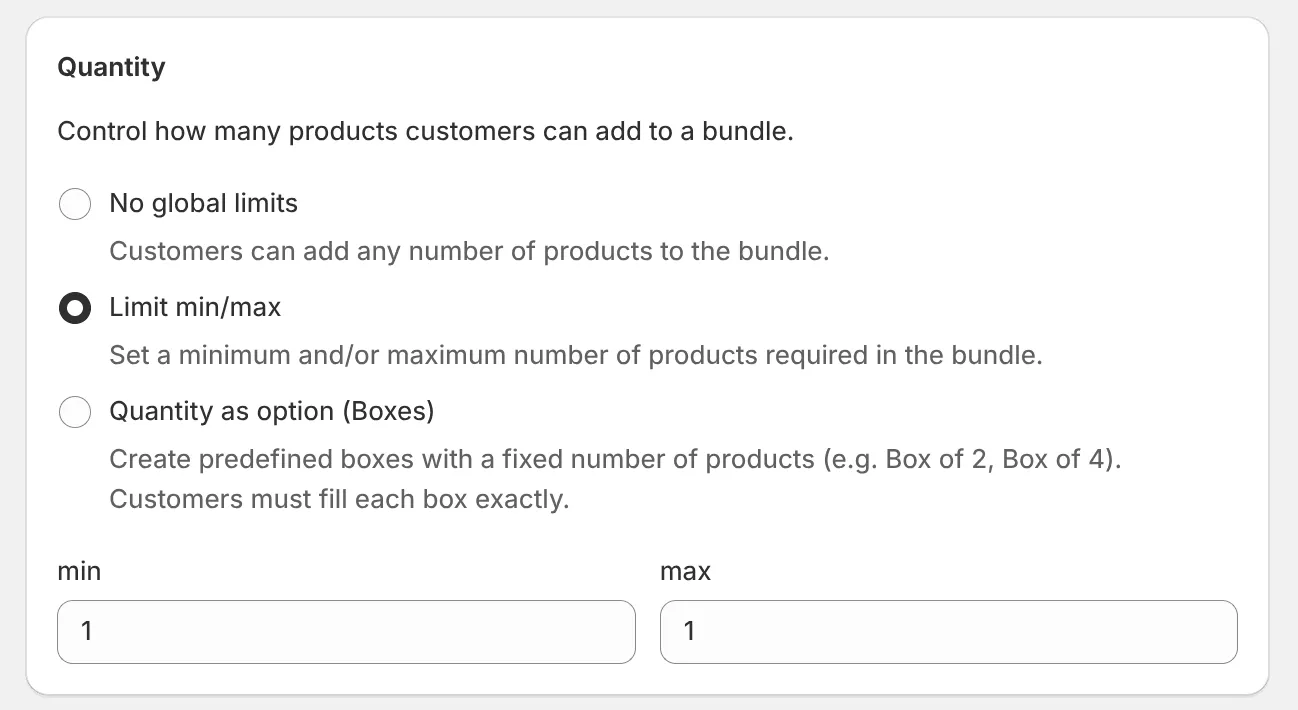
Global min/max limits are the first rule customers see: they define the minimum and maximum number of products required in the bundle.
This mode is best when the offer has one clear bundle size or range and the customer does not need to choose between several box options.
1.2 Quantity as option (Boxes)
Section titled “1.2 Quantity as option (Boxes)”Use Quantity as option (Boxes) when the offer should provide several fixed bundle sizes. Each option has its own title and quantity, such as Box of 2, Box of 4, or Box of 5.
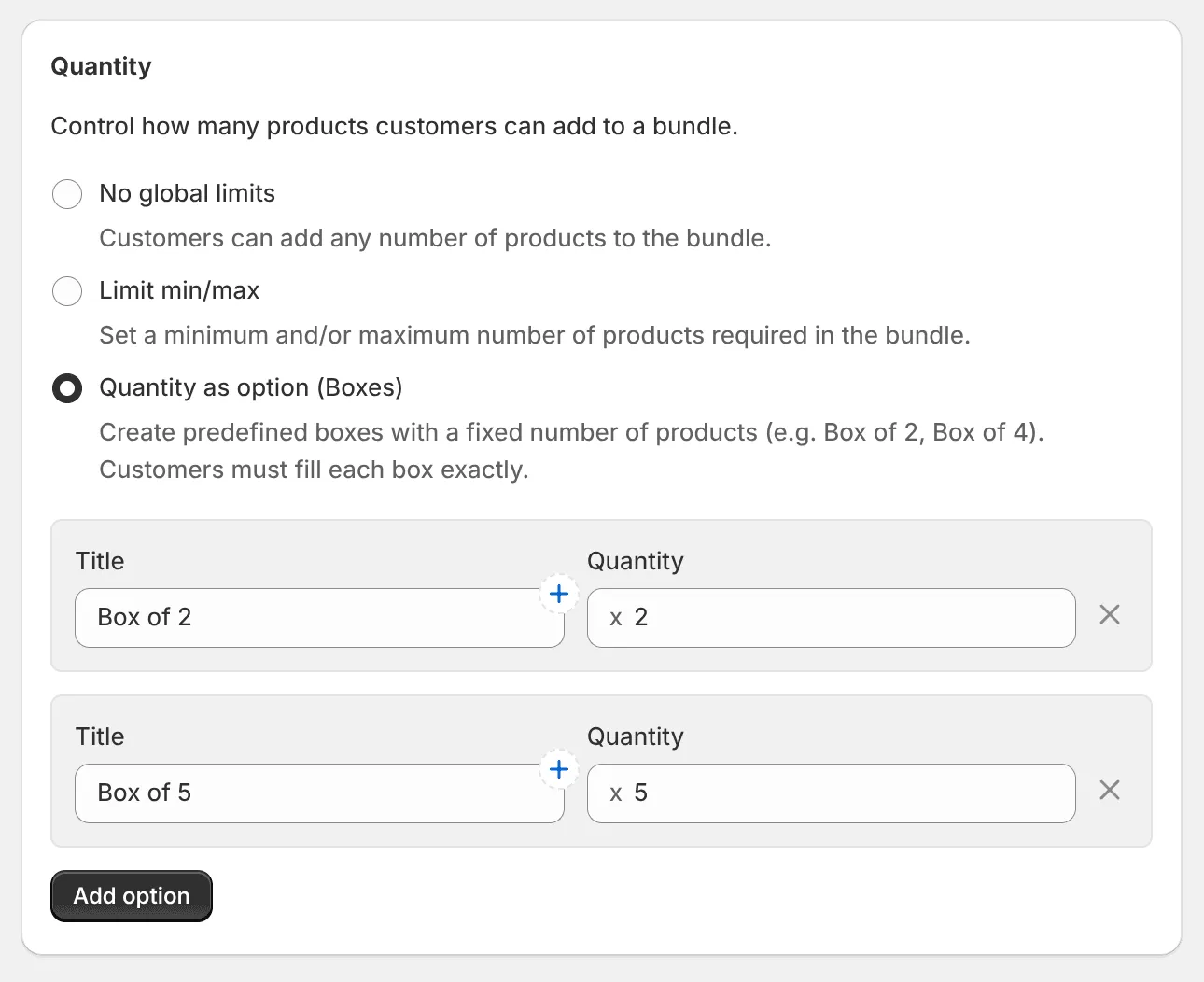
Each box option represents an exact quantity. Customers must fill the selected box exactly before adding the bundle to cart.
This mode is especially useful when the same offer should support several bundle sizes while keeping the customer experience simple.
2. Category-level limits
Section titled “2. Category-level limits”After the global quantity mode is configured, open the Products section and click Selection rules.
Product list settings and Category limits are managed from the Products section.
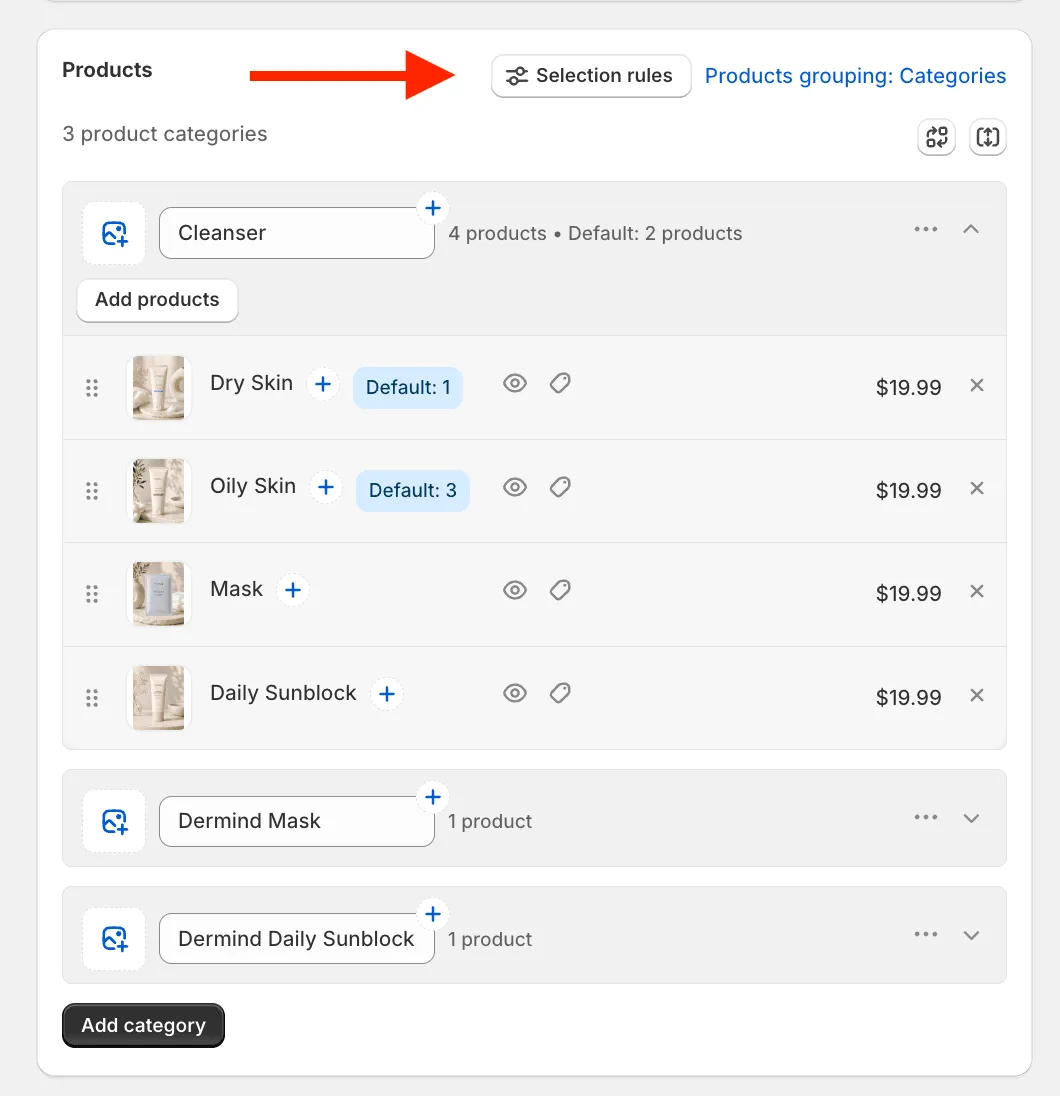
Category-level limits are useful when each category has its own selection requirements. For example, a skincare bundle may require exactly 1 cleanser, exactly 1 mask, and exactly 1 sunblock. In this case, each category can have its own min/max values.
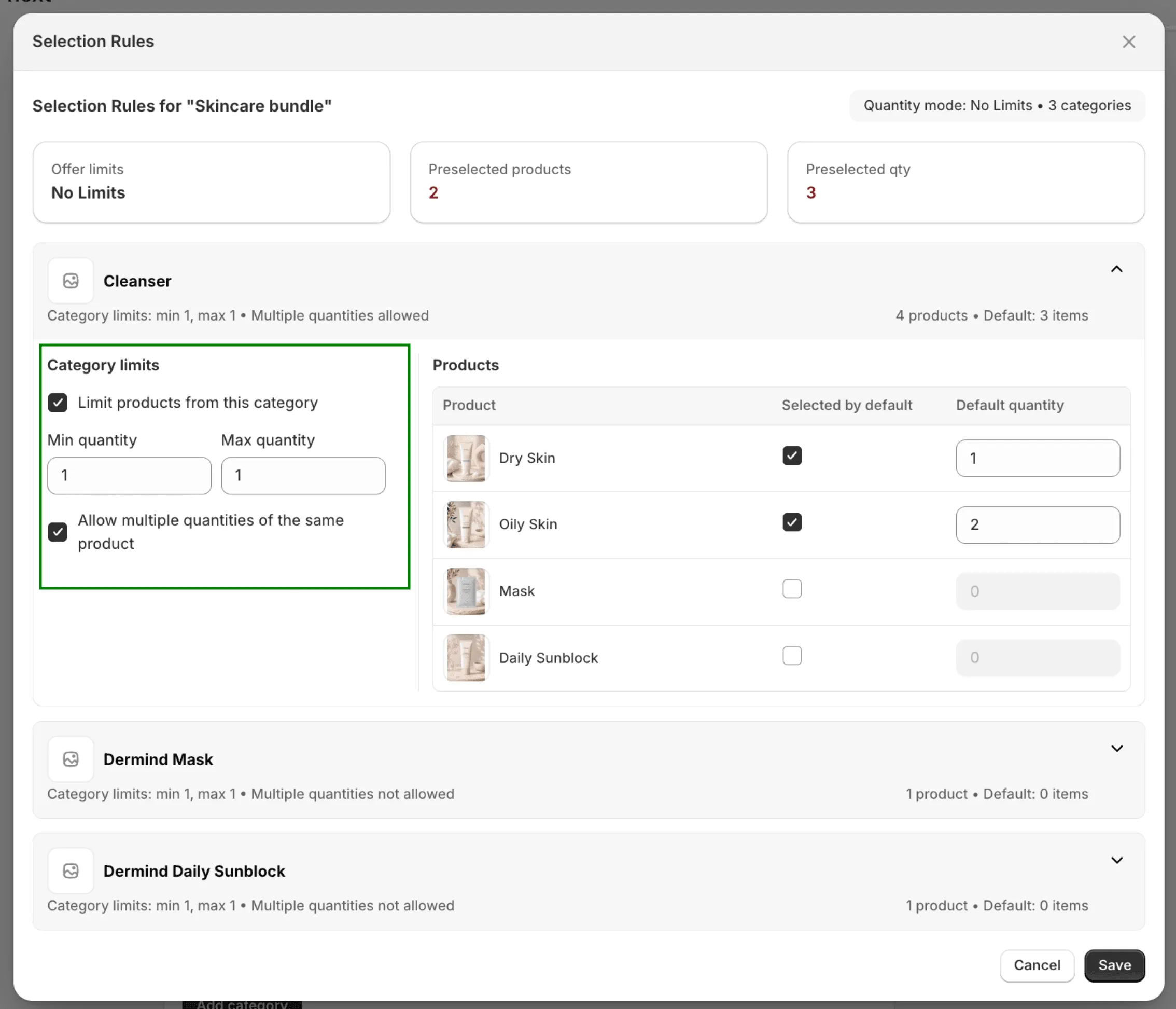
Inside a category, enable Limit products from this category to set minimum and maximum quantities for that category. Then decide whether customers can add multiple quantities of the same product.
Rule idea: global limits define the total bundle size; category limits define how the total can be distributed between categories.
Default selections are also validated against the selected global quantity mode:
- With Limit min/max, products marked Selected by default are limited by the global offer min/max values.
- With Quantity as option (Boxes), Selected by default products are configured separately for each box option and are limited by that box size.
3. Default products and default quantity
Section titled “3. Default products and default quantity”Default products are products that are preselected when the bundle opens. They help customers start from a recommended configuration instead of building the bundle from an empty state.
In Selection Rules, expand a category and use the products table:
- Selected by default - preselects the product when the bundle is opened.
- Default quantity - sets how many units should be preselected for that product.
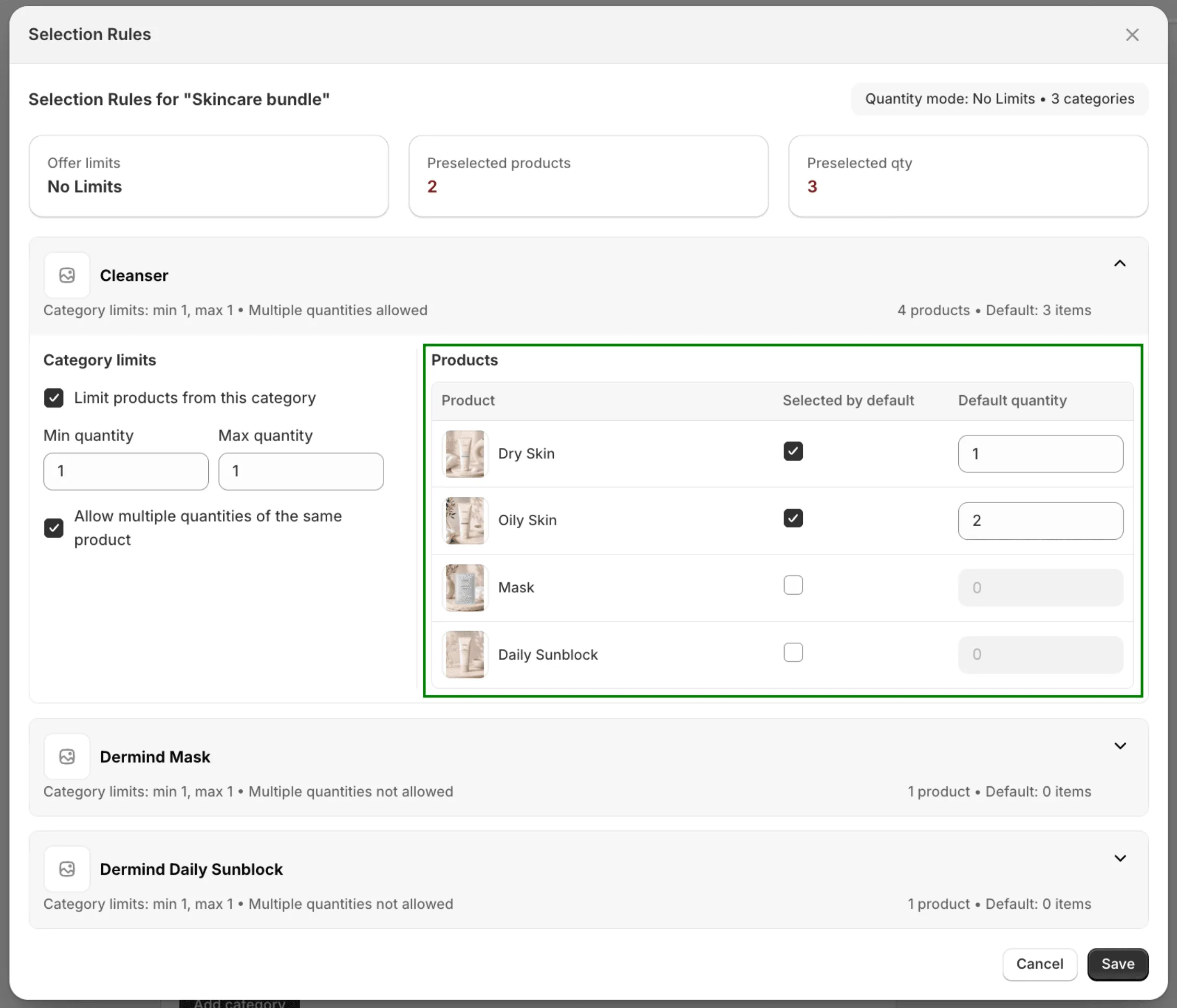
When multiple quantities are not allowed, the default quantity should normally be 0 or 1.
The summary cards at the top of Selection Rules help you verify the total number of preselected products and the total preselected quantity.
Default products are preselected, but they are still editable: customers can remove them or change their quantity. To keep a product in every bundle, lock it (see section 4).
3.1 Default variants
Section titled “3.1 Default variants”For products with variants, you can choose which variant is preselected. In Selection Rules, click the arrow next to the product to expand it, then choose a Preselect mode:
- First in stock - preselects the first variant that is in stock when the customer opens the bundle. Use it when any variant works as a starting point. The product row shows which variant is currently used, for example First in stock · Classic.
- Specific variant - preselects the exact variant you choose. Use it when the bundle should start with a particular flavor, size, or color.
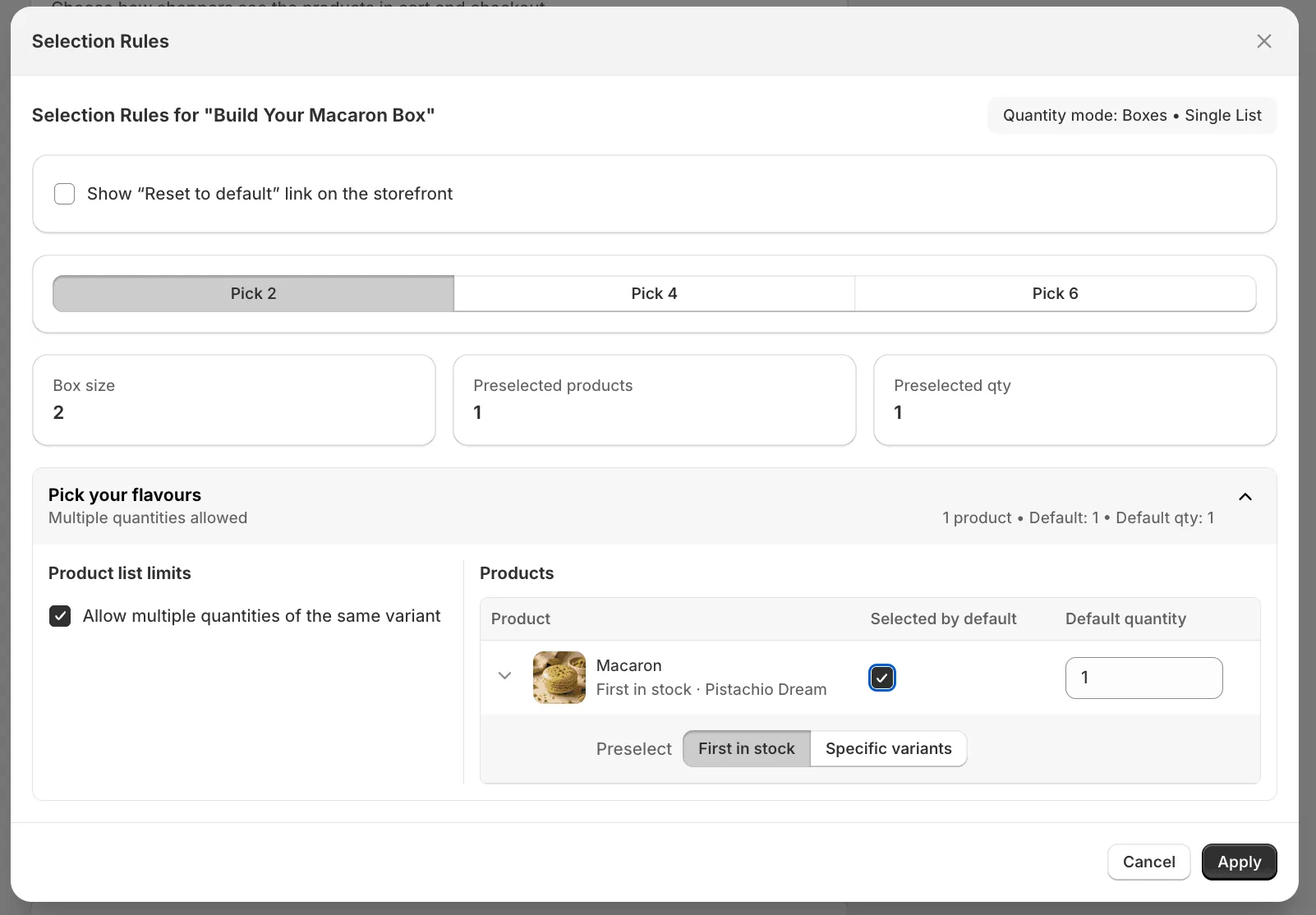
How specific variants work depends on the Display each variant as a separate item setting of the offer:
- Off - the product is shown as one card, so you choose one variant and set the default quantity in the product row.
- On - each variant is shown as its own card, so the option is called Specific variants. You can preselect several variants and set a default quantity for each of them. The product row shows how many variants are preselected, for example 2 of 8 variants.
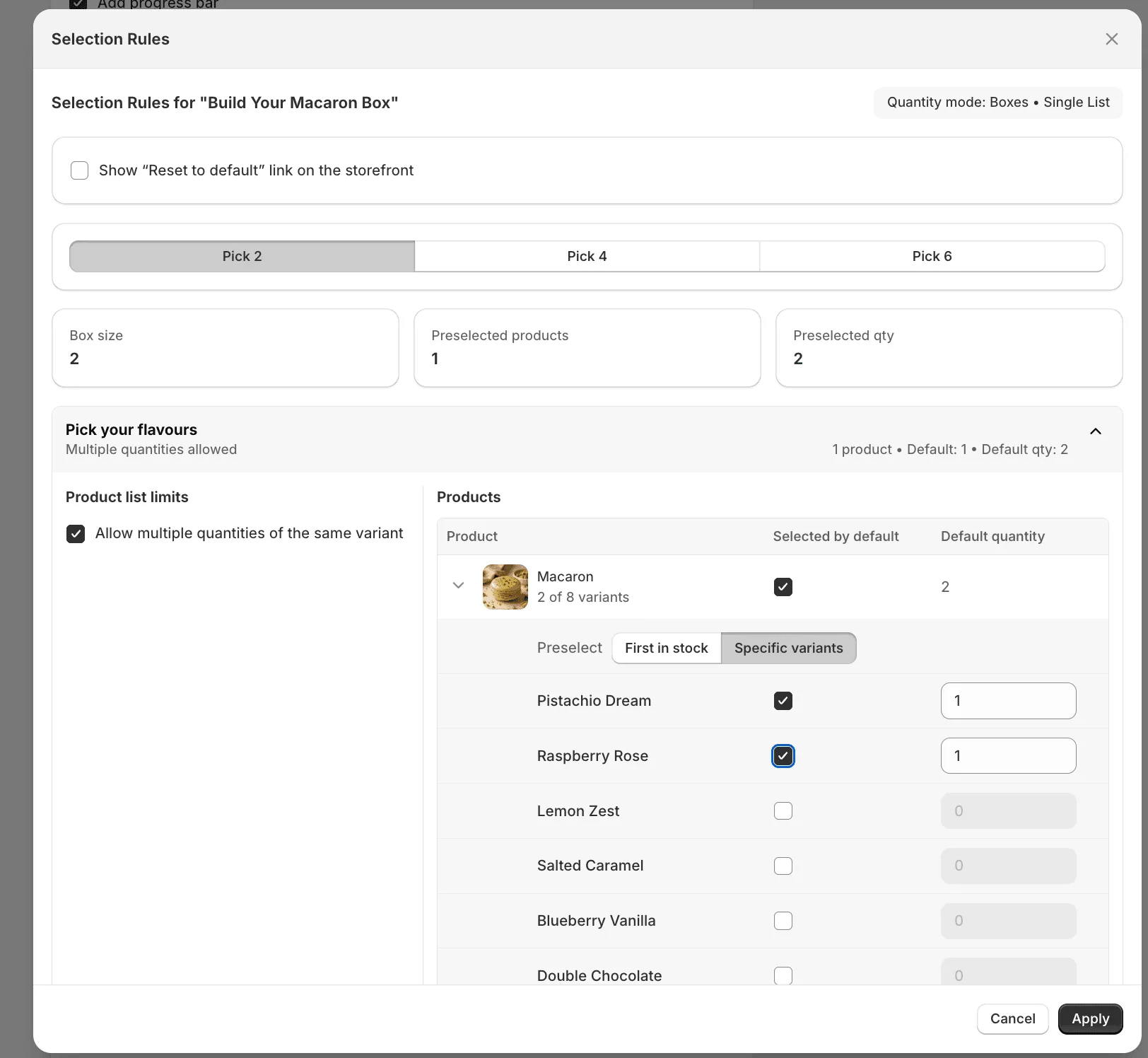
Variants that are sold out, or have less stock than the default quantity, are marked with Sold out or Only N left, so you can see the problem before saving.
4. Locked default products
Section titled “4. Locked default products”If a product must always stay in the bundle, preselection alone is not enough. A preselected product only defines the starting state; customers can still remove it. Lock the product to make it mandatory: it is preselected when the bundle opens, and customers can’t remove it or change its quantity.
Locked products are useful for two kinds of bundles:
- Required products + free choice - base items, mandatory components, or starter products are always included, and customers choose the rest.
- Fixed bundle - all products are locked, so customers buy the bundle exactly as you set it up. To build one, set Limit min/max with the same min and max (for example 6–6), then lock products whose default quantities add up to that number (for example 2 + 2 + 2).
See more details about the locked products in this article .