
Bundle BuilderUsing the app
Product search in Mix & Match bundles
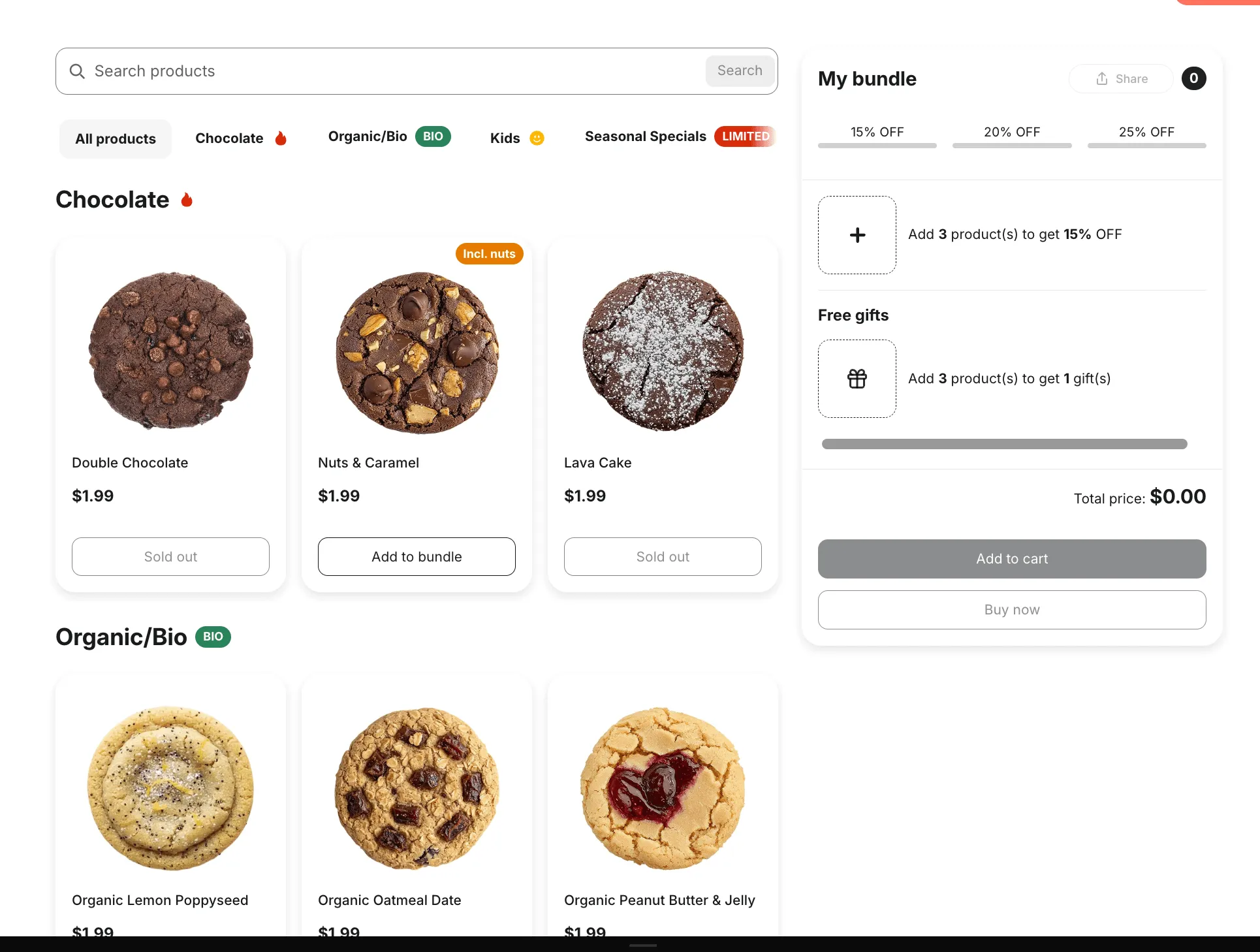
Product search adds a search field to the Mix & Match (Expanded) bundle builder. Customers type what they need, press Search or Enter, and see only matching products — across all categories at once.
It’s most useful for bundles with a large catalog, where scrolling through categories takes too long.
How to turn it on
Section titled “How to turn it on”- Go to Settings in the app
- Open General → Mix & Match (Build your own bundle)
- In the Full page section, check Show product search
- Save
Search is off by default. The setting applies to all Mix & Match offers that use the Expanded layout.
How it works for customers
Section titled “How it works for customers”The search field appears above the categories.
- Customers type a query and press Search or Enter. Results don’t update while typing.
- Results replace the product grid. Categories with no matching products are hidden, and each remaining category shows how many products match.
- Customers can add products to the bundle right from the results, the same way as when browsing.
- To go back to all products, customers clear the field (the × button, Esc, or deleting the text).
- If nothing matches, customers see “No products found” and a button to show all products again.
The My bundle panel isn’t affected by search — selected products stay there.
What search looks for
Section titled “What search looks for”Search checks every product in the bundle, including products that aren’t loaded yet behind Load more.
It matches:
- Product title
- Product description
- Variant SKU
Search isn’t case-sensitive and ignores accents, so “creme” finds “Crème”. A query needs at least 2 characters.
Change the texts
Section titled “Change the texts”The placeholder, button label and messages can be changed and translated.
Go to Translations → Mix & Match and find the Product search section. There you can edit:
- Search field placeholder (default: Search products)
- Search button (default: Search)
- Clear button label (used by screen readers)
- Result messages, “No products found”, “Show all products” and the error message
Change the look
Section titled “Change the look”To style the search field and button, open Design, select a Mix & Match offer with the Expanded layout, and choose the Product search element. The element appears in the preview once search is turned on in Settings.
Search analytics
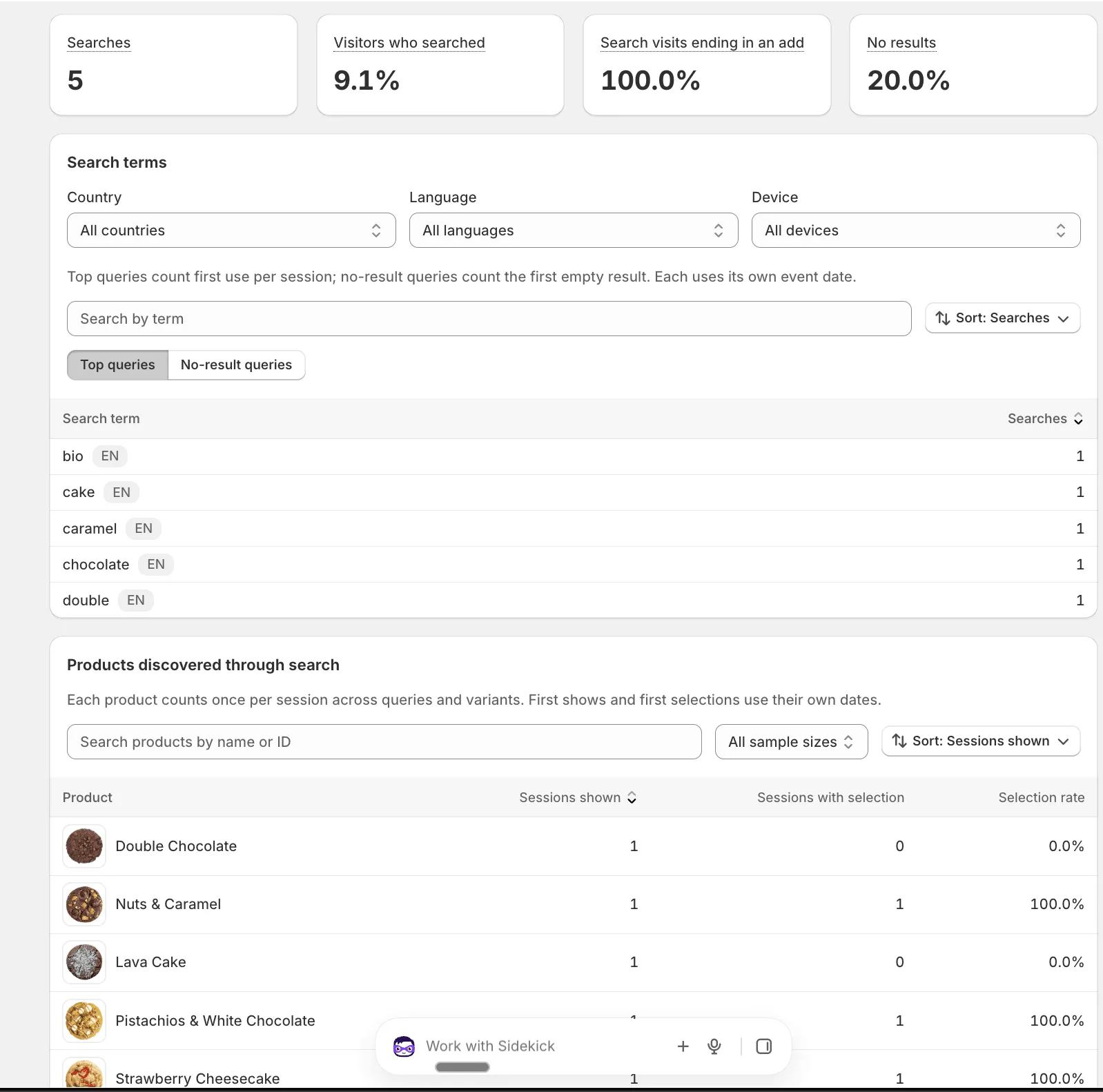
Section titled “Search analytics”Once search is on, you can see what customers search for. Open the offer, go to the Analytics tab and select Search.
The report shows:
- Searches, Visitors who searched, Search visits ending in an add and No results
- Search terms — top queries and queries that found nothing
- Products discovered through search — which products customers found and selected from results
You can filter the report by country, language and device.
Search terms that look like email addresses aren’t stored.
Good to know
Section titled “Good to know”- Search works within the products of the current bundle only, not the whole store.
- Search activity is not included in the position insights of Product performance, so search doesn’t distort which positions in the grid perform best.
- If you use custom CSS for the bundle page, check the layout after turning search on: the search field and category tabs move into the product column, and the My bundle panel starts at the top of the page.