Advanced Product OptionsUsing the app
Translations
The app allows you to create options, option values, and other labels in different languages your store supports.
To do this, follow the steps:
- Go to the “Settings” admin in the left-hand menu and choose the Translations tab.
- Add the required languages you support

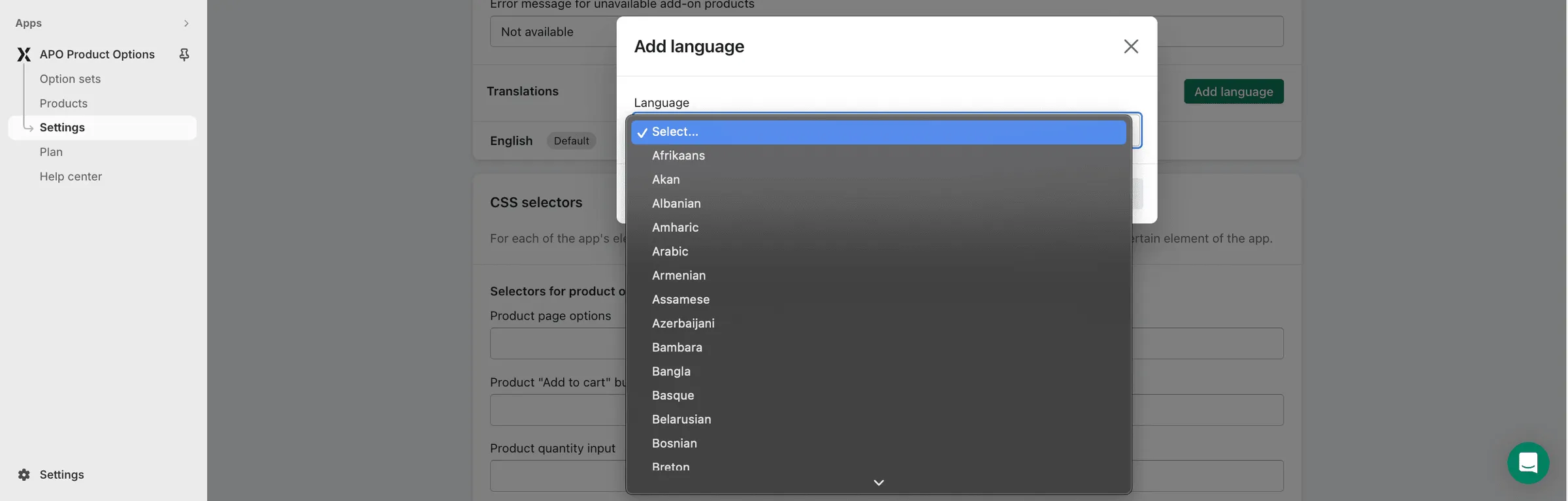
- Click “Save”
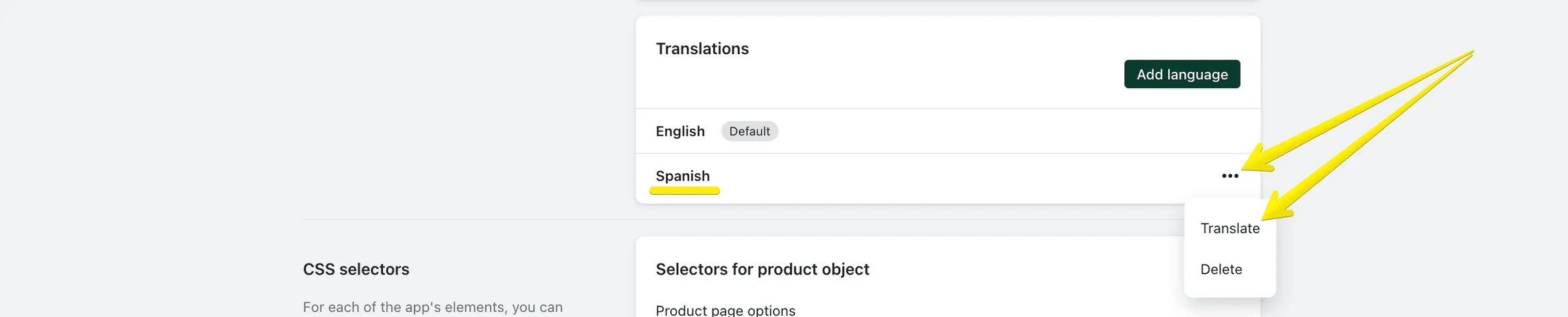
- After the languages are added, you can translate the settings and labels by expanding the menu next to the language name and clicking “Translate”
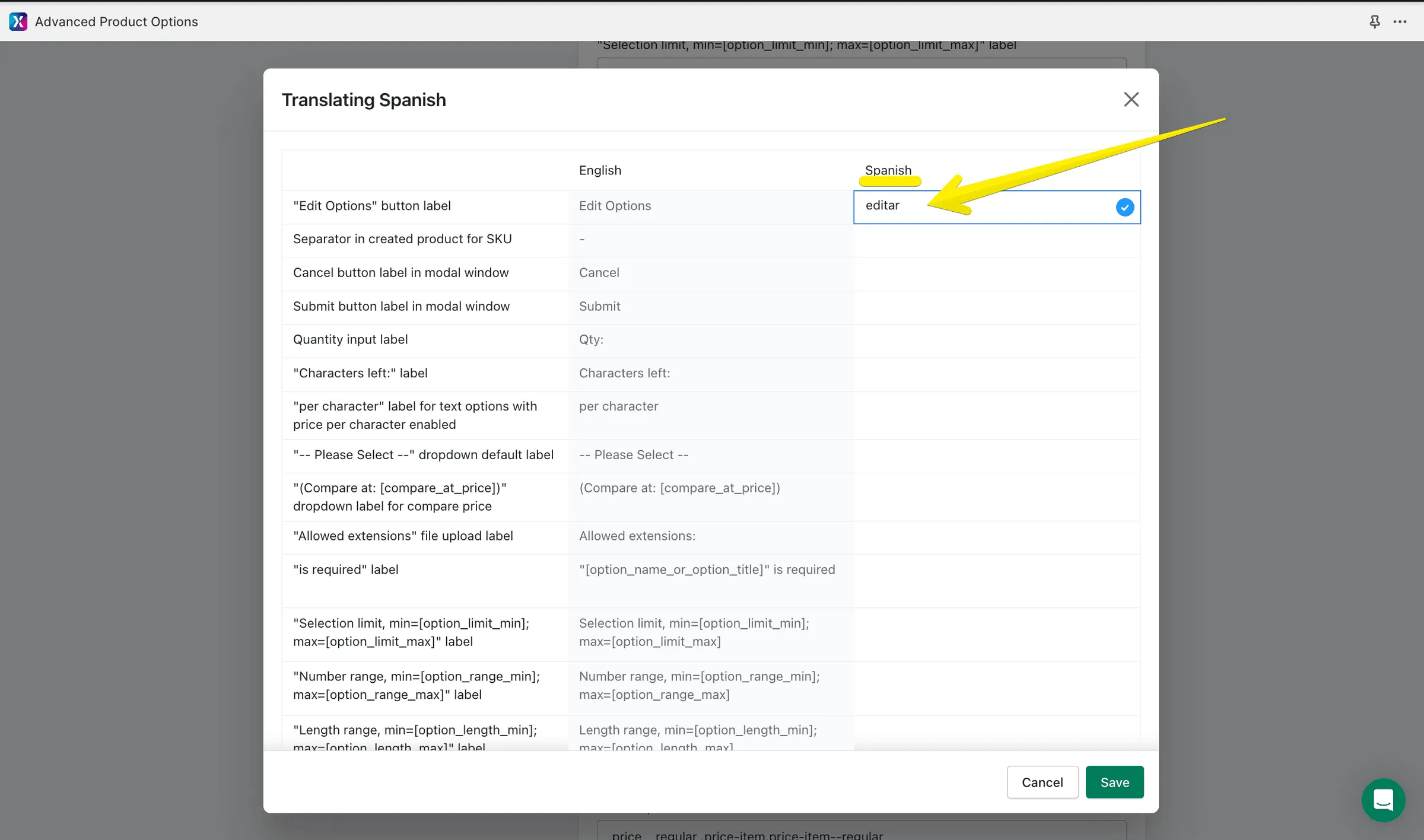
- To translate options, option values, or descriptions navigate to Option Sets admin and select the set to be edited
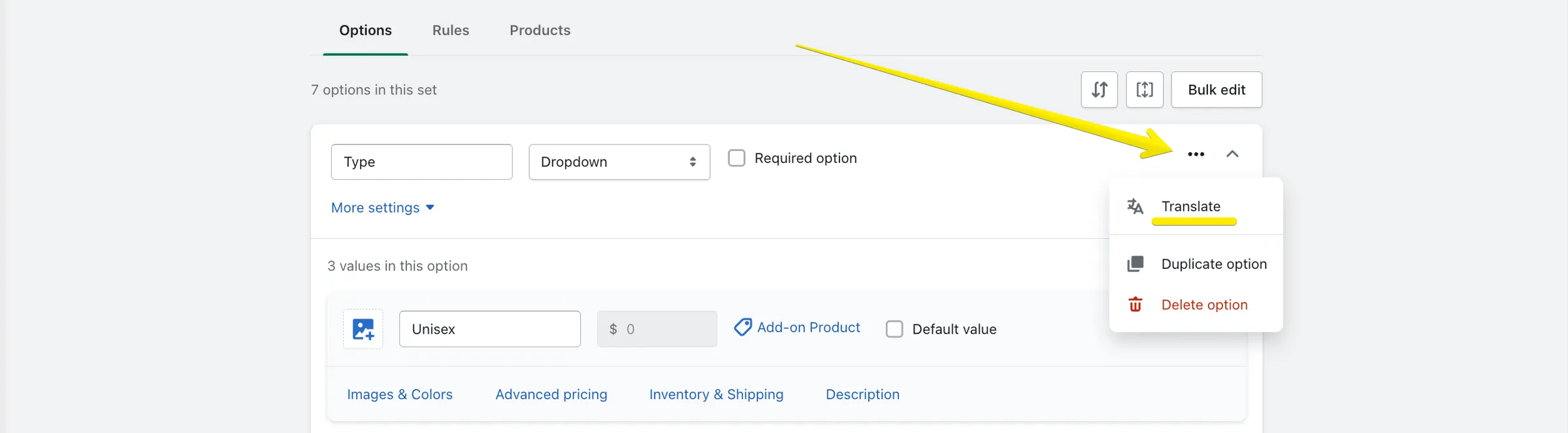
- Expand the menu to the right from the option title and click the “Translate” setting:
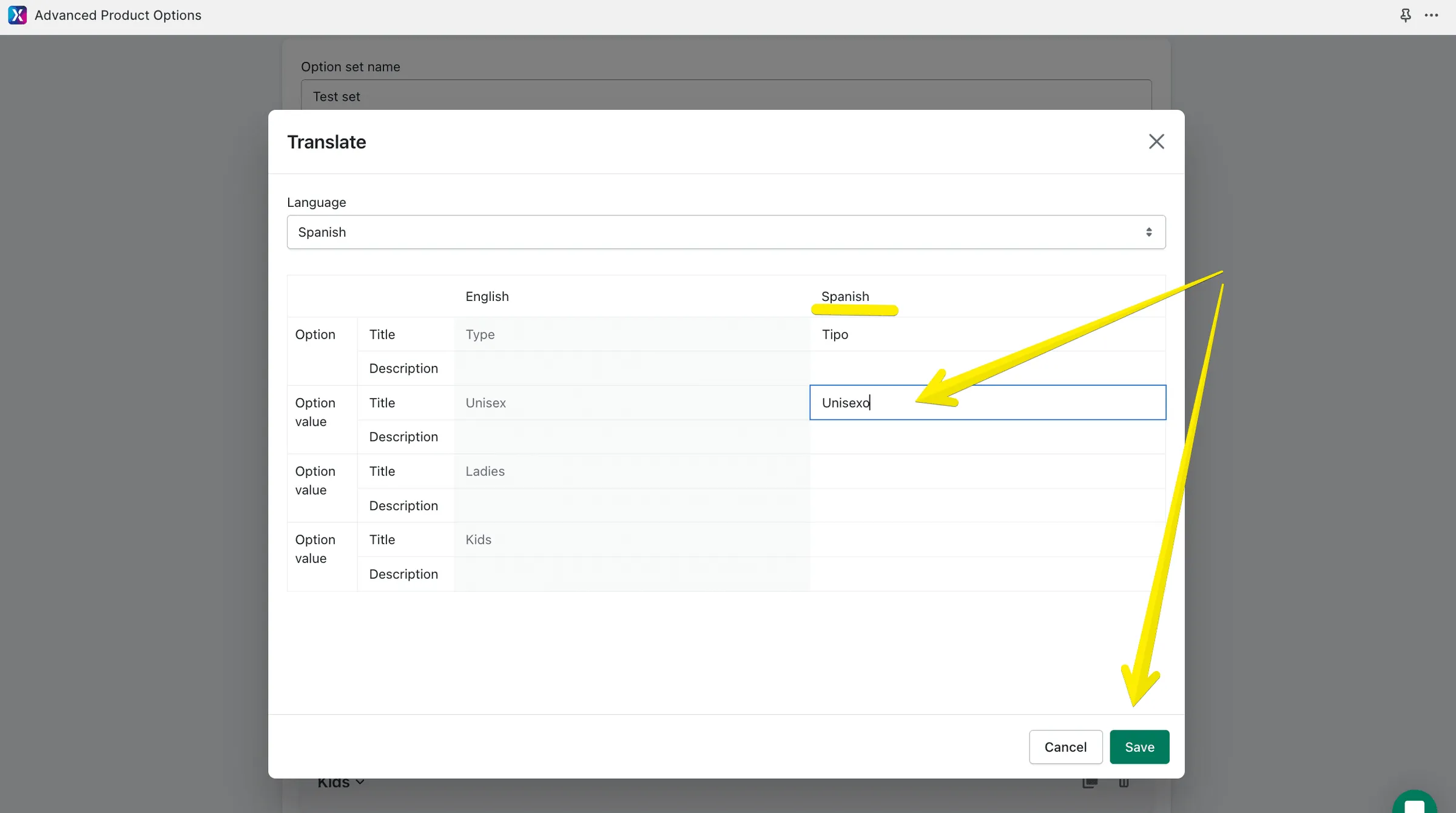
- Select the language(s) from the ones you enabled initially in the app Settings
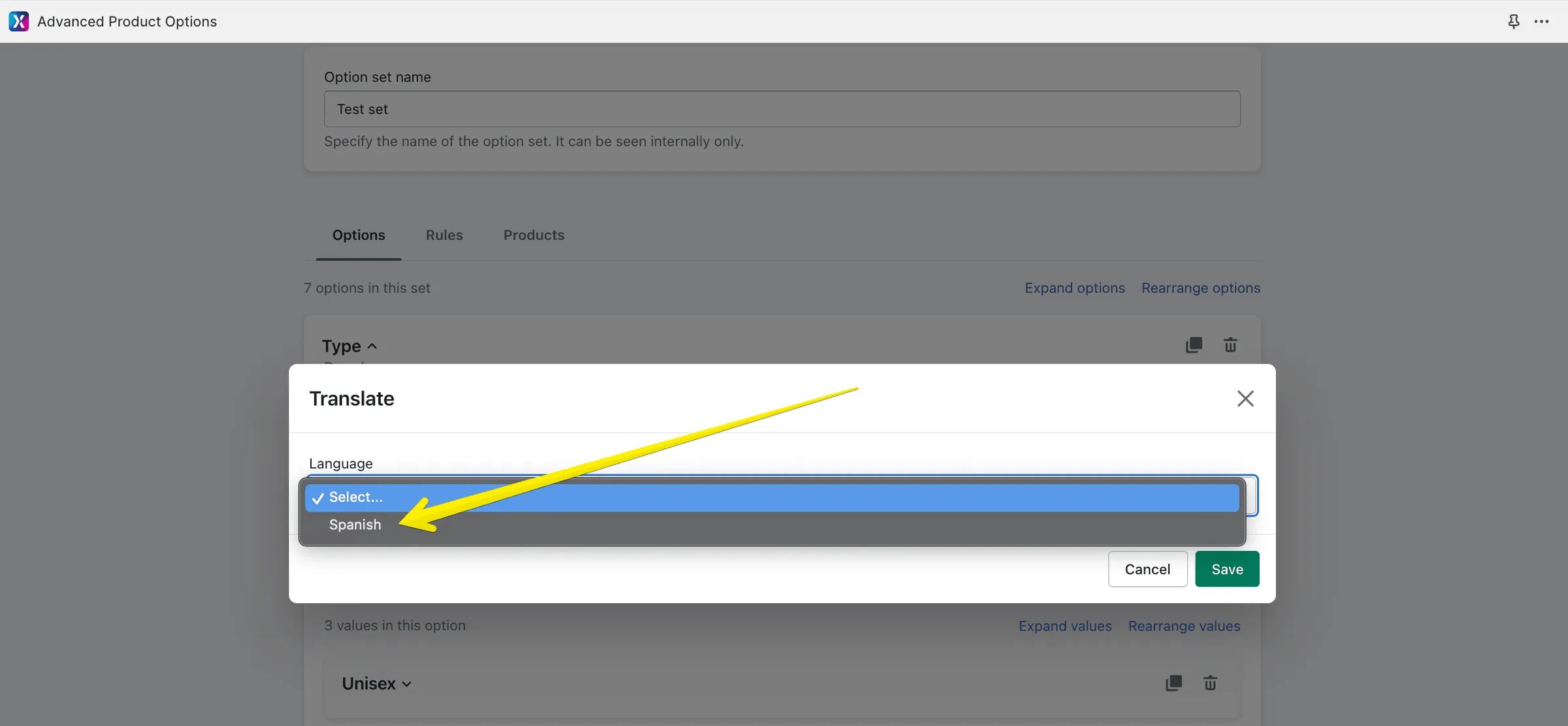
- Translate all the required titles into the selected language(s) and click “Save”