
Advanced Product OptionsUsing the app
Calculate option prices with formulas
Contents
A formula lets the price depend on what the customer enters or picks. A customer types a length and a width, and the app multiplies them by your price per square meter and adds the result to the product price. You don’t need a separate value or variant for every possible size.
You build the formula on the Calculations tab of an option set from these building blocks:
- options from the set: numbers the customer enters, and values the customer picks;
- math operators and functions:
+,-,*,/,MAX,Roundand so on; - conditions: IF and IF…ELSE IF blocks that use a different number depending on what the customer picks or enters;
- Product price: the product’s own price in Shopify;
- constants: fixed numbers you type in, such as your price per meter.
Then you choose what to do with the result: add it to the product price or subtract it from the product price.
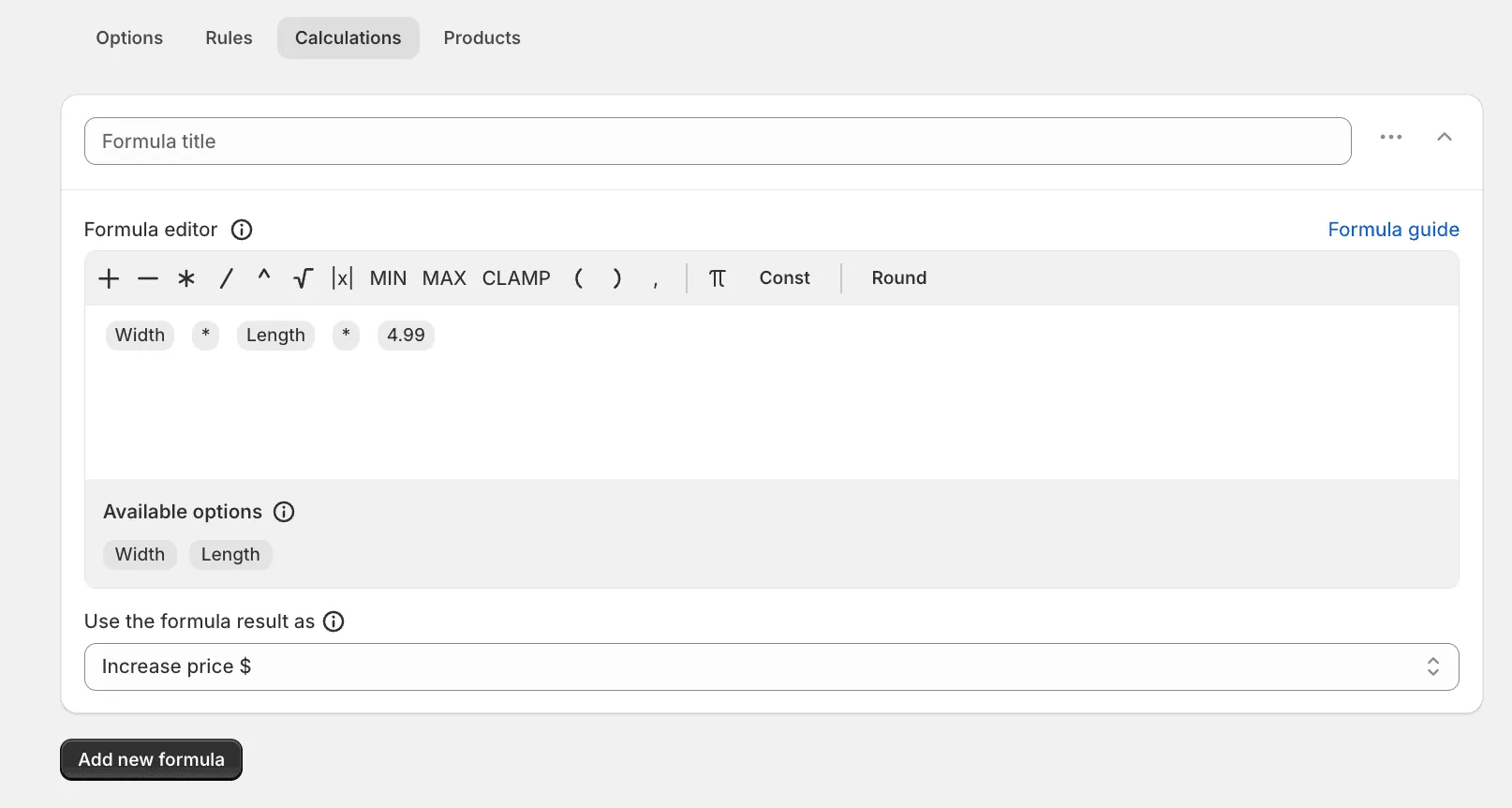
Example. The formula Width * Length * 4.99 with Increase price $:
| Product price | Customer enters | Formula result | Price in the cart |
|---|---|---|---|
| $10.00 | Width 2, Length 3 | 2 × 3 × 4.99 = 29.94 | $10.00 + $29.94 = $39.94 |
What you can use in a formula
Section titled “What you can use in a formula”Options
Below the editor, Available options lists the options of the set that you can use in the formula. Click an option to add it to the formula.
| Option type | What goes into the formula |
|---|---|
| Number field, where the customer enters a width, length and so on | The number the customer entered |
| Option where the customer picks a value (swatch, dropdown, buttons and so on) with Enable formula-based pricing turned on | The Calculation variable of the value the customer picked |
| Option where the customer picks a value without Enable formula-based pricing | Nothing in the calculation. It’s marked · conditions only and can be used only inside a condition of an IF or IF…ELSE IF block |
| Product price, in the Product row | The price of the selected variant in Shopify, before any options are added. See Use the product price in a formula below |
Options of other types don’t appear in Available options.
Math operators and functions
| Button | What it does | Example | Result |
|---|---|---|---|
+ | Addition | 2 + 3 | 5 |
- | Subtraction | 5 - 3 | 2 |
* | Multiplication | 2 * 3 | 6 |
/ | Division | 6 / 3 | 2 |
^ | Exponentiation (power) | 3 ^ 2 | 9 |
√ | Square root | √ 9 | 3 |
|x| | Absolute value: the number without its sign | |-5| | 5 |
MAX | The larger of two values. Use it for a minimum price | MAX(12, 20) | 20 |
MIN | The smaller of two values. Use it for a maximum price | MIN(720, 500) | 500 |
CLAMP | Keeps a value between a minimum and a maximum | CLAMP(720, 20, 500) | 500 |
Round | Rounds a value to the number of decimal places you set | Round(22.456, 2) | 22.46 |
CEIL | Rounds a value up to the next whole number. A whole number stays as it is | CEIL(21.25) | 22 |
FLOOR | Rounds a value down to a whole number | FLOOR(21.75) | 21 |
( ) | Parentheses: calculate this part first | (2 + 3) * 4 | 20 |
, | Separates the values inside MAX, MIN, CLAMP and Round | MAX(x, 20) | — |
π | The number pi, about 3.14159 | π * 2 | 6.28… |
| Const | A fixed number you type in, such as your price per unit | 4.99 | 4.99 |
| IF | One condition, two results: If yes when the condition is true, If no when it isn’t | IF(Finish = Oiled, 1.2, 1) | 1.2 for Oiled, 1 for any other finish |
| IF…ELSE IF | Several conditions checked top to bottom; the first one that matches gives the result | Price tiers by length | See below |
How many values each function takes:
| Function | Values | Order |
|---|---|---|
MAX(a, b) | 2 | Any order |
MIN(a, b) | 2 | Any order |
CLAMP(x, min, max) | 3 | The value, then the minimum, then the maximum |
Round(x, n) | 2 | The value, then the number of decimal places |
CEIL(x) | 1 | — |
FLOOR(x) | 1 | — |
In all of them, a, b and x can be a number, an option or a whole calculation, for example MAX(Length * Width * 15, 20).
Order of operations
The formula is calculated in the usual math order: parentheses first, then powers and roots, then multiplication and division, then addition and subtraction. Use parentheses whenever you want a different order.
| Formula | Calculated as | Result |
|---|---|---|
2 + 3 * 4 | 3 × 4 first, then + 2 | 14 |
(2 + 3) * 4 | 2 + 3 first, then × 4 | 20 |
Create a formula
Section titled “Create a formula”-
Open the app and go to Option sets.
-
Open the set and go to the Calculations tab.
-
Enter a Formula title. Only you see it; it helps you find the formula later.
-
Build the formula in the Formula editor:
- to add an option, click it under Available options;
- to add an operator or a function, click its button on the toolbar;
- to add a number, click Const and type the number.
Always put an operator between two options or numbers.
Width Lengthisn’t a valid formula;Width * Lengthis. -
Under Use the formula result as, choose what to do with the result (see below).
-
Click Save at the top of the page.
-
Open a product that uses the set on your storefront, enter or pick values and check the price.\
Add more formulas
One option set can have several formulas. Click Add new formula below the last formula and set it up the same way. Each formula has its own Formula title and its own Use the formula result as setting, and each result is applied to the price.
This is handy when parts of the price are calculated differently. For example, one formula adds the fabric by area, and another adds the edging by perimeter:
| Formula title | Formula | Use the formula result as |
|---|---|---|
| Fabric | Length * Width * 12 | Increase price $ |
| Edging | (Length + Width) * 2 * 3 | Increase price $ |
For a 2 × 1.5 m order, the customer pays the product price + 36 (fabric) + 21 (edging).
Duplicate a formula
To create a formula similar to one you already have, copy it instead of building it again:
- Click the … menu of the formula.
- Click Duplicate formula. The copy appears right below the original, named “original title copy”.
- Change what’s different: the title, the options, the numbers or Use the formula result as.
- Click Save.
The copy is independent: editing or deleting it doesn’t change the original. This is handy when several formulas differ only in a few details, for example one formula per door type with its own size fields and rate.
Use the formula result as
| Choice | What happens | Product $100, formula result 15 |
|---|---|---|
| Increase price $ | The result is added to the product’s original price, in your store currency | $115 |
| Decrease price $ | The result is subtracted from the product’s original price, in your store currency | $85 |
Use a select option in a formula
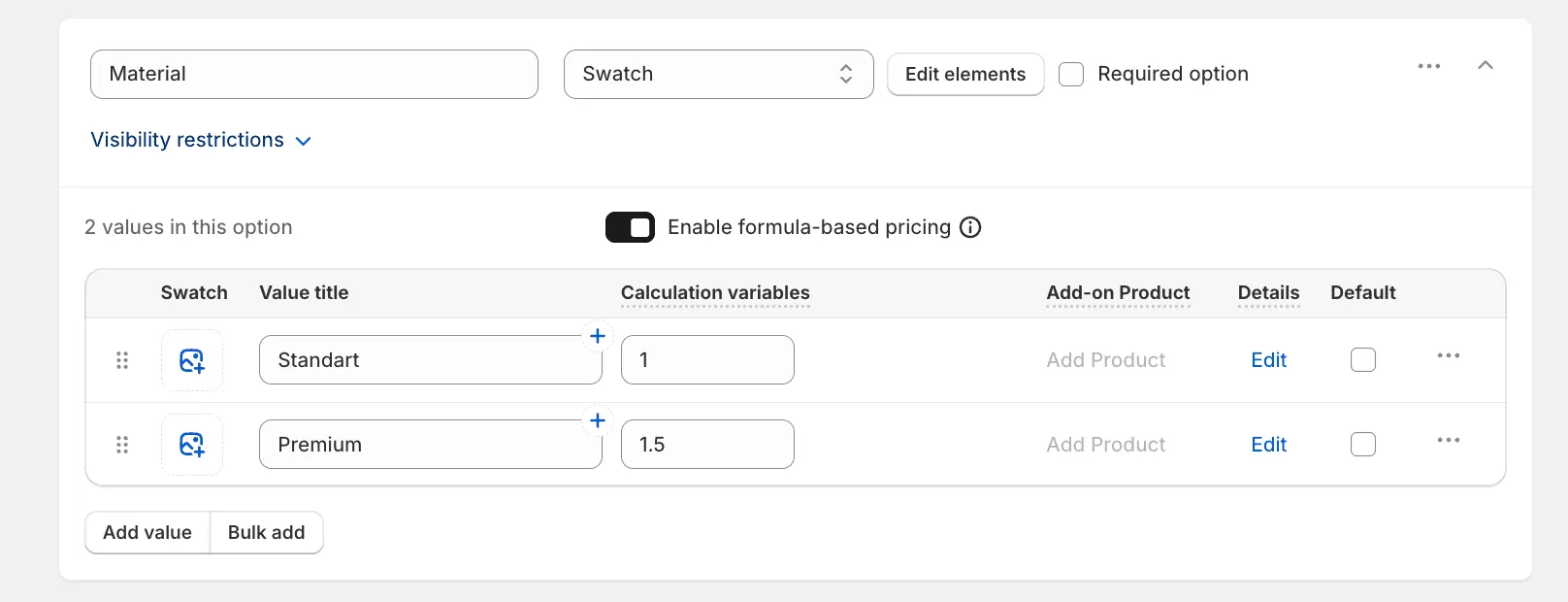
Section titled “Use a select option in a formula”Options where the customer picks a value can take part in a formula too, for example a material or a quality level that changes the price per meter. Each value then gets its own number, called a Calculation variable, and the formula uses the number of the value the customer picked.
- On the Options tab of the set, click the option to expand it.
- Turn on Enable formula-based pricing above the values table.
- The Price adjustment column is replaced by Calculation variables. Enter a number for each value.
- Go to the Calculations tab. The option now appears under Available options; add it to the formula.
- Click Save.
Example. Option “Material” with these calculation variables:
| Value | Calculation variable |
|---|---|
| Standard | 1 |
| Premium | 1.5 |
Formula: Width * Length * 4.99 * Material, with Increase price $.
| Customer enters and picks | Calculation | Added to the price |
|---|---|---|
| Width 2, Length 3, Standard | 2 × 3 × 4.99 × 1 | $29.94 |
| Width 2, Length 3, Premium | 2 × 3 × 4.99 × 1.5 | $44.91 |
Change the price depending on a choice: IF
Section titled “Change the price depending on a choice: IF”Use an IF block when part of the price depends on what the customer picks or enters. For example, an oiled or lacquered finish costs 20% more, or a live edge adds $85.
An IF block has three cells:
| Cell | What to put in it |
|---|---|
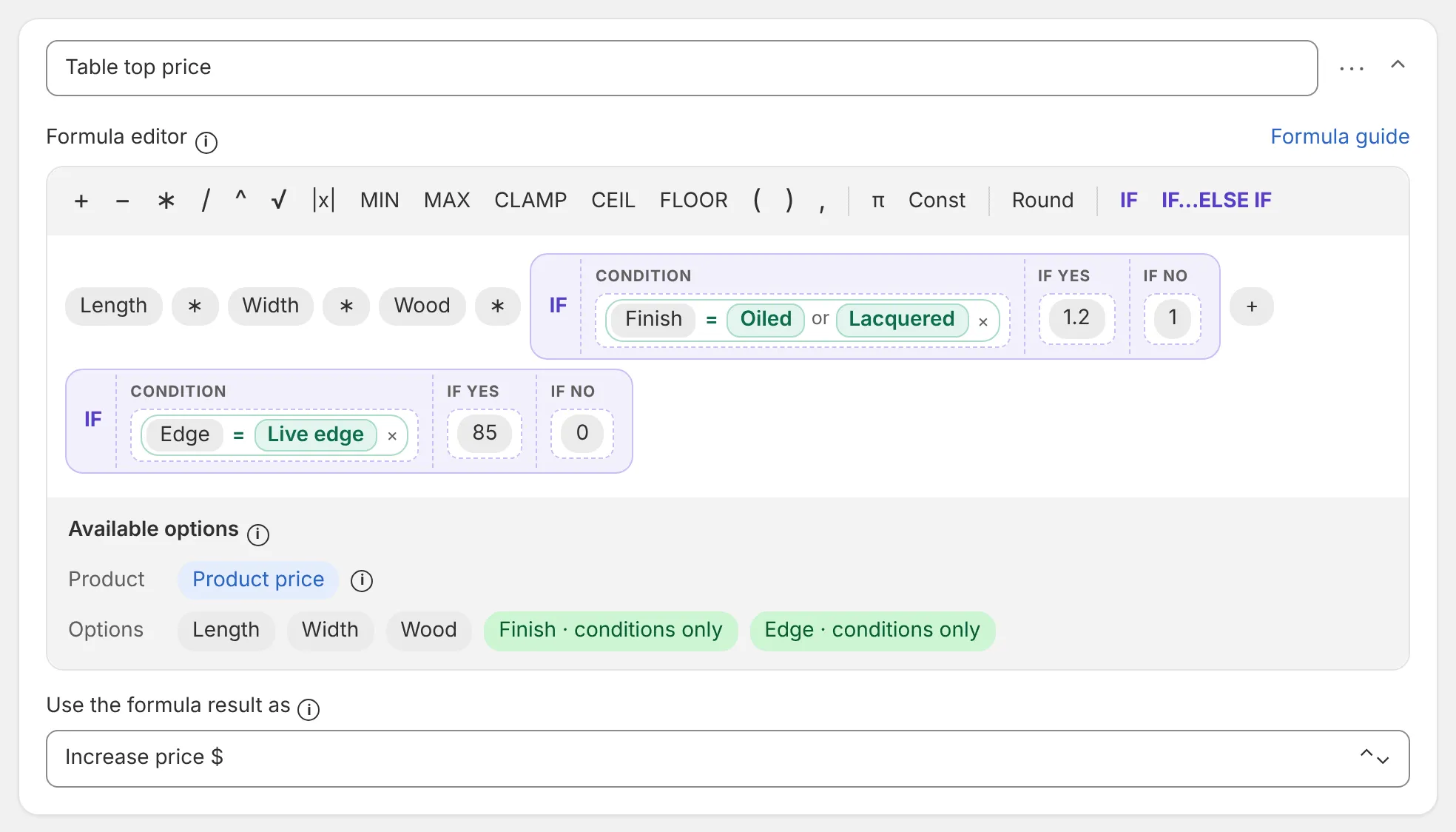
| Condition | What to check, for example Finish = Oiled or Lacquered |
| If yes | The number or calculation to use when the condition is true |
| If no | The number or calculation to use when it isn’t |
Add an IF block
-
In the Formula editor, place the cursor where the block should go and click IF on the toolbar.
-
Click inside the Condition cell, then click an option under Available options:
- for an option where the customer picks a value, tick the values that should make the condition true. The condition is true when the customer picks any of the ticked values;
- for a Number field, choose a comparison (
=,≠,>,<,≥,≤) and enter a number, or set a range. Both ends of a range are included.
-
To check two things in one condition, click another option in the same cell. The two are joined with and; click and to switch it to or.
-
Click inside If yes and If no and fill them in like any formula: numbers, options, operators.
-
Click Save.
Options marked · conditions only can be used only in the Condition cell. They don’t need Enable formula-based pricing, and their own Price adjustment, if they have one, is still added to the price as usual, so make sure you don’t charge for the same thing twice.
Example: a table top. Wood is a select option with formula-based pricing (Oak = 0.05, Walnut = 0.08, the price per square inch). Finish and Edge are options marked · conditions only.
Formula: Length * Width * Wood * IF(Finish = Oiled or Lacquered, 1.2, 1) + IF(Edge = Live edge, 85, 0), with Increase price $.
| Customer picks | Calculation | Added to the price |
|---|---|---|
| 60 × 30, Oak, Oiled, Live edge | 60 × 30 × 0.05 × 1.2 + 85 | $193.00 |
| 60 × 30, Oak, Natural, Straight edge | 60 × 30 × 0.05 × 1 + 0 | $90.00 |
| 60 × 30, Walnut, Lacquered, Straight edge | 60 × 30 × 0.08 × 1.2 + 0 | $172.80 |
Empty options. A formula with IF blocks needs a value only for the options in the part that is actually used. If the condition is false, options used only in If yes can stay empty. A condition on an empty Number field is false.
Price tiers: IF…ELSE IF
Section titled “Price tiers: IF…ELSE IF”Use an IF…ELSE IF block when one thing has several price levels: different rates for different lengths, sizes or quantities.
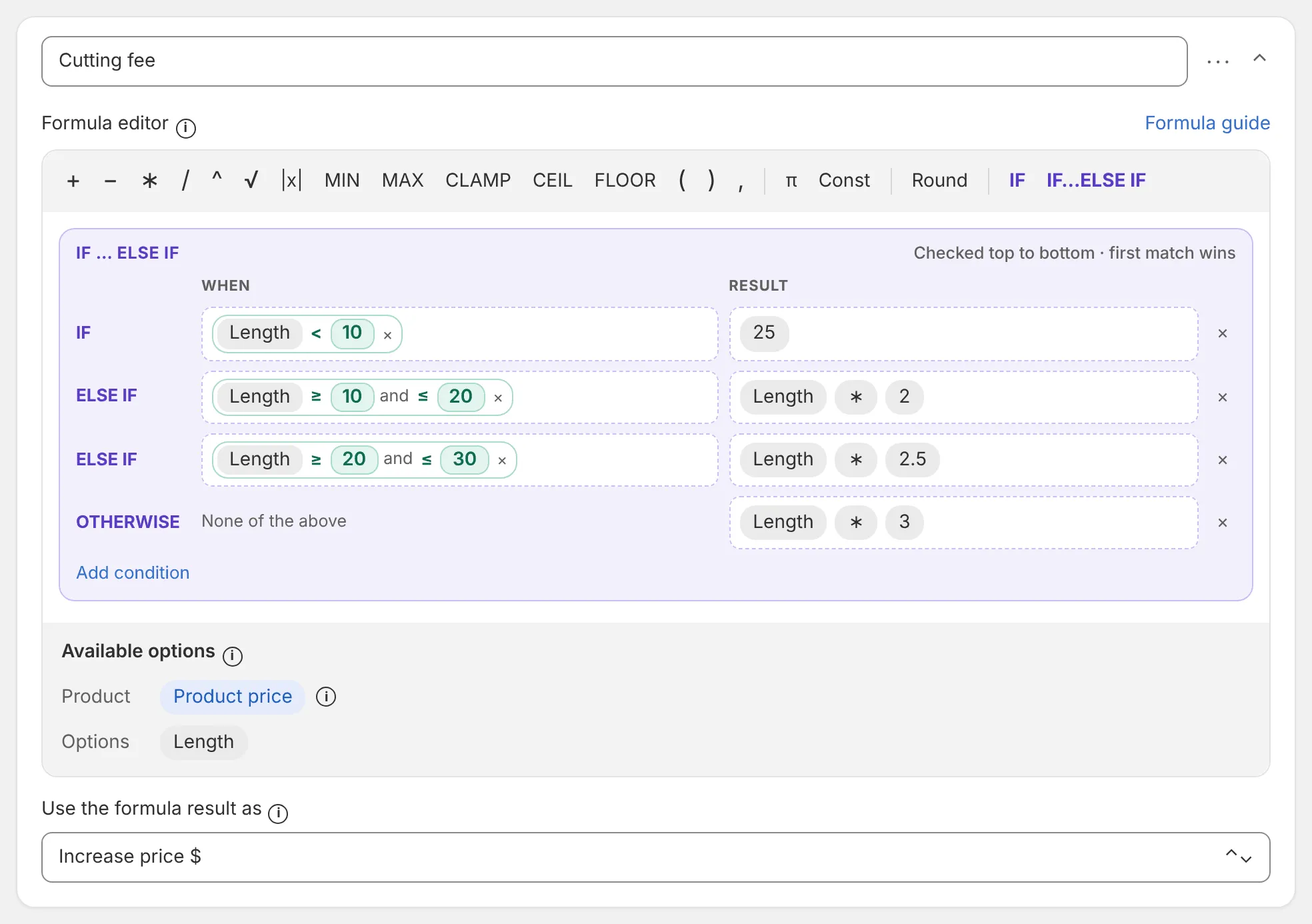
The block is a list of rows. Each row has a When cell (the condition) and a Result cell (the number or calculation to use). The rows are checked top to bottom, and the first row that matches wins. The optional Otherwise row is used when no row matches. Without Otherwise, no match gives 0.
Add an IF…ELSE IF block
- In the Formula editor, click IF…ELSE IF on the toolbar.
- Fill in the When and Result cells of the first row, the same way as in an IF block.
- Click Add condition for each next row.
- Click Add Otherwise to set the result for everything else.
- Click Save.
Example: a cutting fee by length. Length is a Number field in feet.
| When | Result | |
|---|---|---|
| IF | Length < 10 | 25 |
| ELSE IF | Length ≥ 10 and ≤ 20 | Length * 2 |
| ELSE IF | Length ≥ 20 and ≤ 30 | Length * 2.5 |
| Otherwise | Length * 3 |
| Customer enters | Row used | Added to the price |
|---|---|---|
| 6 | Length < 10 | $25.00 |
| 15 | 10 to 20 | 15 × 2 = $30.00 |
| 20 | 10 to 20 (the first match; the next row is skipped) | 20 × 2 = $40.00 |
| 25 | 20 to 30 | 25 × 2.5 = $62.50 |
| 35 | Otherwise | 35 × 3 = $105.00 |
Because the first match wins, a length that fits two rows, like 20 here, is charged only once.
You can’t put a block inside another block. For several conditions, use one IF…ELSE IF block instead.
Use the product price in a formula
Section titled “Use the product price in a formula”Product price is in the Product row under Available options. It’s the price of the selected variant in Shopify, before any options are added, and it updates when the customer switches the variant. Each product uses its own price, so one formula works for all products of the set, whatever their prices. Prices for your markets and B2B catalogs are taken into account automatically.
Example 1: 15% of the product price. Formula Product price * 0.15 with Increase price $. A product that costs $200 gets +$30, so the customer pays $230.
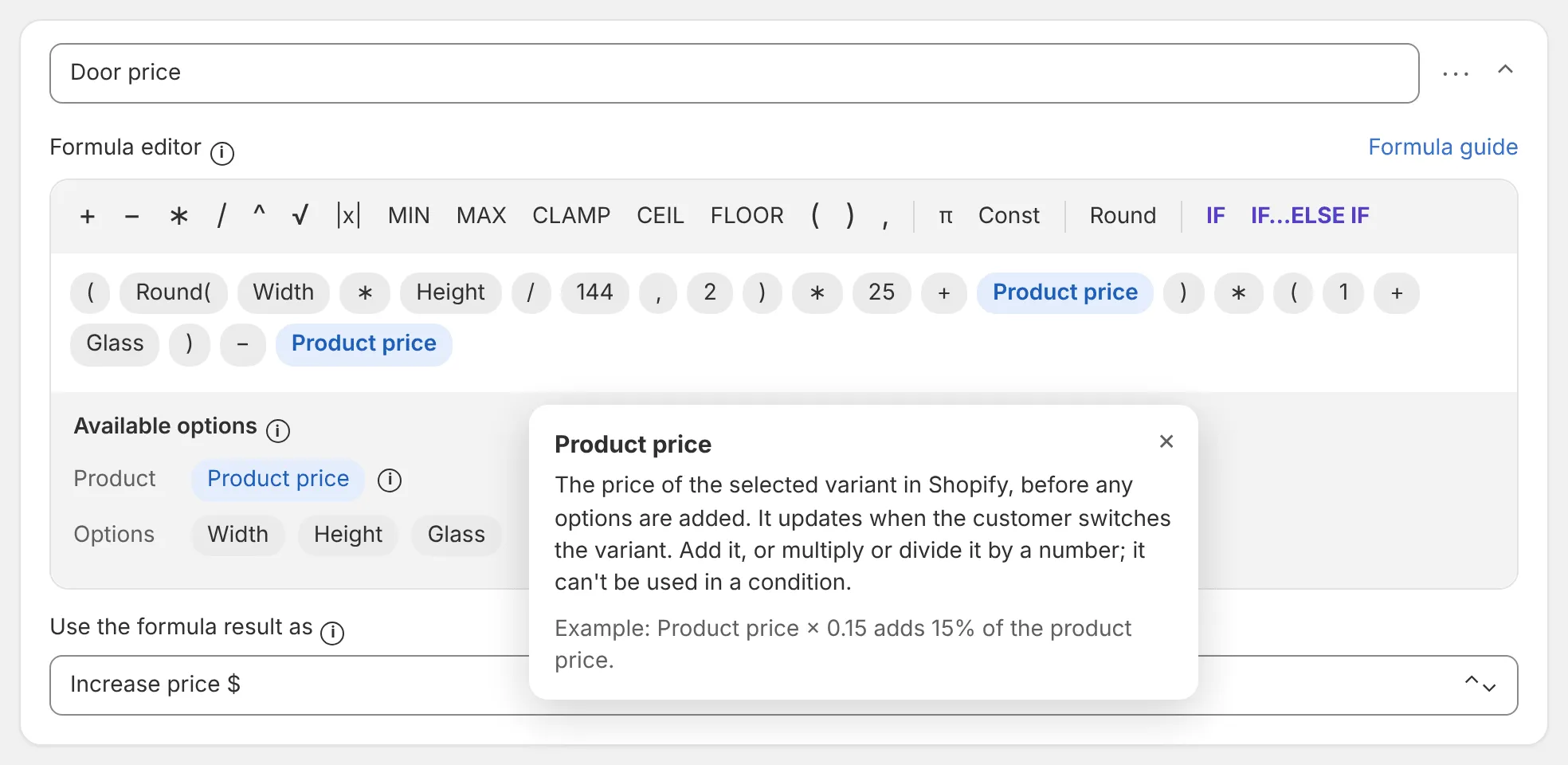
Example 2: percentages of the product price plus the size price. Some products are priced as “(product price + size price) × surcharges”, for example doors made to size with a 10% surcharge for frosted glass. Glass is a select option with formula-based pricing (Clear = 0, Frosted = 0.10), and the size price is $25 per square foot.
Formula: (Round(Width * Height / 144, 2) * 25 + Product price) * (1 + Glass) - Product price, with Increase price $.
Round(Width * Height / 144, 2) * 25: the size price. Width and height are in inches; 144 square inches make a square foot.(... + Product price) * (1 + Glass): the full price, with the glass surcharge taken from the product price and the size price together.- Product price: with Increase price $, Shopify already adds the product price. The full price above includes it too, so subtract it once. Otherwise the product price would be counted twice.
| Product price | Customer picks | Full price | Formula result | Price in the cart |
|---|---|---|---|---|
| $500 | 36 × 96 (24 sq ft), Frosted | (600 + 500) × 1.1 = 1,210 | 1,210 − 500 = 710 | $500 + $710 = $1,210 |
| $1,200 | 36 × 96 (24 sq ft), Frosted | (600 + 1,200) × 1.1 = 1,980 | 1,980 − 1,200 = 780 | $1,200 + $780 = $1,980 |
| $500 | 36 × 96 (24 sq ft), Clear | (600 + 500) × 1 = 1,100 | 1,100 − 500 = 600 | $500 + $600 = $1,100 |
The same formula gives the right price for products with different prices.
Where you can use Product price
| You can | You can’t |
|---|---|
| Add it or subtract it | Use it in a condition, for example IF Product price > 1000 |
| Multiply or divide it by a number or an option | Divide by it, for example 100 / Product price |
| Use it in an If yes, If no or Result cell | Use it in a power (^) or multiply it by itself |
Put it inside MIN, MAX, CLAMP, Round, CEIL or FLOOR |
If a formula uses Product price in one of these ways, the app shows an error when you save, and the formula isn’t saved.
Product price always has a value, so it never keeps a formula from running.
Edit a formula
Section titled “Edit a formula”Open the set, go to the Calculations tab and change the formula in the Formula editor.
To delete an element, hover over it and click its x icon, or place the cursor to the right of the element and press Delete.
Click Save when you’re done.
Set a minimum or maximum price
Section titled “Set a minimum or maximum price”Use MAX, MIN or CLAMP when the calculated amount must not be too low or too high. For example, small orders should still cost at least $20, or very large orders should be capped at the price of a full roll.
All examples below use $15 per square meter.
Minimum: MAX(Length * Width * 15, 20). If the result is lower than 20, it becomes 20.
| Length × Width | Calculated | Result |
|---|---|---|
| 0.5 × 0.8 | 6 | 20 (minimum applied) |
| 2 × 1.5 | 45 | 45 |
Maximum: MIN(Length * Width * 15, 500). If the result is higher than 500, it becomes 500.
| Length × Width | Calculated | Result |
|---|---|---|
| 4 × 3 | 180 | 180 |
| 6 × 8 | 720 | 500 (maximum applied) |
Minimum and maximum: CLAMP(Length * Width * 15, 20, 500). The result stays between 20 and 500. MIN(MAX(Length * Width * 15, 20), 500) gives exactly the same result; CLAMP is just shorter.
| Length × Width | Calculated | Result |
|---|---|---|
| 0.5 × 0.8 | 6 | 20 (minimum applied) |
| 2 × 1.5 | 45 | 45 |
| 6 × 8 | 720 | 500 (maximum applied) |
The limit applies to the formula result, not to the whole product price. With Increase price $, the product’s original price is added on top. If the product costs $10 and the formula is MAX(Length * Width * 15, 20), the smallest possible price in the cart is $10 + $20 = $30. To make $20 the smallest total, set the product price to $0 or lower the minimum in the formula to $10.
You can also limit a single option instead of the result. MAX(Length, 1) * Width * 15 charges for at least 1 meter of length, even if the customer enters 0.5.
Charge for whole units: CEIL and FLOOR
Section titled “Charge for whole units: CEIL and FLOOR”Round rounds to the nearest value, so 21.25 becomes 21 and the customer pays for less than you cut. Use CEIL when you sell or cut in whole units and any part of a unit should be charged as a full one: whole inches of glass, whole meters of fabric, whole tiles. Use FLOOR when you charge only for complete units.
| Function | Rounds | 21.25 | 21.75 | 21 |
|---|---|---|---|---|
Round(x, 0) | To the nearest whole number | 21 | 22 | 21 |
CEIL(x) | Up | 22 | 22 | 21 |
FLOOR(x) | Down | 21 | 21 | 21 |
Round each size up: CEIL(Length) * CEIL(Width) * 0.5. $0.50 per square inch, each size charged as the next whole inch.
| Customer enters | Charged as | Result |
|---|---|---|
| 21.75 × 13.75 | 22 × 14 = 308 | 154 (without CEIL: 149.53) |
| 12 × 10 | 12 × 10 = 120 | 60 |
Put CEIL around each size to round the sizes, or around the whole formula to round the price: CEIL(Length * Width * 0.5) charges 21.75 × 13.75 as 150 instead of 149.53.
Combine it with a minimum price: MAX(45, Round(CEIL(Length) * CEIL(Width) * 0.5729, 0)). Sizes rounded up to whole inches, the price rounded to whole dollars, and never less than $45.
| Customer enters | Charged as | Calculation | Result |
|---|---|---|---|
| 21.75 × 13.75 | 22 × 14 = 308 | 308 × 0.5729 = 176.45 → 176 | 176 |
| 4.125 × 4 | 5 × 4 = 20 | 20 × 0.5729 = 11.46 → 11 | 45 (minimum applied) |
Charge only for complete units: FLOOR(Length) * 3. $3 per full meter; a part of a meter is not charged.
| Customer enters | Charged as | Result |
|---|---|---|
| 3.8 | 3 | 9 |
| 4 | 4 | 12 |
Example formulas
Section titled “Example formulas”| What you sell | Formula | Customer enters | Added to the price |
|---|---|---|---|
| By length: ropes, cables, ribbons, curtains, pipes | Length * 2.5 | Length 3 | 3 × 2.5 = 7.50 |
| By area: banners, carpets, metal sheets | Length * Width * 12 | 2 × 1.5 | 2 × 1.5 × 12 = 36 |
| By volume: furniture panels, packaging boxes | Length * Width * Height * 400 | 0.5 × 0.4 × 0.1 | 0.02 × 400 = 8 |
| Circle area: round rugs, tablecloths | π * (Radius ^ 2) * 25 | Radius 0.8 | 3.14159 × 0.64 × 25 = 50.27 |
| Price with a minimum | MAX(Length * Width * 15, 20) | 0.5 × 0.8 | 6 → 20 |
| Price with a maximum | MIN(Length * Width * 15, 500) | 6 × 8 | 720 → 500 |
| Price with a minimum and a maximum | CLAMP(Length * Width * 15, 20, 500) | 6 × 8 | 720 → 500 |
| Rounded result | Round(Width * Length * 4.99 * Material, 2) | 2 × 3, Premium (1.5) | 44.91 |
| Sizes rounded up to whole units | CEIL(Length) * CEIL(Width) * 0.5 | 21.75 × 13.75 | 22 × 14 × 0.5 = 154 |
| Only complete units charged | FLOOR(Length) * 3 | Length 3.8 | 3 × 3 = 9 |
| Surcharge for a chosen finish | Length * Width * 0.05 * IF(Finish = Oiled or Lacquered, 1.2, 1) | 60 × 30, Oiled | 90 × 1.2 = 108 |
| Price tiers by length | IF…ELSE IF: Length < 10 → 25; Length ≥ 10 and ≤ 20 → Length * 2; Otherwise → Length * 3 | Length 15 | 15 × 2 = 30 |
| A share of the product price | Product price * 0.15 | Product price $200 | 200 × 0.15 = 30 |
The units are whatever your customers enter: if the length field asks for centimeters, set your constant as the price per centimeter.
Quick reference
Section titled “Quick reference”- Location: Option sets → set → Calculations tab → Formula editor.
- Several formulas per option set (Add new formula, or … → Duplicate formula to copy one); each has its own Use the formula result as.
- Inputs: Number field options (customer’s number); select options with Enable formula-based pricing on (value’s Calculation variable); Product price (the selected variant’s Shopify price). Select options without formula-based pricing work in conditions only (· conditions only).
- Conditions: IF (Condition, If yes, If no) and IF…ELSE IF (When → Result rows, first match wins, optional Otherwise, no match = 0). Several conditions in one cell are joined with and / or. No blocks inside blocks.
- Product price: add, subtract, multiply or divide it by a number or an option; not in a condition, a divisor, a power, or inside
MIN,MAX,CLAMP,Round,CEIL,FLOOR. - Operators:
+-*/^√|x|(). - Functions:
MAX(a, b),MIN(a, b),CLAMP(x, min, max),Round(x, n),CEIL(x)(round up),FLOOR(x)(round down); values separated by,. - Constants: Const (any number),
π. - Order: parentheses, powers and roots, multiplication and division, addition and subtraction.
- Result: Use the formula result as → Increase price $ (added to the product’s original price) or Decrease price $ (subtracted), in store currency.
MAX/MIN/CLAMPlimit the formula result; the product’s original price is added on top.- The formula doesn’t run until every option it uses has a value. With IF blocks, only the options in the part that is used need a value. Product price always has a value.