
Advanced Product OptionsUsing the app
Preselect option values on the product page
When a customer opens a product page, your options usually start unselected, and the customer picks every value themselves. Often there’s a choice most people go with anyway: the standard size, the most popular color, the base setup of the product. You can have that value already selected when the page opens.
This is called a default value. You set it with the Default checkbox next to the value, both in option sets and in options you’ve added directly to a product.
The customer can still change it. A default is only a starting point, not a locked choice.
Defaults don’t have to be the same for everyone. With a rule, you can preselect different values depending on what the customer has already chosen, so one option set covers several setups and you don’t need a separate copy of the options for each one.
Which options can have a default
Section titled “Which options can have a default”Default values work for options where the customer picks from a list. These are the types under Single selects and Multi selects in the option type picker: swatches, swatch cards, pills, buttons, drop-downs and so on.
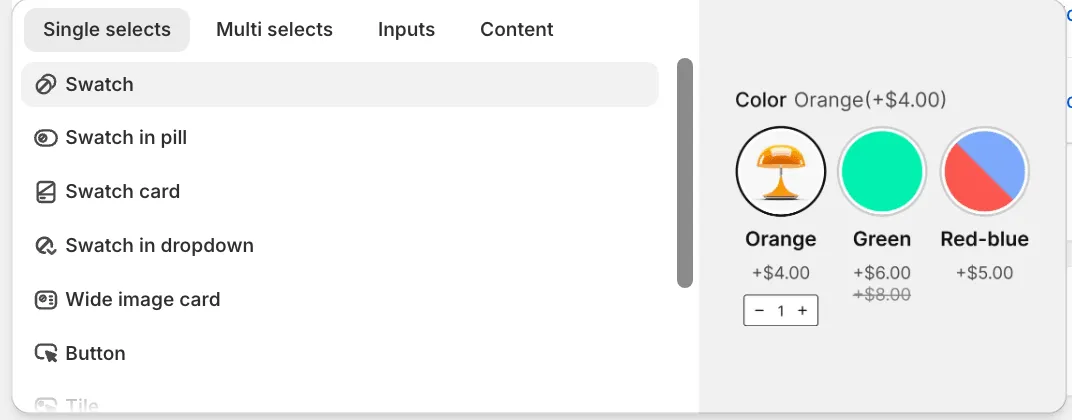
Types under Inputs (text fields, dates, file uploads) and Content have no default value, because the customer doesn’t choose from your list there.
How many defaults you can set depends on the type:
| Option type | How many defaults |
|---|---|
| Single selects | One value |
| Multi selects | Any number of values, even all of them |
Set a default value
Section titled “Set a default value”The steps below use an option set. For an option added directly to a product, the steps are the same: go to Products in the app, open the product and expand the option there. The Default column works exactly the same way.
- Open the app and go to Option sets.
- Open the set that contains the option, and make sure you’re on the Options tab.
- Click the option to expand it. You’ll see its values in a table.
- In the Default column, tick the checkbox next to the value you want preselected.
- Click Save at the top of the page, then refresh a product page on your storefront to check.
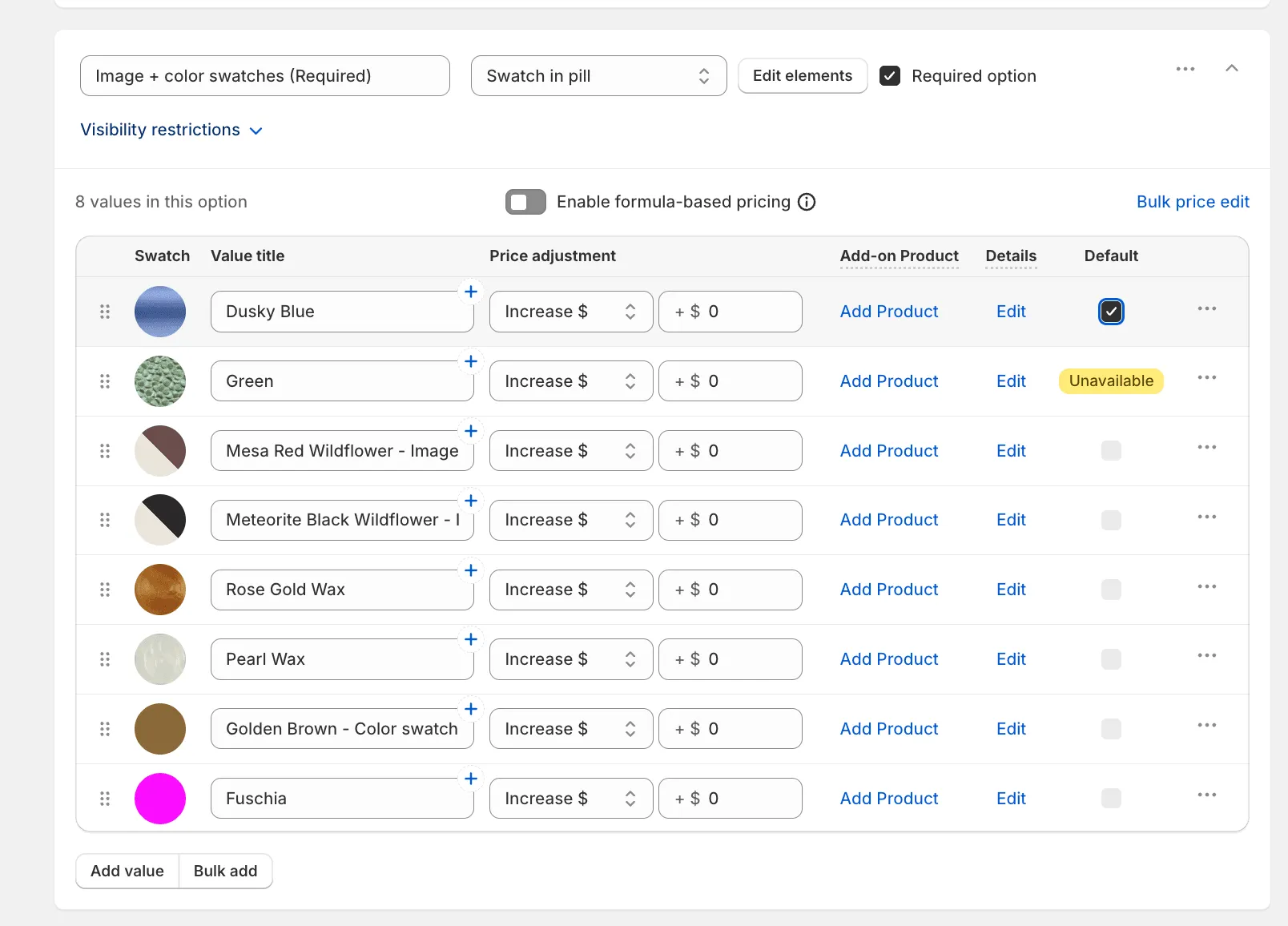
In a single-select option, once you tick one value, the checkboxes for the other values are greyed out. To make another value the default, first untick the current one, then tick the new one.
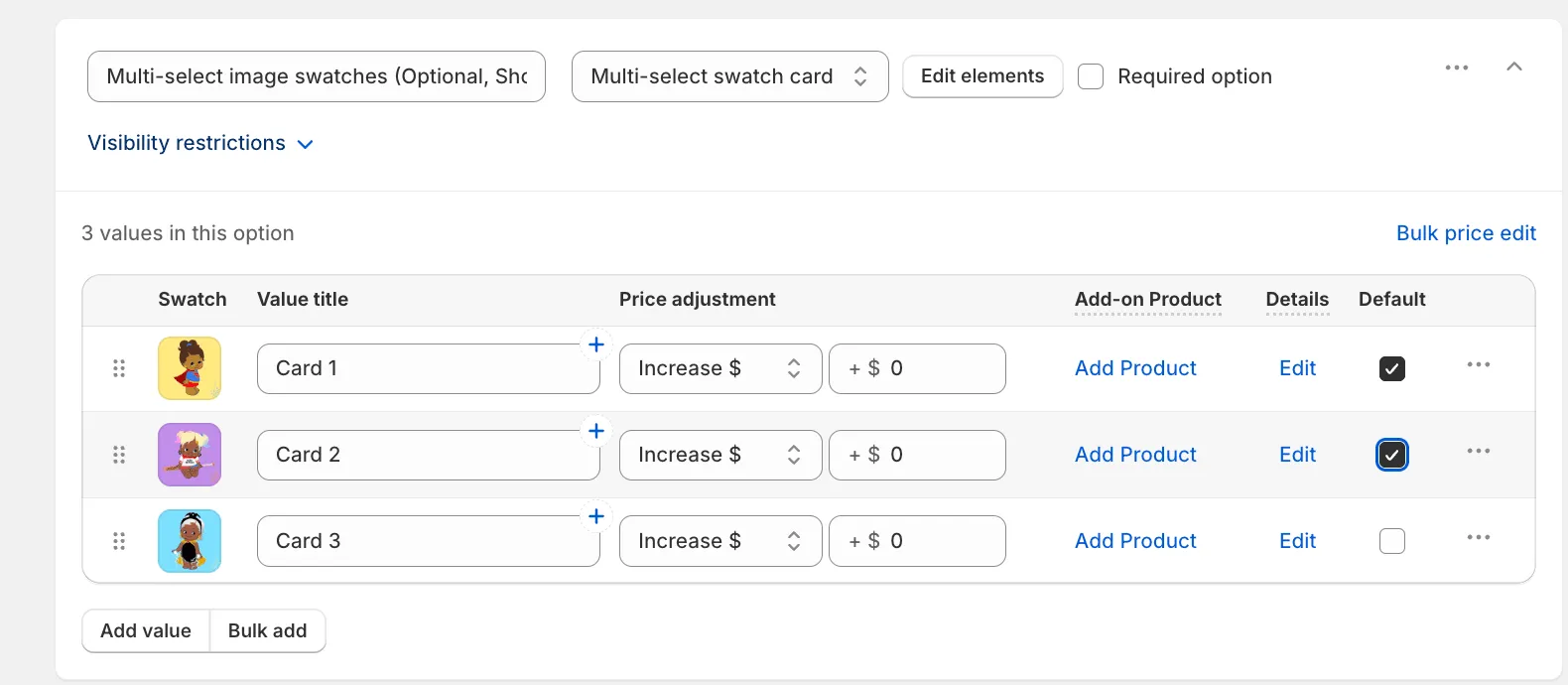
In a multi-select option, you can tick as many values as you like. They will all be selected when the page opens.
If you’ve marked a value as unavailable, the Default column shows Unavailable instead of a checkbox. An unavailable value is disabled on the storefront, so it can’t be preselected. Make the value available again if you want to use it as the default.
To remove a default, untick the checkbox. The option will open unselected again.
Set different defaults depending on the customer’s choices
Section titled “Set different defaults depending on the customer’s choices”A checkbox in the Default column always preselects the same value. Sometimes the right default depends on another choice. A customer who picks “Gaming PC” should start with 32 GB of memory and a gaming graphics card, while one who picks “Office PC” should start with 16 GB and built-in graphics.
You don’t need two sets of options for that. Keep one set and add a rule that sets the defaults.
- Open the option set and go to the Rules tab.
- Click Add new rule.
- Under IF, add the condition, for example “PC type” is one of “Gaming PC”.
- Under THEN, choose Set default values.
- Pick the option and the value to preselect, for example “Memory” and “32 GB”. To preselect values in more options with the same rule, click + Add another option.
- Click Save at the top of the page.
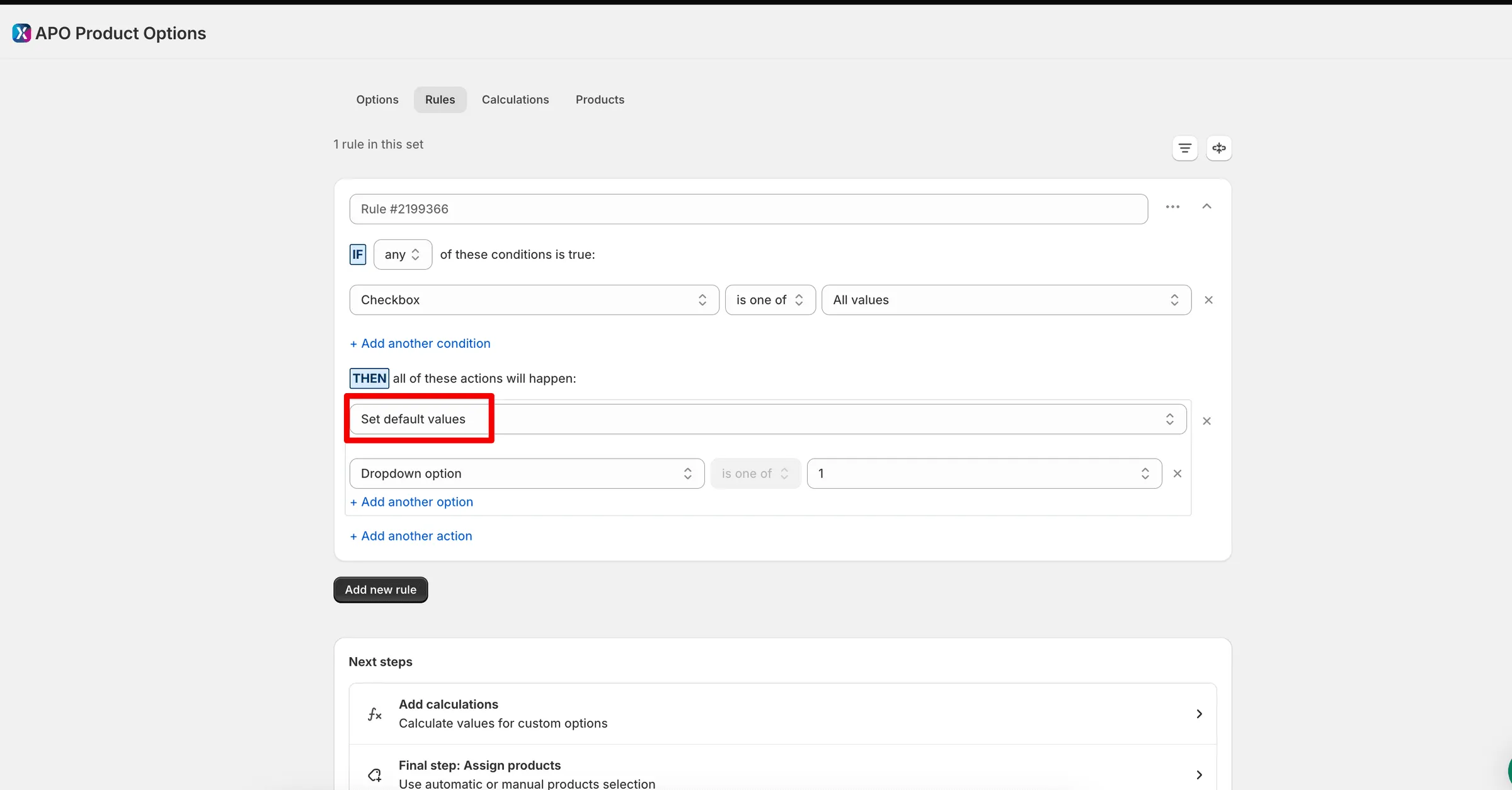
Rules work the same way in options you’ve added directly to a product: open the product under Products and use its Rules tab.
How it works on the storefront
Section titled “How it works on the storefront”- The values are selected when the condition is met. When the customer picks “Gaming PC”, memory and graphics switch to the gaming setup straight away, and the price updates.
- The rule wins over the Default checkbox. If the condition is already met when the page opens, the value from the rule is preselected instead of the one ticked in the Default column.
- The customer can still change the values. Their choice stays as long as the condition holds. If they switch to “Office PC” and then back to “Gaming PC”, the rule selects its values again.
Limits for single-select options
Section titled “Limits for single-select options”A single-select option can have only one value selected at a time, so the app stops you from creating rules that would compete for it:
- One value per rule. In a single-select option, a rule can preselect one value. In a multi-select option, it can preselect several.
- Not the option from the condition. An option you use under IF can’t get a default in the same rule. A rule like “if Memory is 16 GB, set Memory to 32 GB” would just undo the customer’s choice.
- No overlapping rules. If two rules can be active at the same time and both set a default for the same single-select option, the second one shows default already set and the set can’t be saved until you fix the conflict.
Multi-select options have none of these limits.
What your customers will see
Section titled “What your customers will see”- The value is already selected when the product page loads, whether it’s a swatch, a button or a card.
- The price includes it. If the default value has a price adjustment, the product price on the page already includes it.
- The customer can change it. They can pick another value, or unselect a preselected one.
- Required options still need a choice. In an option with Required option turned on, the customer can unselect the default too, but the app won’t let them add the product to the cart until they pick a value again.
- Your rules react to it straight away. If a rule on the Rules tab shows another option when this value is selected, that option appears as soon as the page opens, without waiting for a click.
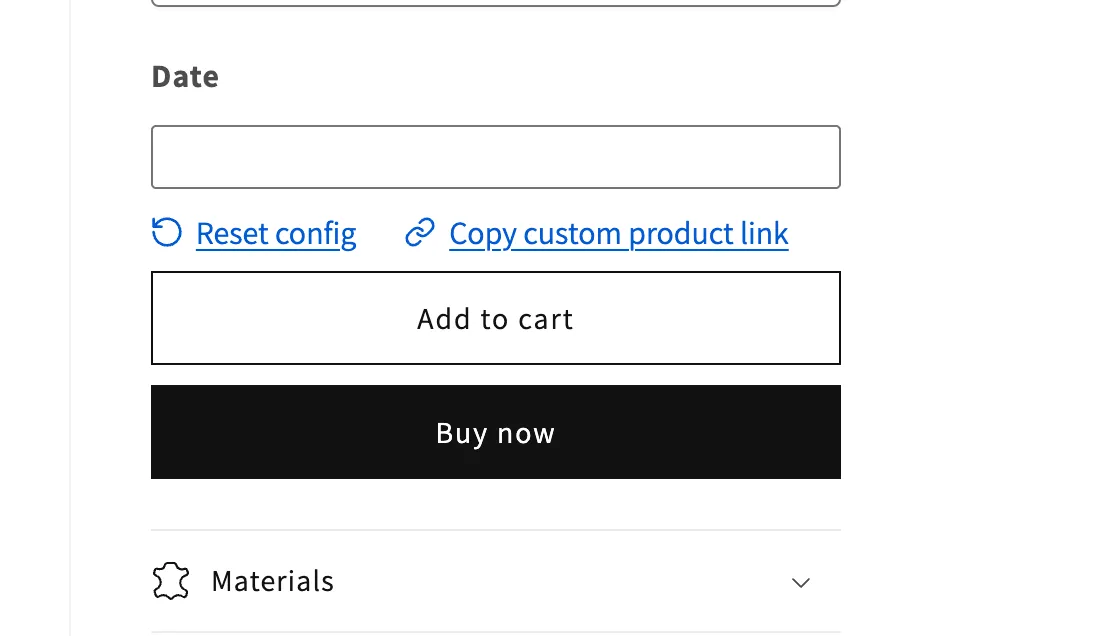
- They can go back to your defaults in one click, if you turn this on. Open Settings → the General tab → Storefront behavior and turn on Reset to default. A Reset to defaults link then appears below the options as soon as the customer changes something, and it restores the selection the page opened with. You can change the link text on the Translations tab in Settings.\
Use defaults to set up a ready-made configuration
Section titled “Use defaults to set up a ready-made configuration”If you sell a product that customers put together from options, defaults let you show a complete configuration from the first second. The customer sees a finished product at a real price and only changes what matters to them, instead of building it from scratch.
A few examples:
- Custom computer or device. Preselect the standard processor, 16 GB of memory and a 512 GB drive. The page opens with a ready build and its price. Customers who want more upgrade one or two parts.
- Furniture. A sofa opens with the most popular fabric, a standard size and oak legs. The customer swaps the fabric and keeps the rest.
- Made-to-order apparel. A shirt opens in white with a regular fit and standard cuffs. The customer adds a monogram or picks another collar.
- A kit or a set. In a multi-select option such as “What’s in the box”, preselect the items a standard set includes. The customer removes what they don’t need or adds extras.
- A recommended setup. Preselect the configuration you’d recommend yourself, like “Best seller” or “Most chosen”. Unsure customers can buy it as it is.
- Several setups in one configurator. Use rules to switch the whole build when the customer picks a base model: “Starter”, “Pro” or “Studio” each preselect their own processor, memory and storage. You keep one option set instead of three copies of the same options.
A default configuration also works well with rules. If some options appear only after a choice is made, the preselected values make the right options show up straight away, so the customer sees the whole configurator from the start.