
Advanced Product OptionsUsing the app
Date picker: available and blocked dates
Choose exactly which dates customers can pick in a Date picker option: every date except holidays, only certain days of the week, or a list of specific dates. Customers see the allowed dates in bold in the calendar and can’t select any other day. This feature is available on all plans.
Typical uses:
- A bakery or florist that takes orders every day except public holidays and vacation
- A workshop or class that runs every Friday and Sunday, with some weeks skipped
- One-off events on dates you choose yourself
How to create a Date picker option
Section titled “How to create a Date picker option”- Open an option set, or a product’s options.
- Click Add new option.
- Open the Inputs tab and select Date picker.
- In the option’s value, click Limit dates to open the date settings.
The date settings have two parts: Date range sets the overall period, and Available dates sets which dates inside that period customers can pick.
Date range
Section titled “Date range”Date range works the same way as before. Select Limit date range and choose how to set it:
- Dates — pick an Earliest and Latest date.
- Days — set Min and Max as a number of days from today. For example, Min 2 and Max 30 lets customers pick a date from 2 to 30 days ahead. Max 0 means today, not “no limit”.
The date range always comes first: a date outside the range is never available, even if you add it as an extra or specific date.
Available dates
Section titled “Available dates”Under Available dates, choose one of three modes. The Summary box at the bottom describes the result in one sentence, so you can check it before saving.
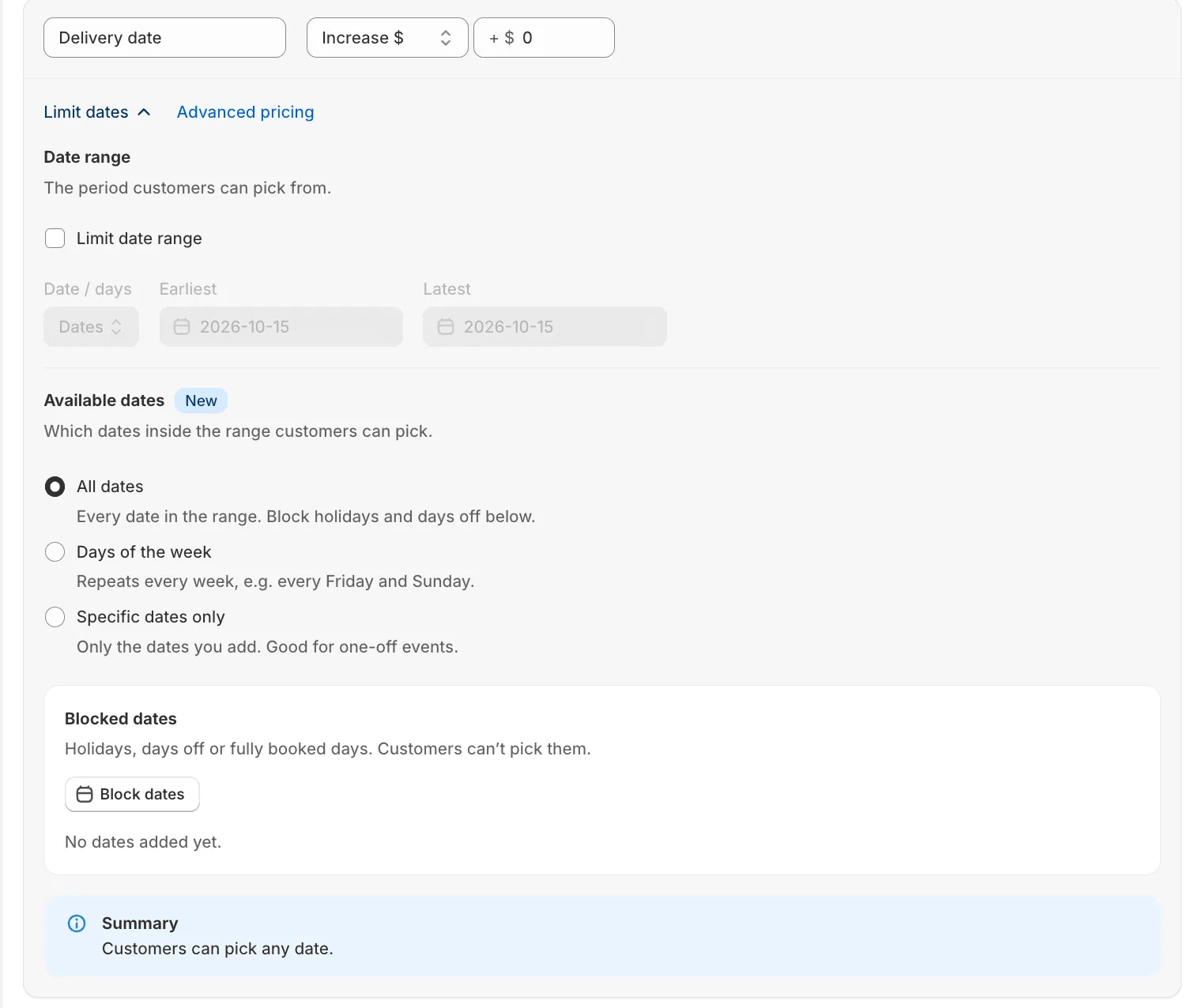
All dates
Section titled “All dates”Every date in the range is available, except the dates you block. Use it for “open every day except holidays”.
- Select All dates.
- In Blocked dates, click Block dates.
- Click one day, or click a start day and then an end day to select a whole period. The period can cross into the next month: use the arrows to switch months.
- Click Add.
A blocked period is saved as one entry, for example “Dec 24, 2026 – Jan 2, 2027”. Click × on an entry to remove it.
Days of the week
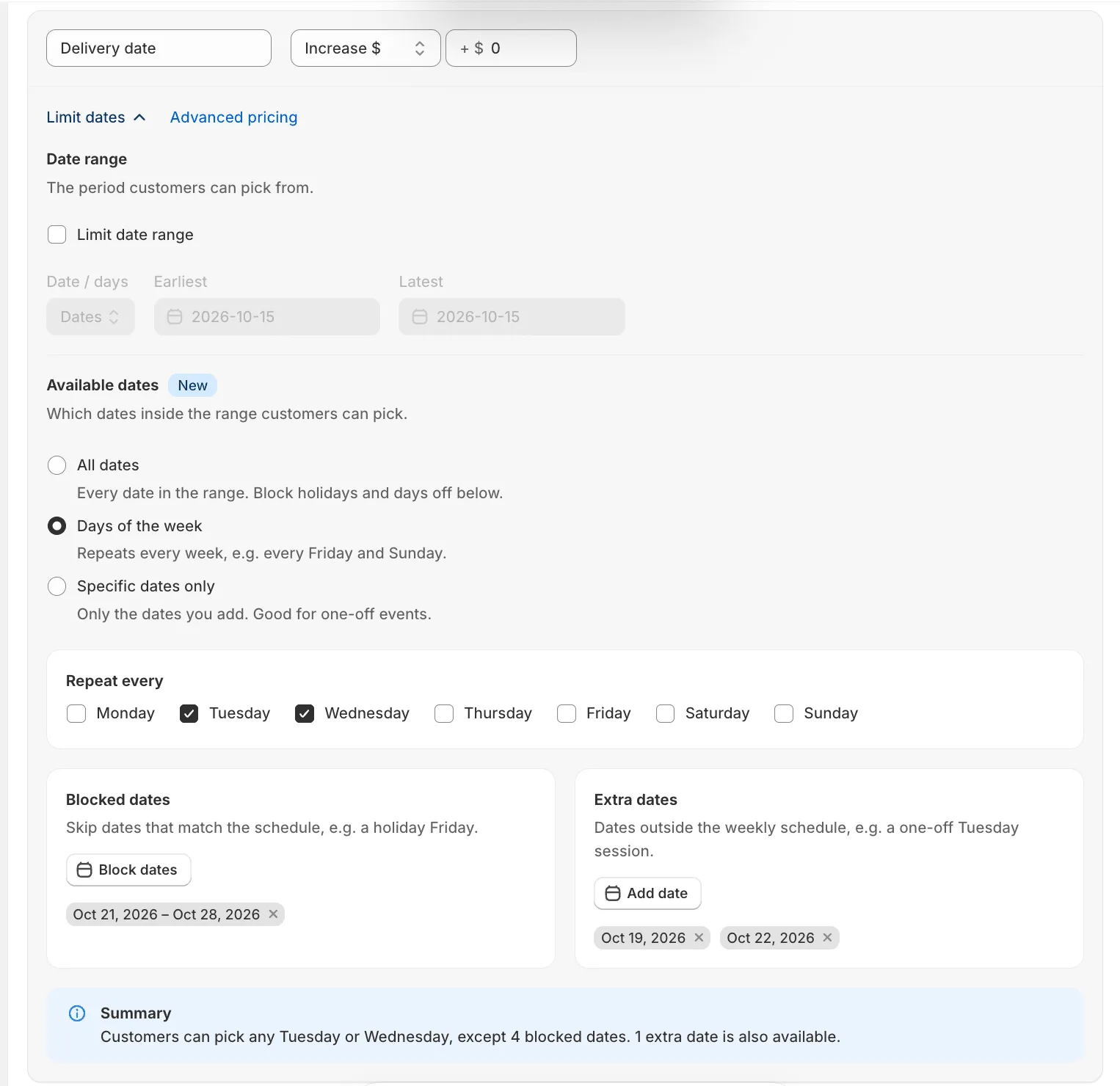
Section titled “Days of the week”The same days repeat every week. Use it for regular sessions, or for deliveries only on certain weekdays.
- Select Days of the week.
- In Repeat every, select the days, for example Friday and Sunday.
- Optional: in Blocked dates, click Block dates to skip dates that match the schedule, such as a holiday Friday.
- Optional: in Extra dates, click Add date to open dates outside the weekly schedule, such as a one-off Tuesday session.
If a date is both an extra date and inside a blocked period, it stays blocked. When you add a period to Extra dates, each day of the period is added as a separate date.
You can leave all days unselected and use only Extra dates. Without weekdays or extra dates, customers can’t pick any date, and the app won’t let you save the option.
Specific dates only
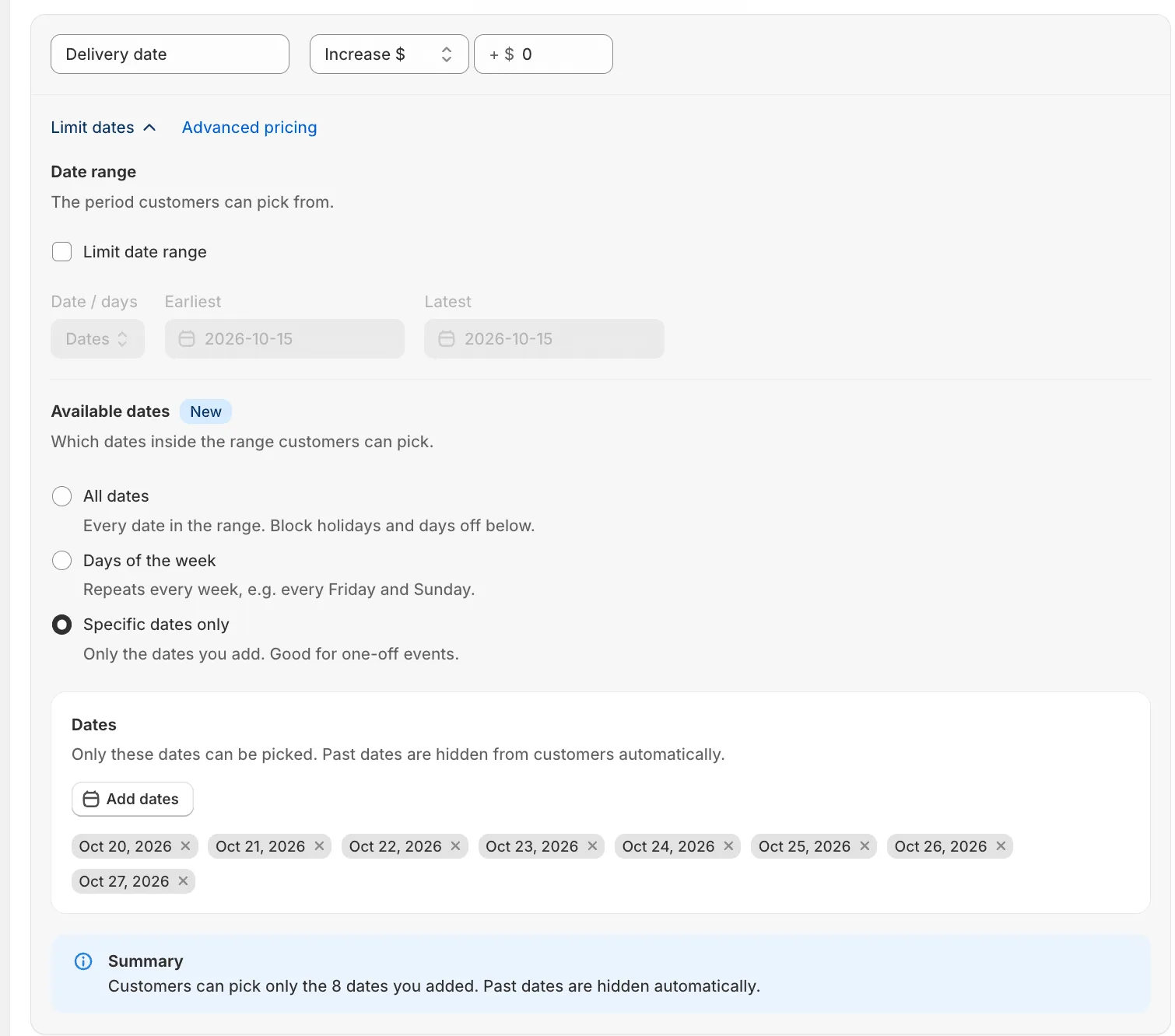
Section titled “Specific dates only”Only the dates you add are available. Use it for one-off events or irregular schedules.
- Select Specific dates only.
- In Dates, click Add dates.
- Click the dates you need. To add several days in a row, click the first and the last day of the period.
- Click Add.
Blocked dates and extra dates don’t apply in this mode.
What the app checks for you
Section titled “What the app checks for you”- Dates outside the range. If an extra or specific date is outside the Date range, the list shows a warning, for example “1 date is outside the date range and won’t be shown to customers.” Customers can’t select it.
- Past dates. Dates that have already passed stay in your lists with a strikethrough so you can see them, but customers never see them. You can remove them with ×.
- No available dates. If your settings leave no date customers can pick, the Summary turns red and shows No dates available with the reason. You can’t save the option until at least one date is available.
- Switching modes. Each mode keeps its own lists. If you switch from Days of the week to Specific dates only and back, your weekdays and blocked dates are still there.
- Limits. Each list can hold up to 1,000 entries.
What customers see
Section titled “What customers see”On the product page, the calendar:
- opens on the month of the first available date, so customers don’t land on a month with nothing to choose;
- shows available dates in bold; all other dates are grey and can’t be selected;
- doesn’t let customers go back to past months or forward past the last available date.
If no date is available at the moment, the field shows “No dates available right now.” instead of the calendar dates.
The chosen date is checked again when the customer adds the product to the cart. If the date is no longer available (for example, the page was left open overnight), the customer sees a warning and picks another date.
“Today” is based on your store’s time zone in Shopify, not on the customer’s device. This applies once you use blocked dates, Days of the week or Specific dates only.
Calendar icon and next available date
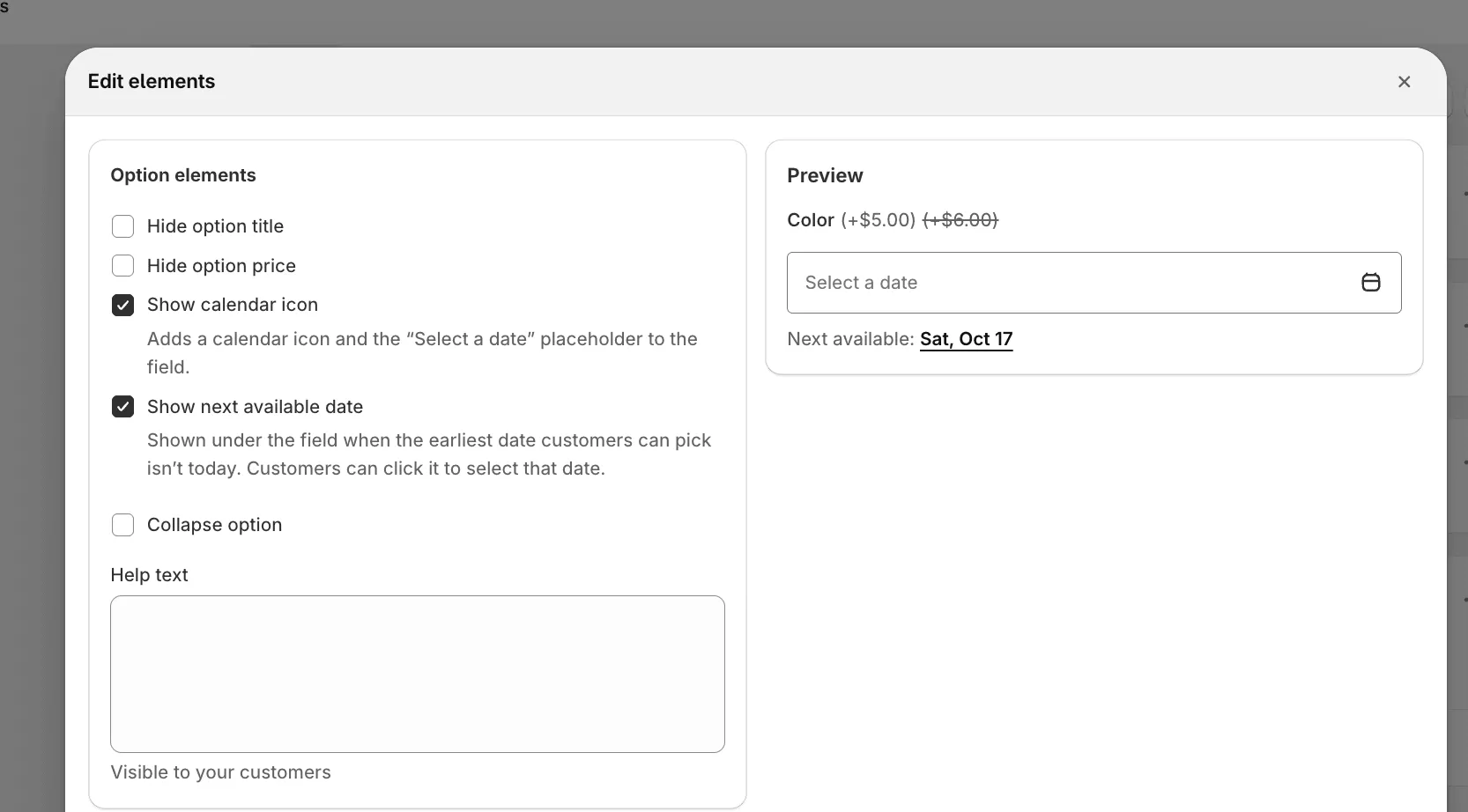
Section titled “Calendar icon and next available date”Two display settings are in the option’s Edit elements, under Option elements:
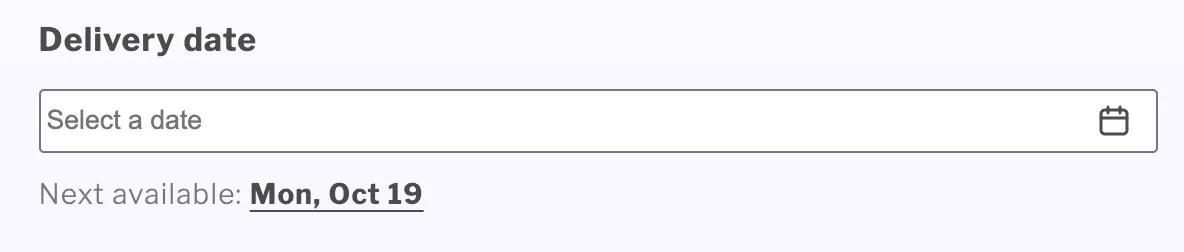
- Show calendar icon — adds a calendar icon and the “Select a date” placeholder to the field, so customers can see it’s a date field.
- Show next available date — shows “Next available:” with the earliest date under the empty field, for example “Next available: Fri, Oct 16”. If that date is tomorrow, it reads “Next available: Tomorrow, Oct 15”. It appears only when the earliest available date isn’t today. Customers can click the date to select it right away; the price updates the same way as when they pick it in the calendar. Once a date is selected, the line disappears.
Both settings are turned on for new Date picker options. For Date picker options created before this update, they are turned off, so your product pages don’t change until you turn them on.
Change or translate the texts
Section titled “Change or translate the texts”Go to Settings → Translations. The date picker texts are in two sections.
Input & selection labels:
- “Select a date” date picker placeholder
- “Next available:” label under the date picker
- Tomorrow in the next available date hint
Errors:
- “No dates available” date picker message
- Calendar loading message
- Unavailable date warning
- Calendar loading error
The weekday and month names in dates follow your store’s language and don’t need translating. See Translations for how to add languages.
How do I close the shop for holidays?
Section titled “How do I close the shop for holidays?”Select All dates, then add each holiday or vacation period in Blocked dates.
My classes run every Friday and Sunday. How do I set that up?
Section titled “My classes run every Friday and Sunday. How do I set that up?”Select Days of the week and select Friday and Sunday in Repeat every. Block the weeks you skip in Blocked dates. If you add an extra session, add it in Extra dates.
Can customers pick dates further than two years ahead?
Section titled “Can customers pick dates further than two years ahead?”When you use blocked dates, Days of the week or Specific dates only, the calendar shows dates up to two years from today.
Can I limit how many customers book the same date?
Section titled “Can I limit how many customers book the same date?”No, the app doesn’t count bookings per date.
Do blocked dates stop people from buying?
Section titled “Do blocked dates stop people from buying?”No. The Add to cart and Buy now buttons stay active. Customers just can’t select a blocked date, and a date that is no longer available is rejected when they add the product to the cart.
Does pricing change?
Section titled “Does pricing change?”No. Date picker pricing works as before.