Advanced Product OptionsUsing the app
Managing custom pricing of option values
The app allows you to add price attributes to option values. The price of an option value will be added to (+$)/subtracted from (-$) the original product price upon selection.
Steps:
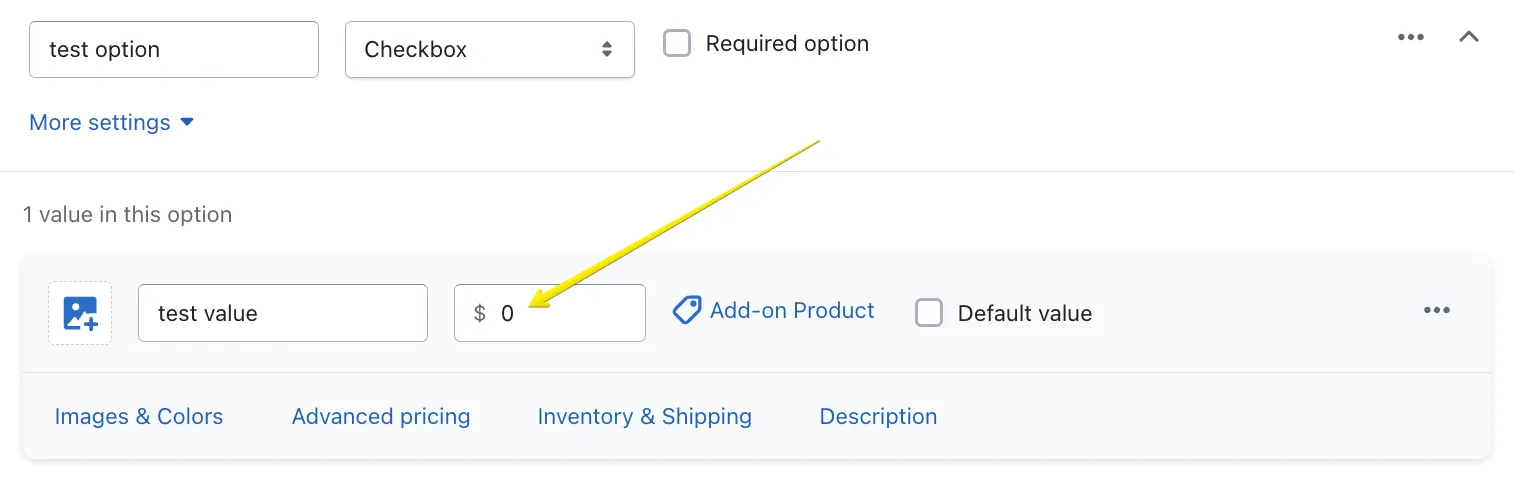
- Create an option value
- Insert a price value into the price field next to the value title. You can use both positive and negative prices depending on your needs:
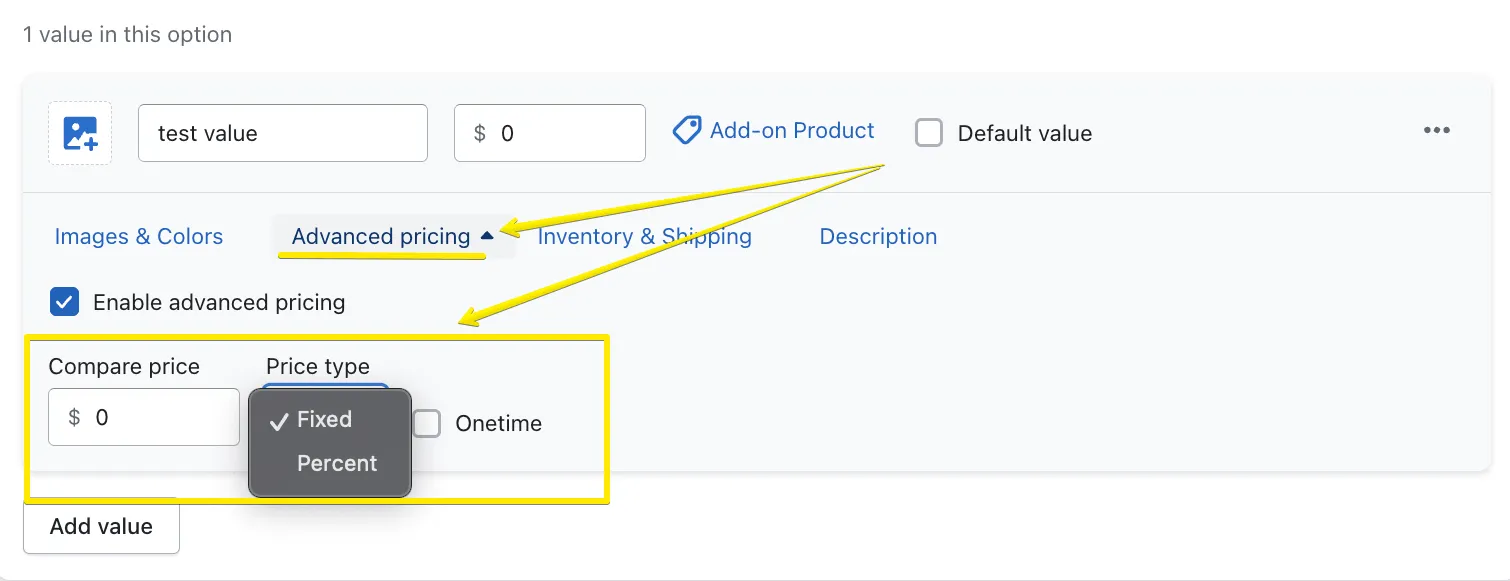
- If you need to add enhanced price settings, navigate to the “Advanced pricing” tab. Here you can:
- add “Compare price” if you run some sales (compare price will be crossed out)
- select the “Price type” (Fixed/Percent). Keep in mind that if you select the “Percent” type, the percentage will be calculated off the original product price
- make the option value “Onetime”. If the Onetime option is selected, the custom price will be added only once despite the quantity of the products added to the cart