Advanced Product OptionsUsing the app
Bulk edit/Bulk add
Bulk edit
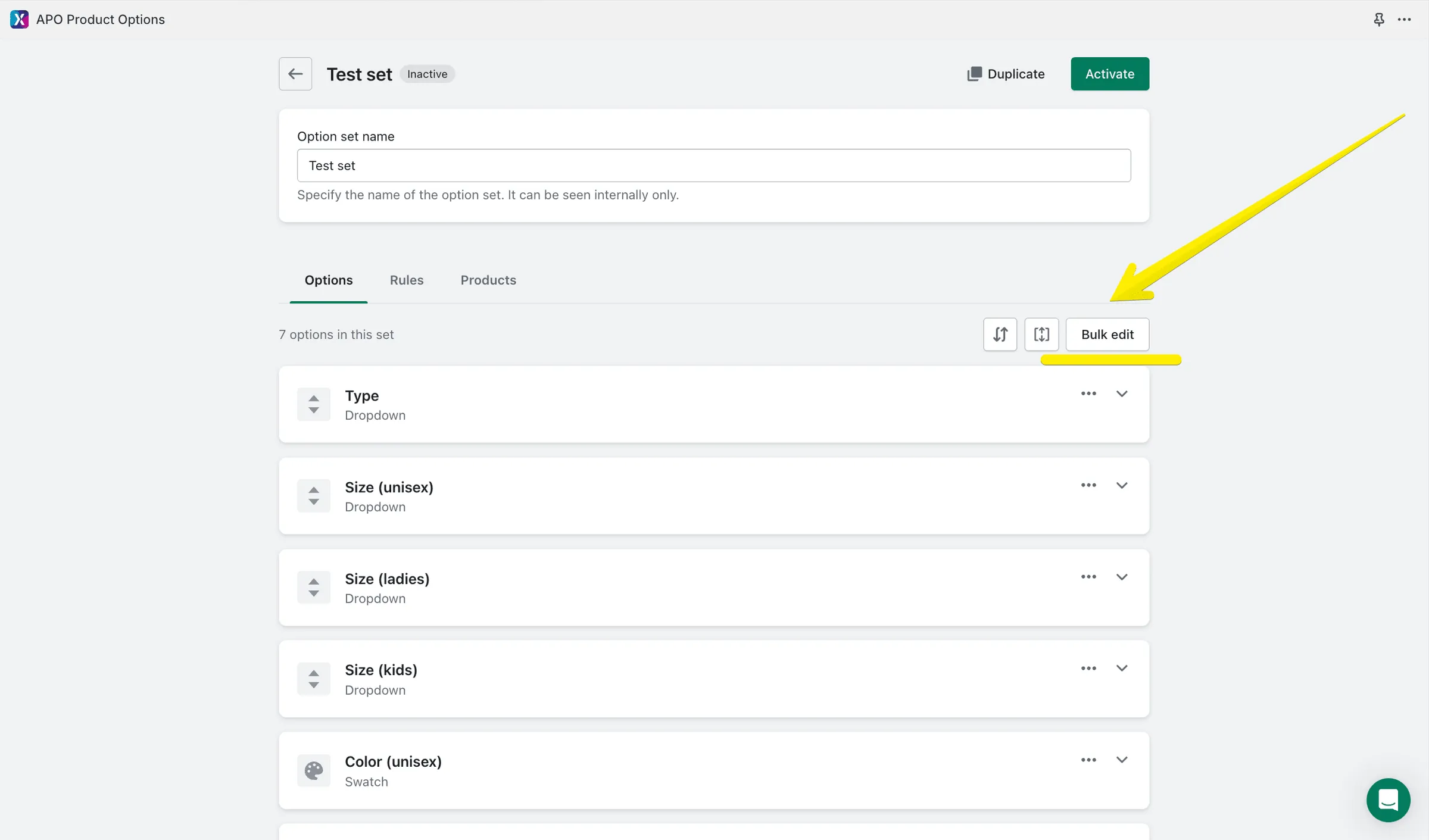
Section titled “Bulk edit”You can edit the attributes of all the options and values created in a set in bulk.
To do that, open the set you need to modify and click the “Bulk edit” link in the right-hand section above the list of options:
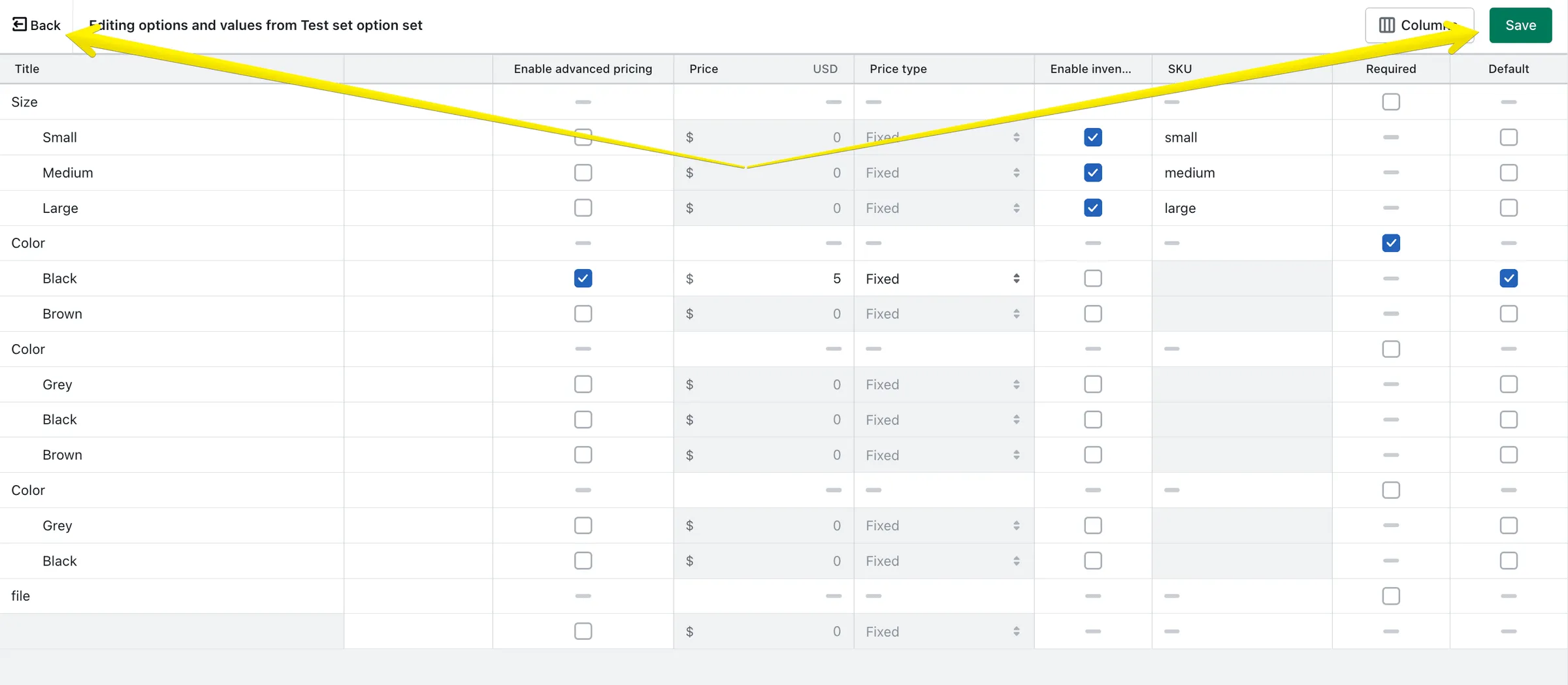
You’ll get the bulk edit view opened. By default, there are the Description and Advanced pricing attributes enabled for bulk edit. Click the “Columns” icon at the right upper corner to add more attributes you need to include in the view:
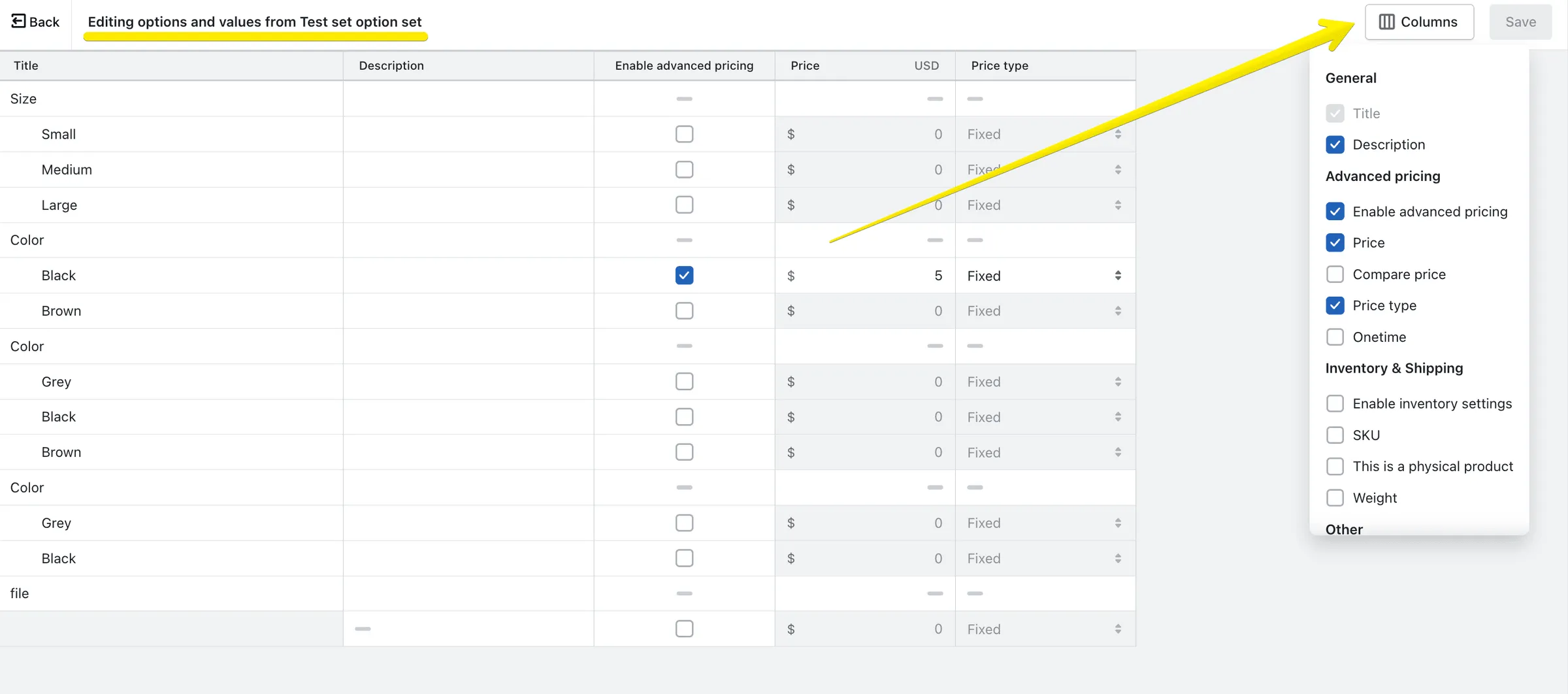
Make sure you saved the changes and click the “Back” icon to get back to the set admin:
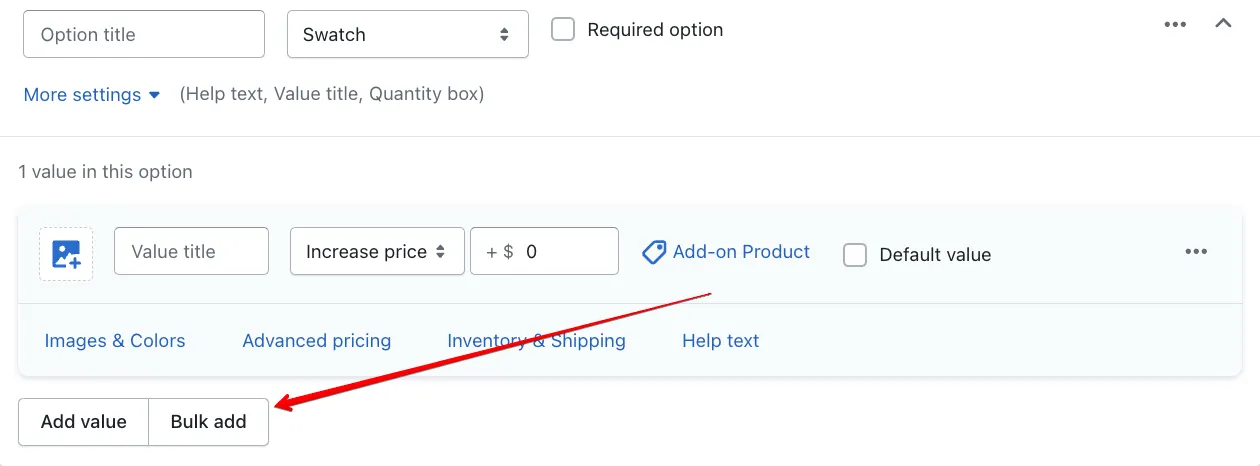
Bulk add
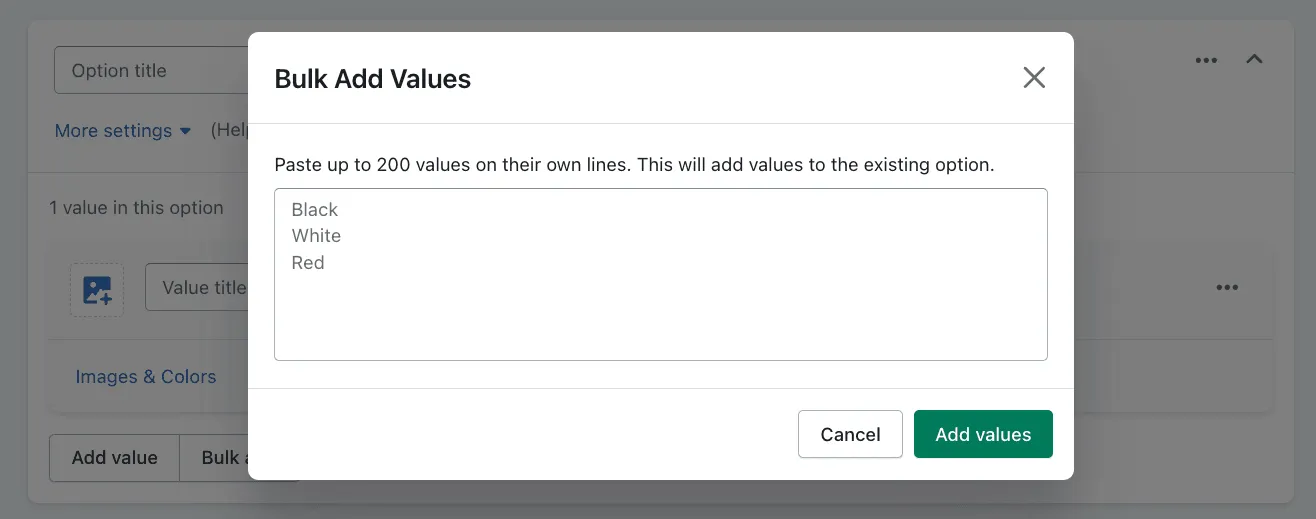
Section titled “Bulk add”If you need to add multiple option values at once, you can do so in bulk. Simply click the “Bulk add” button located at the bottom of the Option widget. You can enter up to 200 values, listing them in a single column without any periods or commas. The titles you input will automatically be converted into option values.