
How the “Buy again” button works with product options in Customer Accounts
Shopify’s own Buy again button in customer accounts puts the products from a past order straight into the cart. It skips the product page and that is where your options live. So a customer could reorder a product and end up with none of the options you made required.
The app now provides its own Buy again button that handles this correctly. To use it you do two things: add the app’s button, then turn Shopify’s own button off.
By default the button simply takes the customer back to the product page, where they choose the options again. If you’d rather have the options from the previous order filled in for them, there is an optional setting for that — see Step 3.
Before you start
Section titled “Before you start”You need the new customer accounts. The app’s button only works in Shopify’s new customer accounts, not in the classic ones. If your customers still log in through the old account pages, this feature isn’t available to you yet.
The app may ask for one new permission. Open the app. If you see a banner that says App update available with an item called Safe reordering in customer accounts, click Update app and accept it. Until you do, the app’s button will not appear anywhere, even after you add it.
You need to be a store user who is allowed to install and manage apps.
Step 1. Add the app’s Buy again button
Section titled “Step 1. Add the app’s Buy again button”- In your Shopify admin, go to Settings → Checkout and click Edit.
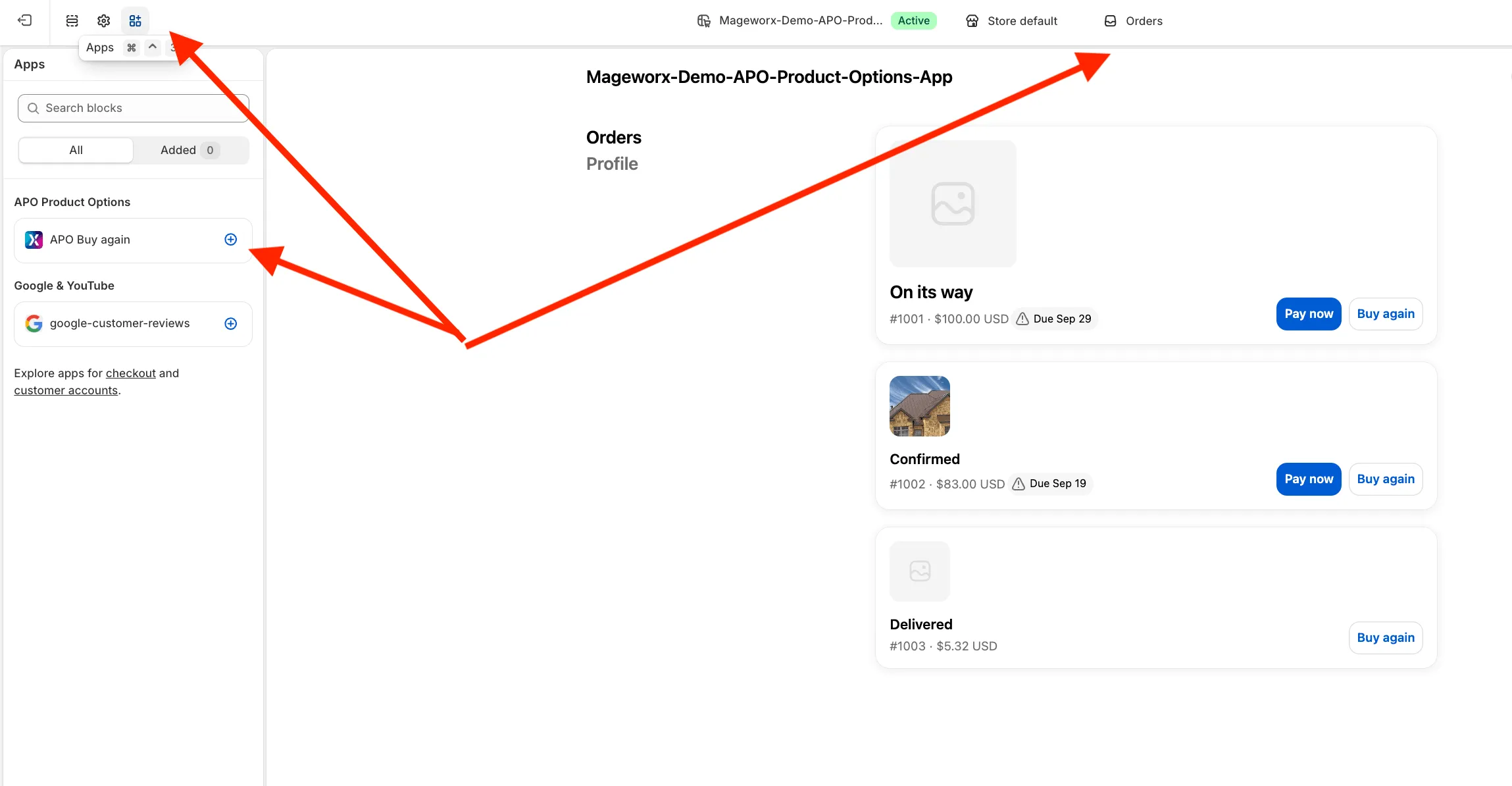
- At the top of the editor, open the page selector and switch it to Orders.
- Click the Apps icon in the left toolbar.
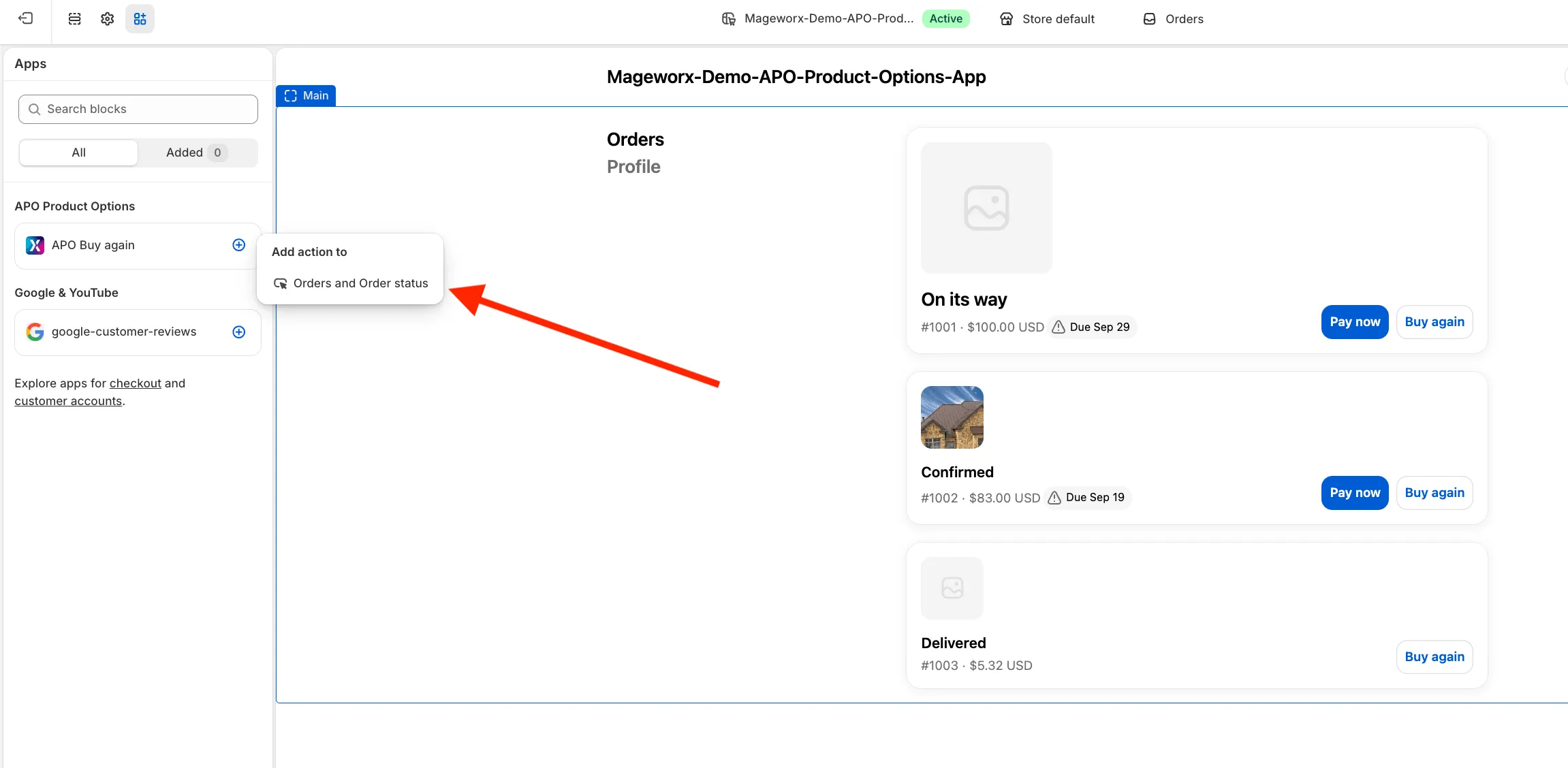
- Under APO Product Options, find APO Buy again and click the + next to it.
- Choose Orders and Order status.
- Click Save.
Step 2. Turn off Shopify’s own Buy again button
Section titled “Step 2. Turn off Shopify’s own Buy again button”Do this only after Step 1, so your customers are never left without a button at all.
- In the same editor, switch the page selector at the top to Checkout.
- Click the Settings (gear) icon in the left toolbar.
- Scroll down to Buy again button and turn off Allow customers to reorder.
- Click Save.
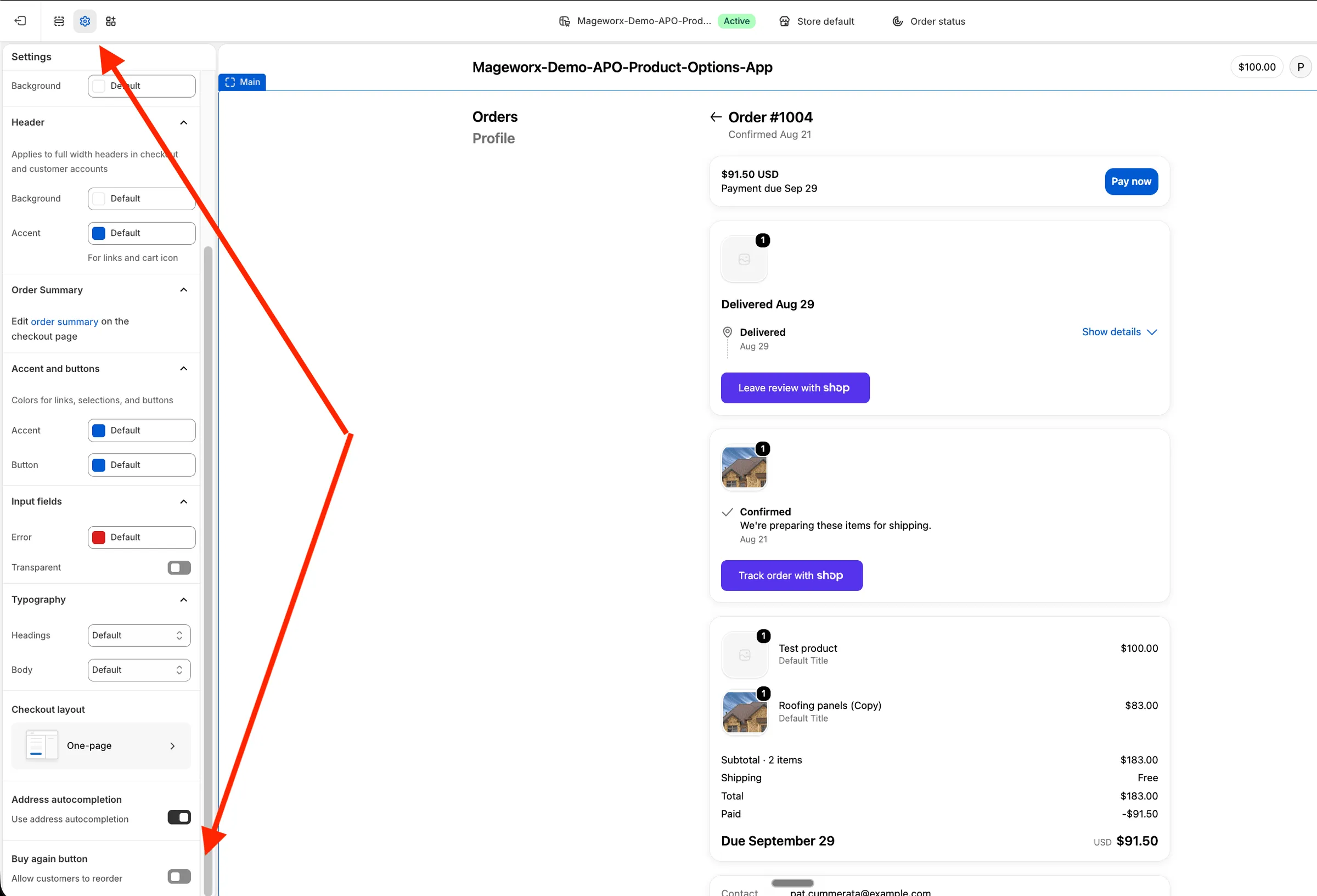
If you skip this step, both buttons will show up next to each other, and Shopify’s one will keep adding products to the cart without their options.
Step 3. (Optional) Fill in the options from the previous order
Section titled “Step 3. (Optional) Fill in the options from the previous order”By default your customer lands on a product page and picks everything again. You can save them that work: the app can preselect the options they chose last time, so they only need to check the page and add the product to the cart.
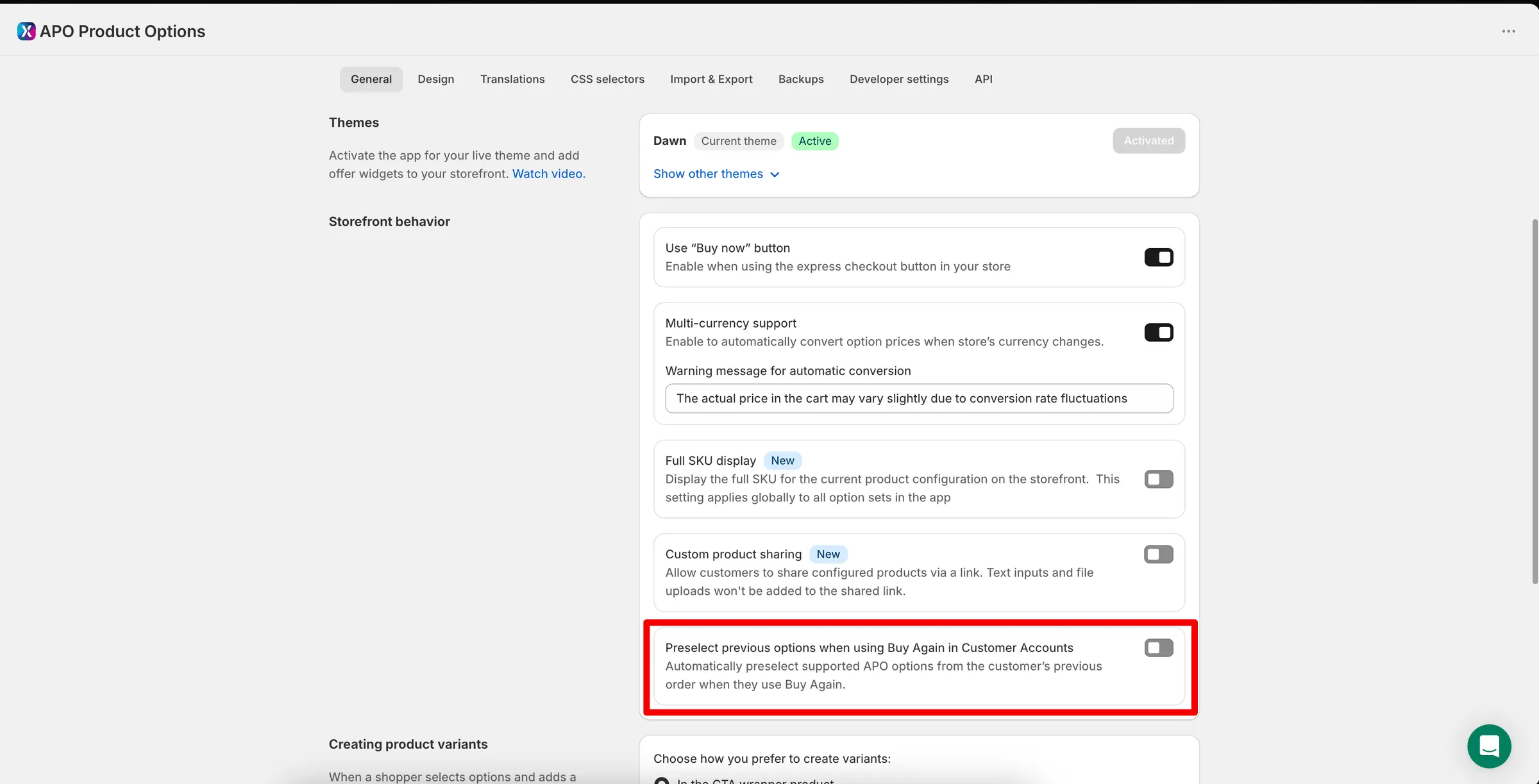
- Open APO Product Options in your Shopify admin.
- Go to Settings → the General tab.
- Find the Storefront behavior block.
- Turn on Preselect previous options when using Buy Again in Customer Accounts.
- The setting saves automatically.
What gets preselected and what doesn’t
Section titled “What gets preselected and what doesn’t”Preselected: options where the customer picks from choices you created — dropdowns, radio buttons, checkboxes, swatches and etc.
Not preselected: anything the customer typed or uploaded themselves — text fields, dates, comments and file uploads. Those stay empty and the customer fills them in again.
An option is also skipped, quietly, if it can no longer be chosen: you deleted it, it is out of stock, or your rules hide it for this customer. The rest of the options are still filled in, and the customer completes the missing ones on the page.
Prices are always taken from your product page today, never from the old order. If you changed a price since then, the customer pays the current one.
What your customers will see
Section titled “What your customers will see”Order with ordinary products, no options. The button works just like Shopify’s did: it adds the products back to the cart, and the customer goes straight to the cart.
Order with one product that has your options. The button opens that product’s page in a new tab. The customer confirms the options and adds the product to the cart from there.
Whether the options are already filled in depends on the setting in Step 3. With it off, the product page opens empty and the customer chooses everything again. With it on, their previous choices are already selected and they only need to confirm them.
⚠️ Important: some orders will have no Buy again button at all
Section titled “⚠️ Important: some orders will have no Buy again button at all”Shopify does not let an app hide its Buy again button for some orders and keep it for others. It is one switch for the whole store. So once you turn Shopify’s button off, an order either gets the app’s button or it gets no button.
The app deliberately shows no button when it cannot bring the customer back to a page where the options can be chosen properly. Adding such an order to the cart “as is” would recreate exactly the problem this feature was built to solve.
Here is the full picture:
| What is in the order | Buy again button |
|---|---|
| Only ordinary products, without your options | Yes — products go into the cart |
| One product with your options (together with its add-ons and linked products from the same configuration) | Yes — opens the product page |
| Two or more products with your options | No |
| The same product with options bought twice in one order | No |
| A product with your options plus an ordinary product | No |
| A bundle created by another app | No |
| An order older than about 60 days | No |
| A product or variant that no longer exists in your store | No |
If most of your orders contain several products with options, expect the button to be missing from most orders. It is worth looking at a few of your real orders before you turn Shopify’s button off.
Why is there no button for orders older than 60 days?
Shopify only lets apps read orders from roughly the last 60 days. Older orders are simply not visible to the app, so it cannot tell whether the order contains options and does not risk showing a button. Reading older orders requires an extra, more sensitive permission that the app does not ask for.
Why is there no button when the order has two products with options?
The button takes the customer to one product page. With two configured products there is no single page to open, and putting both into the cart would skip the options. In that case the customer opens the products from your catalogue as usual.
My customer bought the same product twice with the same options, and there is still no button. Why?
Each configured product in an order is stored as its own separate configuration, even when the options match. Two configurations means the app has two possible destinations, so it shows no button.
I don’t see APO Buy again in the Apps list of the editor.
Open the app and check for the App update available banner, then click Update app and accept the permission. If the banner is not there and the block is still missing, contact support.
Two Buy again buttons are showing.
Shopify’s own button is still on. Go back to Step 2 and turn off Allow customers to reorder.
Can I rename the button or change how it looks?
Not at the moment. The button is called Buy again and is translated automatically into the language of your customer account.
Does the button work on the order status page too?
Yes. In Step 1 you add it to Orders and Order status, so it appears both in the order list inside the customer account and on the order status page.
Do I have to turn Shopify’s button off?
You don’t have to, but if you leave it on, customers can still reorder products with options without choosing any options, which is the problem this feature fixes.