
How to change the order of option sets on a product
When a product has more than one option set, you decide which set comes first by giving each one a number. That number is the Sort order.
What the number means
Section titled “What the number means”The smaller the number, the higher up the product page the set appears.
- A set with
1is shown above a set with2. - A set with
2is shown above a set with10. - The set with the biggest number ends up at the bottom of the page.
So if you want your customers to choose the size before they see the add-ons, give the size set 1 and the add-ons set 2.
There are two levels, and the set level comes first
Section titled “There are two levels, and the set level comes first”The app sorts in two steps, always in this order:
- The sets are placed by their Sort order number.
- The options are placed inside each set, in the order you arranged them there.
Product pageSet A · sort order 1SizeColourSet B · sort order 2Gift wrapGift message1. The sort ordernumber decideswhich set comesfirst.2. Your order insidethe set decides theorder of its ownoptions only.
A set appears as one solid block. Options don’t leave their own set to sit among the options of another one.
This is the part that trips people up, so it’s worth saying plainly: if set A has a lower number than set B, then every option from set A appears above every option from set B. It makes no difference how the options are ordered inside either set — that order only ever applies within its own set.
One exception: if you have rearranged the options by hand on an individual product, that product can show options from different sets mixed together, until the next time one of its sets is saved. See Change the order of options on a single product below.
Three examples
Section titled “Three examples”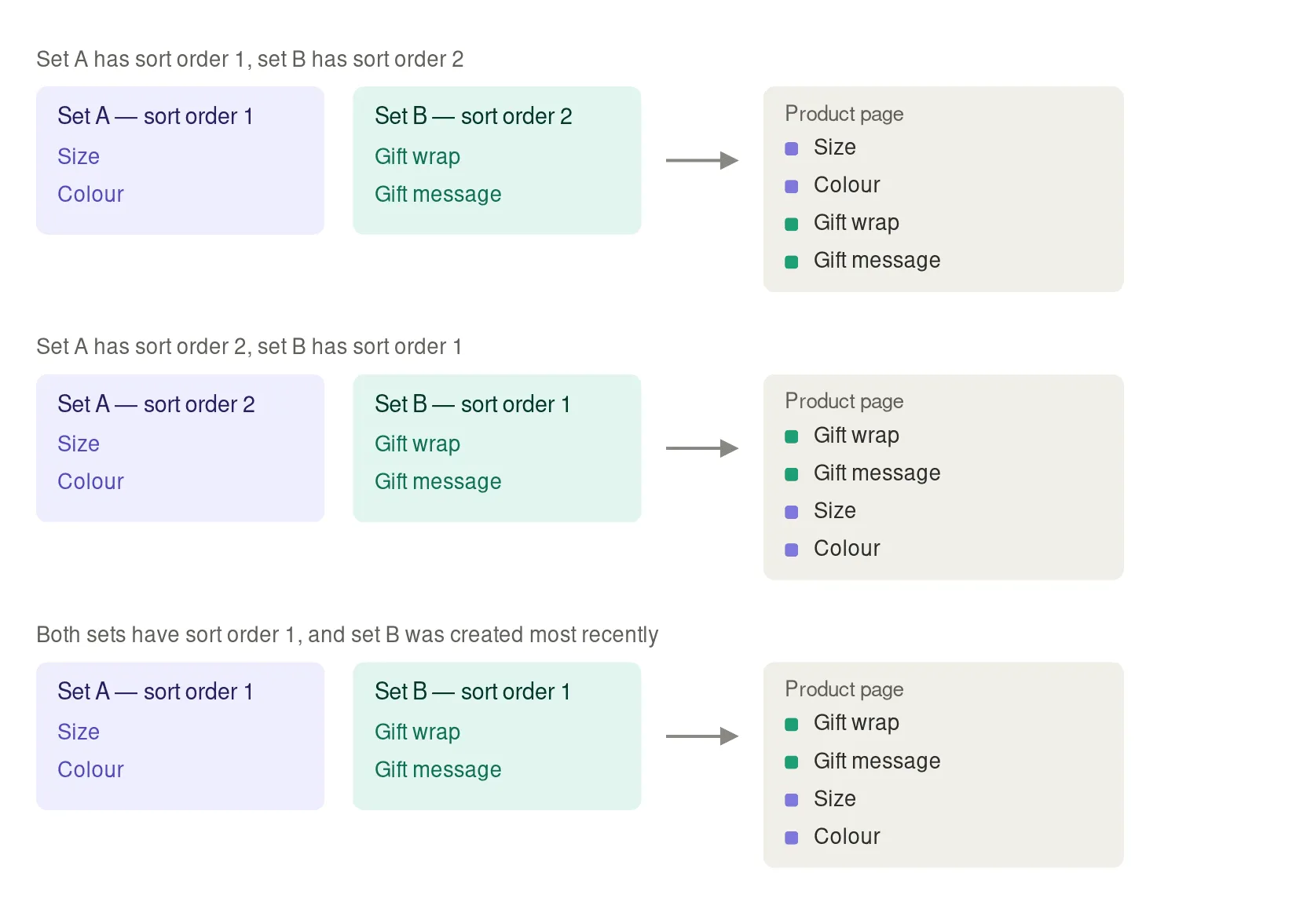
If two sets have the same number
Section titled “If two sets have the same number”They’re placed one after the other, and the set you created most recently goes on top. That means adding a new set can push an older one down without you changing any numbers — so if the order matters, give the sets different numbers rather than relying on this.
Change the order of your option sets
Section titled “Change the order of your option sets”- Open the app and go to Option sets.
- Open the set you want to move.
- In Sort order, at the top of the page next to Display mode, enter a number.
- Save the set.
- Refresh the product page on your storefront to check the new order.
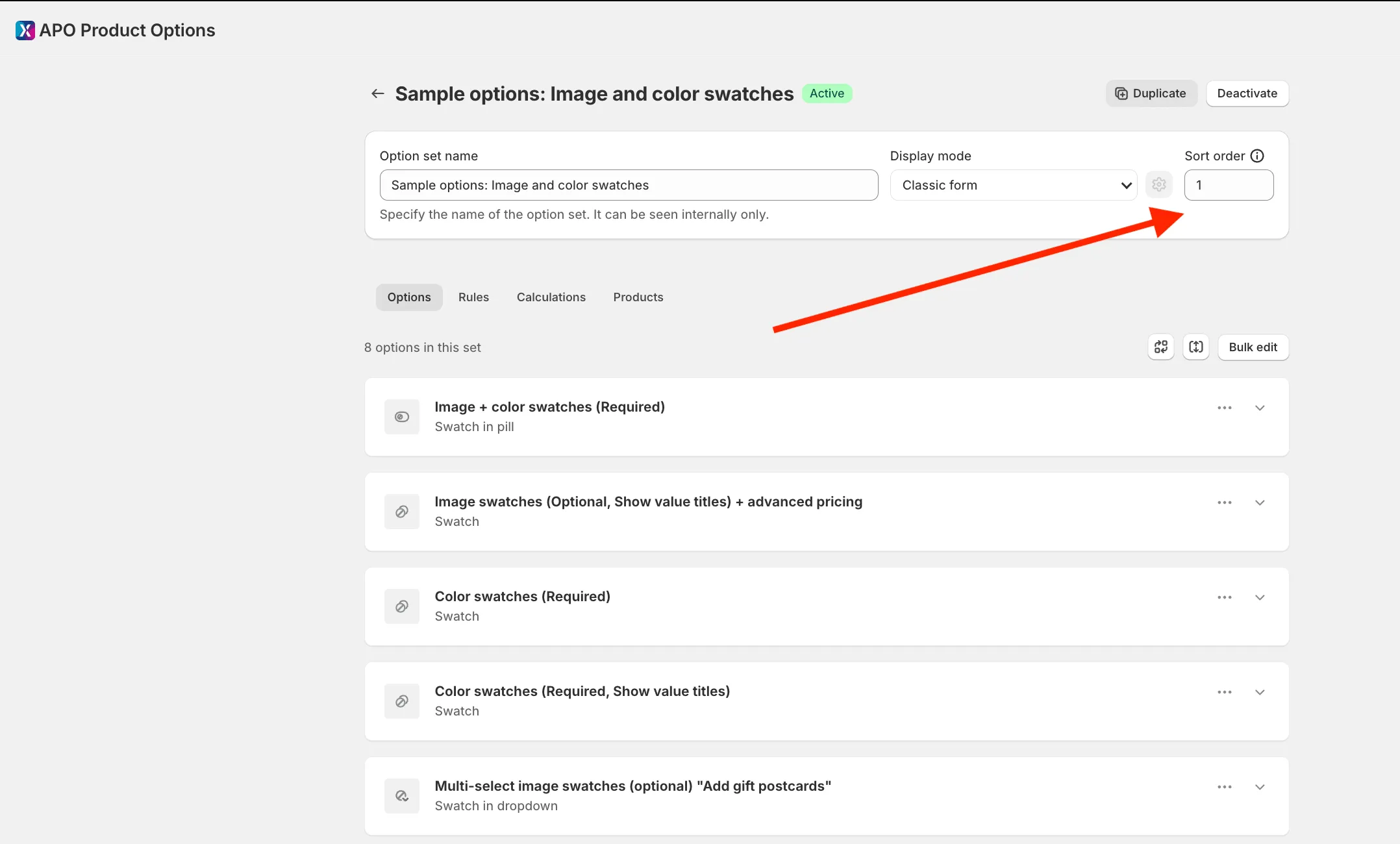
The number is compared only against the other sets on the same product. Sets that never appear on the same product don’t affect each other, so you can reuse the same numbers across unrelated groups of sets.
If you plan to add more sets later, leave gaps between the numbers — 10, 20, 30 rather than 1, 2, 3. That way you can slot a new set in between two existing ones without renumbering everything.
Change the order of options inside a set
Section titled “Change the order of options inside a set”The Sort order moves a whole set. To change the order of the options within it:
- Open the option set.
- On the Options tab, click Rearrange options.
- Drag the options into the order you want.
- Click Done.
This order applies to every product the set is assigned to, so you only have to do it once.
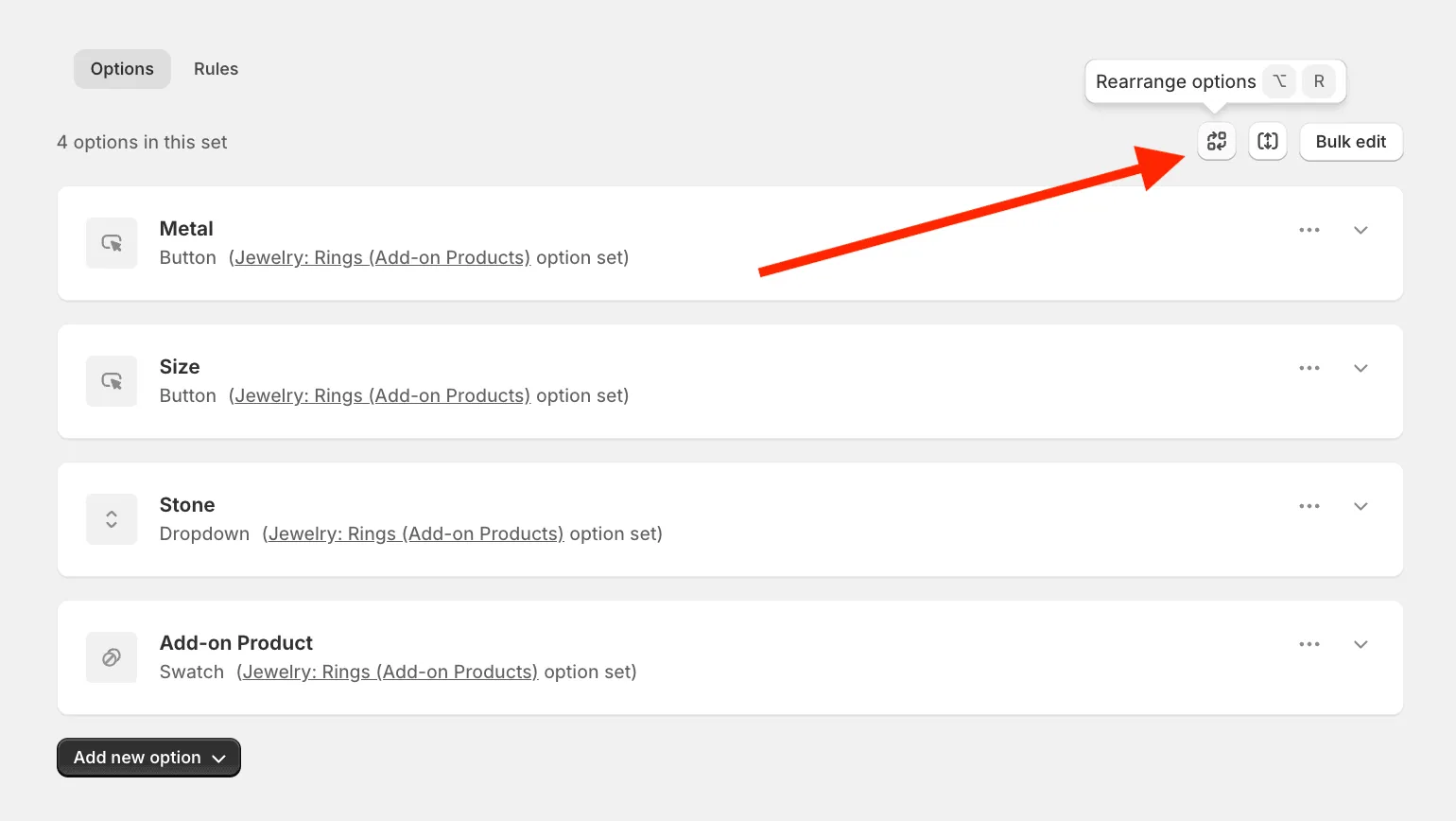
Change the order of options on a single product
Section titled “Change the order of options on a single product”You can also reorder options directly on a product. We don’t recommend it, and it’s worth understanding why before you start.
Option sets sit above product-level changes. The next time you save an option set that’s assigned to this product, the order stored in that set is written over the product again — and the order you arranged by hand is gone. It doesn’t matter how small the change to the set was: saving it is enough. This happens on every product the set is assigned to, so if the set is used on 50 products, you would have to rearrange all 50 again.
If you still need it:
- Open the app and go to Products.
- Find the product you want to update and open it.
- Click Rearrange options.
- Drag the options into the order you want, or type a position in the Order field next to each one.
- Click Done.
- Refresh the product page on your storefront to check the updated order.
For an order that stays, use the option set instead: Sort order to position the sets, and Rearrange options inside the set to position the options within it.