
Advanced Product OptionsCart, checkout & orders
See product options on the order page
Shopify lists the options a shopper chose as plain text under the order line. APO’s Product options block shows each configuration the way it was put together, starting with the configured image. Its details add every option with its price, the shopper’s text, links to uploaded files and the price breakdown, and you can print a sheet for your production team from the same order.
The block is available on the Growth and Scale plans and works in every variant mode: CTA, cloned product and base product. It only reads the order: nothing is written to Shopify.
Pin the block once
Section titled “Pin the block once”-
In your Shopify admin, open any order.
-
In the Blocks area, click + Block and choose Product options.

-
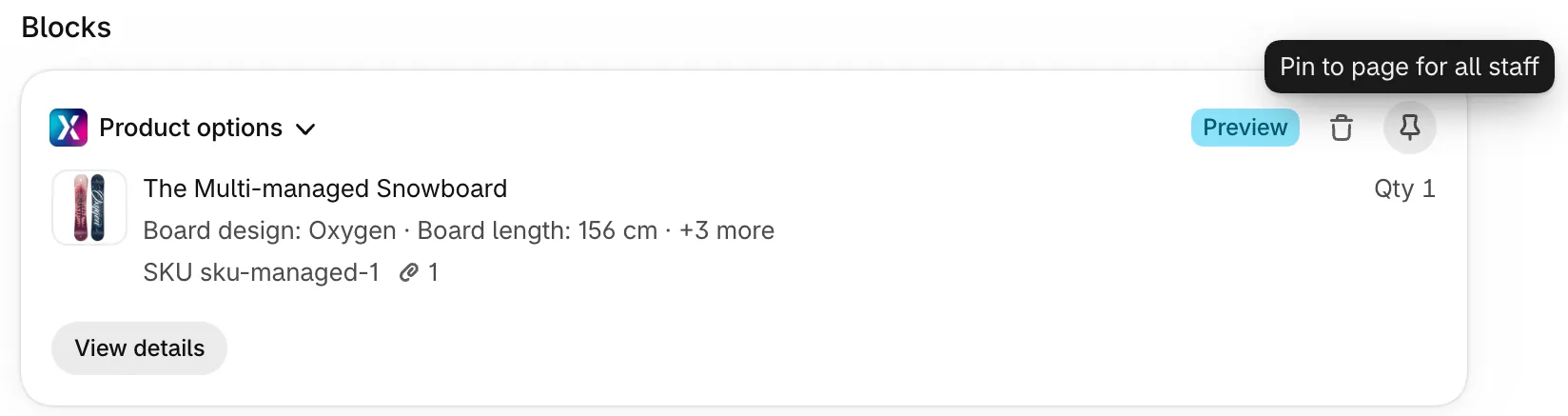
The new block shows a Preview badge: it is only on this page for now. Click the pin icon, Pin to page for all staff. From then on the block is shown on every order of the store, for every staff member.
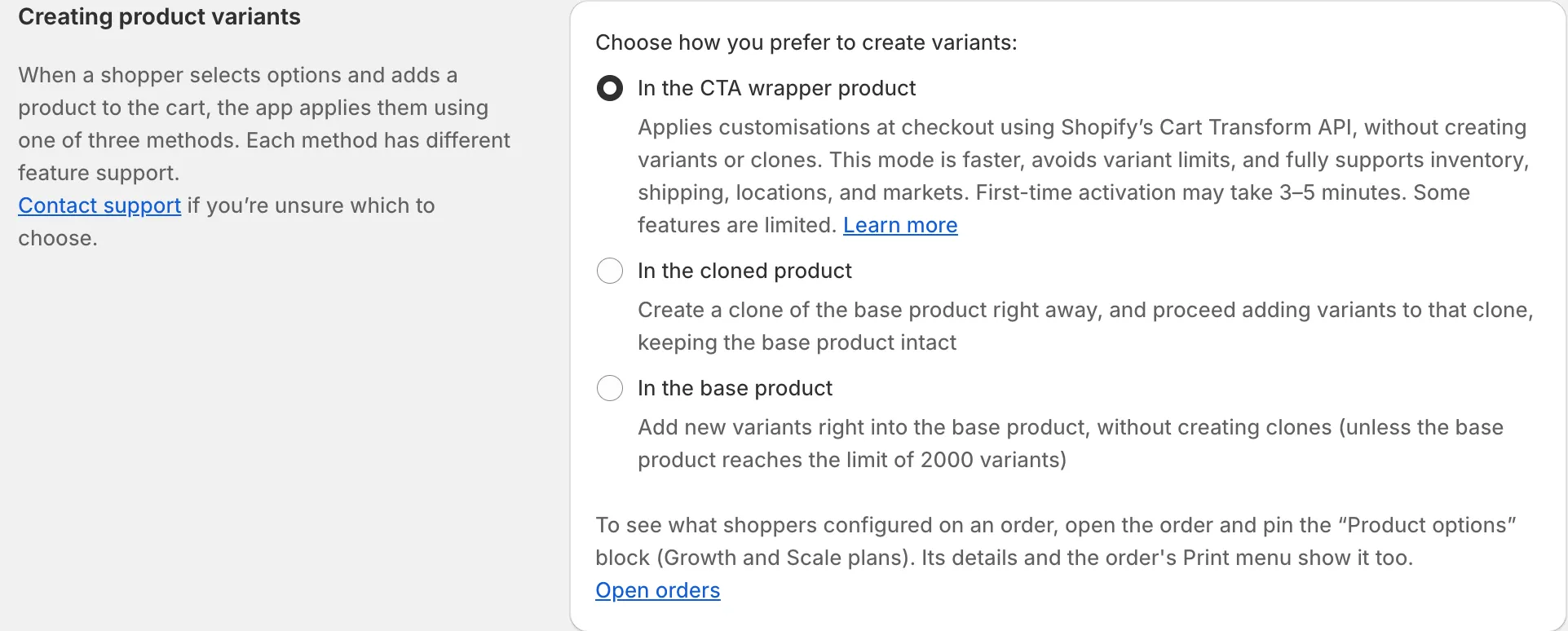
You can also get there from the app: in Settings, under the variant mode, a hint explains how to pin the block, with a link to your orders.
What the block shows
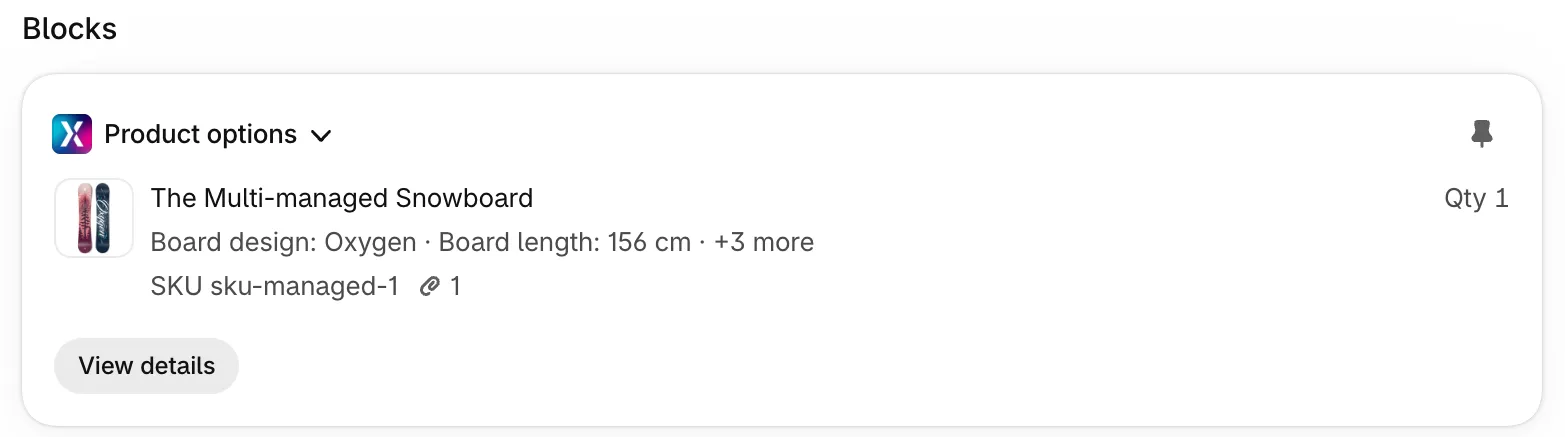
Section titled “What the block shows”The block shows up to three configurations of the order, each with the configured image (or the order line’s product image if the configuration has none), the product title, the first options, the quantity and the number of uploaded files. If the order has more, the block says how many more, and View details lists them.
See every detail
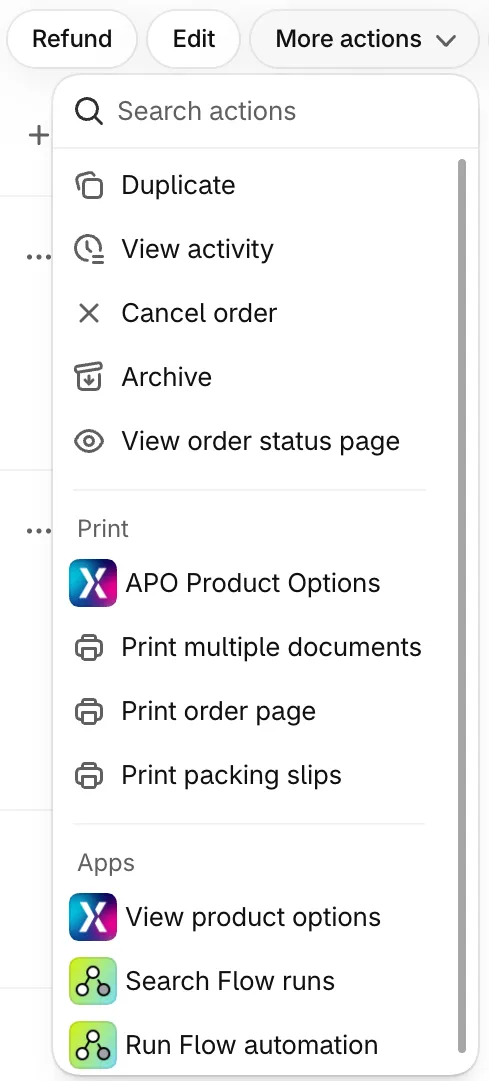
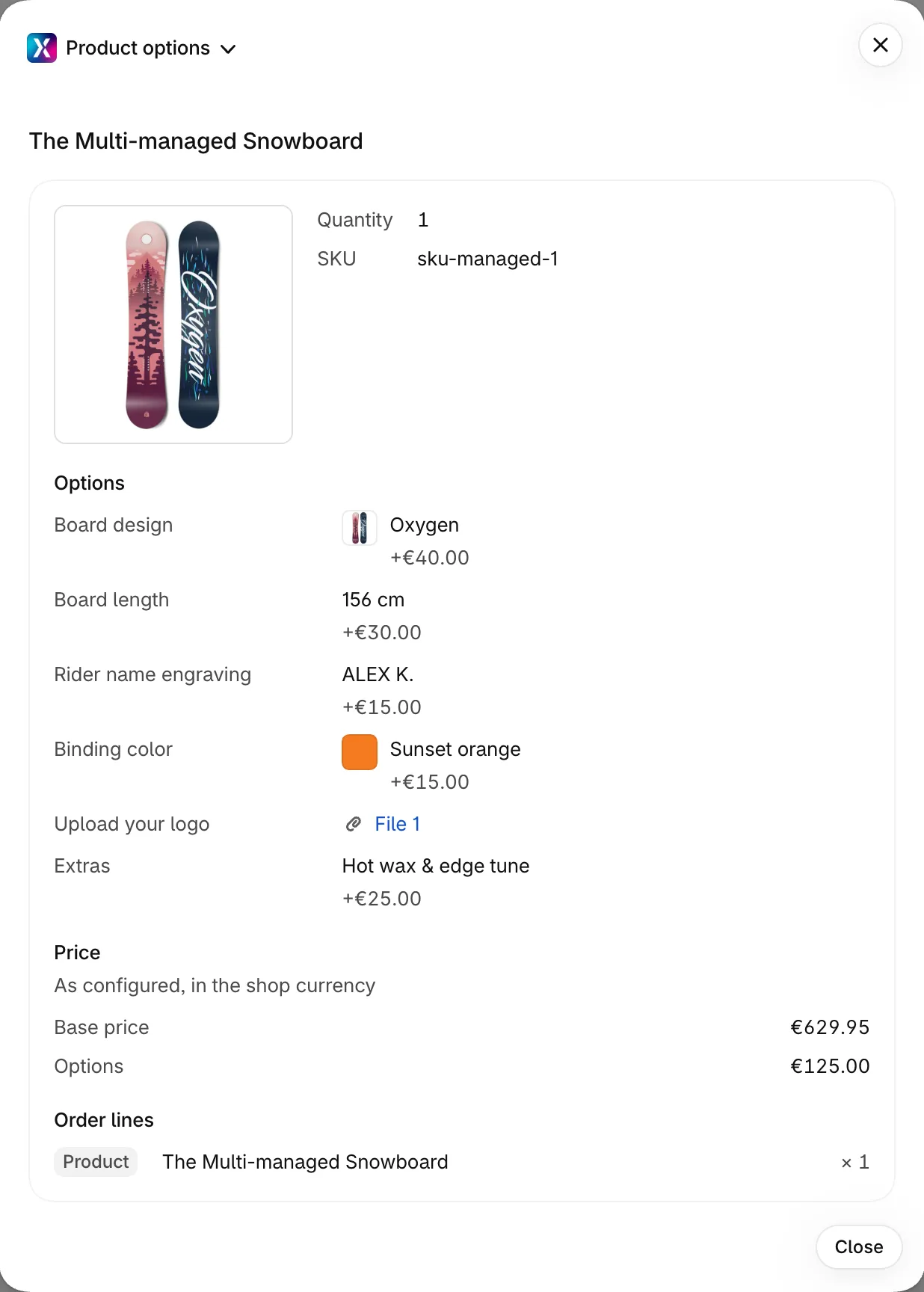
Section titled “See every detail”Click View details on the block, or open More actions → View product options at the top of the order.
The details show for each configuration:
- every option with the chosen value, and the value’s swatch and price when it has them;
- what the shopper typed and the dates they picked;
- links to uploaded files;
- the price breakdown: base price, options, rule adjustments and one-time fees, as configured, in the shop currency;
- the order lines that belong to the configuration: the product, add-ons, fees and linked products.
Print a sheet for production
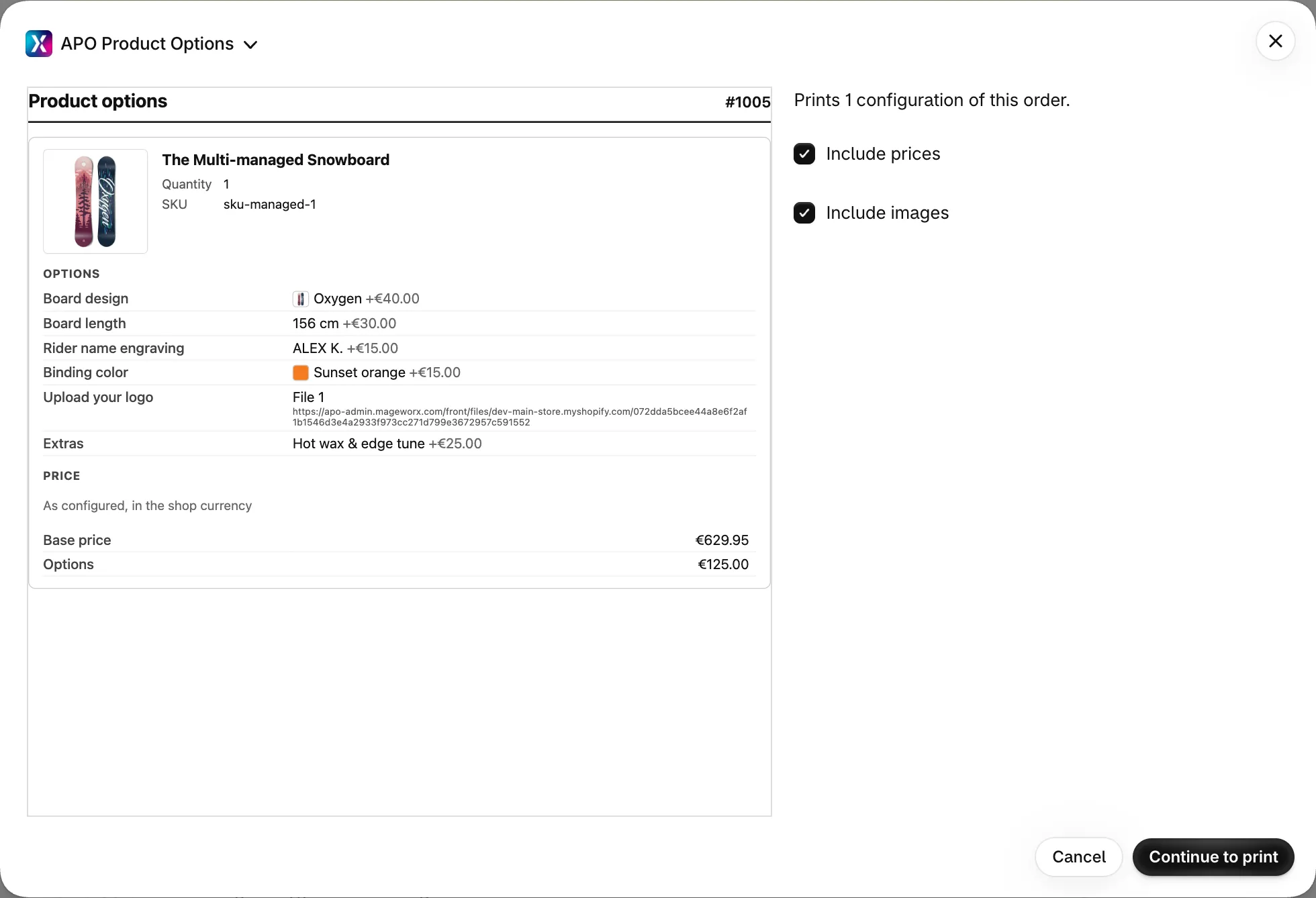
Section titled “Print a sheet for production”Open More actions and, under Print, choose APO Product Options. The sheet lists every configuration of the order with its image, options, the addresses of uploaded files and prices. If the order has prices or images, you can turn off Include prices or Include images, then click Continue to print.
Good to know
Section titled “Good to know”- Starter plan. The block tells you how many lines of the order have product options and links to the plans. An order without options shows “No product options in this order”.
- Orders in another currency. Prices are shown in the shop currency, so for an order paid in another currency the option prices and the breakdown are left out. The options and values are shown as usual.
- Older orders. Shopify gives the app details only for orders from the last 60 days. For an older order the block is built from the data the app keeps, when it recorded which configuration each line had: options and ordered quantities, without prices.
- “Configuration no longer stored”. The line looks configured, but the app can no longer read the data saved for it.
- Draft orders are not covered yet.
- An order with more than 50 configurations shows the first 50 in the block, the details and the print sheet.
To show the options outside the admin, see Show options in packing slips and Show options in the order confirmation email.