
Advanced Product OptionsImport & backups
Back up option sets
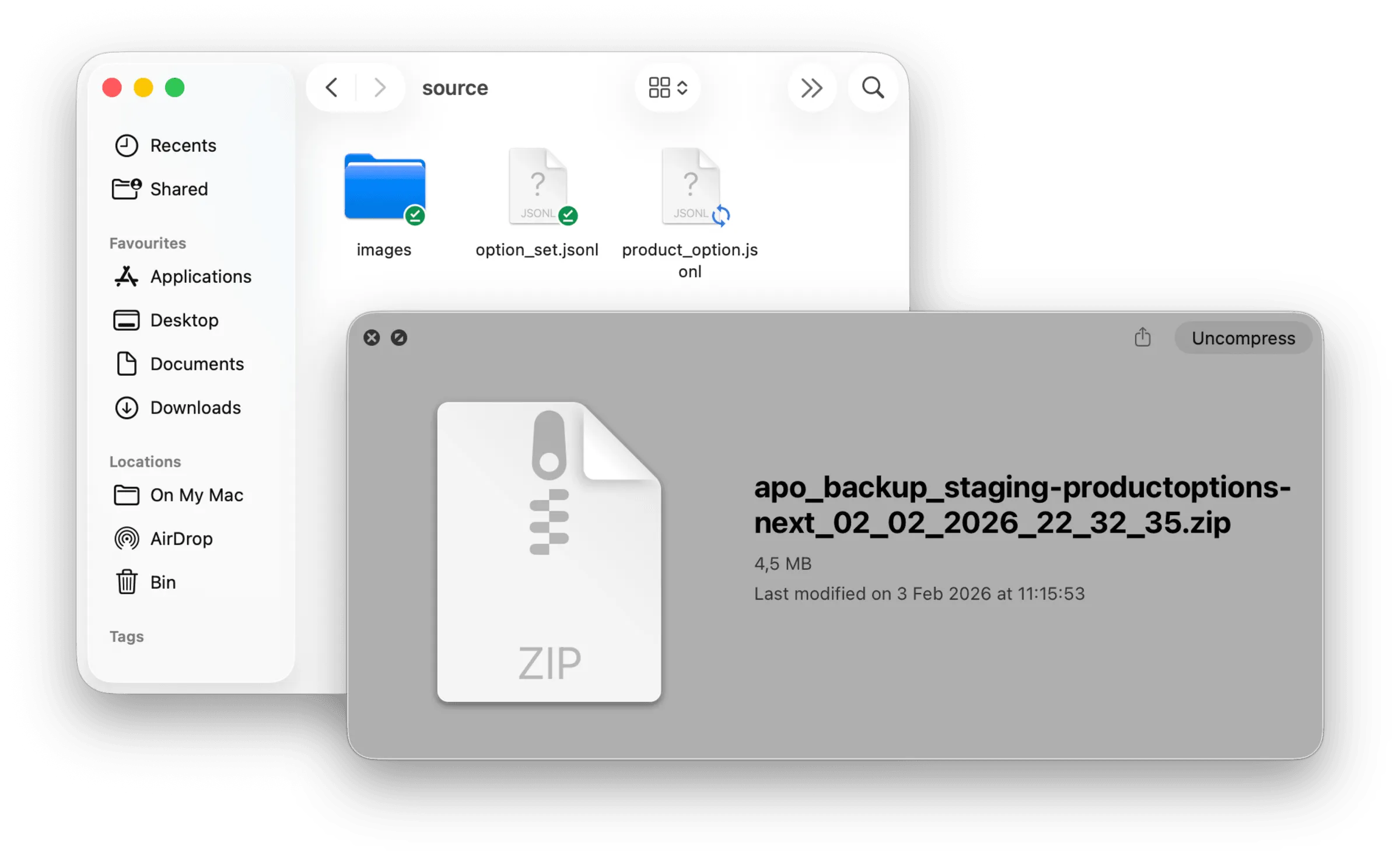
Create a backup when you want a full safety copy of your APO setup before making changes, for example before a CSV import. You can back up selected option sets, the options of individual products, or everything at once.
What a backup includes
Section titled “What a backup includes”Backups include everything, not just what CSV can export. A backup stores the entire APO configuration, including:
- option sets, options, and values
- options assigned directly to products (not via option sets)
- rules, formulas, and conditions
- display and presentation settings
- translations
- internal option and value parameters
- all related image files
CSV export does not include all of this. Backups are the only way to fully restore your setup.
Back up selected option sets
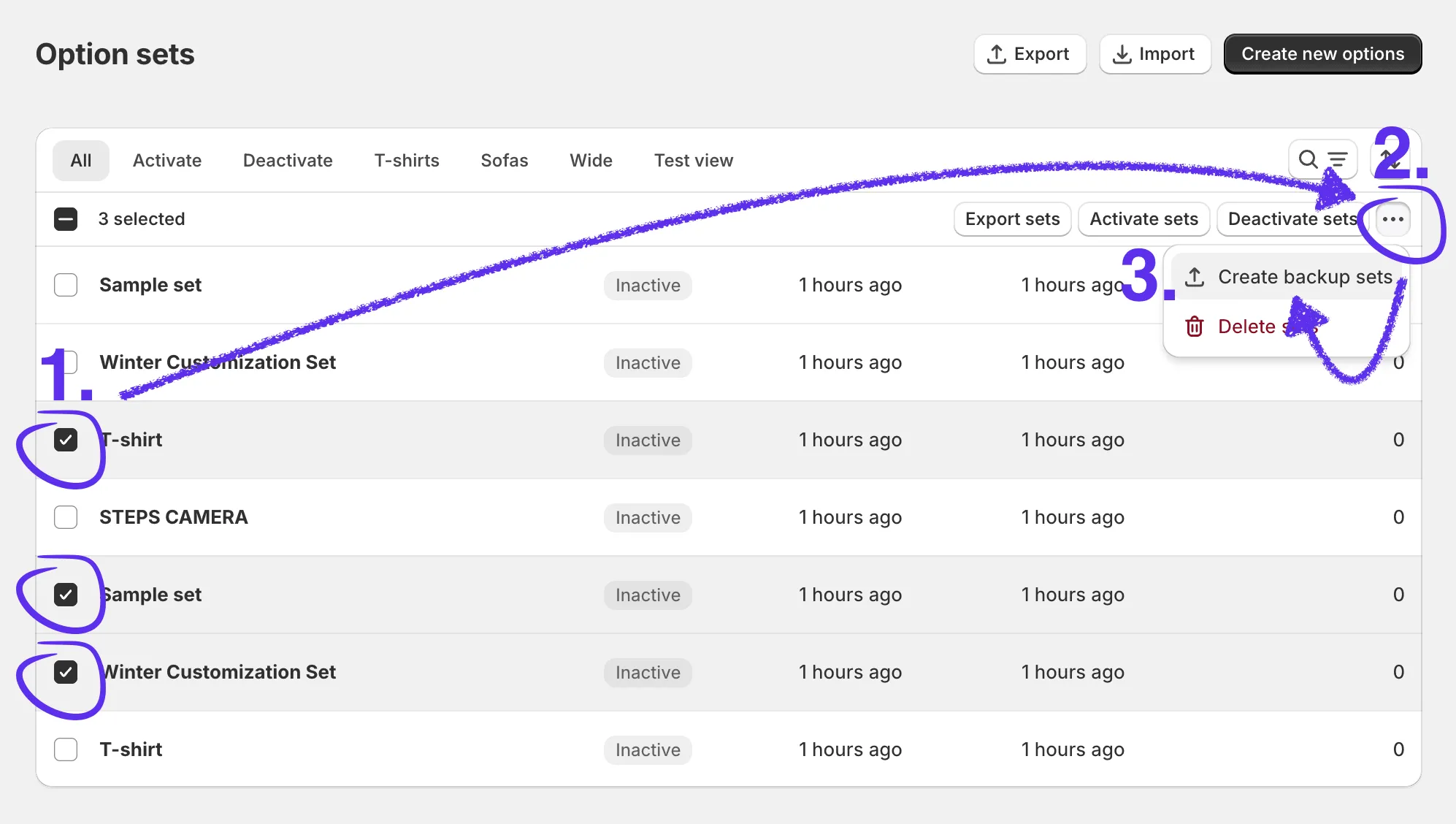
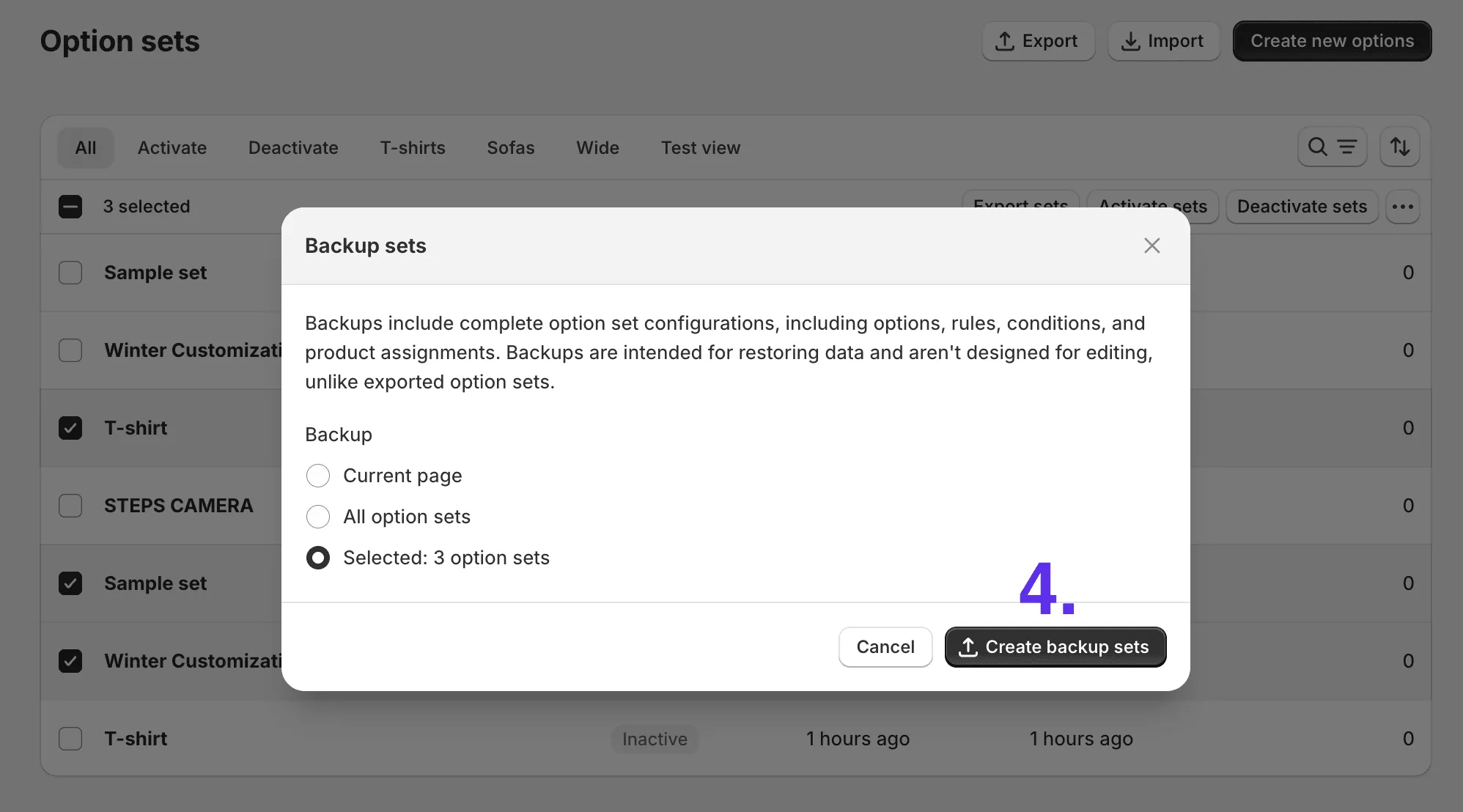
Section titled “Back up selected option sets”Select the option sets, open the actions menu, and create a backup for the selected sets only.
A banner confirms the backup is in progress. The process runs in the background.
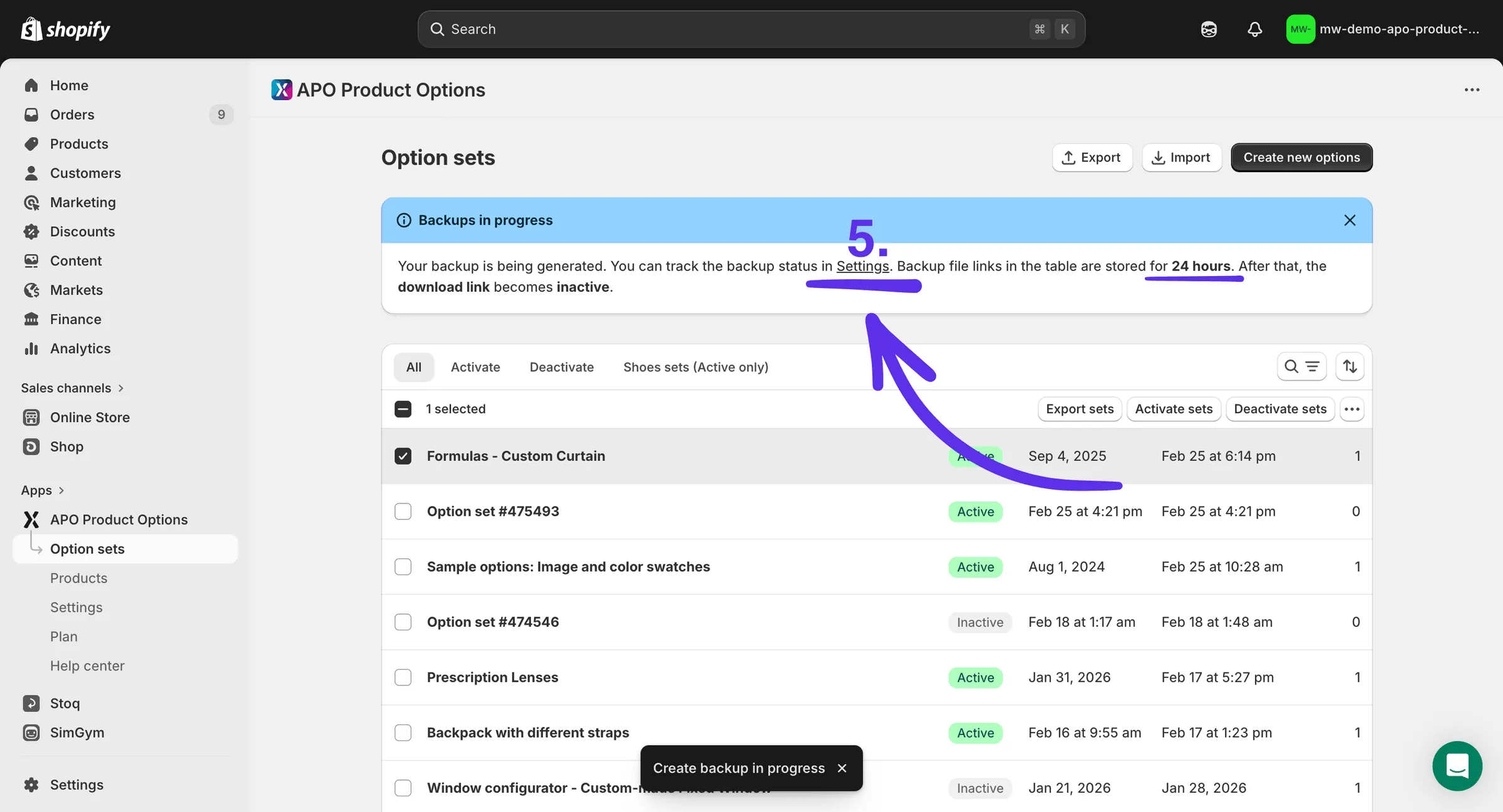
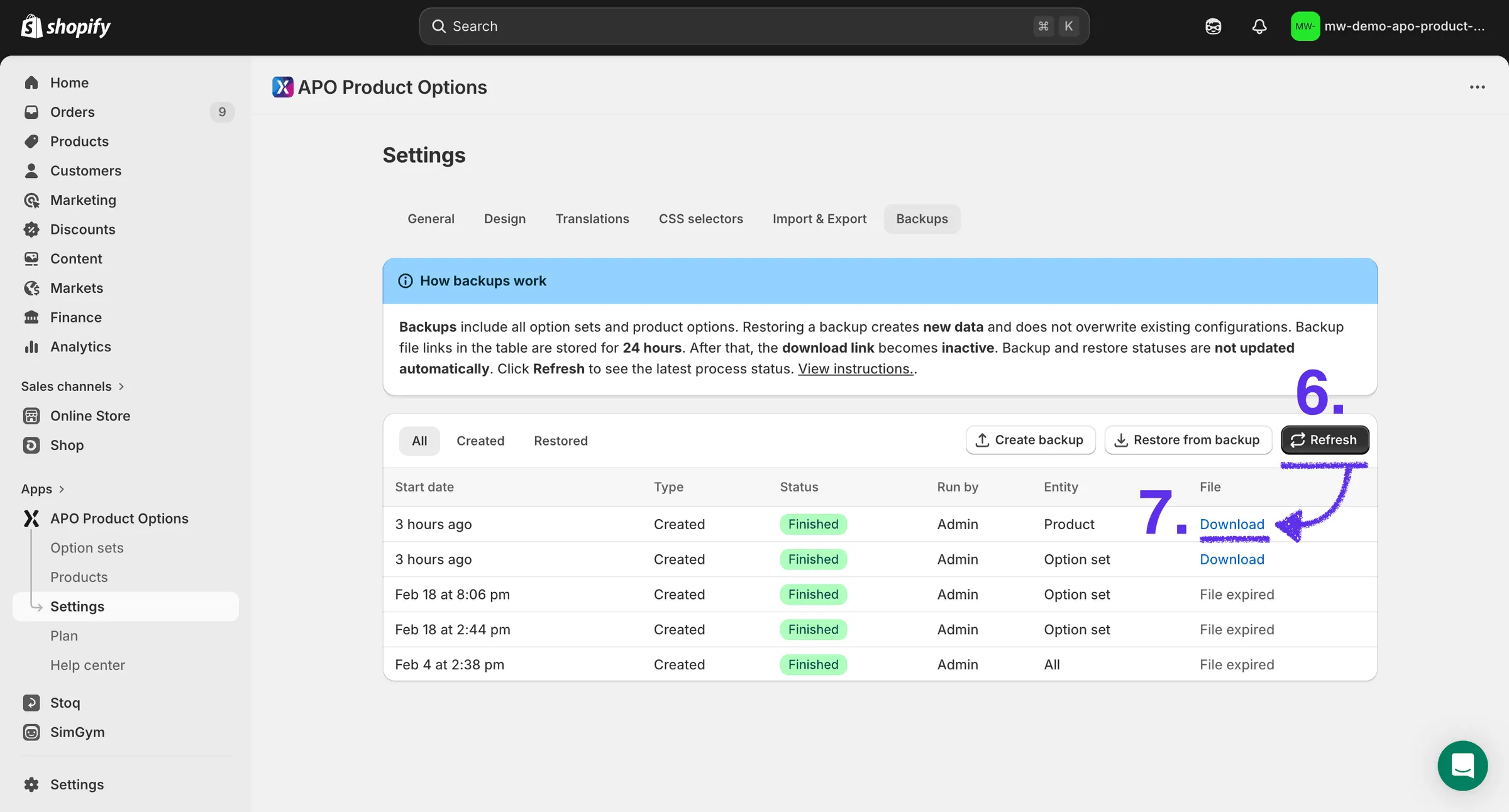
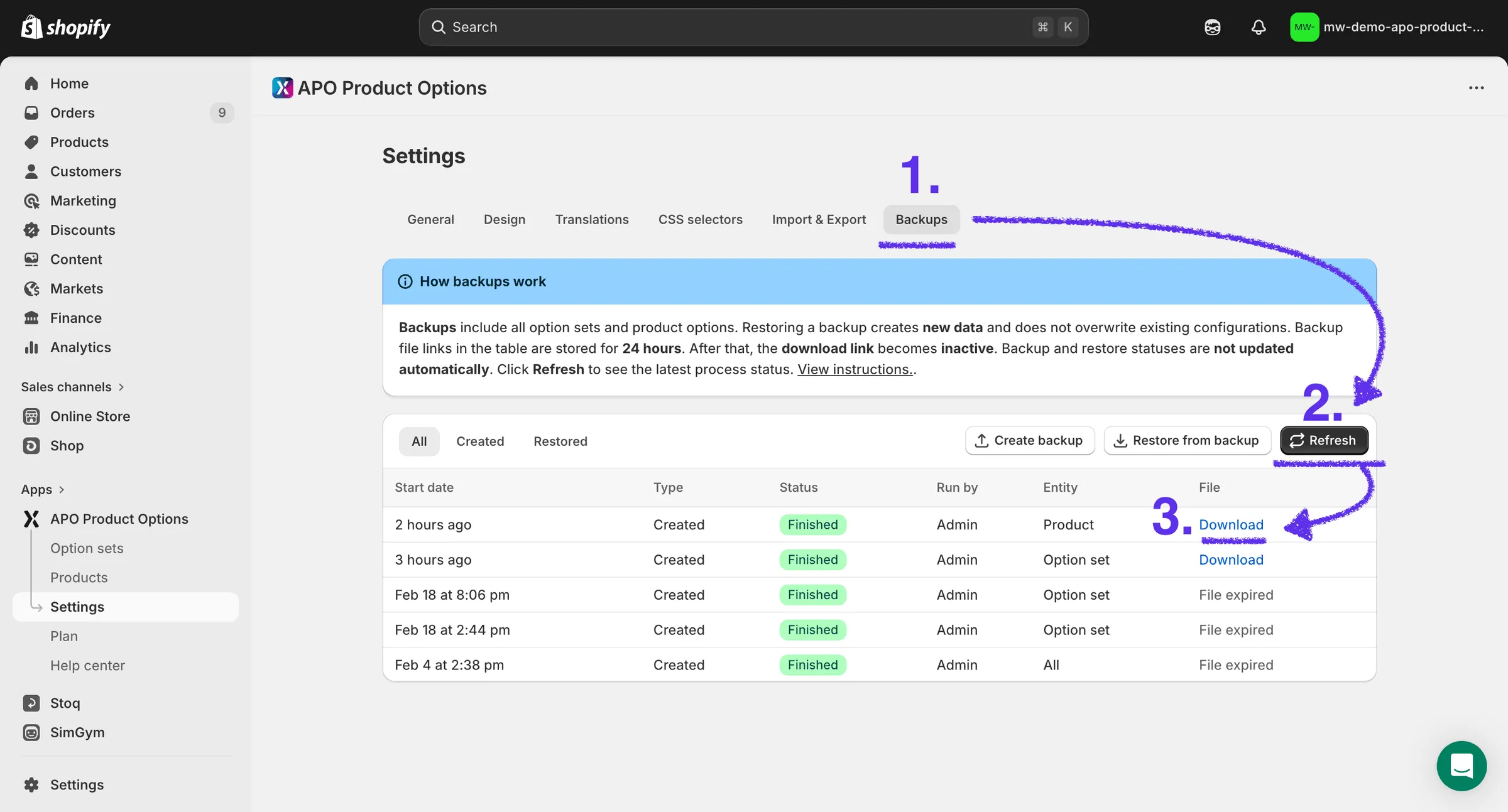
To download the file, go to Settings → Backups, click Refresh and then the Download link.
Back up options of individual products
Section titled “Back up options of individual products”Use this to back up product-level options that were created directly on products.
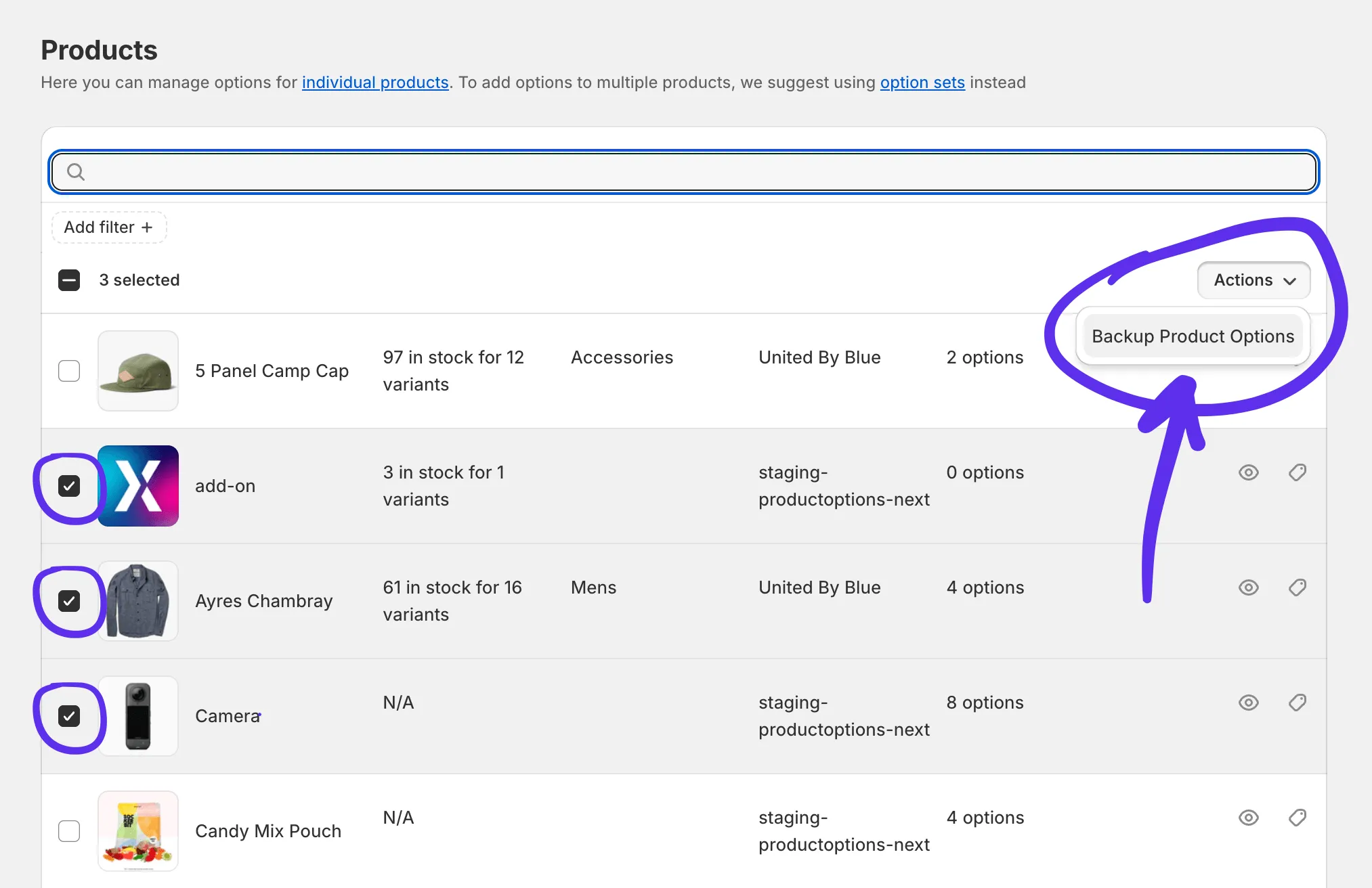
Select the products in the Products grid (side app tab), open Actions, and choose Backup Product Options.
In the modal, choose what to back up:
- Current page
- All product options
- Selected (options for X products)
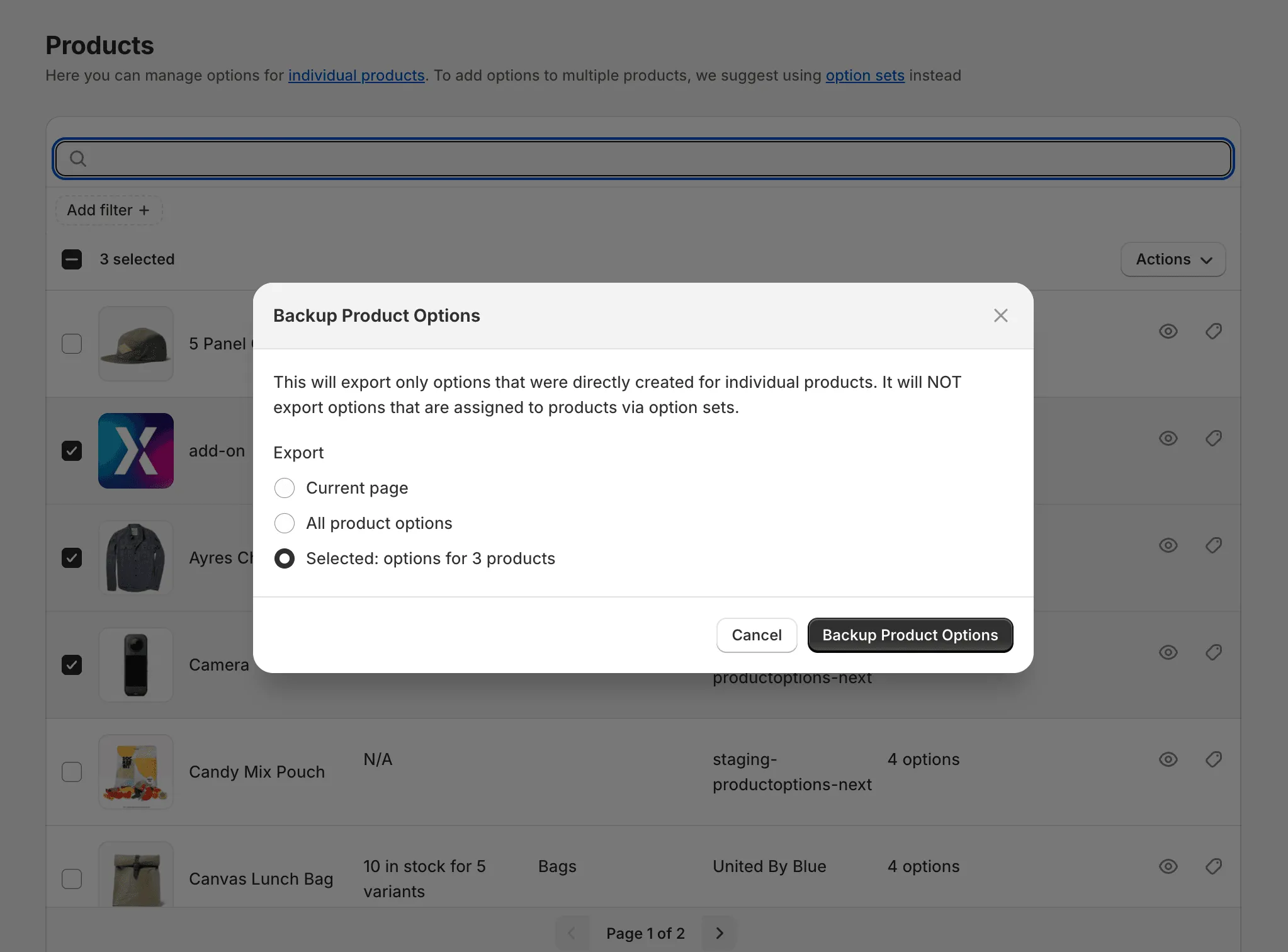
Click Backup Product Options to start.
A banner confirms the backup is in progress. The process runs in the background.
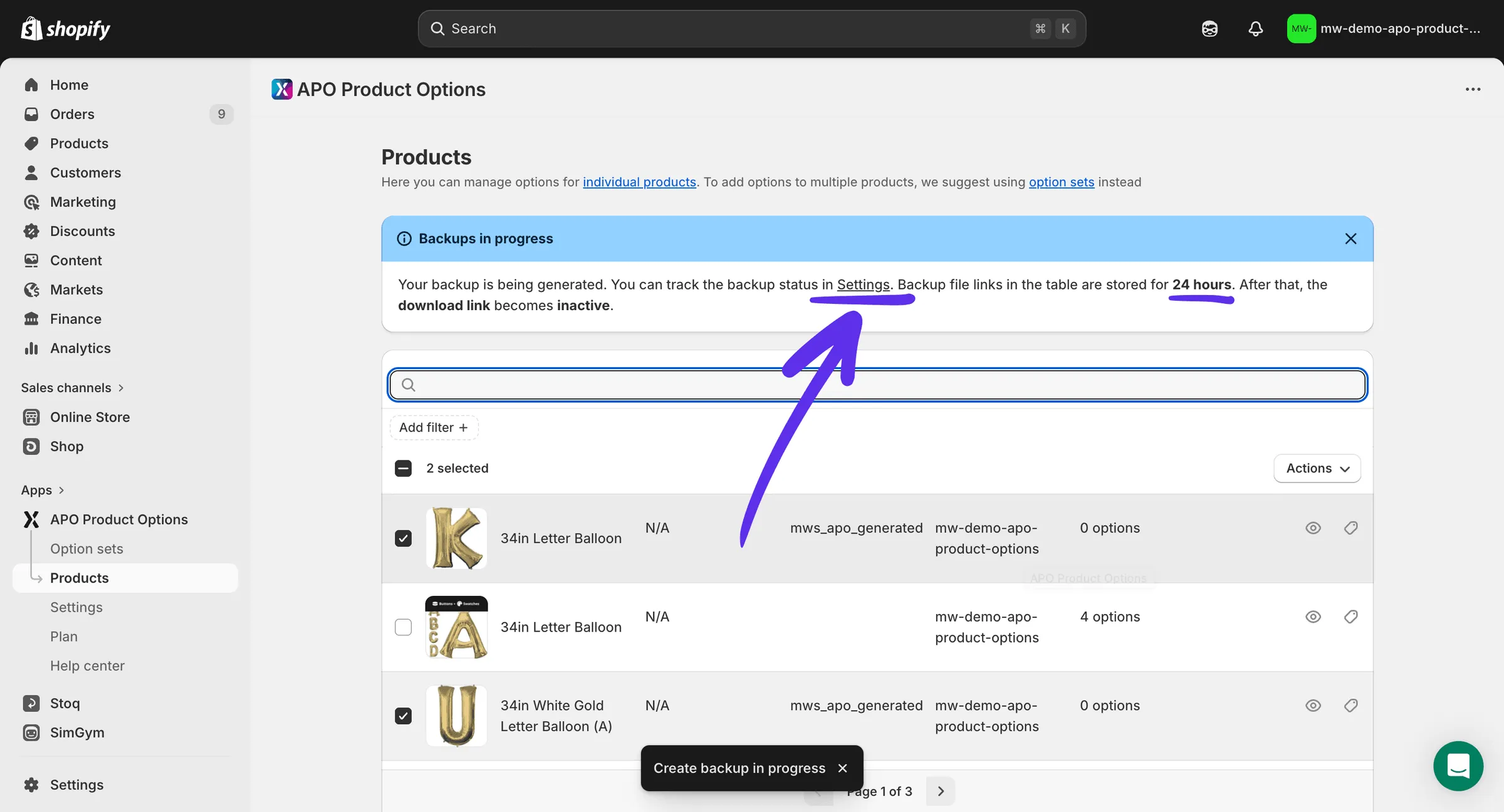
To check the status and download the backup file, go to Settings → Backups and click Refresh (statuses are not updated automatically).
Back up all option sets
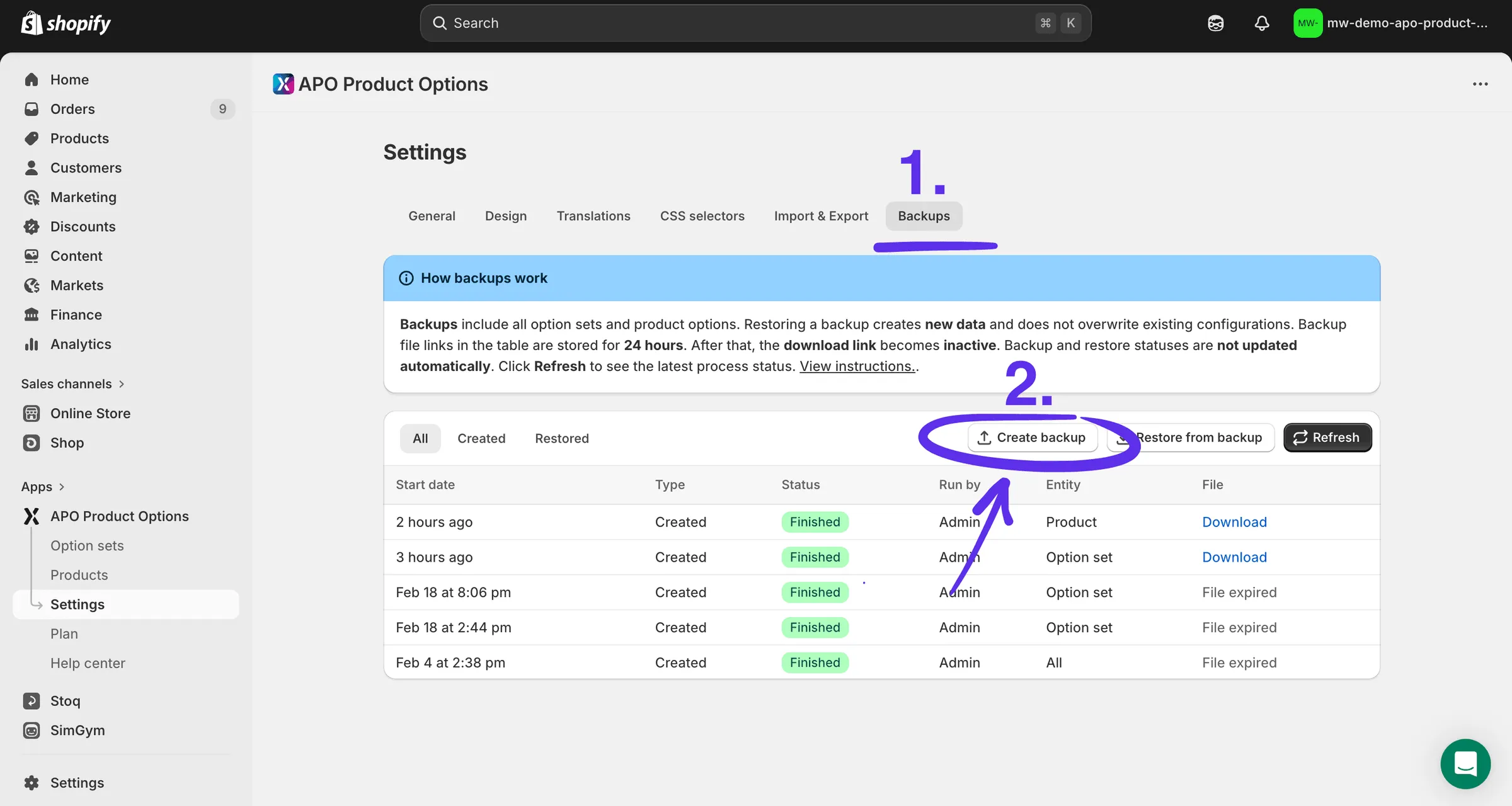
Section titled “Back up all option sets”Go to Settings → Backups and create a backup of all option sets in the store.
This backup includes the entire configuration and allows you to fully restore your setup at any time.
Restore a backup
Section titled “Restore a backup”To bring a backup back into the app, see Restore from a backup.