Shopify POS Product Options: Sell Custom Products at the Register
 Vitali6 min read
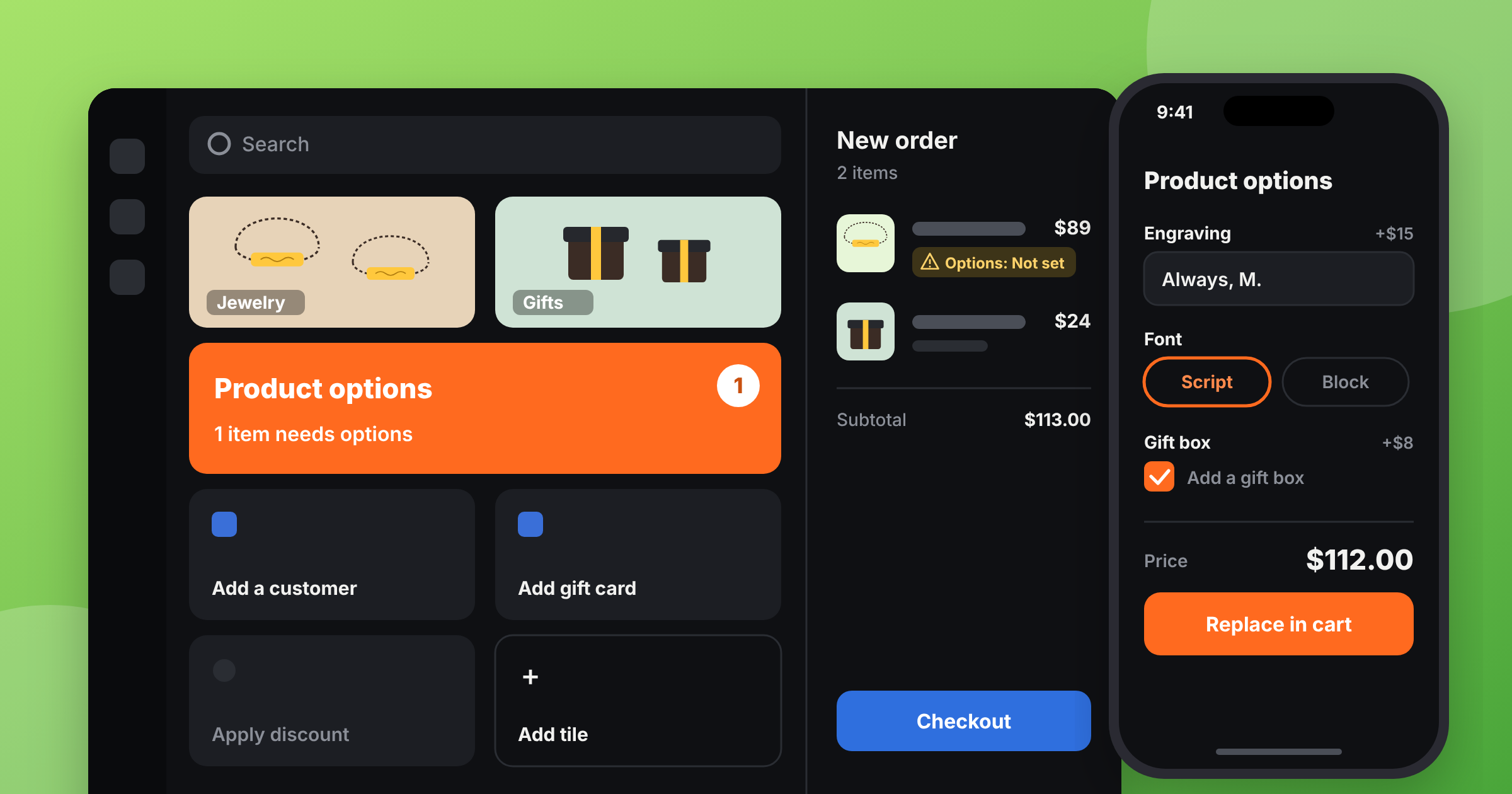
APO Product Options brings the product options from your online store to Shopify POS. Staff add the item as usual, tap Product options on the cart line and choose engraving, sizes, finishes or add-on products. The price is calculated the same way as online, and the order lists every option.
A customer walks into your shop and wants the bracelet from your website, engraved, in script, with a gift box. Online, that’s one product page. At the register, it’s usually a cashier typing a custom sale and an engraving note into the order — and someone in the workshop guessing what “script, short” means.
We shipped Shopify POS support in APO in November 2026 for exactly this. This guide shows what it does, how to set it up in about five minutes, and where it stops.
Why product options don’t show up in Shopify POS
Shopify POS sells what Shopify itself knows about: products and their variants. Options added by an app — an engraving field, a font choice, a gift box, a size typed in inches — live on your online product page, so the register doesn’t see them.
Merchants usually work around it in one of three ways:
| Variants | Custom sale + note | APO in Shopify POS | |
|---|---|---|---|
| Free text (engraving, names) | No | Typed into a note | Text field with its own price |
| Price of extras | One variant per combination | Cashier calculates it | Calculated as online |
| Same setup as the online store | Partly | No | Yes, the same option sets |
| What the order shows | Variant name | Whatever was typed | Every option, as on online orders |
| Effort per sale | Low, until combinations explode | High | Low |
Variants are the right answer for a few fixed choices like size and color. As soon as there’s free text, an upcharge, or more combinations than you want to maintain, the register is where it falls apart. That’s the gap the POS integration closes. A custom sale is still fine for a one-off item that isn’t in your catalog.
What staff can do at the register
The register uses the same option sets, rules and prices as your online store. You don’t build anything twice.
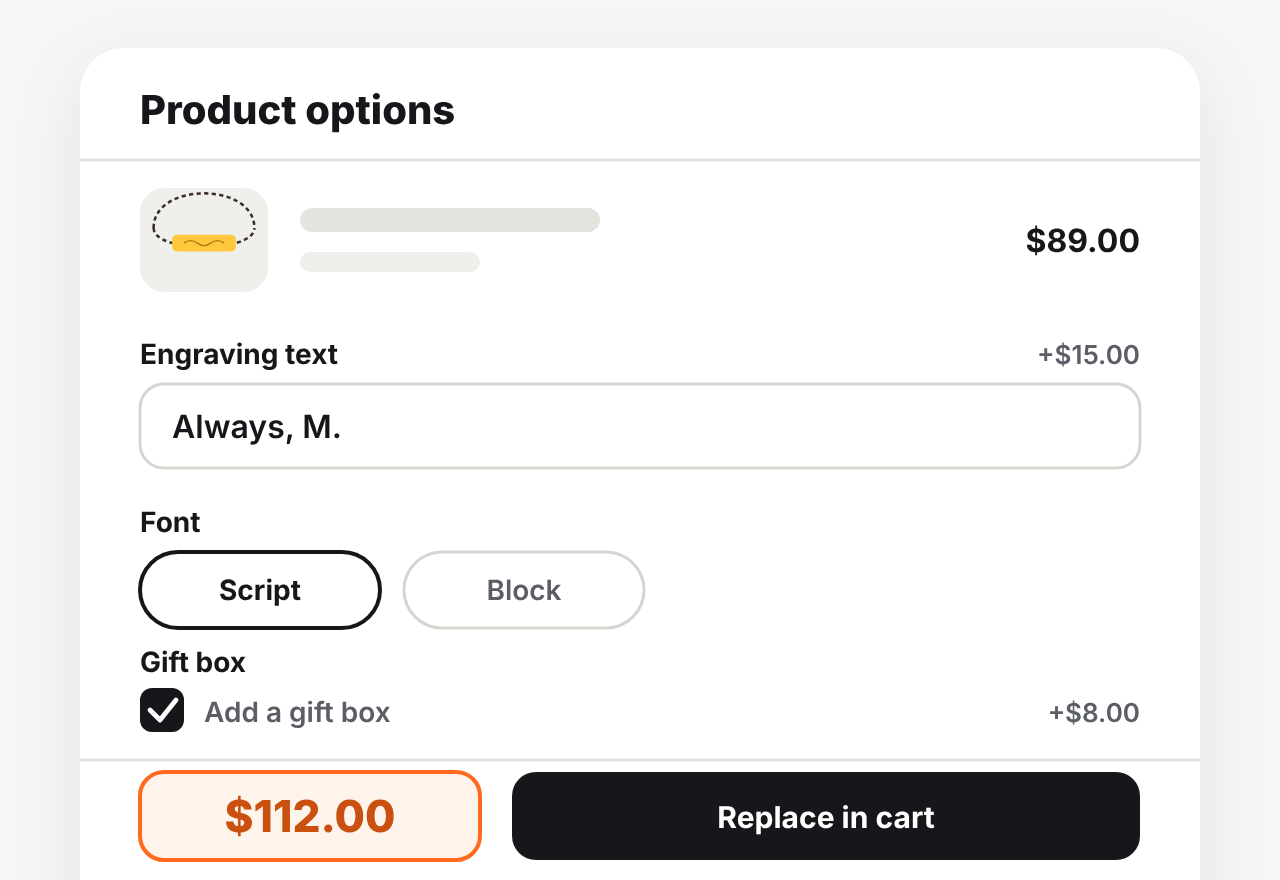
Choose options and see the price
Staff open Product options on a cart line, fill in the options and watch the price update in the register's currency. Conditional rules work as online, so options show and hide the way they do on your product page.
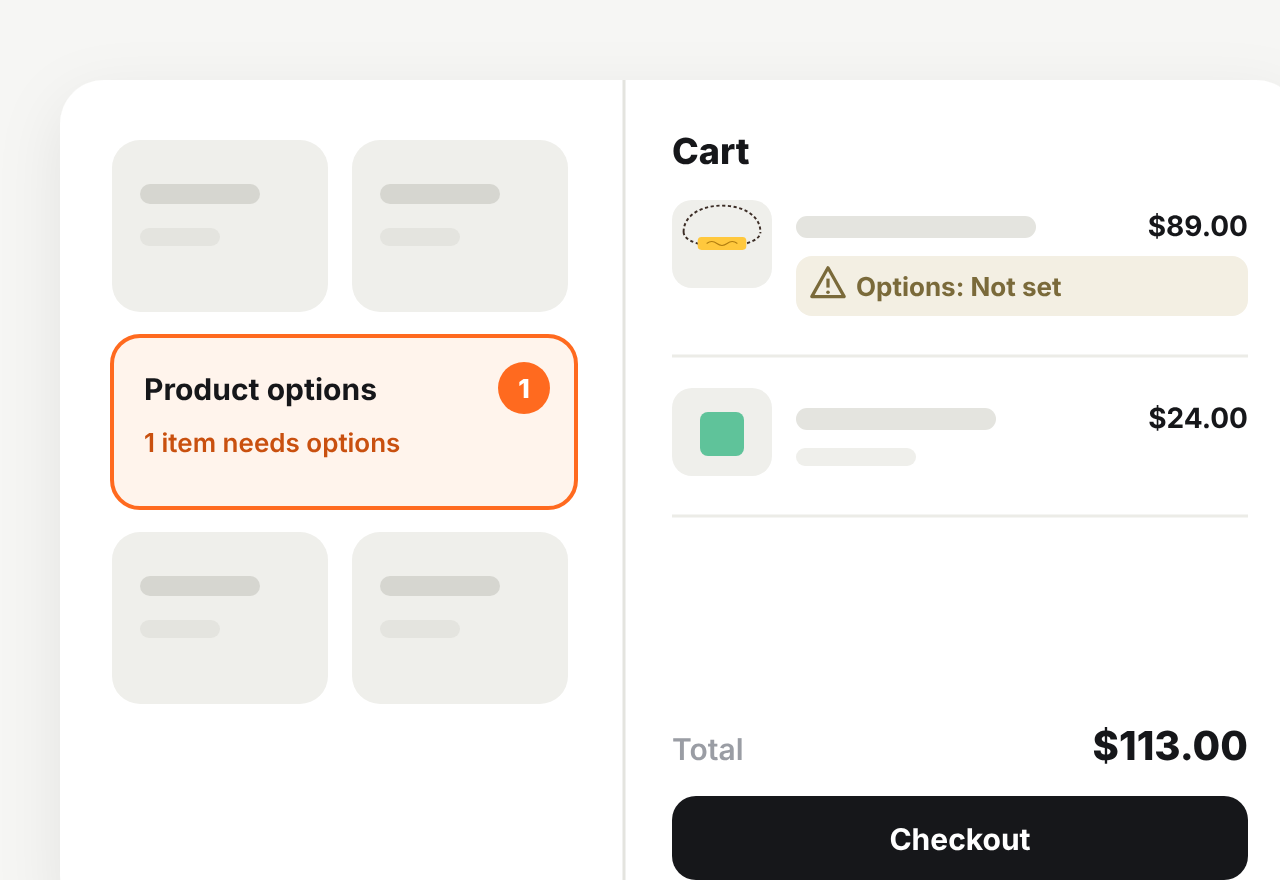
Nothing gets sold half-configured by accident
The Product options tile counts cart items that still need options and marks those lines, so a busy cashier sees at a glance what's missing before taking payment.
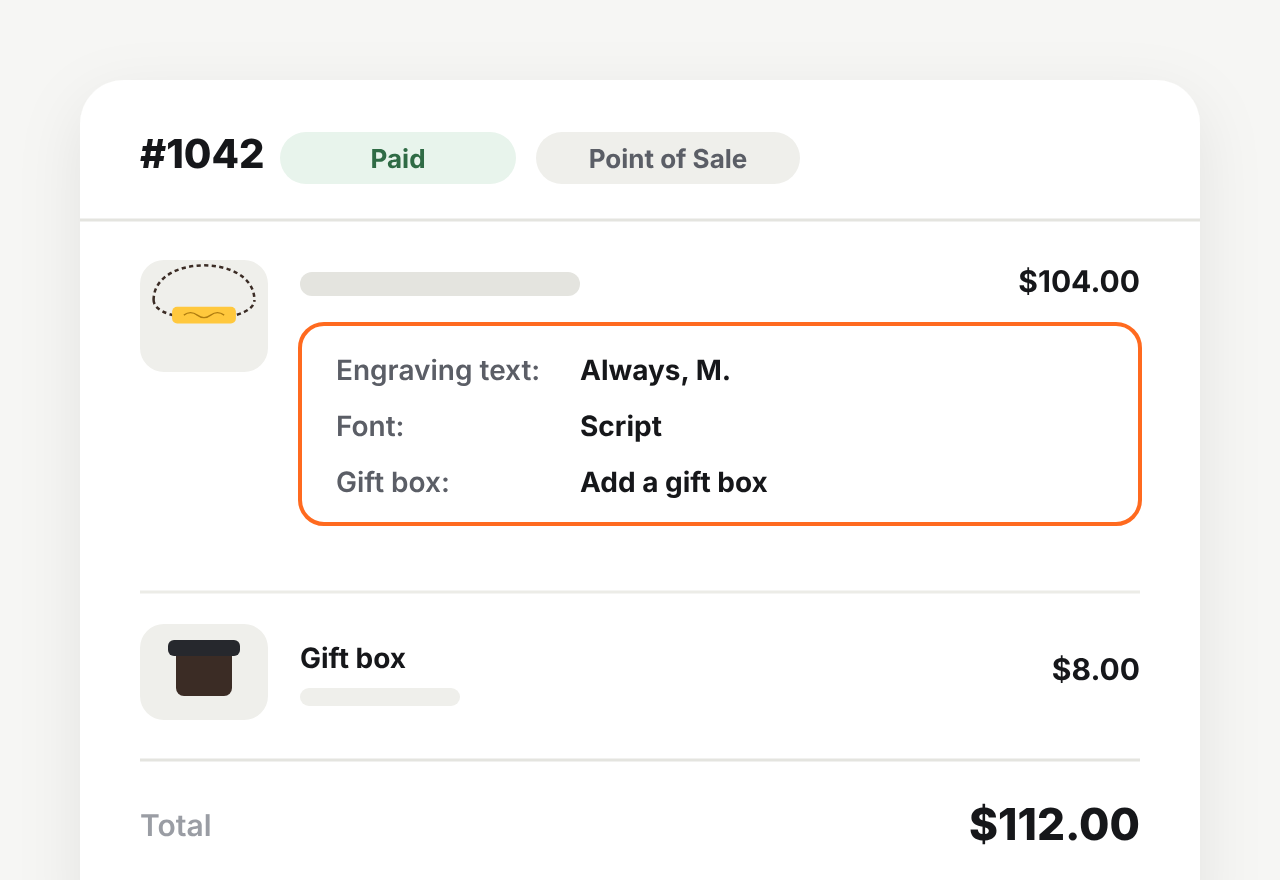
The order looks like an online order
Every option lands on the order the same way it does online. Packing slips, notifications and whoever does the engraving work from one familiar format, wherever the sale happened.
How to set up product options in Shopify POS
Setup takes two steps in the Shopify POS editor and one check in APO. Your option sets don’t change. The user guide has every setting in detail.
Turn on Product options in the POS editor
In Shopify admin, go to Sales channels → Point of Sale and click Edit Point of Sale. Open the Apps menu, choose Product options, turn it on and click Save. This adds the action to cart lines and product details.
Add the Product options tile to the smart grid
In the same editor, open Sections, click Add tile, pick Product options from the Apps tab and click Save. If your locations use different smart grid templates, add the tile to each one that sells products with options.
Check it in APO
In APO, open Settings → Point of Sale. After the first configured sale it shows Used in POS and when a register last used it, which is handy when you set up a new device.
Shopify POS only sells products that are on the Point of Sale sales channel and stocked at the store location. If a product with options doesn't show up at the register, check that first.
Selling a custom product at the register
Staff add products the way they always do — from the grid, search or the barcode scanner. Then:
- The tile shows how many items need options, and each of those lines reads ⚠️ Options.
- Tap the line, then Product options in its menu. (Or tap the tile and pick the item from its list.)
- Choose the options. The price updates as you go, and the form names what’s missing — a required field, too many choices, a number out of range.
- Tap Replace in cart. The plain line becomes the configured product, with the options listed under it.
Need to start from the product instead of the cart? Open its details, tap …, choose Product options, and finish with Add to cart. To change something before payment, open the configured line and do it again.
Make the tile part of the routine: if it shows a number, something in the cart still needs options. A quick look before payment saves a call to the customer after.
Same price as your online store
The register charges what your website charges. APO builds the in-store cart line the same way it builds the online one, so everything you priced online carries over:
- fixed and percentage surcharges (“Engraving, +$15”);
- prices per value and quantities per value;
- add-on products, such as a gift box, which go into the cart with the item;
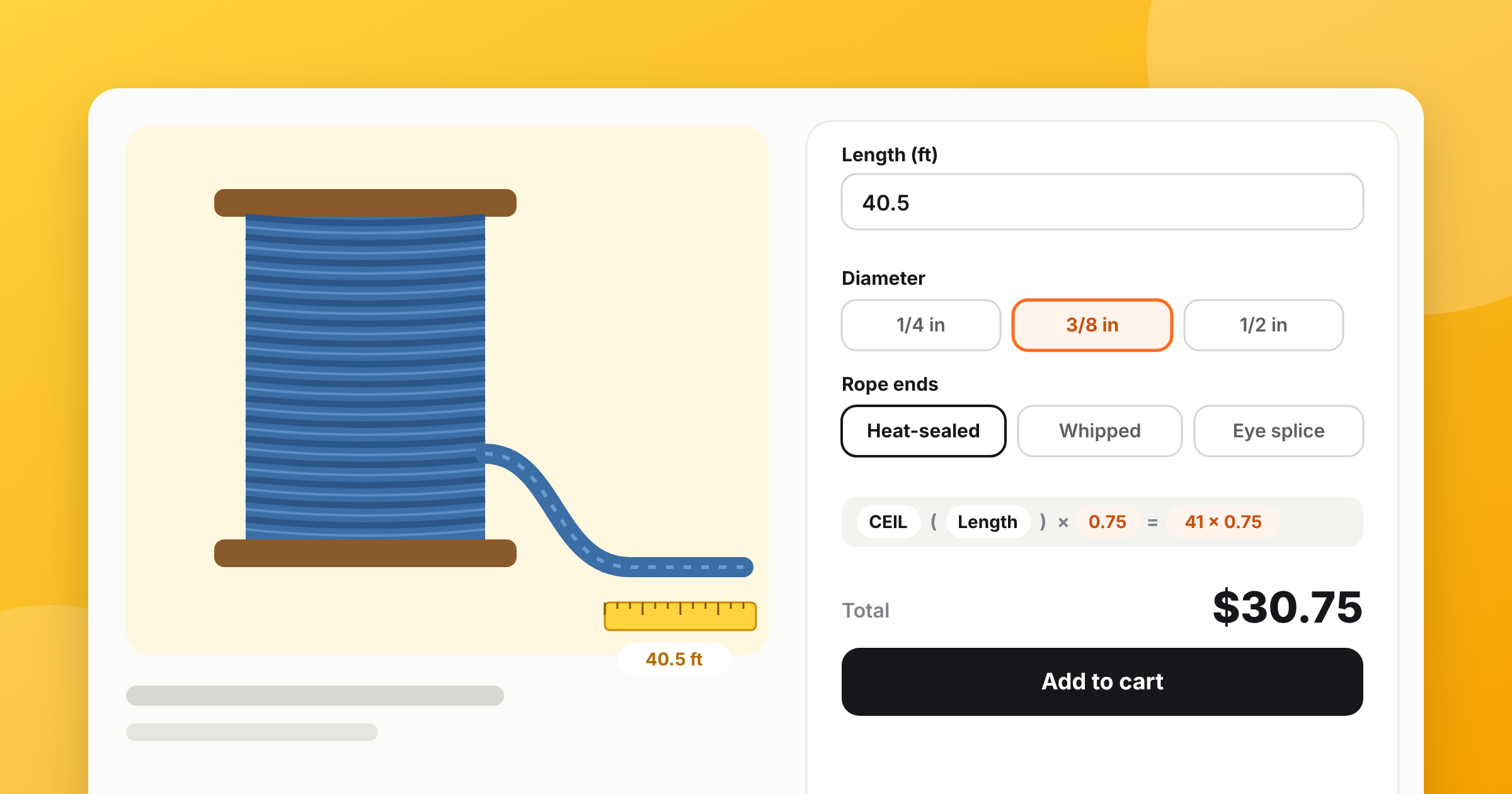
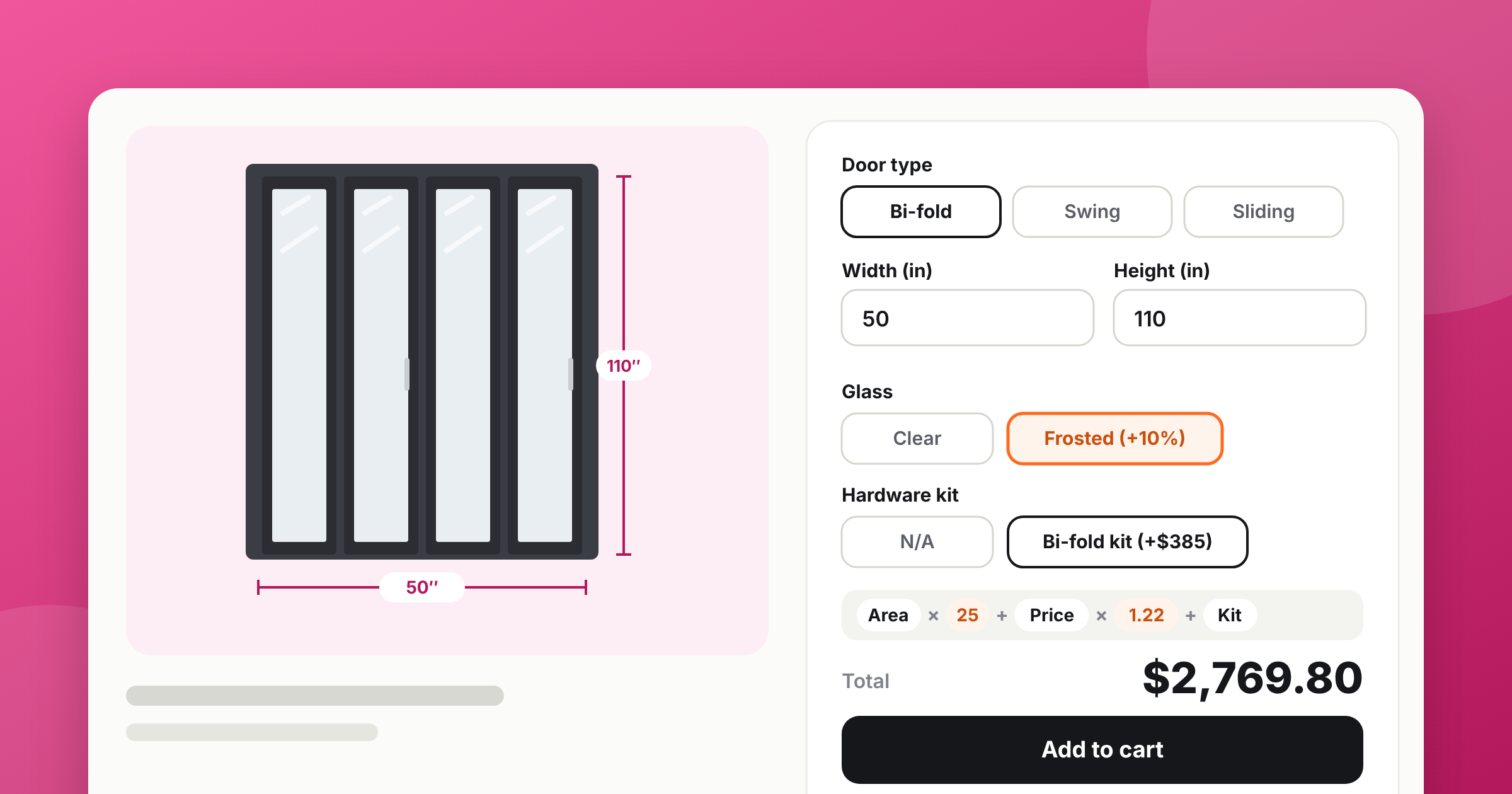
- formula pricing, such as a price calculated from width and height.
That last one matters for showrooms. If you sell made-to-measure blinds, tables or doors online with a formula, the salesperson can type the customer’s measurements at the counter and get the same price your website would show — no spreadsheet, no calculator, no “I’ll email you a quote”. Our made-to-order pricing guide shows how those formulas are built.
Examples by store type
Jewelry and gifts: engraving at the counter
A text field for the engraving, a font choice and a gift box as an add-on product. The cashier reads the text back to the customer before tapping Replace in cart.
Furniture and home showrooms: sizes and finishes
Width and height fields, wood and finish choices, a formula for the price. The showroom quotes and sells with the same configurator customers use at home.
Apparel and team wear: names and numbers
Name and number fields with a price for the print, thread color and placement. Each configured shirt carries its own print details to the order.
Markets and pop-ups: the full catalog on one device
Sell the configurable products you normally sell online, at a fair or a pop-up, without a separate price list for the extras.
What happens after the sale
An in-store order looks like an online one: the options sit under the product, so packing slips, order notifications and your production workflow don’t need a separate path for the shop. On the Growth and Scale plans, the order page block also shows the configured product and a printable production sheet.
If a cashier did sell a line without options, the order keeps the “⚠️ Options: Not set” note, so the team knows to call the customer rather than guess.
Sell custom products in store the way you sell them online
If you already sell configured or personalized products online, the register is the place where options usually get lost. With APO, staff use the same option sets you built for your website, the price matches, and the order arrives in the same format. If you only sell a few fixed sizes and colors, Shopify variants already do the job, and you don’t need an app for the register.
Product options in Shopify POS are available on the APO Growth and Scale plans.
Use your product options at the register
APO Product Options brings your option sets, prices and add-ons to Shopify POS.
Try it free on Shopify 14-day free trialFrequently asked questions
Do my online product options show up in Shopify POS?
Not by themselves: Shopify POS shows variants, and options from most apps stay on the online store. With APO Product Options, the option sets you already use online appear at the register through the Product options tile and the cart line menu, with no changes to the sets.
Will the register charge the same price as my online store?
Yes. APO builds the cart line in the store the same way it does online, so fixed and percentage surcharges, prices per value, formulas and add-on products end up in the register total exactly as they would at online checkout.
Can staff sell a product without choosing its options?
Yes. Shopify POS can't block a sale, so the Product options tile marks the line with "⚠️ Options: Not set" as a reminder. If the cashier sells it as is, that note stays on the order so your team sees it.
Can customers upload a file at the register?
No. Shopify POS has no file picker, so APO skips file upload options at the register and tells the cashier. Collect the file by email or on the online order instead. Every other option type works.
Does it work when the register is offline?
The tile still counts which lines need options, but options can only be chosen once the device is back online, because the price is calculated by the app. The tile shows "Offline, options can't be set" until then.
Which plan do I need for product options in Shopify POS?
Point of Sale is included in the APO Growth and Scale plans, both with a 14-day free trial. The products also need to be on the Point of Sale sales channel and stocked at the store location, like any product you sell in person.
Vitali leads Mageworx with sharp ideas and eCommerce expertise. Always innovating, he finds smart solutions—except when he's busy pretending not to work.