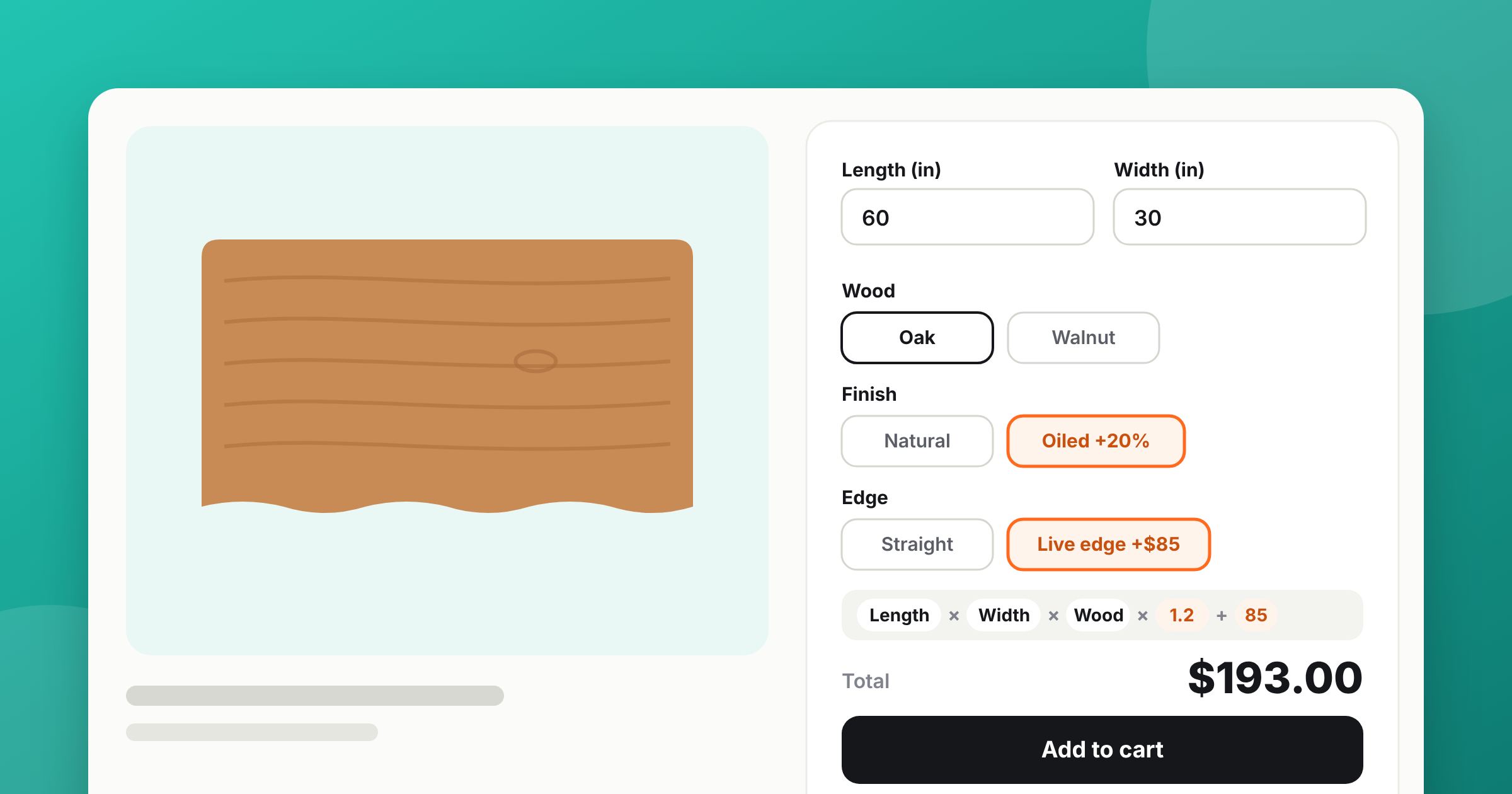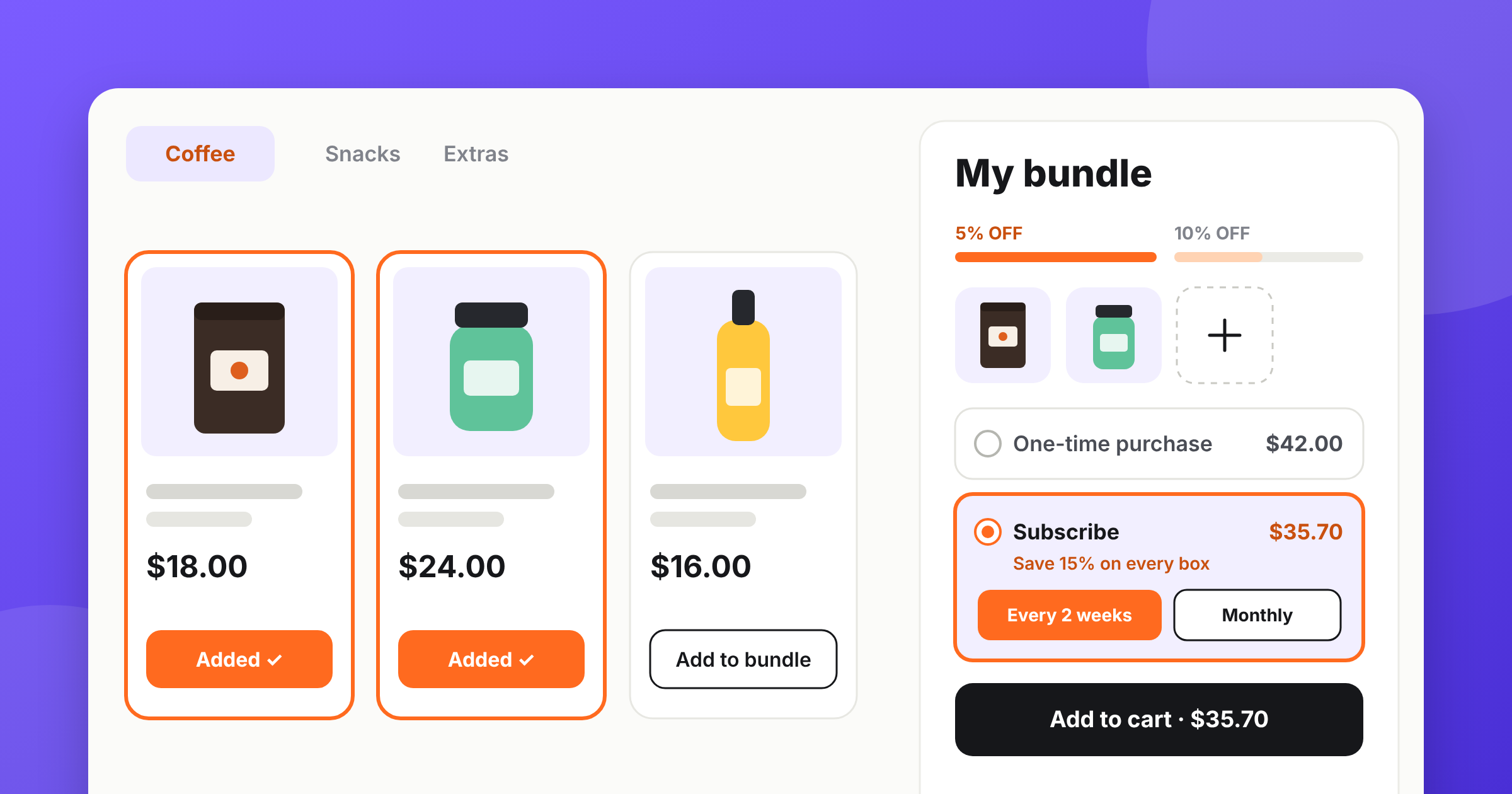
How to Price Made-to-Order Products on Shopify: Size Price, Percentage Surcharges and Oversize Fees
 Vitali8 min read
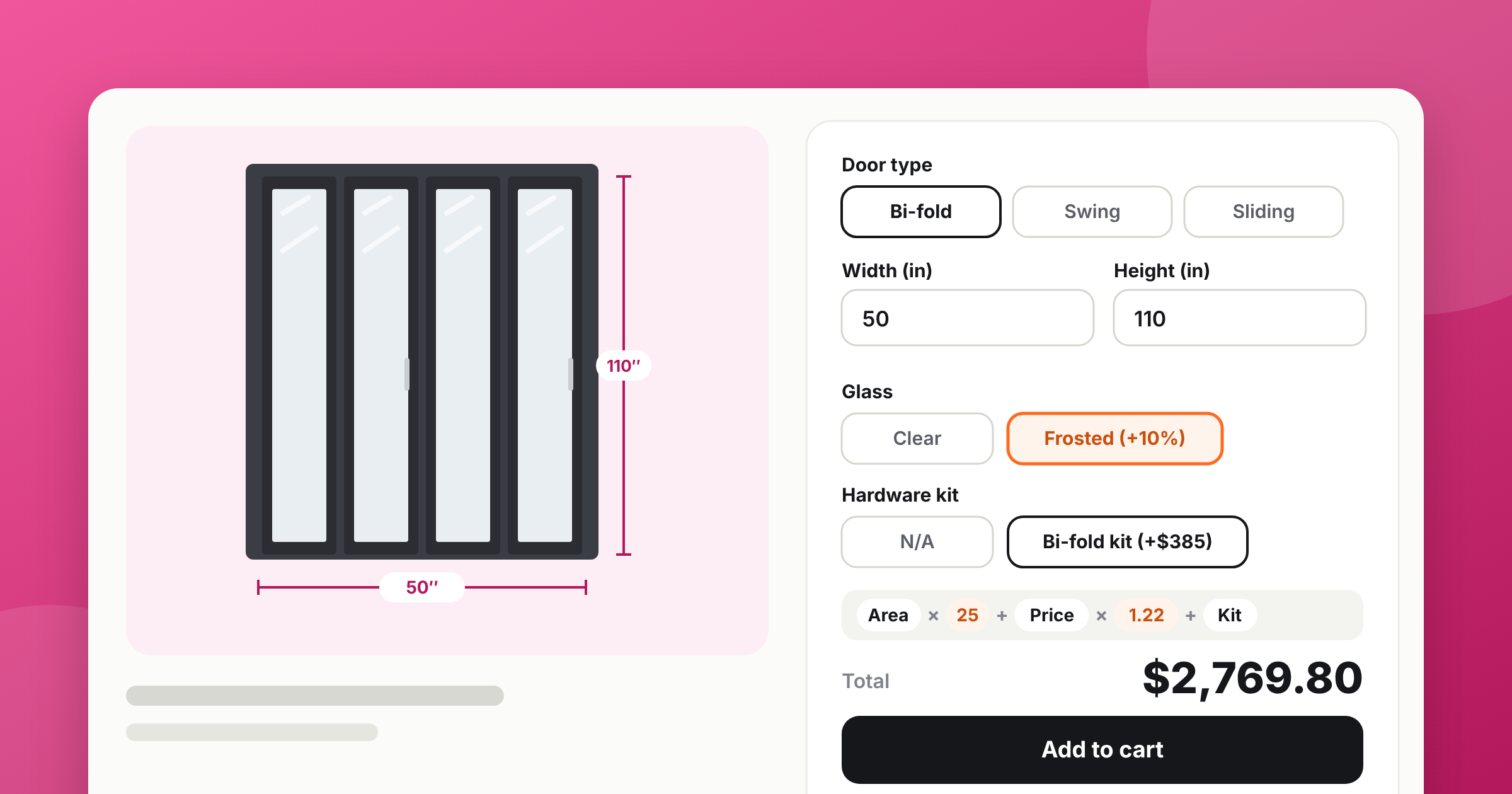
To price made-to-order products on Shopify, add width and height as number fields, calculate the size price with a formula, and give options like glass or finish a percentage as a calculation variable. With APO Product Options, Variants one formula does it all: (size price + Product price) × (1 + percentages) − Product price, with an IF for the oversize fee. Flat add-ons like hardware keep their own fixed price.
A made-to-order door store moved to APO from another options app for one reason: their surcharges are a percentage of the base price plus the size price, and the old app couldn’t take a percentage of a calculated price. This guide builds that kind of pricing step by step on our demo store — with demo numbers — so you can copy it for doors, windows, cabinets, shower glass or anything else you build to size.
How made-to-order prices are built
Most made-to-order price lists follow the same pattern, even if nobody writes it down this way:
- Size price — the area in square feet × your rate per square foot.
- Base — the product price + the size price.
- Percentage surcharges — every percentage (glass, finish, oversize) is taken from that same base, not from each other.
- Flat add-ons — hardware, installation kits, casing sets — are added at the end at a fixed price.
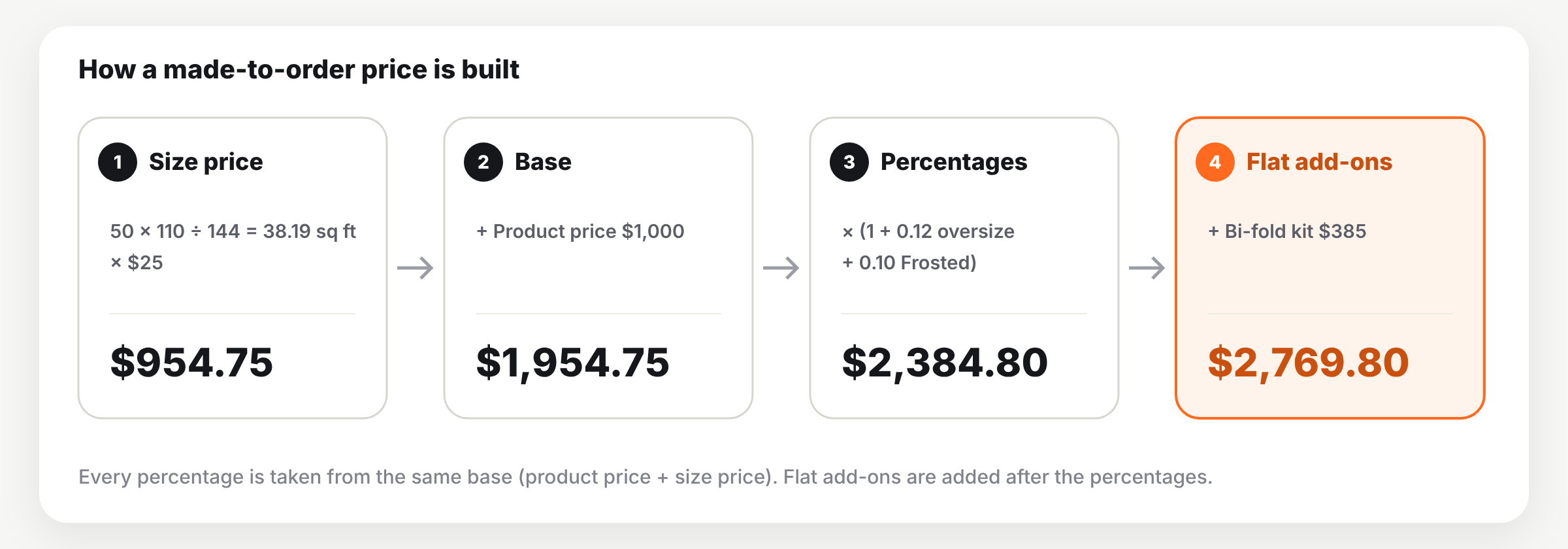
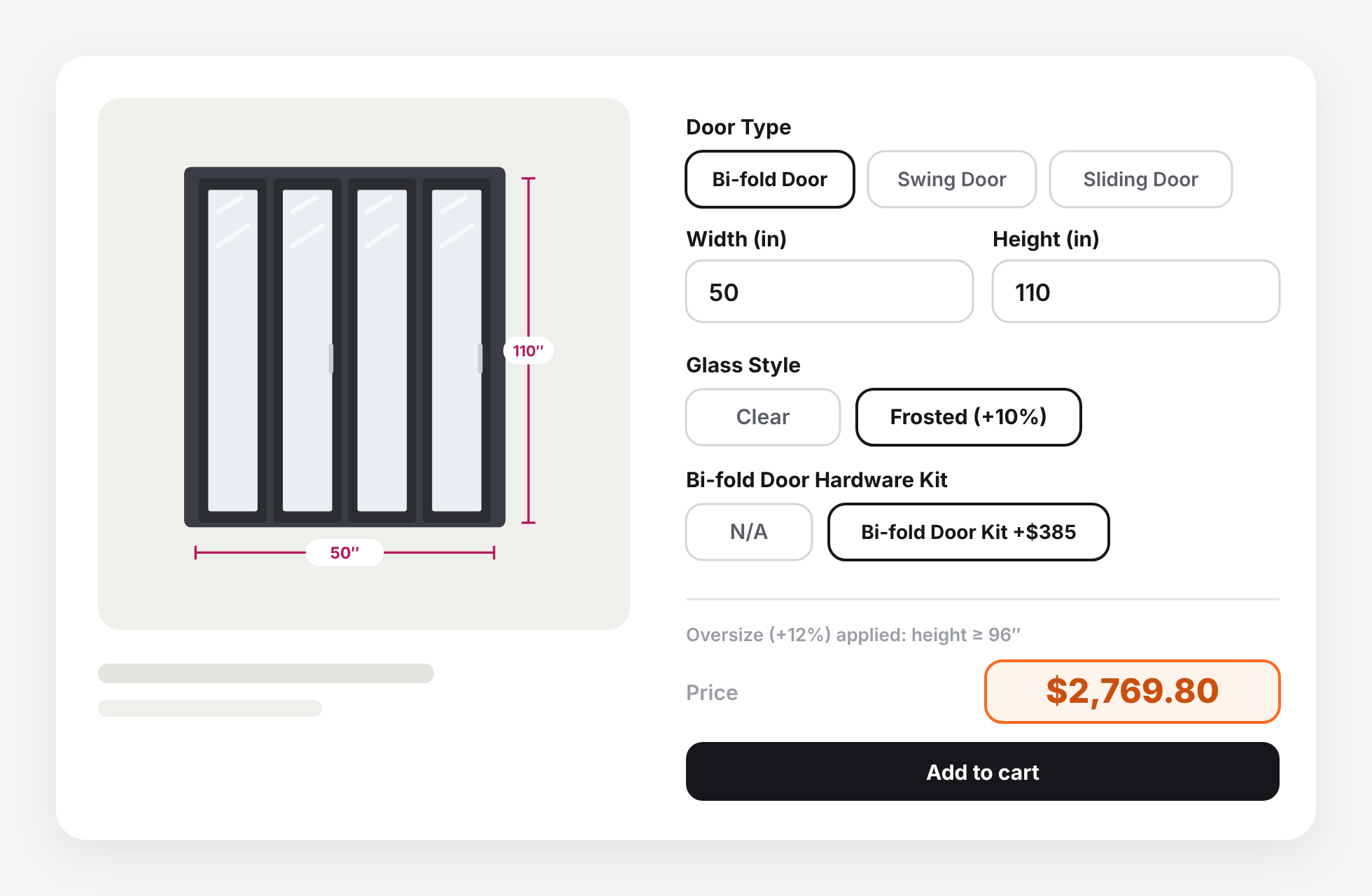
Here’s a worked example from our demo store: a bi-fold door product at $1,000, a 50″ × 110″ opening, Frosted glass (+10%), the Bi-fold Door Kit ($385), and a rate of $25 per square foot.
| Step | Calculation | Result |
|---|---|---|
| Area | 50 × 110 / 144, rounded to 2 decimals | 38.19 sq ft |
| Size price | 38.19 × $25 | $954.75 |
| Base | $1,000 + $954.75 | $1,954.75 |
| Percentages | Oversize 12% (height ≥ 96″) + Frosted 10% | × 1.22 |
| Door price | $1,954.75 × 1.22 | $2,384.80 |
| Flat add-on | Bi-fold Door Kit | + $385.00 |
| Price in the cart | $2,769.80 |
Note that the percentages are added together (1 + 0.12 + 0.10), not multiplied one after another. That’s how most manufacturers quote: each surcharge is a share of the same base. If your price list stacks them instead, multiply the brackets — the rest of the setup is the same.
Step 1. Add the size fields
In APO, go to Option sets, create a set and add two Number field options: “Door Rough Opening Width (in)” and “Door Rough Opening Height (in)”. For each one:
- put the unit in the title, so nobody types centimeters;
- set the minimum and maximum you can build — 24″ to 64″ wide and 72″ to 118″ high for our bi-fold door;
- set the step to 0.0625 if you take sizes in sixteenths of an inch;
- make the field required.
Make the size an APO option, not a Shopify variant. The customer types any size within your limits, the price updates instantly, and you never hit the variant limit.
Step 2. Calculate the size price
Open the Calculations tab, add a formula and start with the size price:
Round(Width * Height / 144, 2) * 25
Width × height in inches divided by 144 gives square feet. Round(…, 2) keeps two decimals, the way you’d write the area on a paper quote: 50″ × 110″ is 38.19 sq ft, so the size price is $954.75. Without rounding, the area is 38.1944… and the price comes out at $954.86 — a small difference, but enough for a customer to ask why your quote and your website don’t match.
If you charge per linear foot (trim, countertops by length) or per square meter, change the divisor and the rate; the rest of the guide doesn’t change.
Step 3. Add percentage surcharges from the same base
Now the part most apps can’t do. Add the options that cost a percentage — glass, frame color, finish, casing — as button or dropdown options, then:
- Turn on Enable formula-based pricing for the option.
- In Calculation variables, enter each value’s percentage as a decimal: Clear = 0, Frosted = 0.10.
- Add the percentage to the value name: “Frosted (+10%)”.
In the formula, wrap the base in brackets and multiply it by one plus the percentages:
(Round(Width * Height / 144, 2) * 25 + Product price) * (1 + Glass) - Product price
With more percentage options, keep adding them inside the same bracket: (1 + Glass + Frame color + Casing).
Inside a formula, 10% is 0.10. If you enter 10, the formula reads it as +1,000%. Our 36″ × 80″ swing door with Frosted glass should cost $1,584 — with "10" in the calculation variable it costs $15,840.
Options that are used in a formula don’t show a “+$” amount next to the value, because the amount depends on the size the customer hasn’t typed yet. That’s why the percentage goes into the value name. The total on the product page updates as soon as the customer picks.
Step 4. Add the oversize surcharge with IF
In our demo, a door costs 12% more when it’s 42″ wide or wider, or 96″ high or higher — once, even if both are true. That’s an IF block inside the percentage bracket:
IF(Width ≥ 42 or Height ≥ 96, 0.12, 0)
The full formula for the bi-fold door:
(Round(Width * Height / 144, 2) * 25 + Product price) * (1 + IF(Width ≥ 42 or Height ≥ 96, 0.12, 0) + Glass) - Product price
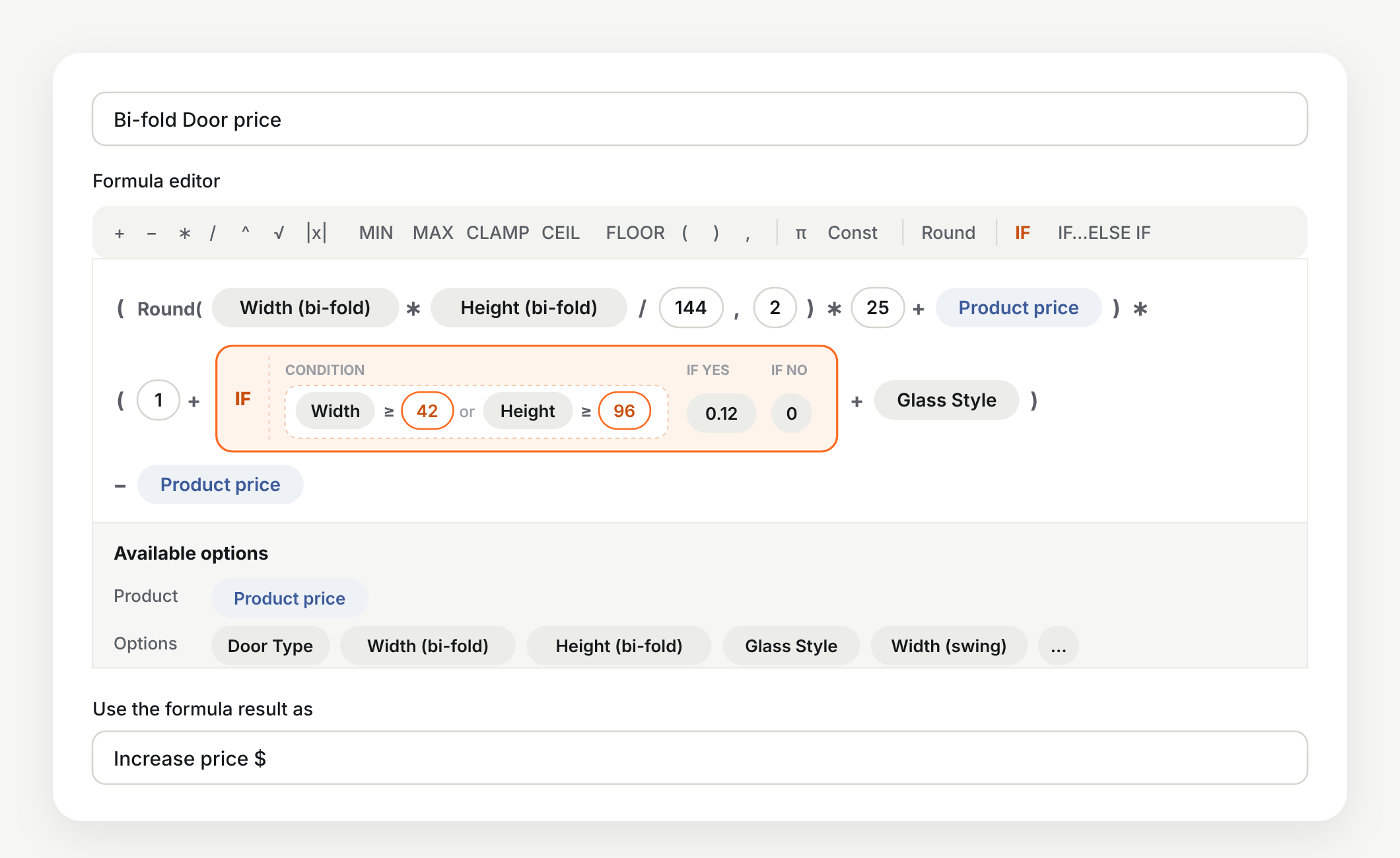
In the IF block you choose or or and between the conditions, and ≥ includes the limit itself, so a 42″ door is already oversize. Check both sides of the edge on your storefront:
| Bi-fold door, Frosted, $1,000 product | Oversize? | Door price |
|---|---|---|
| 41.5″ × 95.5″ | No | $1,856.80 |
| 42″ × 95.5″ | Yes | $2,069.43 |
| 50″ × 110″ | Yes, once | $2,384.80 |
Step 5. Use Product price so one formula fits every product
Product price is the price of the selected variant in Shopify, before options. We added it after a door store asked for one formula for door collections with different Shopify prices. The base goes into the bracket with the size price, so the percentages apply to both — and - Product price at the end is there because Increase price already adds the product price to the cart.
The same 50″ × 110″ bi-fold door with Frosted glass and the $385 kit, on three products:
| Product price | Formula result | Price in the cart |
|---|---|---|
| $1,000 | ($954.75 + $1,000) × 1.22 − $1,000 = $1,384.80 | $2,769.80 |
| $1,500 | ($954.75 + $1,500) × 1.22 − $1,500 = $1,494.80 | $3,379.80 |
| $2,500 | ($954.75 + $2,500) × 1.22 − $2,500 = $1,714.80 | $4,599.80 |
Prices for your Shopify markets and B2B catalogs are picked up automatically, because Product price is whatever Shopify charges for that variant to that customer. Product price can be added or multiplied, but it can’t go inside a condition or a function like Round.
Step 6. Different door types: own sizes, rates and options
Bi-fold, swing and sliding doors don’t share a size range, a rate or hardware. You don’t need three option sets for that — one set handles all of them:
- Add a Door Type option (Bi-fold, Swing, Sliding) and make it required.
- Add width and height fields for each type with that type’s limits — in our demo, swing doors go up to 40″ × 100″ and sliding doors up to 60″ × 108″.
- Add show rules: when Door Type is Bi-fold, show the bi-fold size fields and the bi-fold hardware kit; the same for the other types.
- Add one formula per type with its own rate. Build the first one, then use Duplicate formula and swap the fields and the rate.
| Door type and rate | Customer picks | Area | Price in the cart |
|---|---|---|---|
| Bi-fold ($25/sq ft) | 50″ × 110″, Frosted, $1,000 product, kit $385 | 38.19 sq ft, oversize | $2,769.80 |
| Swing ($22/sq ft) | 36″ × 80″, Clear, $1,000 product | 20.00 sq ft | $1,440.00 |
| Sliding ($28/sq ft) | 42″ × 84″, Frosted, $1,200 product, kit $295 | 24.50 sq ft, oversize | $2,595.92 |
This works because a formula that uses a hidden field doesn’t apply. When the customer picks Swing, the bi-fold and sliding fields are hidden, so only the swing formula runs. Required options that a rule hides don’t block Add to cart either.
If all your types share the same size range and only the rate differs, there’s a shorter way: give the Door Type option the rate as its calculation variable (25, 22, 28) and use one formula with * Door Type instead of the fixed rate.
Step 7. Keep flat add-ons outside the percentage
Hardware kits, installation and casing sets that cost the same on any door shouldn’t grow with the size or the glass. Give those values a normal fixed price in the option — Bi-fold Door Kit $385, Sliding Door Kit $295, Front Casing $120 — and leave them out of the formula. APO adds them on top of the formula result.
If one of them should be a percentage — casing at 8% of the door, say — move it into the formula like the glass.
Common mistakes
Entering 9 instead of 0.09
Percentages in calculation variables are decimals: 9% is 0.09. A 9 adds 900%. Test one order by hand before you go live.
Forgetting "− Product price" or subtracting it twice
Increase price adds the product price once. Without - Product price our $1,584 swing door shows up as $2,584; subtract it twice and it drops to $584.
Using a field that a rule can hide
A formula that uses a hidden option doesn't apply. That's what makes one formula per door type work — but if you put a hideable option into a formula that should always run, that formula stops. Give it its own formula or wrap that part in an IF.
Leaving size fields optional
The formula runs once every option it uses has a value. Make the size fields and the percentage options required, or give the choices a default value.
Set it up with an AI agent
Our demo set — door types, size fields, rules and all three formulas — was built by Claude through APO’s MCP server, from a plain description of the price list. On the Scale plan you can connect Claude or ChatGPT the same way, ask it to build or change a setup (“add Bronze frame at +6% to all doors”), or copy a finished product’s options to the rest of your catalog. You review the result in the app before it goes live.
Wrap-up
Made-to-order pricing looks complicated on a price sheet, but it comes down to one formula: size price plus product price, times one plus your percentages, minus the product price — with flat add-ons on top. Build it for one product type, check a few sizes against your paper quotes, then duplicate it for the rest. For every other piece a formula can use — minimum prices, rounding up, price tiers — see our guide to formula-based pricing on Shopify, and the formula reference in our knowledge base.
Price custom-size products the way you quote them
APO Product Options, Variants: size fields, percentage surcharges, oversize rules and one formula for every product.
Try it free on Shopify 14-day free trial · formulas on the Growth planQuestions merchants ask me
How do I add a percentage surcharge that is calculated from the size price on Shopify?
Shopify can't do it on its own. With APO Product Options, turn on Enable formula-based pricing for the option, give each value its percentage as a decimal (0.10 for +10%), and multiply the size price plus the product price by (1 + that option) in a formula. Every percentage is then taken from the same base.
Can one formula work for products with different base prices?
Yes. Use Product price in the formula: (size price + Product price) × (1 + percentages) − Product price. Product price is the selected variant's price in Shopify, so the same option set works for a $1,000 door and a $2,500 door, and market and B2B catalog prices are picked up automatically.
Can different door types have different maximum sizes and rates?
Yes. Keep one option set, add width and height fields for each type with their own minimum and maximum, show them with a rule when that type is selected, and give each type its own formula with its own rate. A formula that uses a hidden field doesn't apply, so only the formula of the selected type runs.
Why don't my percentage options show a "+$" price?
Because the amount depends on the size and the product, it isn't known until the customer fills in the fields. Put the percentage in the value name instead, for example "Frosted (+10%)". The total price on the product page updates as the customer picks.
Do I need a variant for every size?
No. Make the size an APO option, not a Shopify variant. The customer types any size within your limits and the price updates instantly, and you don't run into Shopify's variant limits.
Which APO plan do I need for made-to-order pricing?
Formulas, calculation variables and show/hide rules are on the Growth plan ($34.99/month), with a 14-day free trial. Building the setup through an AI agent with our MCP server is on the Scale plan ($79.99/month).
Vitali leads Mageworx with sharp ideas and eCommerce expertise. Always innovating, he finds smart solutions—except when he's busy pretending not to work.