Shopify Formula-Based Pricing: Calculate Prices From Customer Inputs
 Vitali8 min read
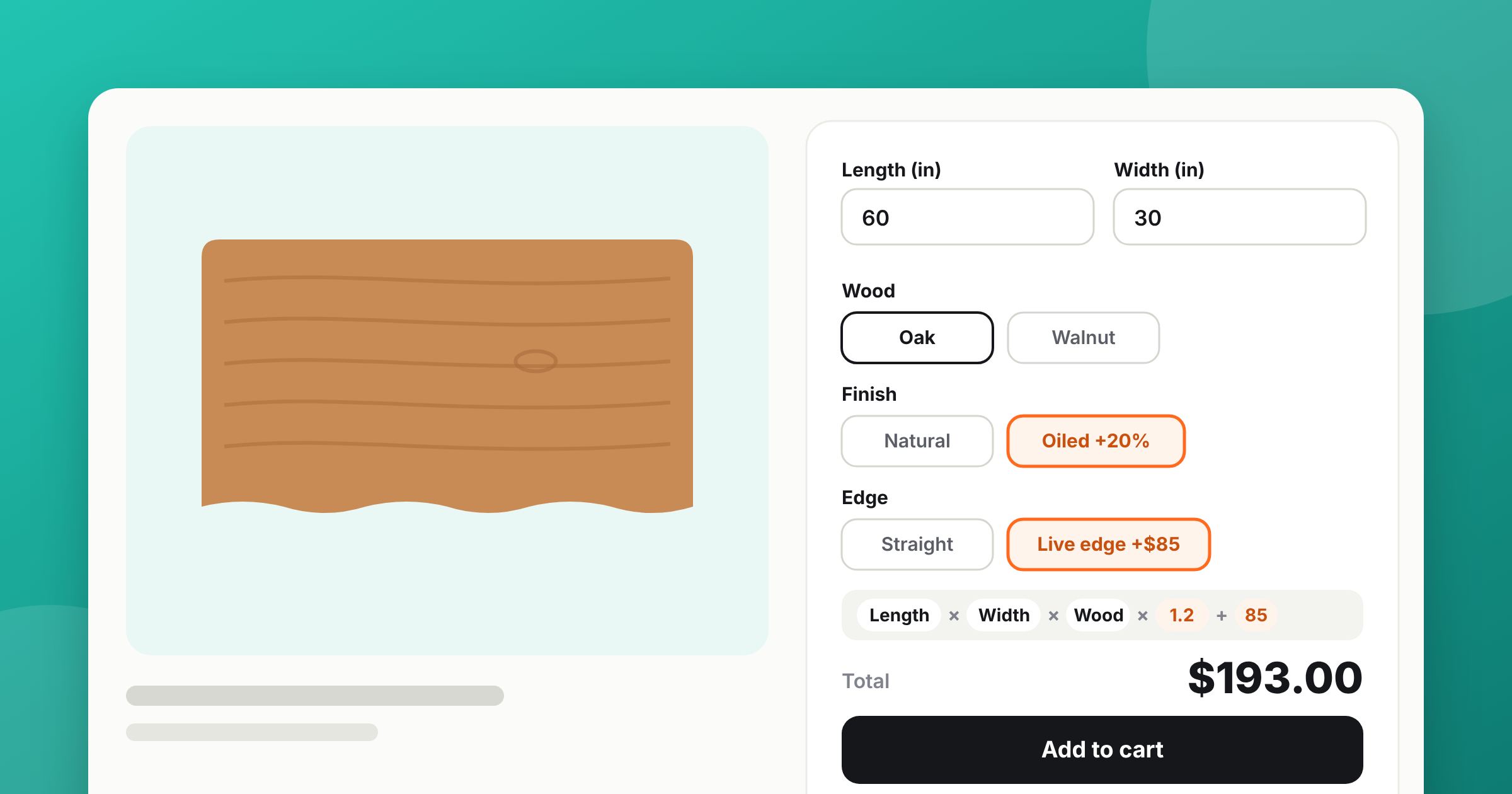
Formula-based pricing on Shopify means the price is calculated from what the customer enters or picks — a length and a width, a material, a finish — instead of being fixed per variant. Shopify can't do it natively, so you need a product options app: in APO Product Options, Variants you add number fields and build a formula with minimum and maximum prices (MAX, MIN, CLAMP), rounding (Round, CEIL, FLOOR) and conditions (IF, IF…ELSE IF). The result is added to the product price, and that's what the customer pays at checkout.
Most of the merchants who write to me about this sell something made to size: signs, glass, fabric, table tops, doors. They all hit the same wall — you can’t make a variant for every size someone might type. This guide covers every piece a formula can use, each with a worked example you can copy.
What formula-based pricing is
A custom price formula turns the customer’s input into a price — dynamic pricing based on customer input, decided by rules you write. The customer types a width and a height, the app multiplies them by your rate and adds the result to the product price. You don’t need a separate value or variant for every possible size.
Here’s the simplest case, as an example: a vinyl banner at $3.50 per square foot, with the formula Width * Height * 3.5 set to Increase price, on a product that costs $10 (your setup fee).
| Product price | Customer enters (ft) | Formula result | Price in the cart |
|---|---|---|---|
| $10.00 | Width 4, Height 6 | 4 × 6 × 3.5 = $84.00 | $10.00 + $84.00 = $94.00 |
Your own rate and units will be different — the formula works in whatever unit your field asks for.
When you need formula pricing (and when variants are enough)
Use variants when you sell a short, fixed list of sizes. Use a formula when the size is whatever the customer needs, or when the price depends on several choices at once.
| Shopify variants | Shopify unit price | Formula in APO | |
|---|---|---|---|
| Customer types any size | No | No | Yes |
| Price calculated from the size | No — one price per variant | No — only shows a price per unit | Yes |
| Different rate per material | One variant per combination | No | Yes, one number per material |
| Minimum price, rounding, surcharges | No | No | Yes |
| Price | Free | Free | Growth plan, $34.99/month |
If you sell three sizes of a poster, variants are all you need, and I’d rather you didn’t pay for an app. Shopify’s unit price is also useful, but it only shows a price per metre or kilogram next to the product price — it doesn’t calculate anything from what the customer enters.
What a Shopify price formula can use
A formula is built from a few kinds of pieces: numbers the customer enters, numbers behind the choices they pick, math, limits, rounding, conditions and the product’s own price. Below is one product example for each. Every function and setting is described step by step in our knowledge base article on formulas.
Numbers the customer enters
A Number field — width, height, length, thickness — goes into the formula as the number the customer typed. Range sliders and step counters work the same way. This is the core of any price calculator by dimensions.
A different rate for each material or choice
A choice like Material can carry its own rate. Turn on Enable formula-based pricing for the option, and each value gets a number called a calculation variable. The formula uses the number of the value the customer picked.
Example: banner material, where the calculation variable is the price per square foot — Width * Height * Material.
| Customer enters and picks | Calculation | Added to the price |
|---|---|---|
| 4 × 6 ft, Vinyl (3.25) | 4 × 6 × 3.25 | $78.00 |
| 4 × 6 ft, Mesh (4.40) | 4 × 6 × 4.40 | $105.60 |
| 4 × 6 ft, Fabric (5.90) | 4 × 6 × 5.90 | $141.60 |
The calculation variable can also be a multiplier — Standard = 1, Premium = 1.5 — on top of a base rate.
Math and order of operations
You have +, -, *, /, powers (^), square root (√), absolute value (|x|), parentheses and π, and the usual math order applies. Width * Height * 3.25 + 15 adds a $15 hemming fee once; (Width * Height + 15) * 3.25 would multiply it by the rate. Use parentheses whenever you want a different order.
Minimum price and maximum price: MAX, MIN, CLAMP
Yes, a formula can have a minimum price. Wrap the calculation in MAX so small orders still cover your setup, MIN to cap large orders, or CLAMP for both. The example is an acrylic sign at $0.12 per square inch.
| Formula | Customer enters (in) | Calculated | Added to the price |
|---|---|---|---|
MAX(Width * Height * 0.12, 25) |
8 × 10 | 9.60 | 25 (minimum applied) |
MAX(Width * Height * 0.12, 25) |
24 × 18 | 51.84 | 51.84 |
MIN(Width * Height * 0.12, 300) |
48 × 60 | 345.60 | 300 (maximum applied) |
CLAMP(Width * Height * 0.12, 25, 300) |
8 × 10 / 48 × 60 | 9.60 / 345.60 | 25 / 300 |
You can also limit one input instead of the result: MAX(Width, 6) * MAX(Height, 6) * 0.12 charges at least 6 inches per side, so a 4 × 10 sign is priced as 6 × 10 = $7.20.
The minimum applies to the formula result, and the product's own price is added on top. With a $10 product and MAX(Width * Height * 0.12, 25), the lowest price in the cart is $35. Set the product price to $0 if the minimum should be the whole price.
Rounding: Round, CEIL and FLOOR
Round(x, 2) rounds to the decimals you choose. CEIL rounds up to the next whole number — use it when any part of a unit is charged as a full one: whole inches of glass, whole yards of fabric, whole tiles. FLOOR rounds down, so you only charge for complete units.
| Function | 35.2 | 35.6 | 36 |
|---|---|---|---|
Round(x, 0) |
35 | 36 | 36 |
CEIL(x) |
36 | 36 | 36 |
FLOOR(x) |
35 | 35 | 36 |
Example: glass cut to size at $0.09 per square inch, each side rounded up to a whole inch — CEIL(Width) * CEIL(Height) * 0.09. A 23.5 × 17.25 pane is charged as 24 × 18 = $38.88; without CEIL it would be $36.48. And FLOOR(Length) * 4 charges $4 per full yard, so 2.7 yards costs $8.
Conditions: IF and IF…ELSE IF
An IF block uses one number when a condition is true and another when it isn’t: an oiled finish costs 20% more, a live edge adds $85. An IF…ELSE IF block checks rows from top to bottom and uses the first one that matches — that’s how you set price tiers by length or size.
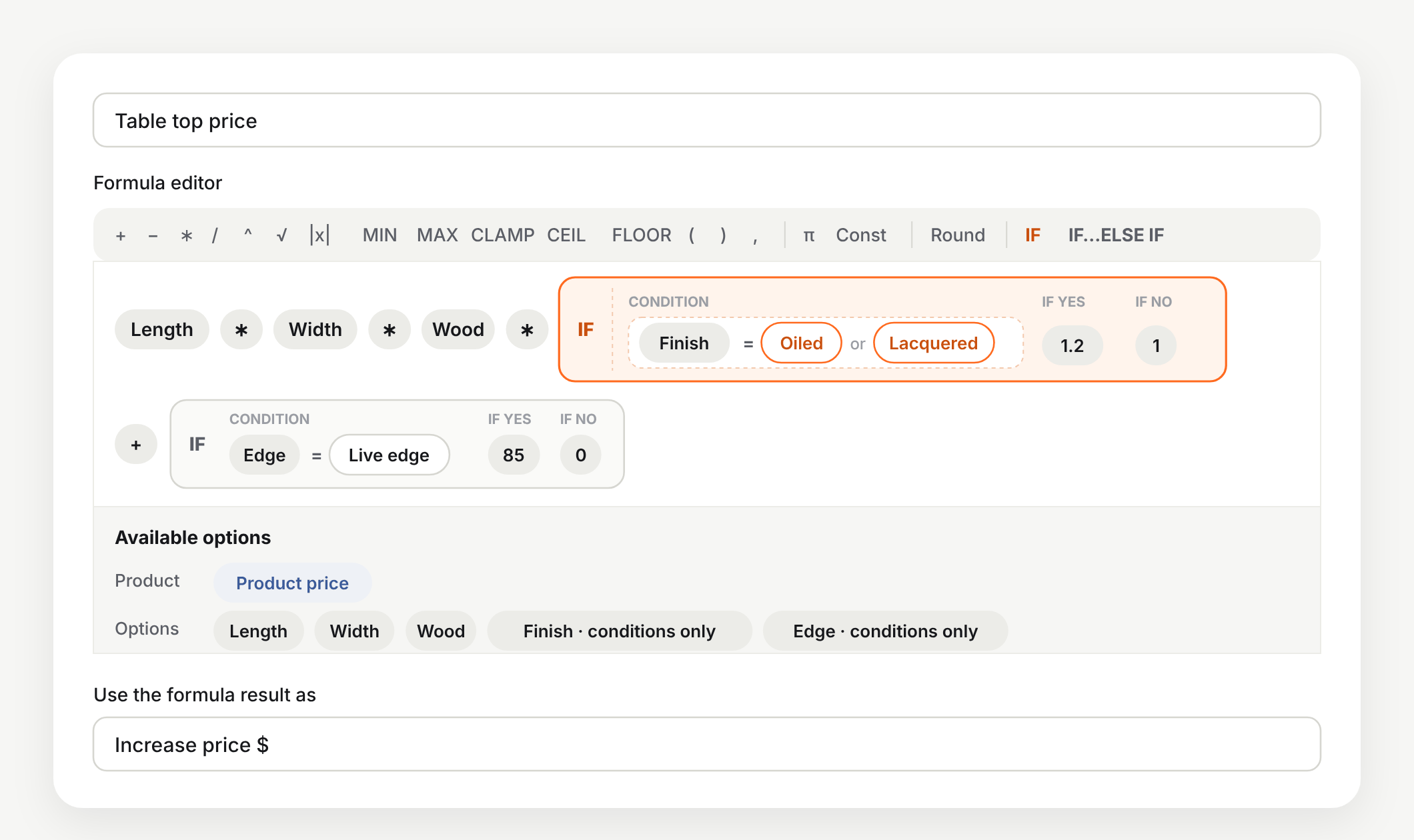
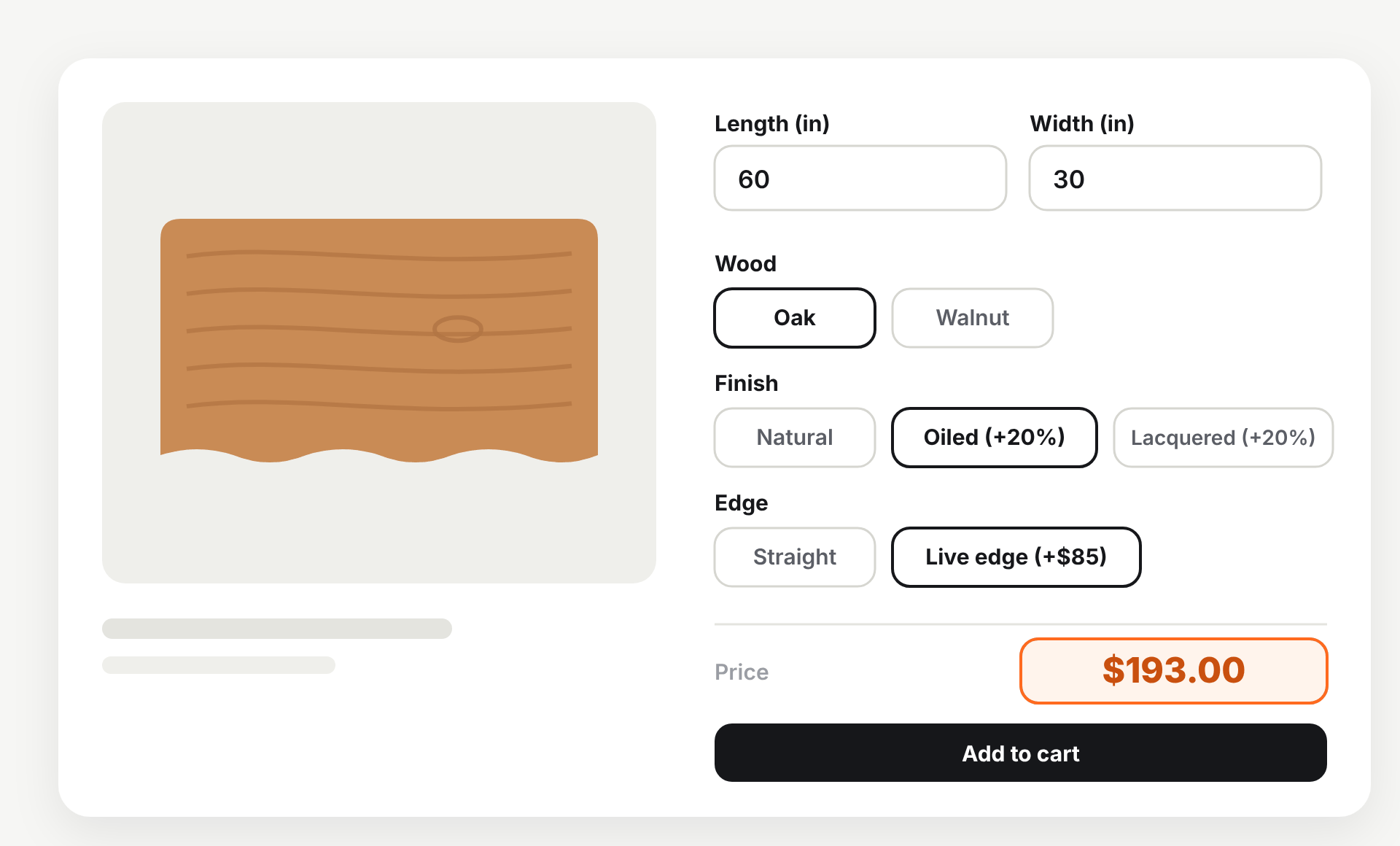
Example: a table top. Wood is a choice with formula-based pricing (Oak = 0.05, Walnut = 0.08 — the price per square inch). Finish and Edge are used only in conditions.
Length * Width * Wood * IF(Finish = Oiled or Lacquered, 1.2, 1) + IF(Edge = Live edge, 85, 0)
| Customer picks | Calculation | Added to the price |
|---|---|---|
| 60 × 30, Oak, Oiled, Live edge | 60 × 30 × 0.05 × 1.2 + 85 | $193.00 |
| 60 × 30, Oak, Natural, Straight edge | 60 × 30 × 0.05 × 1 + 0 | $90.00 |
| 60 × 30, Walnut, Lacquered, Straight edge | 60 × 30 × 0.08 × 1.2 + 0 | $172.80 |
And a tier example: a cutting fee by length in feet.
| When | Result | Customer enters → fee |
|---|---|---|
| Length < 10 | 25 | 6 → $25 |
| Length ≥ 10 and ≤ 20 | Length * 2 | 15 → $30; 20 → $40 |
| Length ≥ 20 and ≤ 30 | Length * 2.5 | 25 → $62.50 |
| Otherwise | Length * 3 | 35 → $105 |
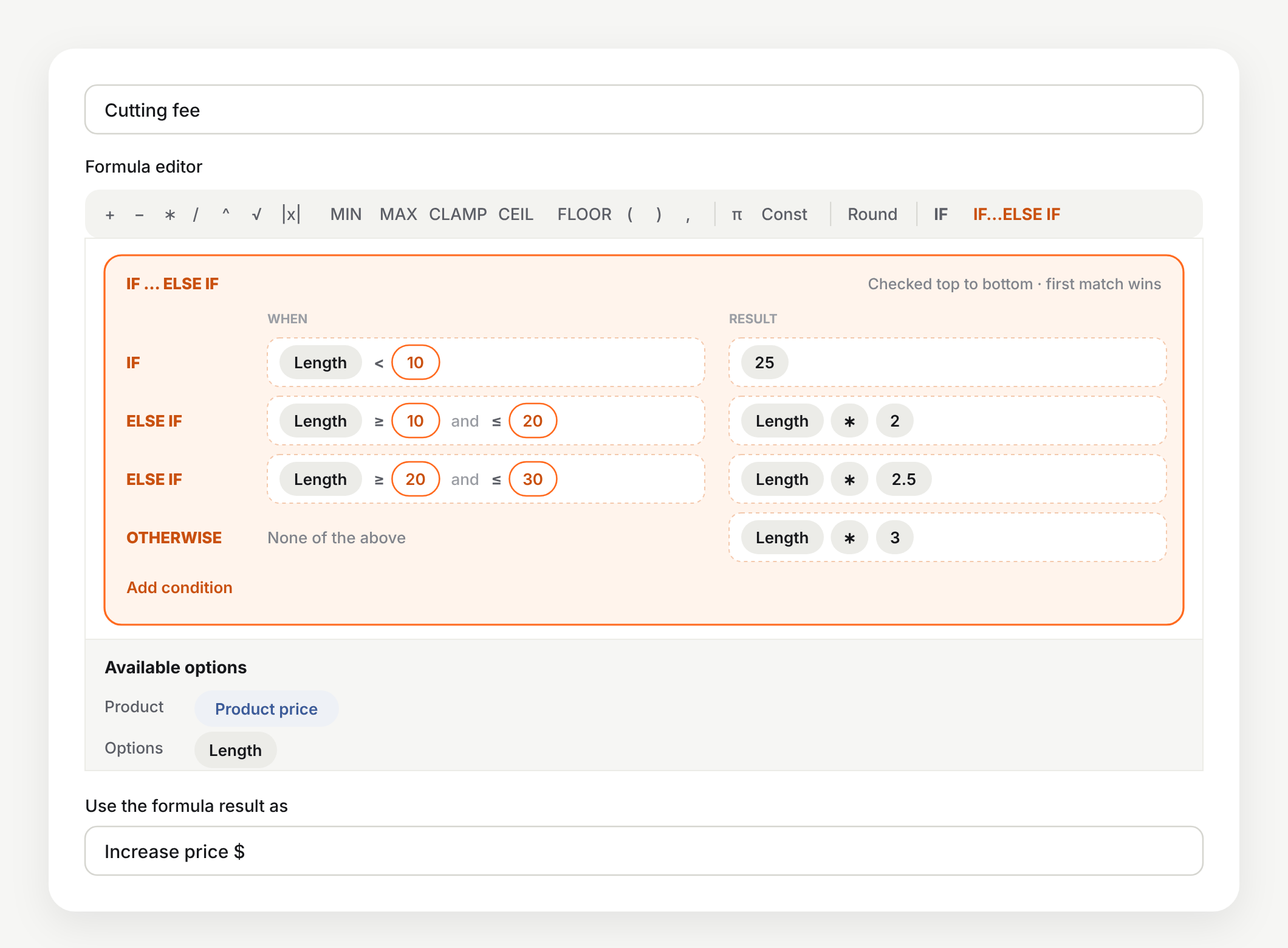
Because the first match wins, a length that fits two rows — 20 here — is charged only once.
The product’s own price
Product price is the price of the selected variant in Shopify, before any options are added. Use it for surcharges that are a share of the price: a rush-production option with Product price * 0.25 adds $40 to a $160 product.
It’s also how one formula serves many products. We added it after a made-to-order door store asked for exactly that: one formula for doors with different Shopify prices. Here’s the same idea on made-to-measure blinds — two fabric collections at $40 and $90, $9 per square foot of blind, and a Blackout lining at +15%:
(Round(Width * Drop / 144, 2) * 9 + Product price) * (1 + Lining) - Product price
| Product price | Customer picks | Full price | Price in the cart |
|---|---|---|---|
| $40 | 36 × 60 in (15 sq ft), Blackout | (135 + 40) × 1.15 = 201.25 | $201.25 |
| $90 | 36 × 60 in (15 sq ft), Blackout | (135 + 90) × 1.15 = 258.75 | $258.75 |
The - Product price at the end is there because Increase price already adds the product price; without it, the product price would be counted twice. Prices for your Shopify markets and B2B catalogs are picked up automatically.
Several formulas on one product
One option set can have several formulas, each with its own Use the formula result as setting, and every result is applied. Handy when parts of the price are calculated differently — a custom rug by area, its binding by perimeter:
| Formula title | Formula | Use the formula result as |
|---|---|---|
| Rug | Width * Length * 18 |
Increase price |
| Binding | (Width + Length) * 2 * 2.5 |
Increase price |
A 5 × 8 ft rug costs the product price + $720 for the rug + $65 for the binding.
Formula examples by product type
Copy the line closest to what you sell and change the numbers. The units are whatever your fields ask for: if the length field is in centimetres, set the rate per centimetre.
| What you sell | Formula | Customer enters | Added to the price |
|---|---|---|---|
| Rope, cable, chain by the foot | Length * 1.8 |
25 ft | $45 |
| Wallpaper, murals by area | Width * Height * 2.75 |
10 × 8 ft | $220 |
| Foam cut to size by volume | Length * Width * Thickness * 0.04 |
72 × 30 × 4 in | $345.60 |
| Round tablecloths | π * (Diameter / 2) ^ 2 * 0.02 |
60 in | $56.55 |
| Signs with a minimum price | MAX(Width * Height * 0.12, 25) |
8 × 10 in | $25 |
| Large prints with a price cap | MIN(Width * Height * 0.12, 300) |
48 × 60 in | $300 |
| Blinds, rounded to cents | Round(Width * Height / 144 * 9.5, 2) |
31 × 47 in | $96.12 |
| Glass, whole inches only | CEIL(Width) * CEIL(Height) * 0.09 |
23.5 × 17.25 in | $38.88 |
| Fabric, full yards only | FLOOR(Length) * 4 |
2.7 yd | $8 |
| Banner with a laminate surcharge | Width * Height * 3.25 * IF(Laminate = Gloss or Matte, 1.15, 1) |
4 × 6 ft, Gloss | $89.70 |
| Cutting fee in tiers | IF…ELSE IF: < 10 → 25; 10–20 → Length * 2; otherwise → Length * 3 | 15 ft | $30 |
| Rush production | Product price * 0.25 |
Product price $160 | $40 |
How to set up formula pricing in APO
About ten minutes for a first formula. The example is the table top from above — your fields and numbers will be different. For every setting in detail, see the formula guide in our knowledge base.
Add the fields and choices to an option set
In APO, go to Option sets, open a set and add Number field options for the sizes (put the unit in the title, set a minimum and maximum). For choices that change the rate, turn on Enable formula-based pricing and enter the Calculation variables.
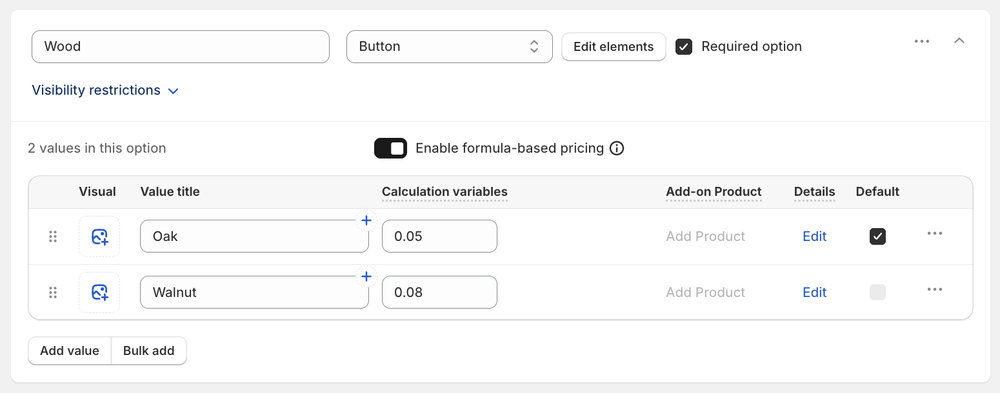
Open the Calculations tab
Go to the Calculations tab of the set and enter a Formula title. Only you see it; it helps you find the formula later.
Build the formula
In the Formula editor, click an option under Available options to add it, click an operator or a function on the toolbar, and use Const for your own numbers. Always put an operator between two options or numbers: Width * Length, not Width Length.
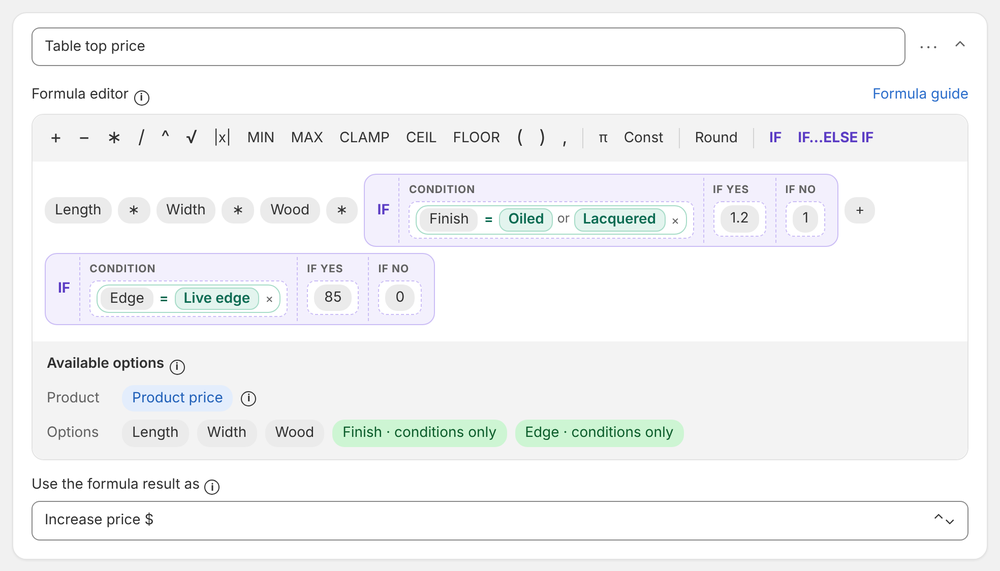
Choose what happens to the result
Under Use the formula result as, pick Increase price to add the result to the product price, or Decrease price to subtract it.
Save and test on the storefront
Click Save, open a product that uses the set, enter a few sizes and check the price — including the smallest and largest sizes you allow. Need a similar formula? Use Duplicate formula in the formula's menu and change what's different.
Tips that keep your formula prices right
Four things I see merchants trip over in their first week.
Make every option in the formula required
A formula runs once every option it uses has a value. If a customer can skip a field, the formula doesn't add anything. Make those options required, or give choices a default value. With IF blocks, only the options in the part that's actually used need a value.
Write percentages as decimals
Inside a formula, 20% is 0.2 and a 1.2 multiplier means +20%. A 9 where you meant 9% is +900%. Test one order by hand before you go live.
Show the surcharge in the value name
Choices used in a formula don't show a "+$" price next to each value, because their price depends on the size. Put it in the name instead: "Oiled (+20%)", "Live edge (+$85)".
Keep options that rules can hide out of the formula
If a show/hide rule can hide an option, wrap the part that uses it in an IF, or give each product type its own formula. A formula that uses a hidden option doesn't apply.
Let an AI agent build the formula
On the Scale plan you can connect Claude or ChatGPT to APO through our MCP server and describe your pricing in plain words — “charge $25 per square foot, +15% when the width is 40 inches or more, never less than $50”. The agent creates the options and the formula, changes an existing one, or copies a finished setup to your other products, and you can preview a change before it’s saved. You review the result in the app before it goes live.
Wrap-up
If your price depends on what the customer types or picks, a formula replaces hundreds of variants and a lot of quote emails. Start with the simplest version — size × rate — then add a minimum, rounding or a condition when you need it. If you’re not sure how to write yours, the product options guide covers the rest of the setup, and you can always send us your pricing rules.
Price made-to-size products with a formula
APO Product Options, Variants: number fields, formula pricing with minimums, rounding and conditions, no variants needed.
Try it free on Shopify 14-day free trial · formulas on the Growth planQuestions merchants ask me
Can Shopify calculate a price from width and height?
Not on its own. Shopify charges the price of the variant, and it has no field where the customer types a size that changes the price. A product options app adds the number fields and the formula. In APO Product Options you build it on the Calculations tab of an option set, on the Growth plan.
Can I set a minimum price with a formula?
Yes. Wrap the calculation in MAX: MAX(Width * Height * 0.12, 25) never adds less than $25. MIN sets a maximum and CLAMP sets both. The limit applies to the formula result, and the product's own Shopify price is added on top, so set the product price to $0 if you want the minimum to be the whole price.
Does the calculated price go through to checkout?
Yes. The customer sees the price update on the product page as they type, and the cart and checkout charge that price: the product price plus or minus the formula result.
Can one formula work for products with different prices?
Yes. Add Product price to the formula. It is the price of the selected variant in Shopify, so one option set can serve products at different prices, and prices for your markets and B2B catalogs are taken into account automatically.
Can the price per unit depend on the material the customer picks?
Yes. Turn on Enable formula-based pricing for the option and give each value a number, called a calculation variable, such as the price per square foot for each material. The formula uses the number of the value the customer picked.
Which APO plan includes formula pricing?
Formula pricing is on the Growth plan ($34.99/month) and the Scale plan, both with a 14-day free trial. Setting formulas up through an AI agent (our MCP server) is on Scale ($79.99/month).
Vitali leads Mageworx with sharp ideas and eCommerce expertise. Always innovating, he finds smart solutions—except when he's busy pretending not to work.